


Feedback

Last date modified: 2026-Apr-20
The Respond phase of a RelativityOne FOIA workflow consists of releasing a final decision on the FOIA request, and producing appropriate records. Records are released to the public-accessible Reading Room.
| Agency portals | Public portal | Agency administration |
|---|---|---|
| FOIA Portal |
 Navigating the Respond screen
Click the Respond step in the workflow panel to open its details.
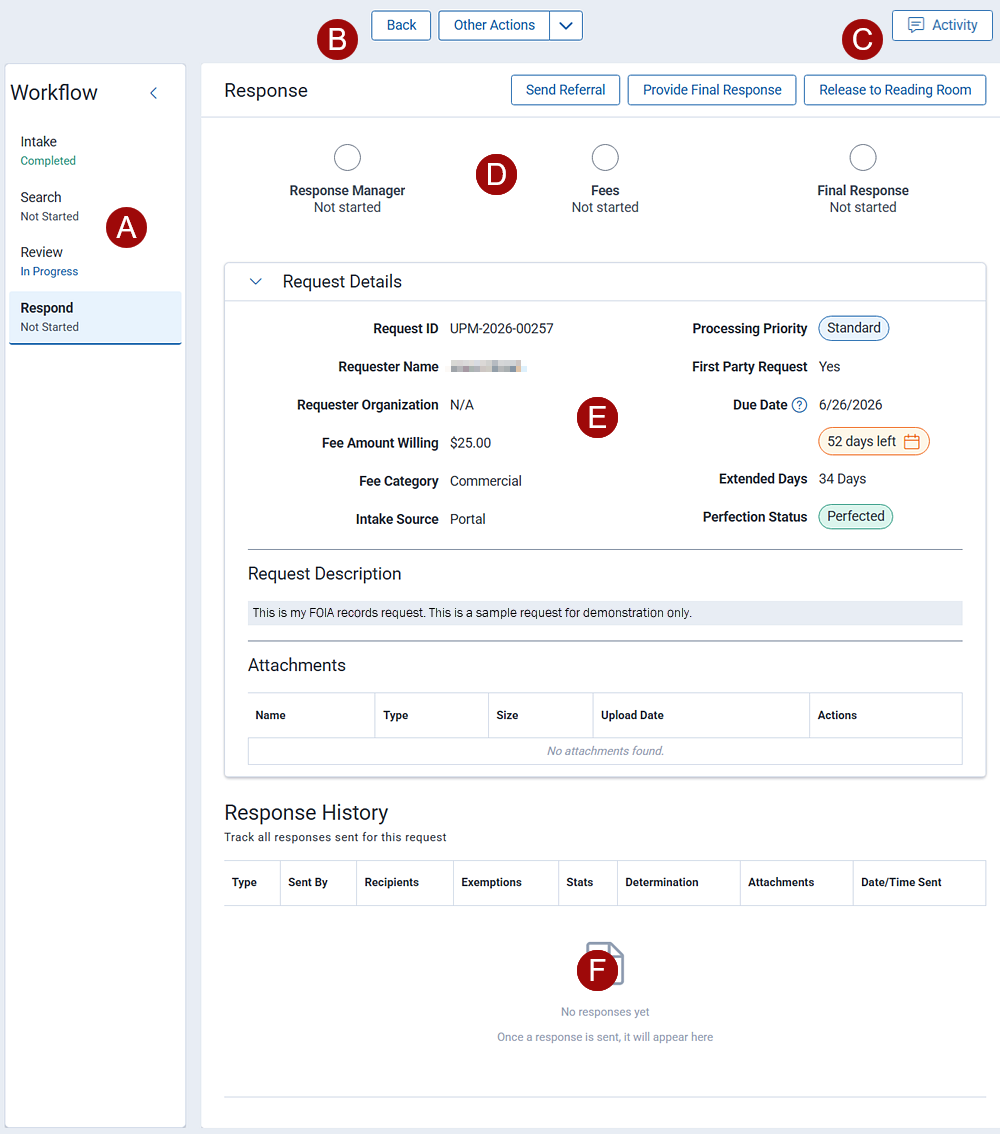
The following are some noteworthy navigational points on the Intake screen.
A. Workflow steps—the RelatityOne FOIA workflow consists of four steps: Intake, Search, Review and Response. As you complete the tasks for a step, the workflow automatically advances you to the next. You can also jump from one step to another to view details.
B. Action buttons—includes Back, which redirects you to the previous screen, and Other Actions, consisting of the following:
C. Activity—opens the Activity History panel. You can search the activity log by keyword or activity type, such as status changes. At the bottom of the pane is the Log Communication option. You can add an entry to the activity log to capture communication outside of the portal prompts. For example, you might record an email that you received from an outside source regarding the request.
D. Progress bar—indicates the status of workflow sub-sections. A green circle indicates the sub-section is complete for the workflow step. This may be because the requester did not request further review, such as not requesting a fee waiver, or the agency reviewer completed all of the tasks within the sub-section.
E. Request details—the request details including requester input, attachments, and reviewer actions.
F. Response History—a list of responses and correspondence associated with the request.
The responding agency issues the final determination on the FOIA request and releases responsive records to the Reading Room. The Reading Room is a secure, publicly accessible repository for document review, search, and download. In certain instances, the agency may determine that additional consultation with another agency is required before the final decision is made. All related actions are managed through the Respond screen.
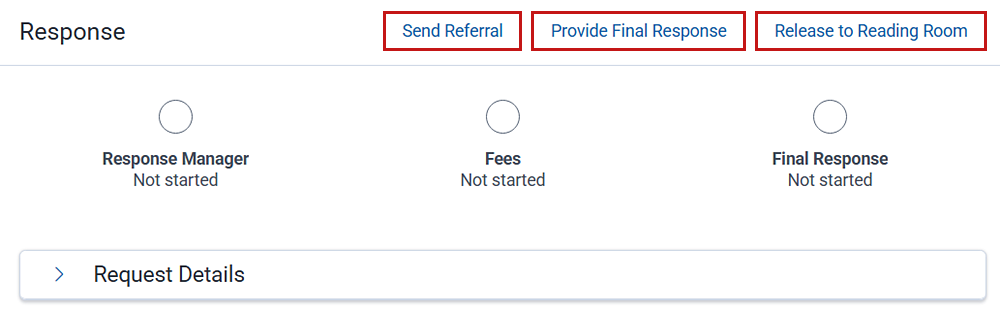
There are three sub-sections for the Respond step: Send Referral, Provide Final Response, and Release to Reading Room.
In some instances, you may want another agency to process the documents and issue the final response. The Referral Request template is designed to streamline this process by providing a form with prompts and merged fields that correspond to the request. You can link to additional resources, add attachments, and customize the message body to suit your needs. This template helps ensure convenience and consistency throughout your communications.
The form contains prompts that you can use to customize your email, along with merged fields that pulled data directly from the existing record. You can use the form as is or edit it to suit your specific need.
You can edit form templates to customize them for your agency. See Letter Template Management for details.
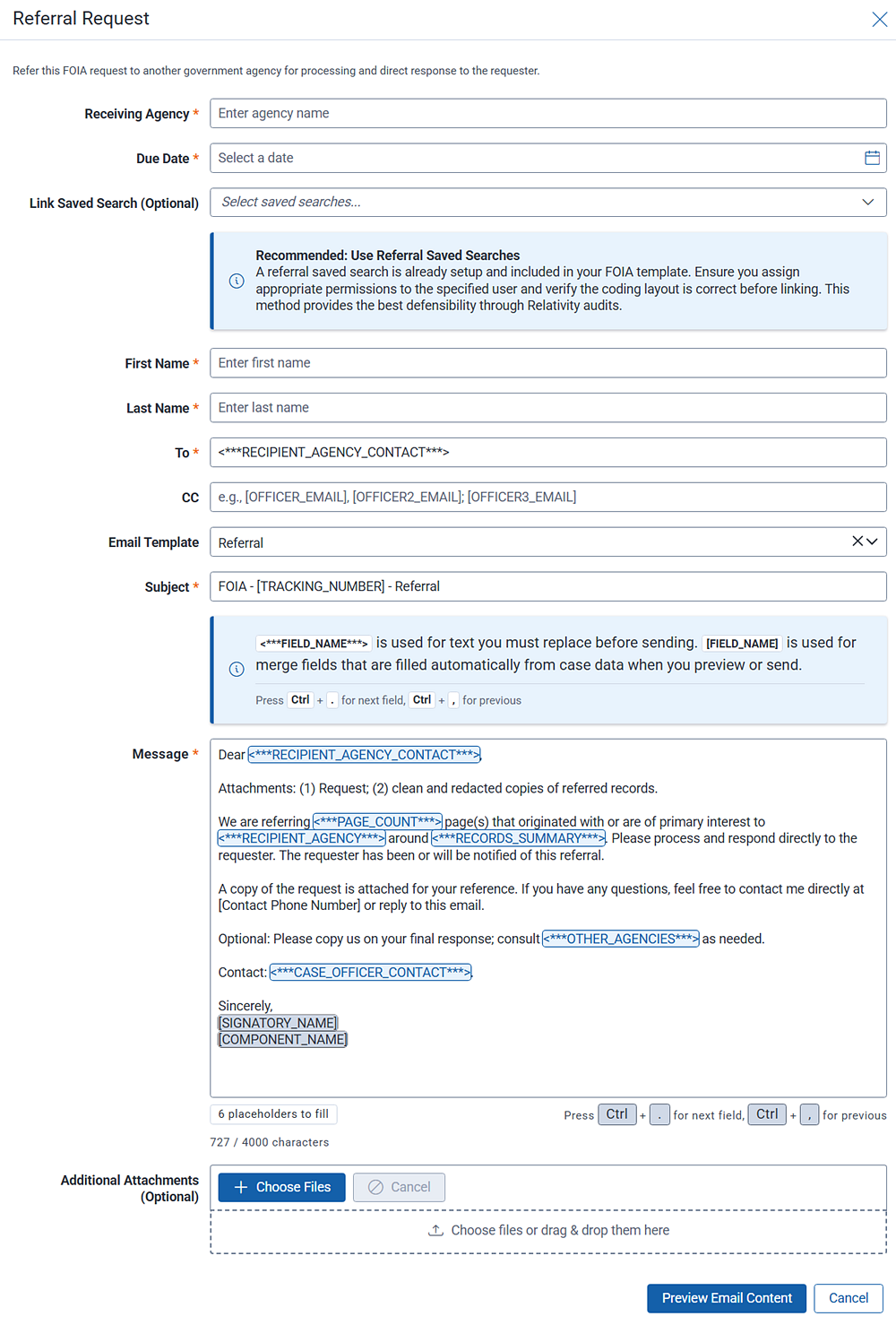
Click Send Referral. The Referral Request form opens.
Steps:
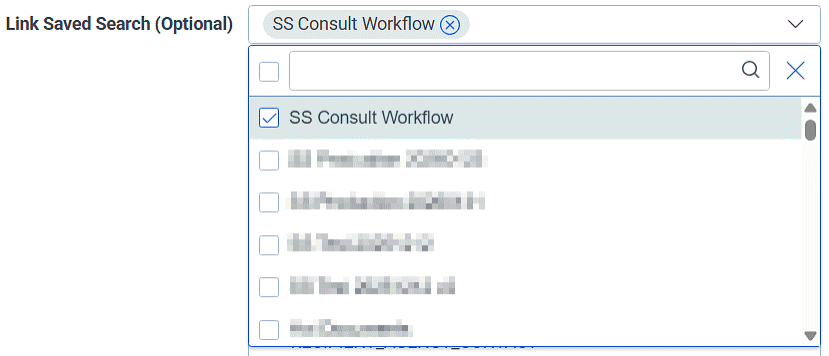
Use the final response wizard to review workflow steps and ensure each has been completed for closing the case.
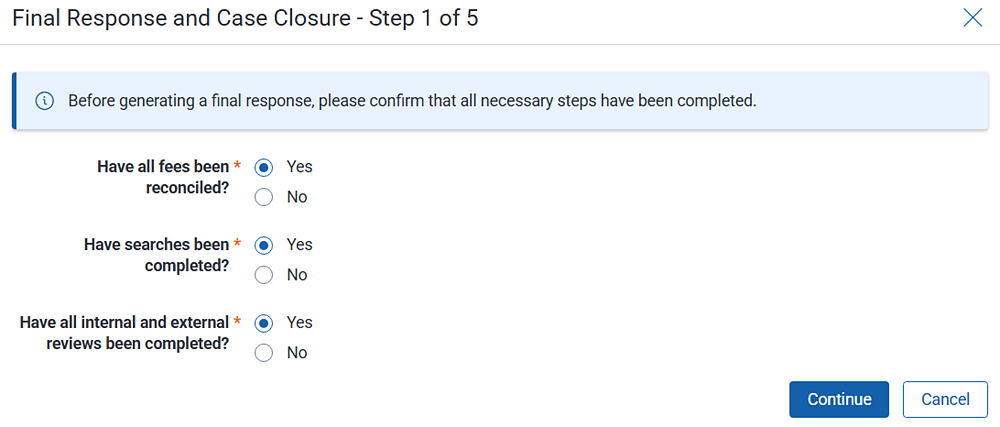
Click Provide Final Response. The Final Response and Case Closure wizard opens.
Steps:
Step 1 of 5:
Step 2 of 5:
Step 3 of 5:
Document Statistics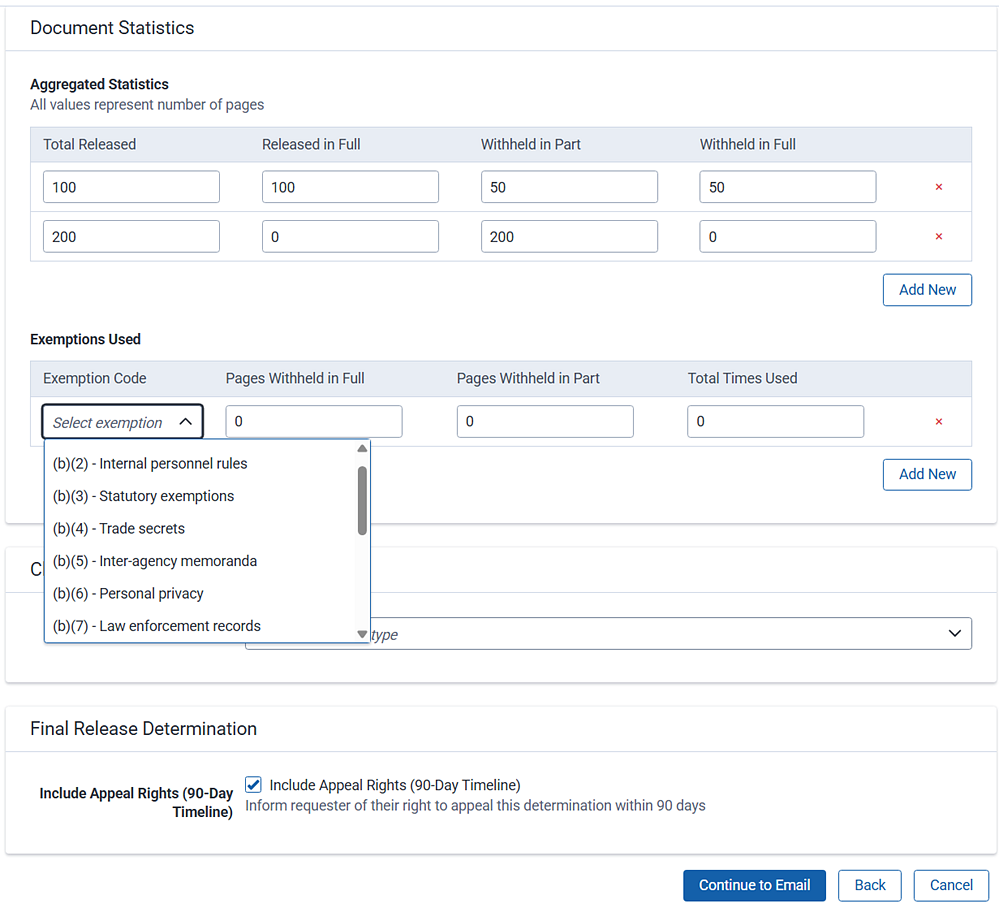
Closure Disposition
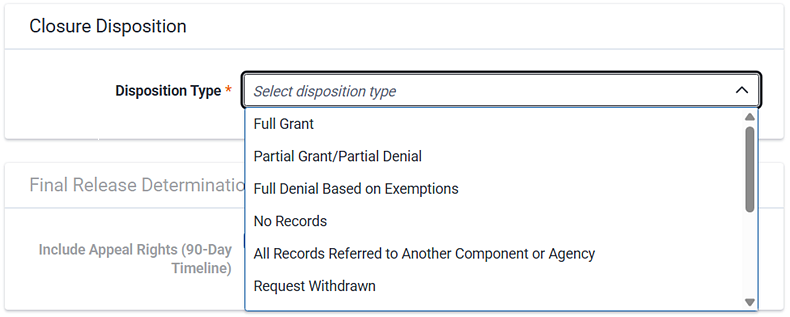
Disposition Type—select the disposition type that describes the documents being released for this request.
Final Release Determination
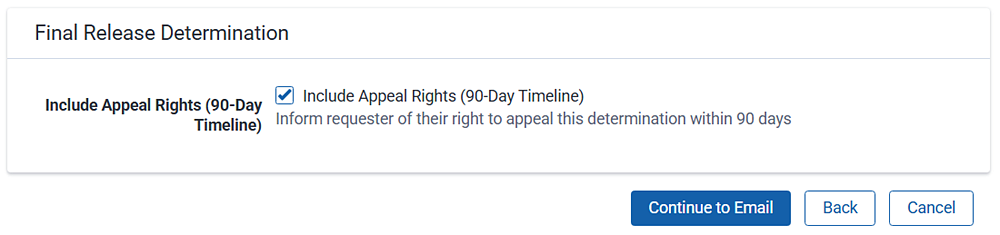
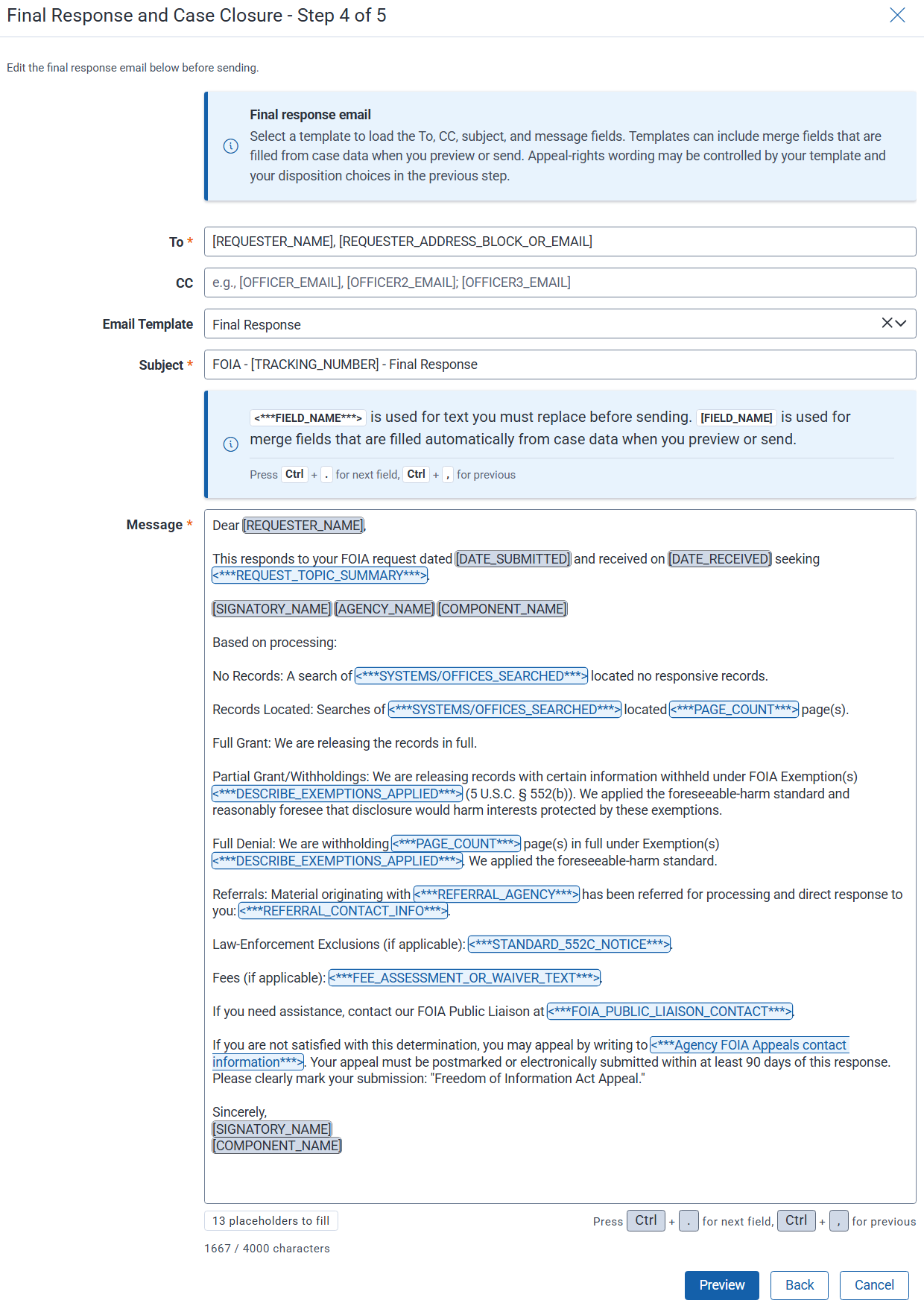
Step 4 of 5:
In this step, you construct your final decision email that you will send to the requester. Use the template as a base. The form contains prompts that you can use to customize your email, along with merged fields that pulled data directly from the existing record. You can use the form as is or edit it to suit your specific need.
You can edit form templates to customize them for your agency. See Letter Template Management for details.
Step 5 of 5:
In this step, you review and send your final email. The request will be marked closed after this step.
Click Confirm and Send to send the consultation request. Click Back to return to the template.
The final task to fully closing a FOIA request is to release the documents to the Reading Room for public consumption.
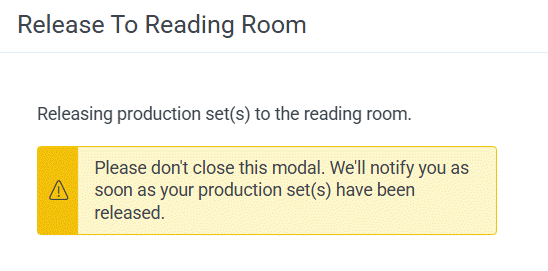
Click Release to Reading Room. The Release to Reading Room screen opens.
Steps:
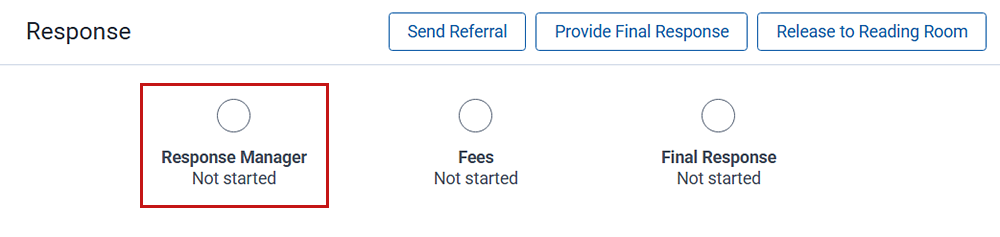
You can assigned response tasks to an office, group, or user. Click the Response Manager task to get started.
The Response Manager modal opens.
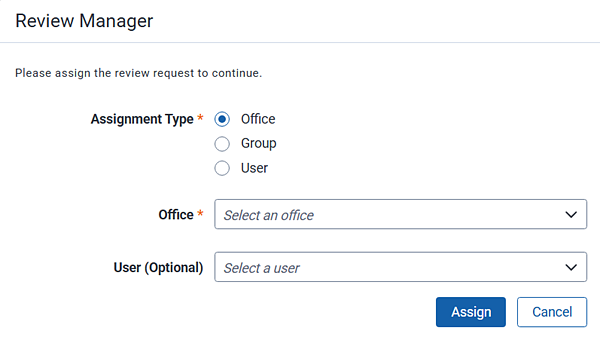
Steps:
You have completed the FOIA workflow for this request. Return to the home page.

