Last date modified: 2026-Apr-09

Request (Advanced Access)

You can submit a records request through the RelativityOne FOIA Portal. When submitting a request, you will provide the required information, which is then routed to the appropriate agency for processing. You can track the status of your request through the portal and view or download any released records.

Table of Contents

Home

Agency portals Public portal Agency administration
    FOIA Portal

Submitting the request

To submit a FOIA request, click the Create Request button in the navigation bar.

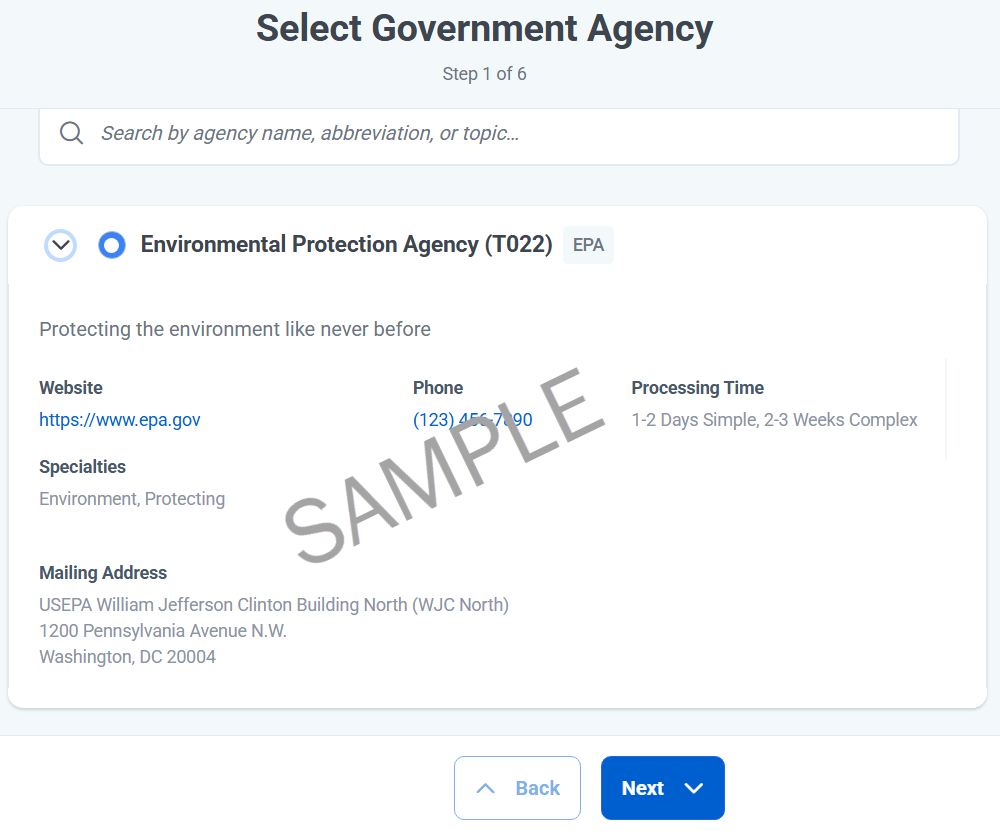
Step 1/6: Select Government Agency:

  1. Select an agency. You can expand the agency card to view its details. Details include the areas of specialty, along with processing time estimates and contact information.
    Selecting an agency for a FOIA request submission.
  2. Click Next.

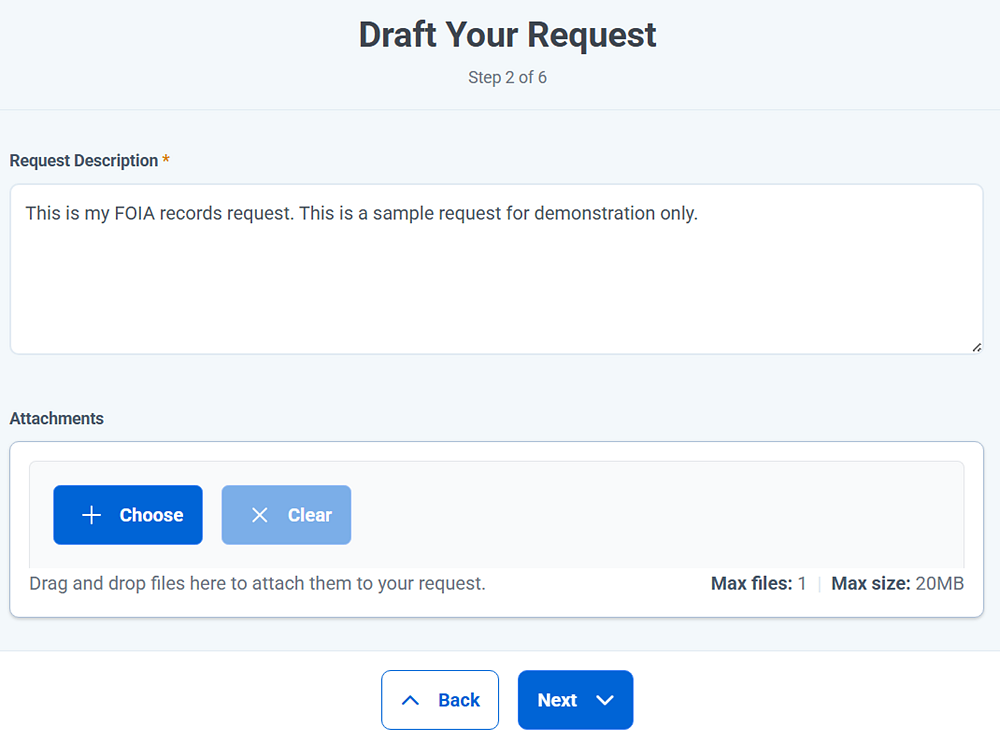
Step 2/6: Draft Your Request:

  1. Enter your request description. Be as detailed as possible so the responding agency has a clear picture of the records you are requesting.
  2. Add any attachments that will further define your request.
    Enter a detailed description for your request.
  3. Click Next.

Step 3/6: Request Fee Waiver:
On this screen, you select a fee category, then enter the amount you are willing to pay for the records. You can also request a fee waiver. Expand the Fee Waiver Requirements for information on qualifying for a fee waiver.
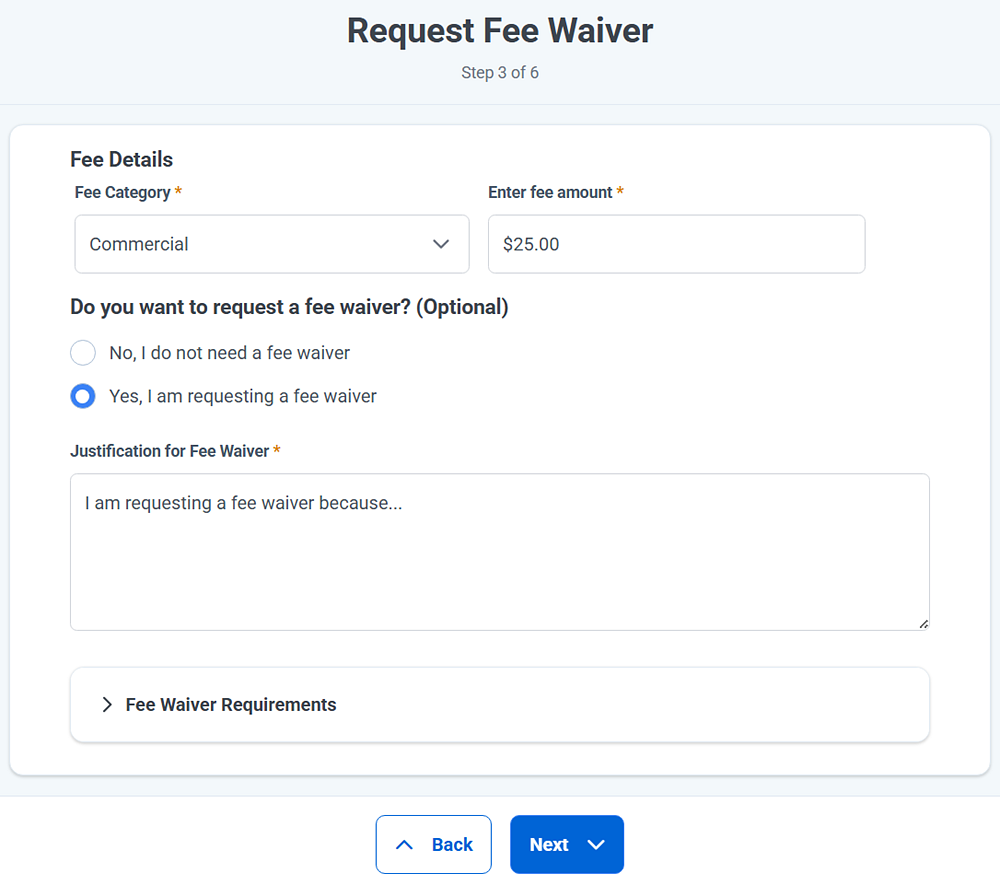
  1. Fee Category—select from one of the following options:
    • Commercial
    • Educational or Scientific
    • Media
    • Other
  2. Enter fee amount—enter the amount you are willing to pay for the records.
  3. Do you want to request a fee waiver?—select either Yes or No. if you select Yes, you must also enter a justification for the waiver. Expand the Fee Waiver Requirements section to view details on qualifying for a fee waiver.
    Select a fee category and enter the amount you are willing to pay. You can also request a fee waiver from this screen.
  4. Click Next.

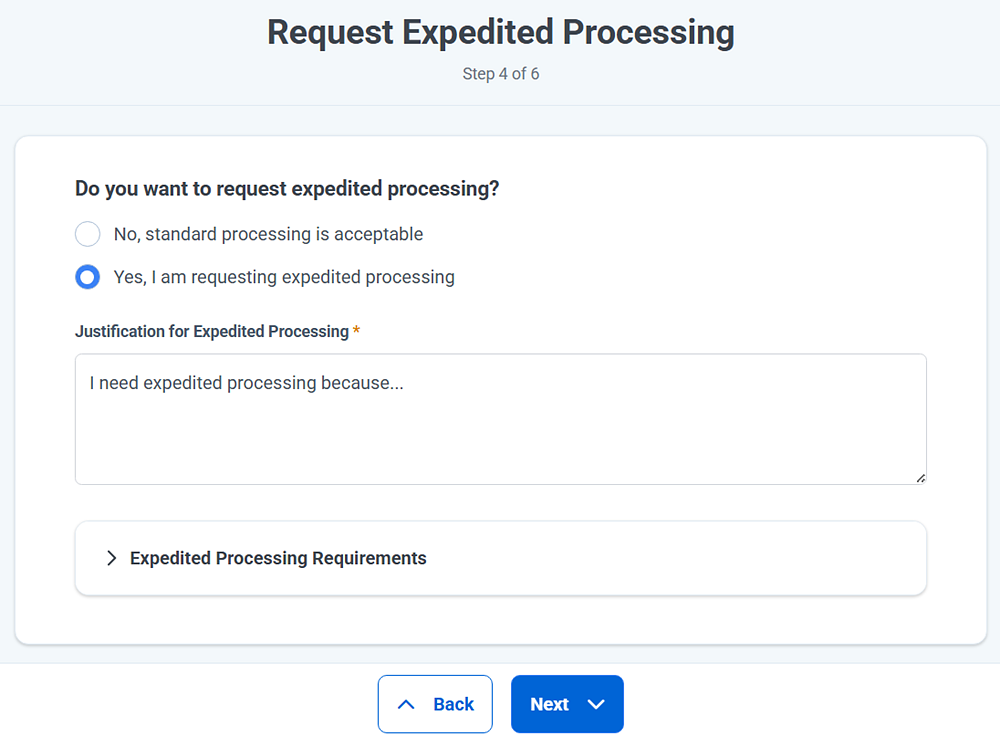
Step 4/6: Request Expedited Processing:

  1. Do you want to request expedited processing?—select either Yes or No. if you select Yes, you must also enter a justification for the expedited request. Expand the Expedited Processing Requirements section to view details on qualifying for expedited processing.
    Request expedited processing. If you select yes, you must also enter a justification.
  2. Click Next.

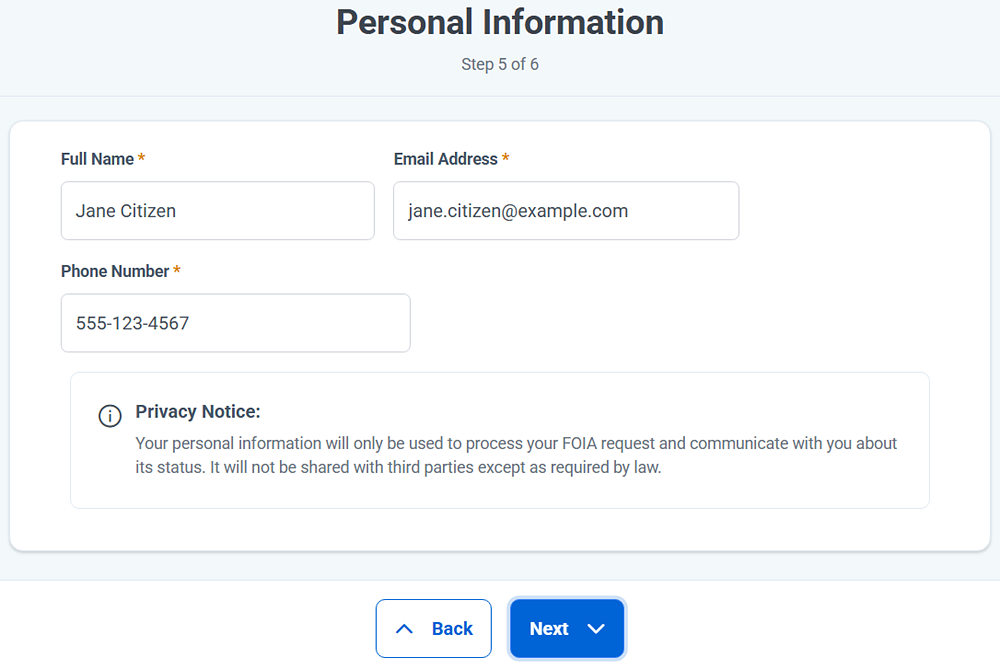
Step 5/6: Personal Information:

  1. Enter your Full Name, Email Address, and Phone Number.
    Enter your full name, email address, and phone number on the personal information screen.
  2. Click Next.

Step 6/6: Review & Submit Request:

  1. Review your request details, then click Submit Request. If you need to edit any of your responses, use the Back button to return to the appropriate screen.

FOIA Workflow

Now that you have a request submitted, you can begin the FOIA workflow. Proceed to the Intake step.

Return to top of the page
Feedback