



Feedback

Last date modified: 2026-Sep-17
Using Fact Navigator, you can review facts in a consolidated fact list designed to help streamline analysis, apply advanced filters to focus on details that may be most relevant, and visualize a generated chronology of events with the Timeline, based on extracted facts.
To access Fact Navigator, navigate to the Case Home tab and click on the Try Fact Navigator button.
The Fact Navigator contains the following sections:
1. Timeline
2. Filter panel
3. Fact list
4. Fact Detail card
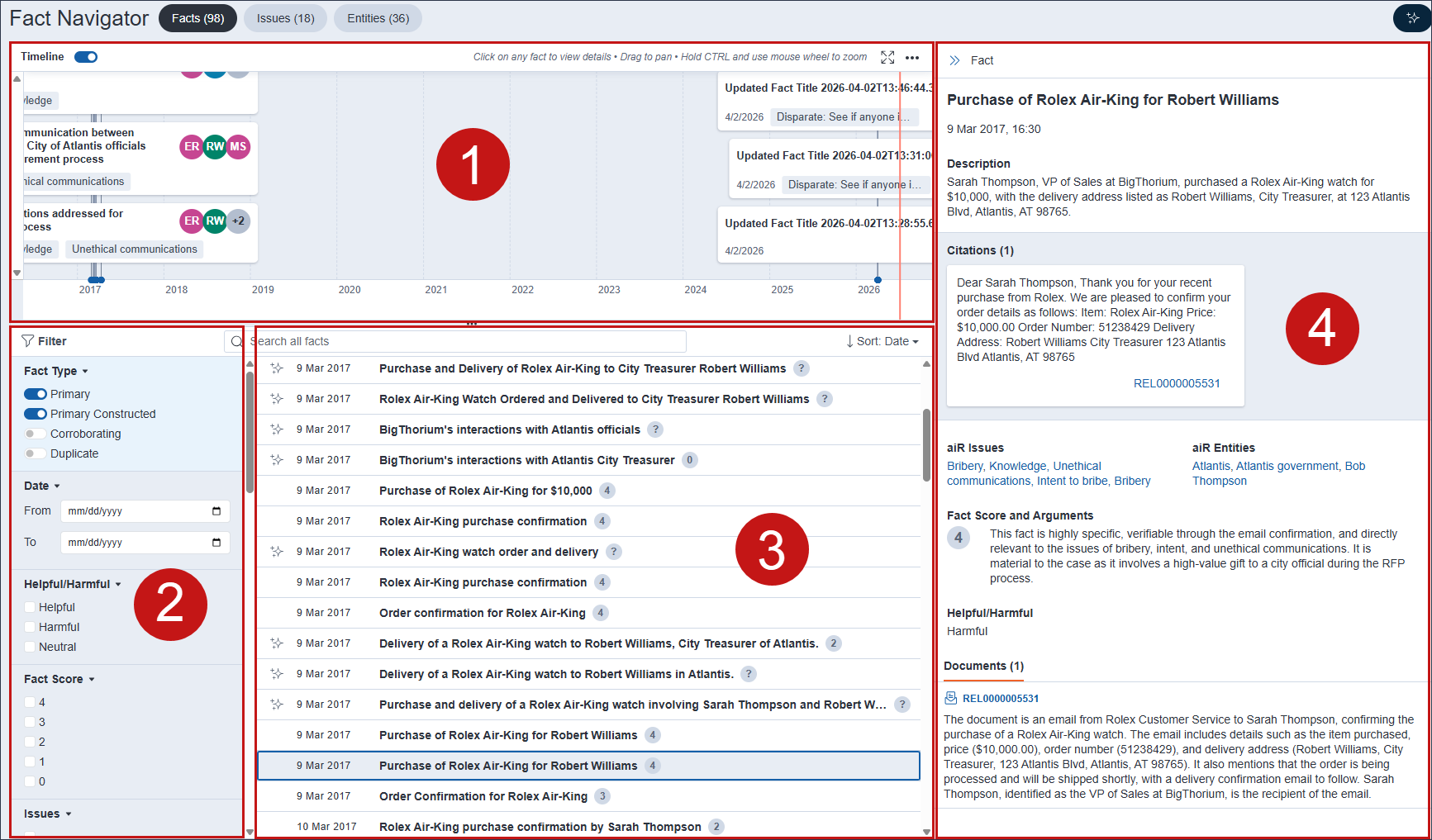
The fact list displays each Primary and Primary Constructed fact that was identified and extracted by Case Strategy along with the date that the fact occurred and its Fact Score. To learn more about fact extraction, see Creating a fact chronology.
You can identify certain fact types by the icon displayed on the left side of the fact. The following fact type icons display in the fact list:
| Icon | Fact Type |
|---|---|

|
Corroborating fact |

|
Primary Constructed fact |

|
Duplicate fact |
| No icon | Primary fact |
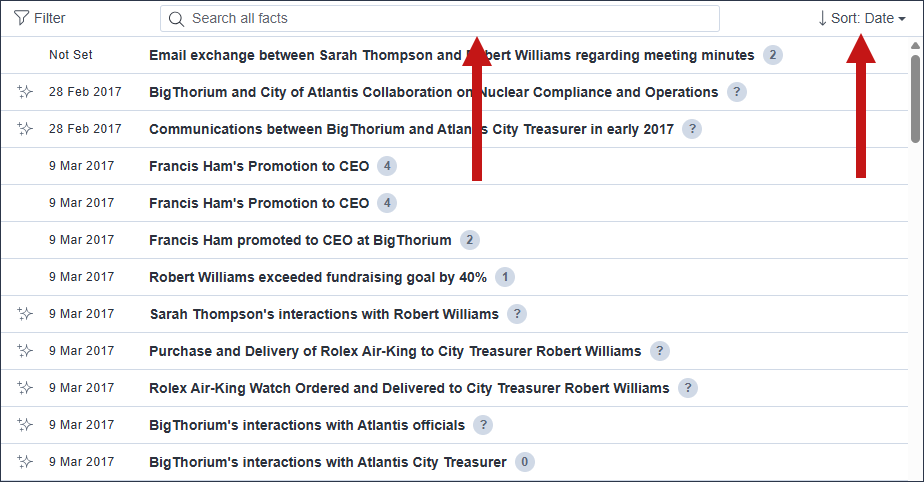
To filter facts based on a keyword search, enter search terms into the Search all facts textbox and press Enter on your keyboard.
To adjust how facts are sorted in the list, click on the Sort: drop-down menu and select a sort option.
To view more information about a fact, click on the fact in the list to expand the Fact Detail card. To learn more, see Fact Detail card.
To view additional information about a fact, click on it in the fact list. The Fact Detail card expands to display the fact info. This includes a more detailed description of the fact, citations used in fact extraction, the Fact Score and rationale behind it, and a summary of the relevant documents. You can also edit the fact fields in the card. To learn more, see Editing a fact.
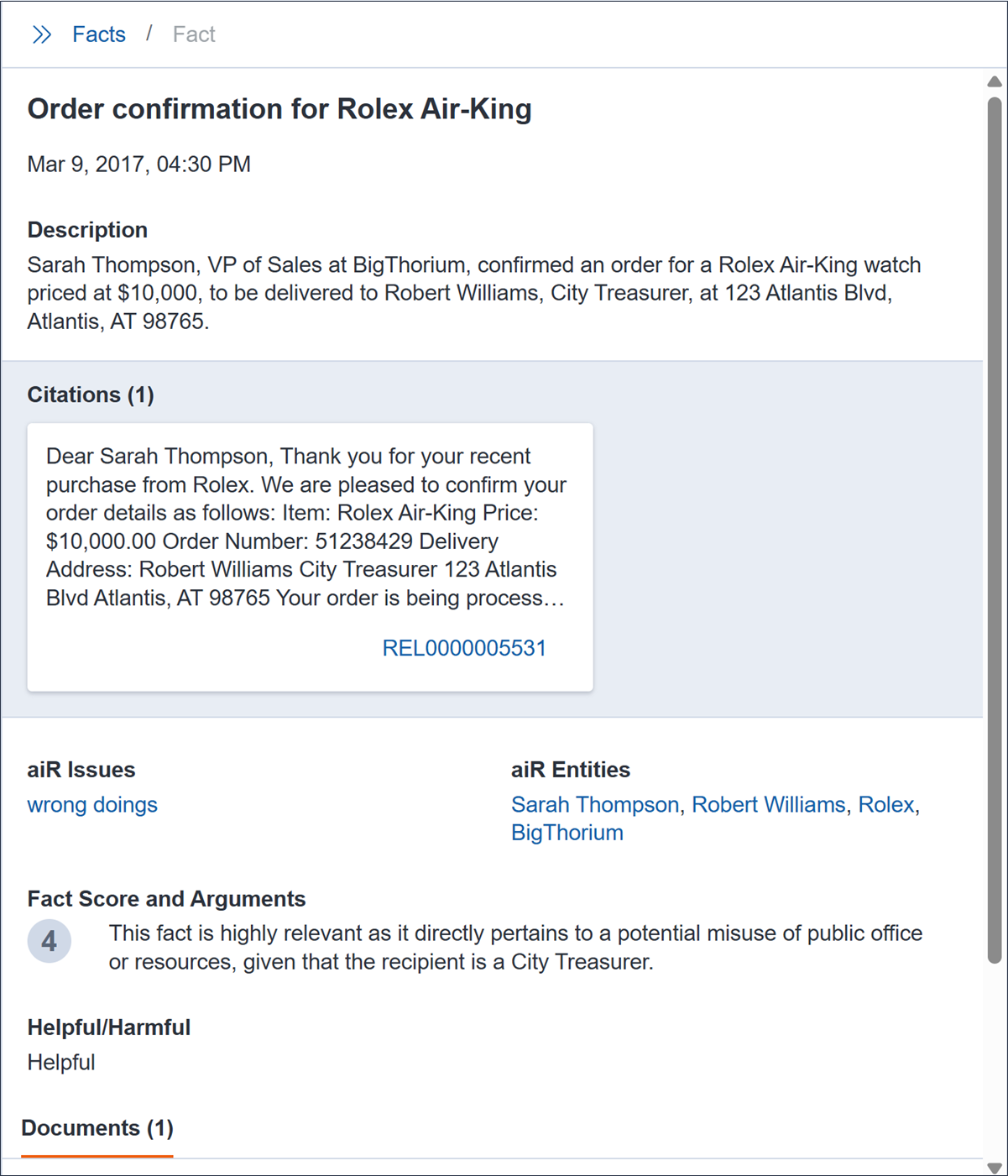
If you view a Primary (Constructed) fact, the Issues, Entities, and Citations that display originate from the corroborating and duplicate facts used to construct the Primary (Constructed) fact. Fact Score, Fact Score Argument, and Helpful/Harmful fields are not populated for Primary (Constructed) fact in the Fact Detail card.
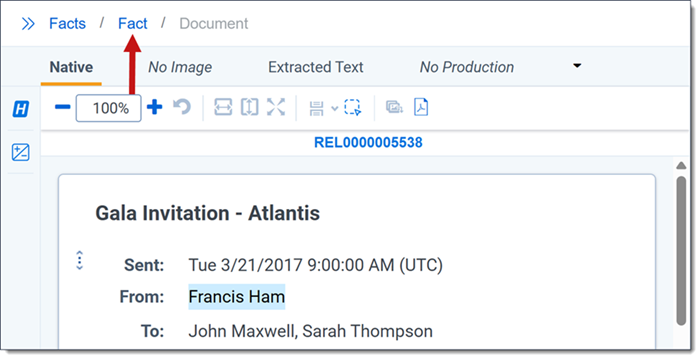
Document Control Numbers listed in the Citations and Documents sections are hyperlinked so that you can click and open them in the Document Preview panel which launches next to the Fact list and Fact Detail card. After clicking on a hyperlinked Control Number, the Document Preview panel displays and navigates you to the highlighted citation in the document that was used to extract the fact.
If there is more than one document in the Citations and Documents section, the Next and Previous options display at the top of the Document Preview panel. You can click on these options to navigate from one document to the next.
You can navigate from the Document Preview panel back to the Fact Detail card by clicking on the Fact link.
While reviewing facts, you can edit a fact's fields from the Fact Detail card. The process for editing fact fields varies by field.
You can edit the Fact Name, Primary Fact Date, Fact Description, Fact Score, Arguments, and Helpful/Harmful fields. To edit any of these fields:
You can edit the aiR Issues and aiR Entities fields to either remove issues or entities from a field or add new ones from the Fact Detail card.
To add an issue or entity value:
To remove an issue or entity value:
You can also filter the fact list using the Filter panel. Click on the Filter icon to expand the panel. Each section in the panel can be expanded or collapsed by by clicking on the name. You can filter using the following fields: Primary Fact Date, Helpful/Harmful, Fact Score, Issues, Entities, and Prompt Criteria.
To apply a Date filter to the fact list, select an option or by click on the From or To Date options and enter a date using your keyboard. After a filter is applied, the list updates to only display facts that occur during or overlap with the date range you selected.
For example, if you enter a date range of From: 01/01/2020 and To: 01/01/2025, any facts that occur during that time span display in the fact list, including a fact that started on 3/7/2018 and ended on 7/2/2027.
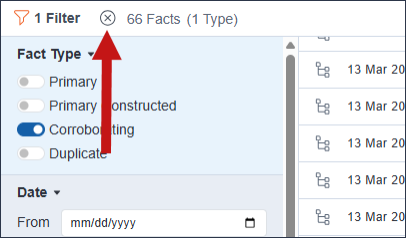
You can remove an individual filter by clicking on the option again to deselect it or you can click on the Clear Filters icon to remove all filters from the fact list at once.
You can view facts in chronological order using the Timeline. Each fact displays the date when it occurred, avatars with the initials of the entities involved with each fact, and any aiR issues associated with the fact.
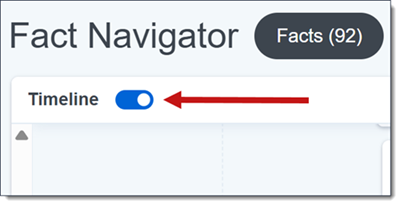
To expand or collapse the Timeline section, click on the Timeline toggle.
You can click on a fact in the Timeline to expand the Fact Detail card and view additional information about the fact. To learn more, see Fact Detail card.
To pan the Timeline up or down, you can either scroll with your mouse wheel up or down or left-click in the Timeline and hold down on your mouse and drag the cursor up or down to pan in that direction.
To zoom the Timeline in or out, press and hold Control on your keyboard and scroll your mouse wheel up or down.
While viewing the Timeline, you can expand the size of the Timeline to get a broader view of the Fact Chronology. To expand the Timeline, click the Fullscreen Timeline icon.
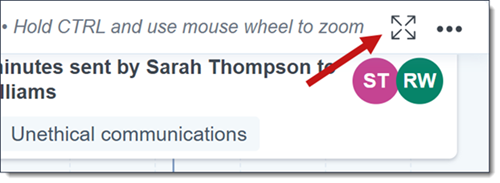
To reduce the size of the Timeline, click the Exit Fullscreen icon.
There are four different modes you can choose from when viewing the Timeline. Each mode is described below.
| Mode Name | Description |
|---|---|
| Default | Facts are displayed individually based on the date that they occurred. |
| Cluster | Facts are grouped based on the date that they occurred and the total number of facts are displayed instead of each one individually. |
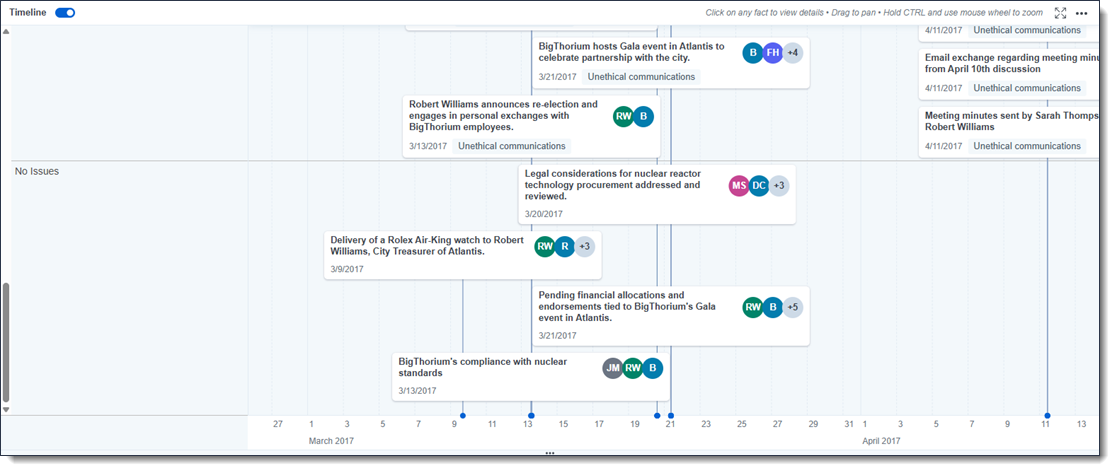
| Group by Issues |
Facts with the same issues are grouped together. If facts share the same issues but occurred on a different date, then they are indented differently to help you visually distinguish them. Facts that have no issues assigned display together at the bottom of the Timeline.
|
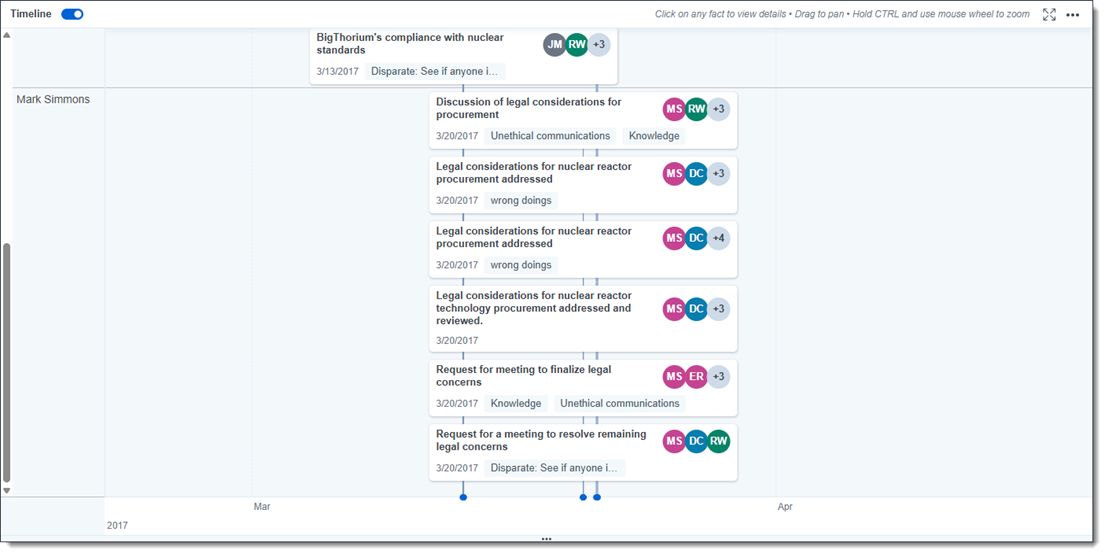
| Group by Entities |
Facts that involve the same entities are grouped together. If facts share the same entities but occurred on a different date, then they are indented differently to help you visually distinguish them.
|
You can view a list of issues with the number of facts, entities, and documents for each issue displayed on the Issues tab.
To view the facts, entities or documents associated with an issue, click on the desired issue.
You can then select either the Facts sub-tab, Entities sub-tab, or Documents sub-tab to view more information. To learn more, see Facts sub-tab, Entities sub-tab, and Documents sub-tab.
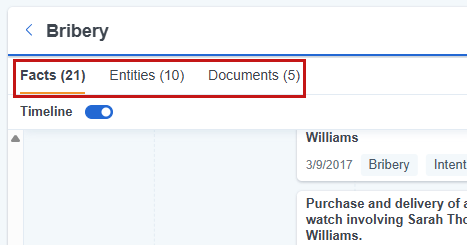
The Facts sub-tab filters facts so that you only see the ones that are associated with the issue you selected on the Issues tab. From this sub-tab, you can access the Fact list, Fact Detail card, Filter panel, and Timeline which function the same way as on the Facts tab. To learn more, see Fact list, Fact Detail card, Filter panel, and Timeline.
The Entities sub-tab displays a list of entities associated with the selected issue. To filter the entities based on a keyword search, enter search terms into the Search all Entities textbox, and press Enter on your keyboard.
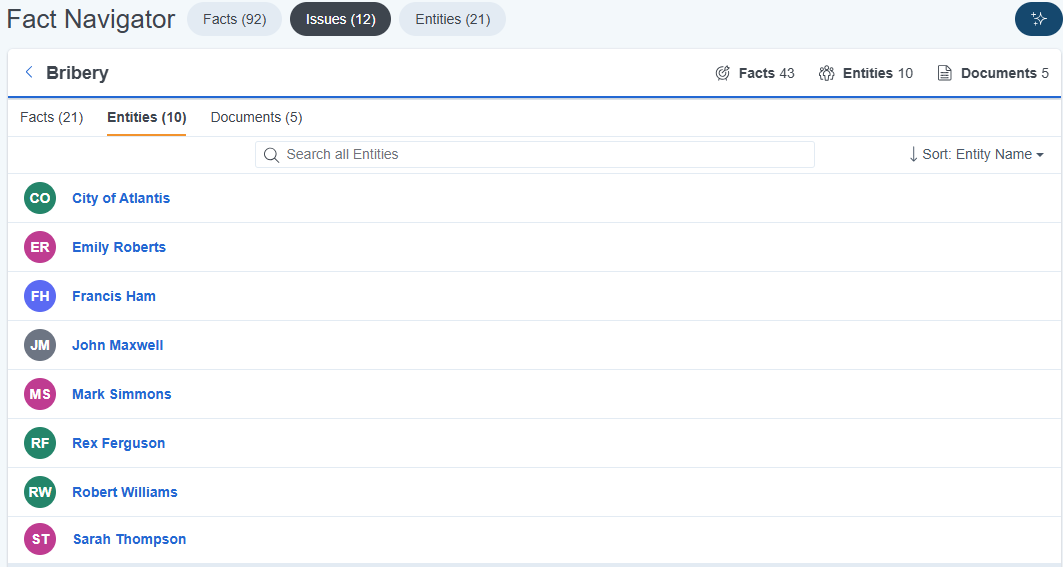
Click on an entity to see any facts associated with both the selected entity and issue. The Fact list, Fact Detail card, Filter panel, and Timeline are all accessible for these facts. To learn more, see Fact list, Fact Detail card, Filter panel, and Timeline.
To go back to the Entities list, click Close.

The Documents sub-tab displays a list of documents associated with the selected issue as well as a summary of each document. Click on the document's Control Number to open it in the Document Preview panel.
