Last date modified: 2026-Feb-24

FOIA Portal

The FOIA Portal provides public users with a secure access point to research released documents, submit Freedom of Information Act requests, and track the status of their submissions. Authentication is managed through platforms such as Login.gov, ensuring privacy and security. The portal is fully integrated with RelativityOne, delivering a seamless and consistent user experience across all interactions.

Table of Contents

Home

Agency portals Public portal Agency administration
    FOIA Portal

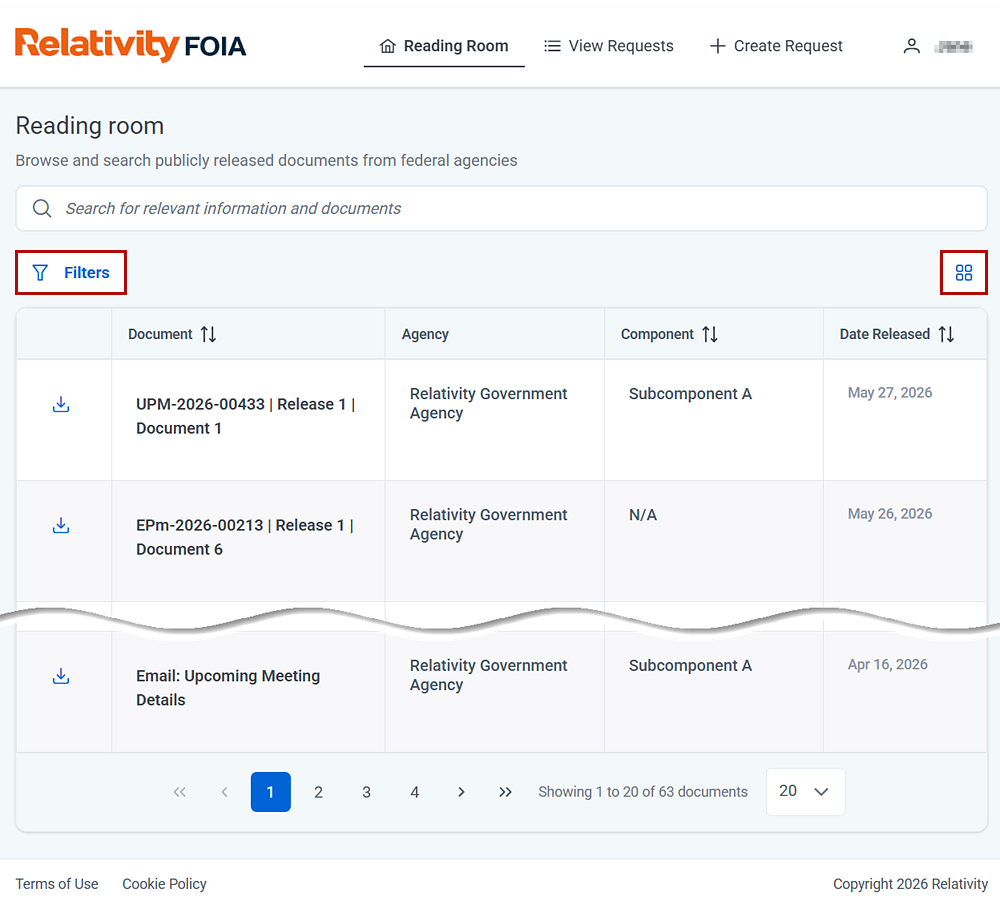
The FOIA Portal user interface.

The FOIA portal which defaults to the reading room.

Features

  • Reading Room—search, read, and download released documents.
  • View Requests—track the status of requests.
  • Create Request—submit new FOIA requests (available in GA).

Reading Room

Once an agency determines that documents are suitable for release under FOIA guidelines, they are made available in the Reading Room. Through this portal, users can search for documents, apply filters and sorting options, and download files as needed.

View Requests

The View Requests portal displays a list of active requests associated with the authenticated user. You can check the status of prior requests, the coordinating agency, submission and due dates.

Create Request

This feature is not available during AA. Relativity will create sample requests for you to process.

From this portal, public users can create new FOIA requests. There are six steps:

Step 1 of 6—Select Government Agency

  1. Select the government agency to receive the request.
    Step one of creating a foia request is to select the target government agency.
  2. Click Next.

Step 2 of 6—Draft Your Request

  1. Enter a Description for the request. Be as specific as possible in your description to avoid questions and delays later on.
  2. Attach any supporting documents to support your request.
  3. Click Next.

Step 3 of 6—Request Fee Waiver

  1. Select your Fee Category. Options include:
    • Commercial
    • Educational or Scientific
    • Media
    • Other
  2. If you are willing to pay for the documents, enter the amount in the Fee Amount Willing field.
  3. Do you want to request a fee waiver?
    • No—indicates you are willing to pay for the documents requested.
    • Yes—indicates you are requesting a fee waiver.
      • Justification for Fee Waiver—you must provide justification for the fee waiver if you have selected Yes.
        Expand the Fee Waiver Requirements section for a list of factors in justifying fee waivers.
  4. Click Next.

Step 4 of 6—Request Expedited Processing

  1. Do you want to request expedited processing?
    • No—keep the default selection if standard processing is acceptable.
    • Yes—select this option to request expedited processing.
      Expand the Expedited Processing Requirements section for a description of when expedited processing may be appropriate.
  2. Click Next.

Step 5 of 6—Personal Information

  1. Enter your Full Name.
  2. Enter your Email Address.
  3. Enter your Phone Number.
  4. Click Next.

Step 6 of 6—Review & Submit Request

Before submitting your request, review all details to ensure accuracy. Select Submit Request to save your information and send the form to the agency for processing.

You are redirected back to the View Requests portal. Notice that your request is now listed with a Request ID as Pending Tracking Number. After the agency reviews and accepts the request, a formal Request ID is assigned.

The View Requests portal showing a new request with pending tracking number as the request ID.


Return to top of the page
Feedback