


Feedback

Last date modified: 2026-Sep-18
Custom analyses provide a flexible framework for creating and executing custom AI‑powered insights per project within Relativity. Each insight acts as an independent instruction, enabling customizable results across all your legal data intelligence use cases.
Instead of relying solely on the predefined analysis types in aiR Review (such as Relevance and Key Documents), you can create up to five Custom analysis insights per project, each acting as independent analyses for questions, extractions, classifications, or evaluative instructions applied to every eligible document. Reviewers receive per‑document outputs, dependent on their unique Custom analyses prompt.
Custom analyses support both Text and Vision analysis models:
| Custom Analysis Model | Description |
|---|---|
| Text |
|
| Vision |
|
Each Custom insight analysis produces one text‑based output, which may include:
Each Custom insight consists of a unique title and prompt instructions. The prompt instructions tell aiR Review how to analyze the documents and how to present the results. Examples include summarizing information, extracting items, identifying attributes, or applying classifications. These instructions form the core logic for what the aiR system model returns for each document in the Analysis Results. Each Custom insight will be listed in its own column in the Analysis Results grid and document viewer. For guidance on writing effective custom insight prompts, see Best practices for writing Custom insight prompts.
Review the following considerations for using Custom analyses in aiR for Review:
The workflow for Custom analyses is similar to the other analysis types:
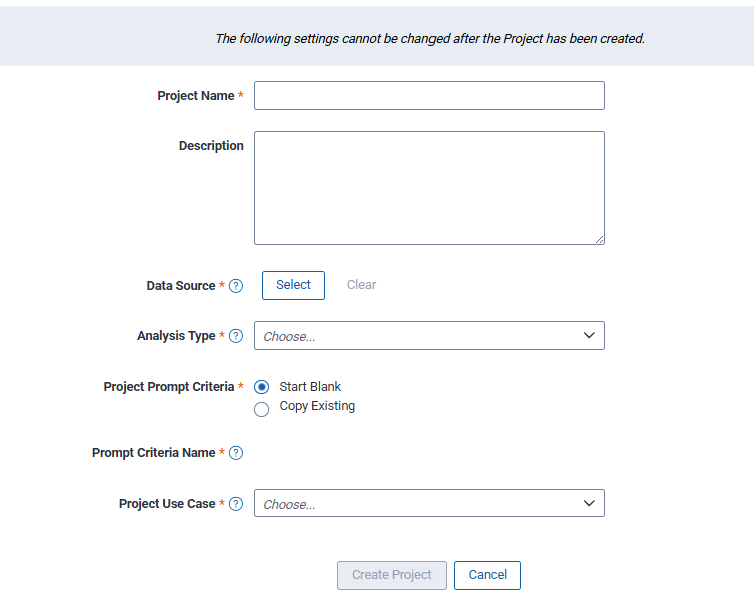
Begin by setting up the aiR Review project as described below. For additional information on project set up, see Setting up the project.
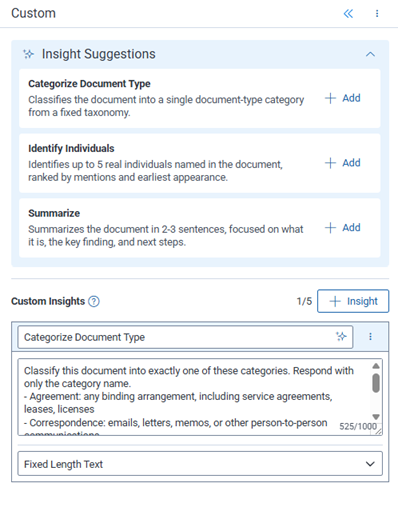
On the Custom panel, you can create and edit Custom insights and prompts. You can also delete ones that are no longer needed.
If a result does not conform to the selected Field Type, the cell is marked as an error in the Analysis Results table. For example, if the result is a non-numeric response for a Whole Number field or is a value outside the defined choices for a Single Choice field. See Handling document errors in Custom analyses for more information.
Custom insight information can be edited or deleted prior to running the analysis.
Insight Suggestions are preset prompt templates that appear at the top of the prompt configuration panel. They help you get started quickly by providing automatic insights and related instructions that you can add to the panel.
The suggestions displayed correspond the analysis model you selected when setting up the project (Text or Vision):
These Insight Suggestions for Text analysis and Vision (images) analysis cover some common requested needs.
 Click to view the available Insight Suggestions for Text analysis
| Title | Prompt description |
|---|---|
| Summarize |
Summarize this document in exactly 2-3 sentences. Focus on:
|
| Categorize document type |
Classify this document into exactly one of these categories. Respond with only the category name.
|
| Identify themes |
Identify the top 3-5 high-level themes in this document. Focus on themes that reflect the document's core ideas, not minor details. Output requirements:
If no clear themes are present, return exactly: N/A |
| Identify individuals |
Identify up to 5 real individuals (people) named in this document. Rank individuals (people) by:
Use the earliest appearance as a tiebreaker. Include only real people, not organizations, departments, email domains, placeholder/test values, or redacted text. Return one full name per line. If none appear, return exactly: N/A |
Click to view the available Insight Suggestions for Vision (image) analysis
| Title | Prompt description |
|---|---|
| Total amount |
If explicitly marked in the document, what is the total financial amount? Otherwise, respond with exactly: N/A |
| Dates |
What are the dates mentioned in this document? List them in order of appearance, using YYYY-MM-DD format. Do not include partial dates such as "January 1985" or "06/12"; only include dates where day, month and year are all shown together. If no dates are mentioned, respond with exactly: N/A |
| Logos | Does this document contain any logos? Answer Yes or No. Text-only company names are not considered logos. |
| Signature | Does this document contain a signature? Answer Yes or No. |
After setting up all the custom insights, use the steps below to run the analysis job. For additional information, see Running the analysis.
Custom insight information cannot be edited or deleted after running the analysis.
Each Custom insight runs independently across eligible documents that meet the following criteria:
Documents that cannot be analyzed will display with errors. Refer to Handling document errors in Custom analyses for more information.
Results are written to Fixed Length Text fields and will have a maximum of 3,000 characters per output.
See How are aiR Units handled when reapplying and republishing the same prompt criteria for additional information surrounding aiR units.
Once the analyses complete, each custom insight displays as individual columns in the Analysis Results table and in a dedicated Custom Projects card within the Viewer. For additional information, see Viewing and filtering analysis results. Iterate on the results as needed by refining instructions, rerunning samples, and reviewing output until you are confident to run it on larger document sets.
Custom insight column results populate as they become available rather than the order in which they were added to the Custom panel, unlike other aiR Review analysis types. This allows results to appear live as each field completes, without waiting for all fields to finish.
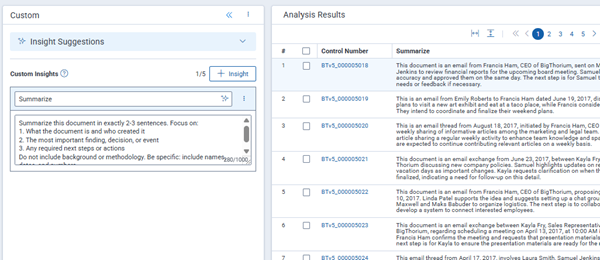
To open the document in the Viewer, click on the Control Number link.
If an error displays for an insight, see Handling document errors in Custom analyses for guidance.
If you modify Custom insights, change the data source, or create a new project set, only the updated insights will re-run on the next analyses.
For more information on analyzing and filtering results, see Analyzing aiR Review results.
To export Custom analyses results, you must first apply the results, which saves the data to the Relativity Document Object. See Applying the results and publishing to the Document Object and Exporting Custom analyses results for details on each process.
After confirming that the results meet your expectations, apply the prompt criteria to the document population. This also publishes the results to the Relativity Document Object, where they can be used across the review workflow for filtering, sorting, and display alongside other document fields in the Document List.
Since the iteration process occurs inside the project, you may rename, add, delete, or change insight fields numerous times as you are iterating on the output. The Apply process is separate because applying the final results on the sample or full data set ensures the final insight fields are created correctly in the workspace Document Object.
To apply prompt criteria for a project set:
To export Custom analyses results after applying the prompt criteria, see Exporting Custom analyses results for details.
When you run Apply on a project set, each insight result is written to the Document Object automatically. For every insight in your project, a field is created and populated using the naming convention aiRCustom::[Insight Name] ([Project Name]).
The Apply Set will generate new results for documents that meet the following criteria:
Existing results on the latest prompt version will not be re-written or re-charged.
After publishing, the results are immediately filterable like any other document field.
You can re-run and re-apply a project as your prompts evolve.
When reapplying and republishing results for the same prompt criteria, no aiR Units are consumed as long as: (1) analysis results already exist for the documents, and (2) the prompt criteria have not changed at all since the initial analysis run. If the exact same prompt is reused across versions or even across different projects in the same workspace, the system recognizes it and displays the prior analysis result without consuming additional aiR Units. However, be aware that the prompt criteria must be an exact match, even an accidental extra space would count as a different prompt and, therefore, would consume aiR Units. For more information on aiR Units, see aiR Units in Relativity aiR standard workspaces and Community article aiR Units, Thresholds, and Included Products (valid login credentials required).
Exporting Custom Analyses results directly from the Analysis Results tab is not currently supported. To export Custom Analyses results, you must publish your results to Relativity Document Object using the Apply workflow (see Applying the results and publishing to the Document Object). Following publishing, you may export your results from the Document List.
Custom analysis errors are reported at the insight level for each document, rather than for the document as a whole. Because each insight runs independently, one insight can succeed on a document while another fails. Each insight column shows its own success or error status.
Sometimes, the aiR System model analyzes a document but intentionally does not return an answer. This is expected behavior, not an error. It helps ensure high-quality results when the model cannot provide a conclusive response.
A non-response can occur when:
In these cases, the non-response message may appear in one of the following ways:
The following table provides some of the errors you may encounter, along with information on how to resolve them:
| Error | What it means | Likely resolution |
|---|---|---|
| Failed to parse completion | The aiR system model produced output that couldn’t be read in the expected format. | Retry the document. If it persists, simplify or clarify the insight’s prompt, or contact Relativity Support. |
| No content to analyze | The document had no extractable text for a text analysis. | Confirm the document has extracted text. For image-based documents, use a Vision project instead. |
| Content exceeds limits | The document’s content is too large to analyze in a single pass. | Reduce the size of the document set or split large documents. See Job capacity, size limitations, and speed for additional information. |
| File provides insufficient context | The document has too little content for the aiR system model to act on. | Verify it is the intended document. Near-empty files may return a limited result or none. |
| File is not supported | The file type provided as the data source is not supported. | Convert the file to an acceptable file format. Make sure image files are native images (JPEG, GIF, PNG) for Vision analysis. See Job capacity, size limitations, and speed for additional information. |
| Uncategorized error occurred | An unexpected error occurred. | Retry the document. Also, make sure image files are native images for Vision analysis. If it persists, contact Relativity Support. |
Custom analyses is most effective for per-document tasks that you can express as a clear instruction. Customers have explored use cases such as:
To get the best results:
For additional guidance, see Best practices for writing Custom insight prompts.
Custom Analysis is powerful but, like any AI feature, has limits. Knowing these helps you set expectations and review results appropriately.
