


Feedback

Last date modified: 2026-Sep-21
Document ingestion is the process of bringing processed documents from your Relativity aiR workspace into the Data Breach Response application. This step helps ensure that only relevant, text-ready documents enter the Data Breach Response workflow before you begin reviewing results.
Before you create an ingestion job, verify the following:
To create a new ingestion job:
After you create the job, the ingestion job starts automatically. Processing can take several minutes to hours, depending on the size of the data set.
To track your job's progress:
Data Breach Response ingests documents as processing completes. You do not need to stay on this page for the job to complete.
The Job Details section shows you details about a job, including whether the job completed or failed. To view Job Details, select the job you want to view from the list on the Jobs page.
Check the Status field to see the current status:
| Status | Description |
|---|---|
| Completed | The job completed with zero failed documents. |
| Completed with failures | The job run was successful, but some documents within the job failed. Open the Job Details page to investigate failures at the document level. |
| Failed | The job as a whole failed. Rerun the job or contact support to proceed. |

The Document Count shown in Job Details on the Jobs tab may differ from the Total Docs count on the Project Dashboard. This is expected. The two counts measure different things:
The following table describes how specific document categories affect each count:
| Category | Jobs tab (Document Count) | Project Dashboard (Total Docs) |
|---|---|---|
| Successfully ingested documents | Included | Included |
| Duplicate documents | Included (Status = Success, Message = Duplicate) |
Not included |
| Documents that errored during ingestion | Included (Status = Failed) |
Not included |
| Documents with Document Flags from Data Analysis | N/A (flags are applied after ingestion) | Included |
To identify duplicate documents in a completed ingestion job, open the Job Details page, select the Show Filters icon in the Documents section, and filter for Status = Success and Message = Duplicate.
You can view failures at the document level in the Documents section under Job Details.
To review job failures:
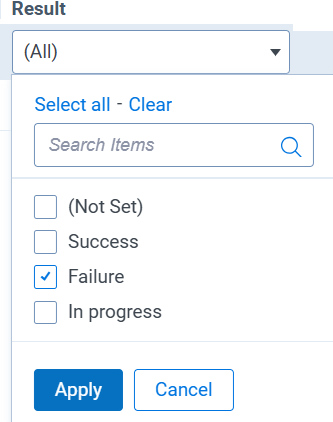
If you need to contact support, include the Job ID in your support ticket for faster resolution.
 Is there a way to see which documents were excluded from ingestion and why they were excluded?
There are two workflows where you can verify if a document has been excluded from ingestion. When a document is excluded from the ingestion job, the Jobs Detail page within the Job entry for the ingestion job will list out the error exception that prevented the document from being ingested. To locate the Data Breach Response ingestion job, navigate to the Jobs tab and click into the Ingestion job in the list to view the Job details page.
The Document list will display the Document IDs of documents included in the ingestion job and the Result. Failed Ingestion jobs on the Result column will contain the exception within the Message column that prevented the document from being ingested into the Data Breach Response project.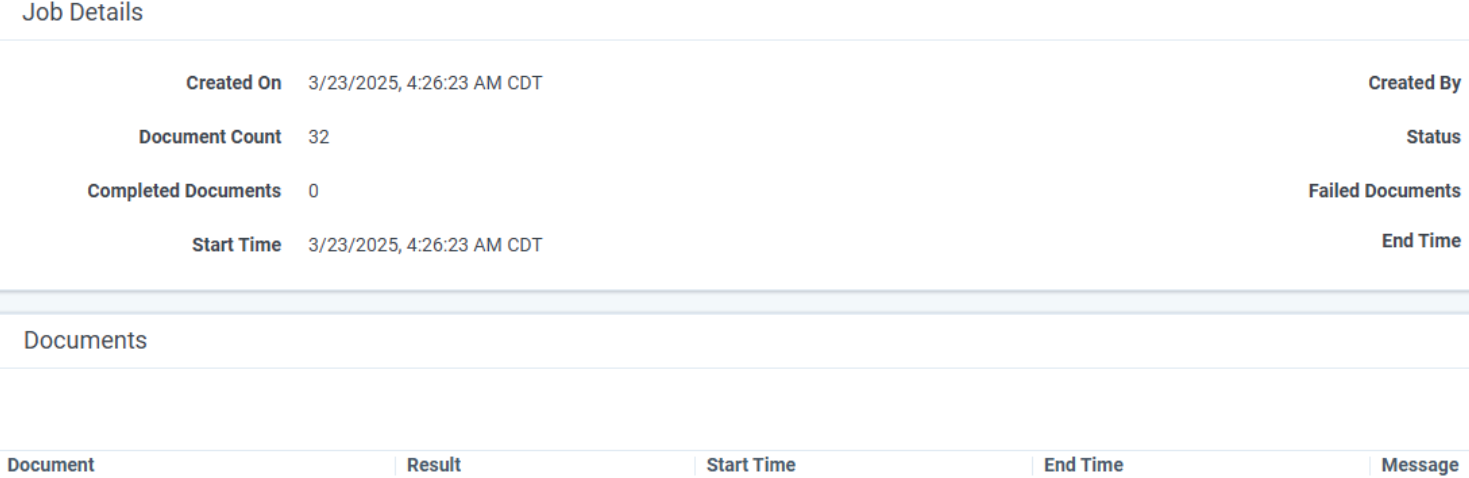
Why does the Ingested Documents count on the Jobs tab not match the Total Docs count on the Project Dashboard?
The Jobs tab counts all documents processed during ingestion, including duplicates and documents that failed. The Project Dashboard counts only documents that are available for Data Analysis and review. Duplicate documents and documents that errored during ingestion are not included in the Project Dashboard total. Documents with Document Flags, which are applied during Data Analysis, are included in the Project Dashboard total. For more information, see Understanding document counts.
