Creating a fact chronology
Case Strategy transforms your key document set into a structured fact chronology, to help you understand who did what and when. As part of fact extraction, facts are grouped and in some cases, higher-level facts are constructed to deliver a succinct chronology that minimizes fact duplicates.
Once extracted, you can view facts in a chronological list, gather them to prepare a witness summary or a deposition outline, or use the facts in customizable workflows. To learn more, see Creating witness summaries and deposition outlines.
Before using AI-based capabilities, we recommend learning about how the AI components in Case Strategy work so that you can leverage the features effectively. For more information, see Generative AI considerations in Case Strategy.
Facts
You can turn a set of documents of interest into a group of facts identified as potentially relevant, containing concise document summaries. During fact extraction, Case Strategy categorizes facts as primary, corroborating, or duplicates in the Fact Type field to help you locate important information in your case and avoid duplicates. To learn more about the Fact Type field, see Fact Types and fact extraction QC. Once extracted, you can view facts on a chronology, gather them to prepare a witness summary or a deposition outline, or use the facts in customizable workflows.
Create a fact chronology
You can extract facts using Case Strategy on a saved search using the matter-specific information you enter in the prompt criteria fields.
While completing the prompt criteria fields, you can save your progress as a draft, referred to as a Working Copy, by clicking the Save and Close button and then resume completing the fields at another time. Only one draft can be saved for fact chronologies per user at a time. A user can only access a draft that they saved.
If you do not enter a Prompt Criteria Name, the draft is named Fact Chronology: Working Copy.
To extract facts using a saved search on the Case Home tab:
- Navigate to the Case Home tab.
- Click Create a Fact Chronology.
If you previously saved a fact chronology draft, it automatically populates the prompt criteria fields. Otherwise, the most recent prompt criteria fields you used for extracting facts populate instead.

- Select a Saved Search to specify which documents are used to extract facts. This field selection is not saved as part of your existing prompt criteria.
To ensure high performance, there is a limit of 5,000 documents in a job at a time.
To learn more, see Size limitations.You can run multiple jobs at once with up to 10,000 documents at a time in a workspace at no additional cost. If you run more than 10,000 documents at a time, there may be additional costs incurred.
- Optionally, click on Existing Prompt Criteria and select a previously run set of prompt criteria from the drop-down menu to populate that data in the modal. To learn more, see Existing Prompt Criteria.
- Edit or complete the fields in the modal. To learn more about the fields, see Prompt criteria below. For writing tips on prompt criteria, see General writing guidelines.
Each field has an individual limit of 4,096 characters except for the Prompt Criteria Name field which has a limit of 256 characters.
- Optionally, if you would like to save a draft of the prompt criteria and resume working on the fields later, click Save and Close.
- Click Extract Facts.
The fact extraction job begins and once it completes, the user who started the job receives an email with job completion details. To learn more, see Job email results.
Errored documents during fact extraction
If any documents error during fact extraction, your organization is not charged for them, and the errored documents do not count towards your organization's Case Strategy total document count. Documents can error for a number of reasons including that the extracted text is empty or too large. To learn more, see Size limitations.
If there are documents that error during fact extraction, the user that started fact extraction is notified via email and a saved search is created to help you track those documents. The saved search is named after the entered Prompt Criteria Name value. Only the user that started the job can access the saved search initially.
Not all documents lead to fact extraction. If a document does not contain any relevant information, Case Strategy will not extract a fact, nor will it cause a document error.
To make the saved search available to other users:
- Navigate to the Documents tab.
- Click on the Saved Searches icon in the browser.
- Right-click on the system-generated saved search in the list and select Edit. The saved search is named after the Prompt Criteria Name value.
- Click on the Owner drop-down menu and select Public.
- Click Save & Search.
The system-generated saved search is now accessible to other users in the workspace.
Prompt criteria
The prompt criteria in Case Strategy give the large language model (LLM) the broad context surrounding a matter. This includes an overview of the matter, people and entities involved, detail on the legal issues that facts must relate to, and any jargon or terms that might help in understanding the documents.
Most fields display information which can guide the voice and tone of what you write. Further description of the fields for extracting facts is provided below.
- Prompt Criteria Name—Enter a name for this version of the prompt criteria. The name should be unique between jobs, and will be filterable when you are navigating the list of facts.
- Saved Search—Select an option from the drop-down menu to determine which documents are used to extract facts. This field selection is not saved as part of your existing prompt criteria. To ensure high performance, there is a limit of 5,000 documents at a time. To learn more, see Size limitations.
- Existing Prompt Criteria—Select a previously used set of prompt criteria from the drop-down menu to load that data into the respective prompt criteria fields. The drop-down menu displays existing prompt criteria created by any user. Optionally, you can search for the name of the Existing Prompt Criteria. The banner at the top of the modal updates whenever you select Existing Prompt Criteria to help you track the source of populated fields.
Prompt criteria that are used for extracting facts can be reused while creating a witness summary or deposition outline and vice versa. Since there are some fields that are unique to each capability, only fields that each modal has in common are populated.
- Index Saved Search for Assist—Enable to index the documents in the selected Saved Search so that they can be referenced in Assist. This field selection is not saved as part of your existing prompt criteria. To learn more, see Assist.
- Matter Overview—Enter a concise overview of the case. Include the names of the parties involved, the nature of the dispute, and other important case characteristics.
- What are you trying to prove?—Outline your side of the argument and what you are trying to achieve in the case. This helps Case Strategy judge each fact as helpful or harmful to your case.
- Issues—Enter a list of issues and their descriptions. Issues should be in the following format: Issue name: Description. The issues you enter are used by Case Strategy to determine whether a document contains relevant facts and are also used to tag the facts it creates.
- People and Aliases—Enter the names and aliases of key individuals in the case. Include their role and any other affiliations.
- Noteworthy Organizations—Enter the name of organizations and other relevant entities involved in the case. Highlight any key relationships between the entities or their notable characteristics.
- Additional Context—Enter any additional information that does not fit the other fields. This section is typically left blank.
- Document Summary Instructions—Describe your desired content, structure, and/or formatting for the document summary. If you leave this blank, the job will create readable summaries of the document, but content, structure, formatting and style are not explicitly prescribed.
aiR Fact fields
After fact extraction, a set of fields populate with information based on your selected documents. Case Strategy creates up to 9 facts per document and the AI looks for any information relevant to your prompt criteria.
The following fields populate on extracted facts:
- Primary Fact Date—denotes the date when the fact occurred, or the start date for an event that occurred between certain dates, including the time. If an appropriate date cannot be found in the extracted text, this field is left blank.
- Fact—a brief title for the fact.
- Description—a more detailed description of the fact.
- aiR Issues—displays the issues that Case Strategy associated with each fact. The issues used are from the info you provide in the Issues field on your prompt criteria.
- aiR Entities—displays the entities that Case Strategy associated with each fact. You do not have to mention people in the People and Aliases or Noteworthy Organizations field in order for them to be found and set in the aiR Entities field.
- Document Summary—displays an AI-generated synopsis of the document which this fact came from.
- Fact Documents—displays the control number for the document or documents which this fact came from. You can link a fact to more documents manually if you want, but note that document preview only displays the first document listed.
- Citation—the portion or portions of the document used to support each fact. If multiple excerpts were found, they are separated by record separator symbols. You can view the citation highlights on a document in the Document Preview panel. To learn more, see Citation highlights in the Document Preview panel.
- Fact Score—an AI-generated score for each fact on a 0-4 scale.
- 4—Very important; the fact is crucial and has a strong impact on proving the user's case.
- 3—Important; the fact has a significant impact and is very relevant to the case.
- 2—Moderately important; the fact has some impact and is somewhat relevant.
- 1—Slightly important; the fact has minimal impact but might still be somewhat relevant.
- 0—Not important; the fact has no relevance to the case. This score is very rare, as Case Strategy usually only extracts facts that it deems relevant.
- Arguments for Fact Score—an AI-generated rationale for the Fact Score to help you understand the scores better.
- Helpful/Harmful—an AI-generated decision on whether a fact is helpful, harmful, or neutral towards your case. This designation is based on your input in the prompt criteria in the What are you trying to prove? field.
- Prompt Criteria Name—the name which you entered in the Extract Facts modal. This field has a character limit of 256 characters.
- aiR Fact ID—A unique string identifier generated during fact extraction. This ID can be used for overlaying information using Import jobs. It is also referenced by the Duplicate Group ID field and the aiR Sort ID field.
Fact extraction uses Generative AI to read the extracted text of the documents, describe the contents using a document summary, and to create and score the facts. We strongly recommend that you provide an appropriate amount of oversight by having an attorney working on the case review the facts and then confirm or correct their language as needed. For further information, see the Generative AI considerations in Case Strategy.
If the same facts occur in multiple documents, duplicate or overlapping facts can be extracted. Case Strategy tags duplicate facts to help reduce the clutter, but if you avoid including duplicate content in the documents selected for fact extraction, you can reduce their prevalence.
Running multiple fact extraction jobs on the same document can also result in duplication, as prior facts are never deleted. We recommend that you filter fact lists using the Prompt Criteria Name, or consider deleting old facts if you have made improvements to your prompt criteria.
aiR Facts view
Once you've extracted facts using Case Strategy, you can view the results using the new aiR Facts view on the Facts tab. aiR Facts is a default view and cannot be edited.
Create a custom aiR Facts view
Optionally, you can create a copy of the aiR Facts view and add or remove fields to create a custom view that suits your needs.
To create a custom aiR Facts view, do the following:
- Navigate to the Views tab.
- Select the aiR Facts view from the list.
- Select Copy from the mass operations toolbar.
- Click Ok.
The aiR Facts (1) view is created and it is an editable view that contains all of the aiR Facts fields which you can further customize.
- Select the aiR Facts (1) view from the list.
- Click Edit.
- Edit the Name field to ensure your new custom view has a recognizable name.
- Ensure the Fields tab is selected and then add or remove fields as desired from the Selected section. Each field in the Selected section will display in the custom view.
- Once you've finished editing the fields, click Save.
- Navigate to the Facts tab.
- Click on the Views drop-down menu and select the view you created to begin using it.
Fact Types and fact extraction QC
This feature has only been released to Relativity aiR Commercial. It will be released to Relativity aiR Government at a future date.
The default aiR Facts view is designed to show the synthesized list of facts. The view has conditions to show only facts with Fact Type: Primary, Primary (Constructed) and Corroborating. Facts that are classified as duplicates do not display in this view. The aiR Facts QC view can be used to review how facts have been categorized by Fact Type and to evaluate and QC the duplicates. This view has several fields that provide additional information on how Case Strategy grouped facts together so you can verify the accuracy of the classification.
The following fields are unique to the aiR Facts QC view:
| Name |
Description |
| Fact Type |
During fact extraction, Case Strategy assigns one of the following categories to classify each fact:
- Corroborating—A fact linked to a single document which supports a Primary (Constructed) fact. Corroborating facts may have duplicate facts. Corroborating facts can be filtered out if you want the highest-level view of your facts, since they serve to support Primary (Constructed) facts.
- Primary—A standalone fact, linked to one document. It may have duplicate facts, but it does not have any Corroborating or Primary (Constructed) facts that relate to it.
- Primary (Constructed)—A fact that spans multiple documents and is linked to multiple Corroborating facts. Primary (Constructed) facts, along with Primary facts, constitute the highest level view of your overall fact chronology.
The following fields are left blank for Primary (Constructed) facts on the Case Home tab:
aiR Entities, Document Summary, Citation, Fact Score, Argument for Fact Score and Helpful/Harmful.
- Duplicate (Exact)—A fact that is an exact duplicate of another due to matching information in the following fields: Date, Citation, Fact Description. The original, duplicated fact's aiR Fact ID is assigned as this fact’s Duplicate Group ID. Duplicate facts are hidden in the default aiR Facts view on the Case Home tab.
- Duplicate (Semantic)—A fact that is categorized as a duplicate because it is similar without exactly matching information in another fact. The original, duplicated fact's aiR Fact ID is assigned as this fact’s Duplicate Group ID. Duplicate facts are hidden in the default aiR Facts view on the Case Home tab.
|
| Duplicate Group ID |
This field groups together similar duplicate facts
much like how relational fields operate on documents. The field's value is the Artifact ID of the associated Primary or Corroborating fact and each fact in the duplicate group shares that value. You can use this field to sort or filter facts based on their grouping to QC them. If a fact does not have any duplicates, then the value for this field is blank. |
| Constructed Fact |
This field links Corroborating facts to their Primary (Constructed) fact, creating a parent-child
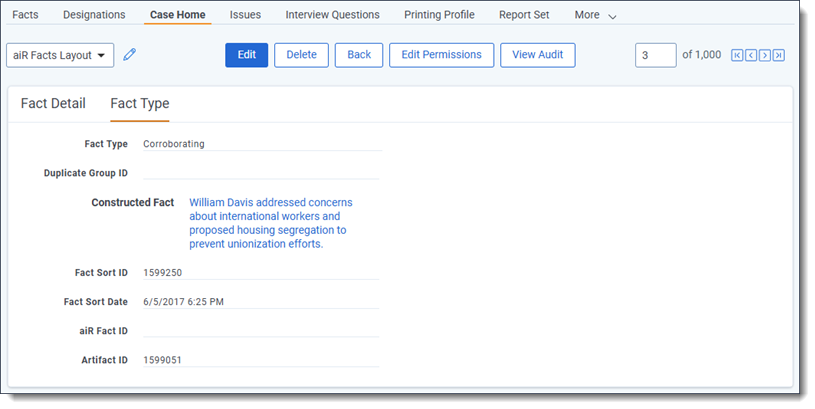
relationship. You can add the Constructed Fact field to a layout to view the Constructed Fact relationship from a Corroborating fact. The Constructed Fact field is available on the Fact Type tab section of the aiR Facts Layout.
Add an
Object List on a layout to link the other direction, from the Primary (Constructed) fact down to its Corroborating facts.
The aiR Facts Layout has the Corroborating Facts list below the Fact Detail or Fact Type sections.
|
Viewing and editing the Fact Type
You can use the aiR Facts layout to view additional information about a fact, including its assigned Fact Type value. You can also edit facts from this layout and adjust the Fact Type value as desired.
To view and edit the fact type:
- Navigate to the Case Home tab.
- Click on a fact in the Fact column.
- Ensure that the aiR Facts layout is selected.
- Click on the Fact Type tab. You can see the assigned Fact Type value.
- Optionally, if you would like to edit the Fact Type, click Edit.
- Click on the Fact Type drop-down menu and select an option.
- Click Save.
The fact is updated with your Fact Type selection. Editing a fact's fact type does not change related fields such as Duplicate Group ID and Primary (Constructed) fact.
Editing facts using inline editing
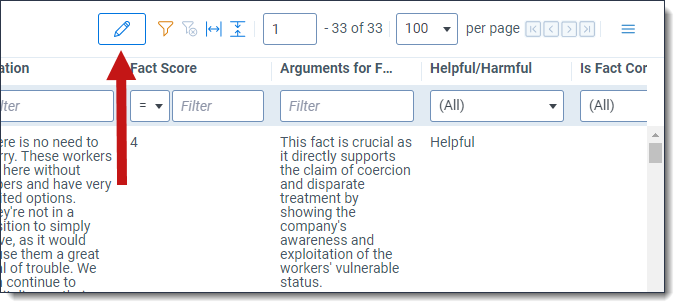
Users can use inline editing on the Case Home tab to edit cells on-the-fly without needing to open each fact individually. Eligible fields for inline editing are identified with a yellow highlight at the top of the column. To learn more about how inline editing works on the Documents tab, see Inline editing in the document list.
Click the Inline Editing icon to enter and exit edit mode. While in edit mode, you can edit any eligible fields.
Mass editing aiR Entities
If you need to mass edit the aiR Entities values on facts, you can export those fields as a .csv file, edit them as desired, and then import the updated field values into Relativity using Import/Export.
The aiR Entities field is long-text and can store multiple values. It is also pipe delimited and so the following is an example of an aiR Entities field's values: John Smith || ACME Corp || Relativity.
We recommend using the aiR Fact ID field as your overlay identifier since it is unique and stable. It also avoids potential issues with facts that are duplicates or have already been edited by a user.
Exporting facts
You can export facts in .csv format using the Export to file mass operation on the Facts tab. Using this feature ensures that the aiR Entities and aiR Fact ID fields are included in the .csv file. To learn more about this mass operation, see Mass export to file.
Edit the aiR Entities field
Once you have downloaded the .csv file to your workstation, you can edit the aiR Entities field before saving the updated file and overlaying it in Relativity. While you edit the file, consider the following:
- Ensure that you standardize entity names and use the same name consistently throughout the .csv file. For example, do not use Robert Williams and Rob Williams interchangeably if they are the same entity.
- Add or edit aiR Entities values using || as the delimiter.
- Append any new entities to existing values where needed.
- If you need to make a large number of edits, consider using features like concatenate and Find/Replace to improve accuracy.
Overlay the aiR Entities field values
Once the .csv file is prepared, you can overlay the field values in Relativity using Import/Export.
The following steps are a high-level overview of the import process for overlaying the aiR Entitles field values. If you would like to learn more about how to handle specific Import/Export fields not described here, see Importing an RDO load file.
- Create a new import RDO data job. To learn more, see Importing an RDO load file.
- For the Relativity Object Type field, select Fact.
- Upload the .csv file that you previously prepared with the new aiR Entities values.
- Map the aiR Fact ID field to the Overlay identifier and the aiR Entities field to aiR Entities on the Load File Field Mappings dialog.
- Ensure that the Overlay Only option is selected on the Import Settings dialog.
- Run the Import job.
The aiR Entities field values are updated in Relativity.
Document Preview panel
The Document Preview panel is available from the Case Home tab. You can use the Document Preview panel to view documents without having to open them in the Viewer. To learn more, see Document and item list navigation.
Citation highlights in the Document Preview panel
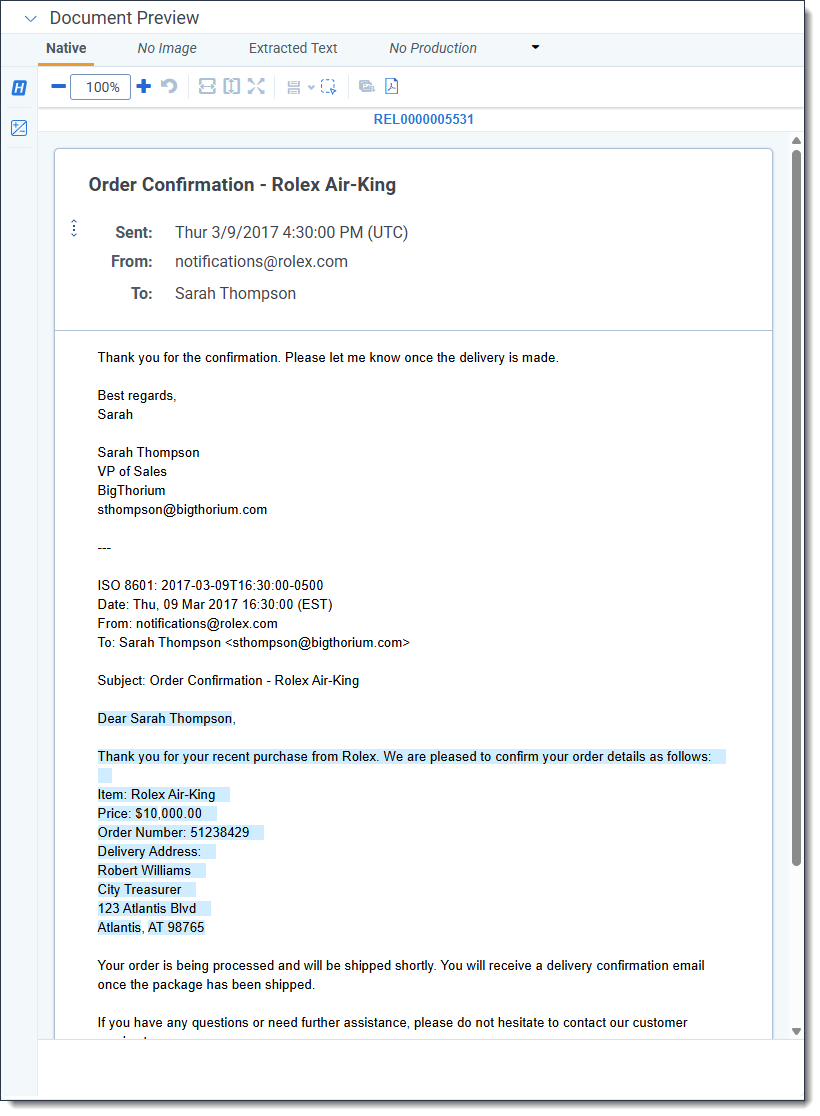
Citation highlights display in the Document preview panel so you can locate key information at a glance without leaving the Case Home tab. Citation highlighting displays for all facts created after August 14, 2025. Some facts created prior to that date may not support highlighting. Citation highlights display in a light blue color.
If a document is manually added to a fact, citation highlights will only appear for the first linked document.
General writing guidelines
For the prompt criteria in all of the setup tabs, we recommend:
- Write as if less is more. Instead of pasting in a long review protocol as-is, summarize where possible and include only key passages.
- Phrase things in a positive way when possible. Avoid negatives such as not statements and double negatives.
- Do not include explanations of the law.
- Do not give the LLM commands, such as, “you will review XX." Instead, simply describe the case.
- Use whatever writing format makes the most sense to a human reader. For example, bullet points might be useful for the People and Aliases field, but paragraphs might make sense in another field.
- The LLM understands widely used slang and abbreviations, but it does not necessarily know jargon or phrases that are specific to an organization.
Size limitations
Based on the limits of the underlying LLM, Case Strategy has size limits for the documents and prompts you submit.
The documents and prompt criteria have the following size limits:
- Each Extract Facts field has an individual limit of 4,096 characters except for the Prompt Criteria Name field which has a limit of 256 characters.
- Each document's extracted text must be between 0.05 - 600 KB. Documents that are outside this range will not have facts extracted because they do not meet the size limits of the LLM.
- Each document's extracted text, when combined with the prompt criteria, must be less than 120,000 tokens which roughly corresponds to word count but this can be inflated for documents that contain a lot of numbers or punctuation.
- To ensure high performance, there is a limit of 5,000 documents in a job at a time. To learn more, see Size limitations.
- You can run multiple jobs at once with up to 10,000 documents at a time in a workspace at no additional cost. If you run more than 10,000 documents at a time, there may be additional costs incurred.
Job email results
Once a fact extraction job concludes, an email with additional information is sent to the user that started it. Each potential result is described below:
| Name Result |
Description |
| Job completed successfully |
The job ran successfully and no further action is needed. |
| Job completed with errors |
The job ran successfully but errors occurred. Case Strategy creates a saved search with the errored documents in it. Using the saved search, you can rerun a new job to resolve those errors. |
| Job is still running |
The job has not completed yet. An email is sent to the user every hour after the job begins running and no action is needed on the user's part until the job concludes. |
| Job has timed out |
The job has not completed successfully in time. You can rerun the job. |
| Job has failed |
The job has not completed successfully. The email contains instructions on how to delete the created facts so that you can remove them and rerun the job. |


