Last date modified: 2026-May-22

Transcript supported file types

Relativity.Transcripts supports MDB transcript files. To learn more, see Importing transcript MDB data for Processing via Import/Export.

The Transcripts application supports a number of file types and each one is described below.

These sections detail the load file requirements for the respective file types.

Supported file types

The following file type is supported by the Relativity.Transcripts application:

  • MDB transcript files

The following file types are supported by the Transcripts application:

  • .ptf
  • .xmptf
  • .rtf
  • .trn
  • .lef
  • .xmef
  • .txt
  • .mp4

Transcripts application

Special considerations

Special considerations include:

  • Import/Export only supports these transcript file types: .ptf, .xmptf, .rtf, .txt, .trn, and .lef.
  • The Transcripts applications supports UTF-8 encoding. UTF-8 BOM is not supported.
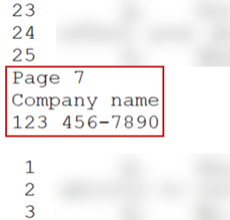
  • The Transcripts application does not support transcript files that contain footers. For example, the .txt transcript file below is not supported because it contains a footer.

A transcript with a footer highlighted.
See Uploading transcripts.

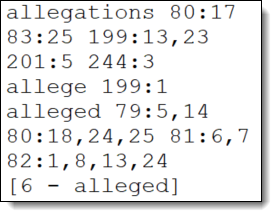
  • The Transcripts application does not support Transcript files that contain a word index before they are uploaded to Relativity. For example, the .txt transcript file below is not supported because it contains a word index.

A transcript file that has a word index included.
See Searching transcripts and Uploading transcripts.

Transcripts sync to video

MDB transcript files that are synced to multiple videos are only compatible with Relativity.Transcripts. You can use the Relativity.Transcripts import workflow to upload and review it.

The Transcripts application only supports transcript files synced to a single video.

The Transcripts application supports transcript files up to 10GB. The upload can be a mix of transcript files, exhibits, and video files.

The Transcripts application supports the following syncing method:
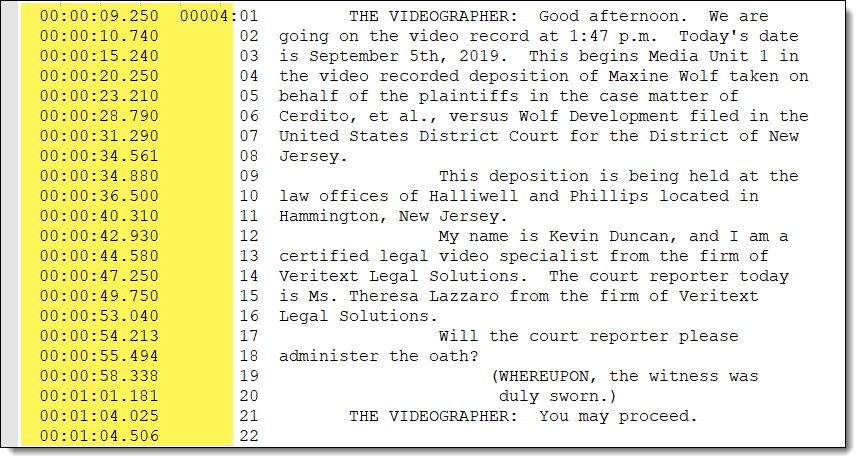
  • TimeCoder Pro syncing, using their Export to ASCII Format - The transcripts application supports video synced transcripts through TimeCoder Pro. You should provide the following specifications to the Transcripts vendor so that the files you receive can easily be imported into the Relativity Transcripts application. From TimeCoder Pro, the Transcript text file should be exported selecting the export to ASCII format with the additional option of export with time codes selected. When exporting with time codes, you can select to include seconds and milliseconds. If the time codes are not included in the text file export, the Transcripts application will not have the data necessary to play the synchronized transcript. To import your synced transcript, you will first select the .txt file you want to upload and then select the single .MP4 video file and any exhibits that you would like to link to your transcript.

An example of a .txt file with .MP4 information included.

.txt files

Transcripts application completes a header validation for .txt files. You can use the following as an example of a .txt file: MaxineWolf_Deposition_Text.txt.

The first five lines of a text file need to be one of the three options below:

  • number space text

.txt file format: number space text

  • number symbol space text

.txt file format: number symbol space text

  • space number space text

txt file: space number space text option

Transcripts with hyperlinked exhibits

.lef files

Transcripts application supports .lef files that are a zip file and contain any of the following files:

  • .ptf
  • .xmptf
  • .txt

.lef files that are password protected are not supported.

Text transcript file types

.ptf files

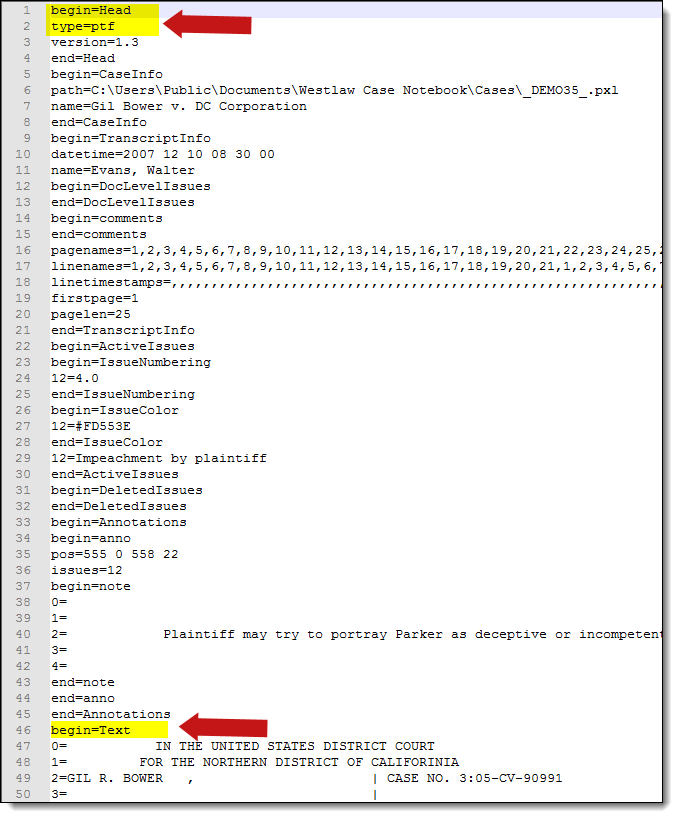
.ptf files will normally have the same file format that includes the following three lines:

  • begin=Head
  • type=ptf
  • begin=Text

.ptf file format

.xmptf files

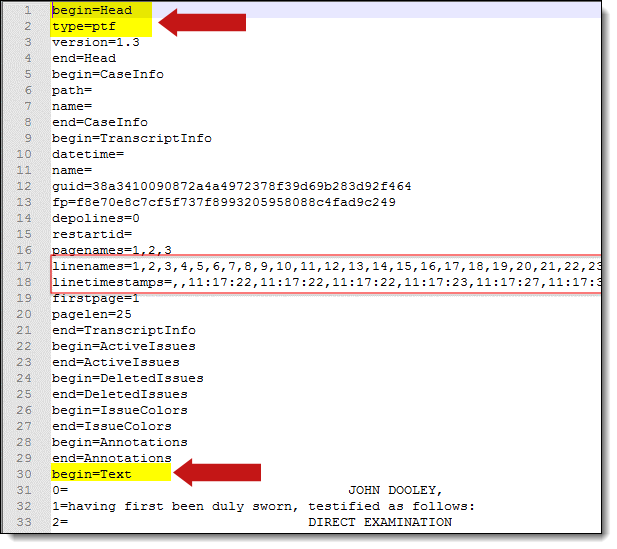
.Xmptf files will normally have the same file format that includes the following three lines:

  • begin=Head
  • type=ptf
  • begin=Text

To differentiate from .ptf files, these also contain the following lines:

  • linesnames=
  • linetimestamps=

.xmptf file format

.rtf files

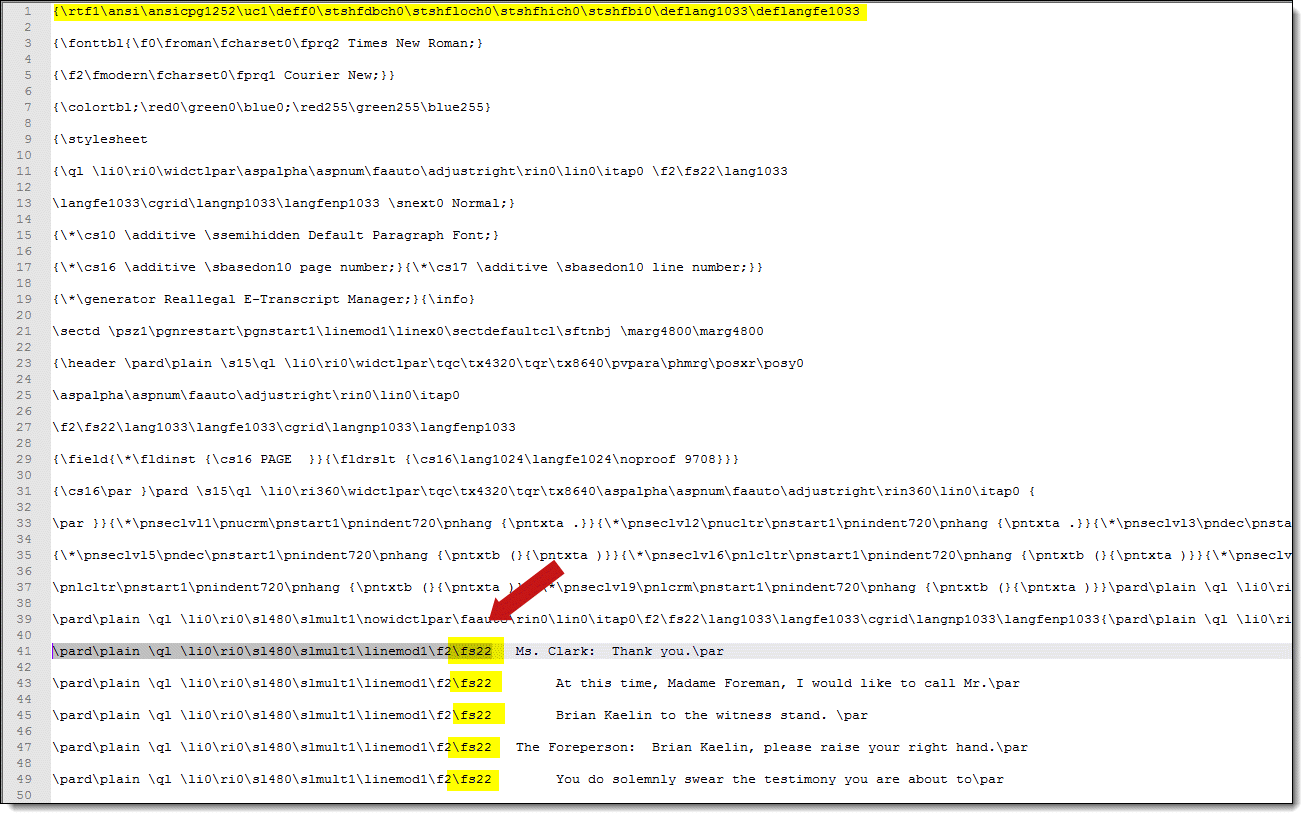
With .rtf files, all transcripts must contain one of the following headers:

  • \rtf1\ansi\ansicpg1252\uc1\deff0\stshfdbch0\stshfloch0\stshfhich0\stshfbi0\deflang1033\deflangfe1033
    • Transcript lines start on \fs22.

Transcript lines start on \f22

  • \rtf1\ansi\ansicpg1252\deff0\deflang1033
    • Transcript lines end on \line.

Transcript lines end on \line

.trn files

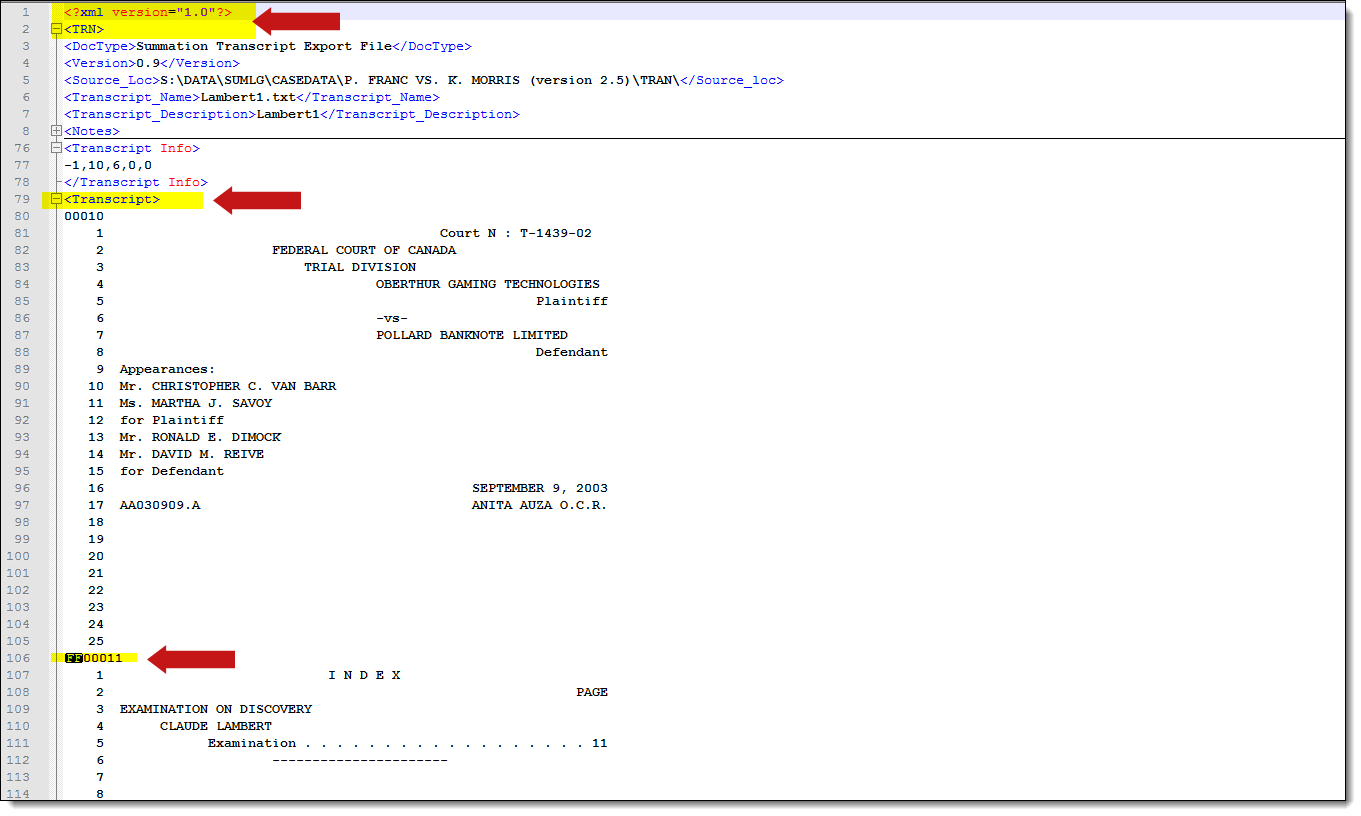
Transcripts application supports .trn files that adhere to the following requirements:

  • Start with an XML element
  • Contain a <TRN> element.
  • Contain a <Transcript> element.
  • Contain a control character for line page divider.

.trn file format

.xmef files

Transcripts application supports .xmef files that are zip file and contain any of the following files:

  • .ptf
  • .xmptf
  • .txt

.xmef files that are password protected are not supported.

.txt files

Transcripts application completes a header validation for .txt files. You can use the following as an example of a .txt file: MaxineWolf_Deposition_Text.txt.

The first five lines of a text file need to be one of the three options below:

  • number space text

.txt file format: number space text

  • number symbol space text

.txt file format: number symbol space text

  • space number space text

txt file: space number space text option

Return to top of the page
Feedback