


Feedback

Last date modified: 2026-May-13
Depending on which type of transcript file you're using, the search features vary. You can search the Transcript text and use persistent highlighting with MDB transcript files. You can use the Word Index with all other supported transcript file types which lets you search for phrases in the text and navigate to specific lines within the transcript.
You can search the text of a transcript MDB file in the Viewer using the Transcript text panel. After you enter a search term and initiate a search, any search term hits are identified and you can navigate through them.
You can see which persistent highlights are located in the text of a transcript MDB file using persistent highlight sets as well. If the Persistent Highlighting panel is expanded, any relevant terms display as well as any recent searches entered in the Transcript text panel. To learn more, see Transcript text searching.
You can also create a dtSearch or keyword search in the Your recent searches section.
Additionally, you can control which highlights display in the current document by clicking on either the persistent set to only display highlights from that set or you can click on a specific term to only see that term highlighted in the document. You can also navigate to and from highlights using this pane.
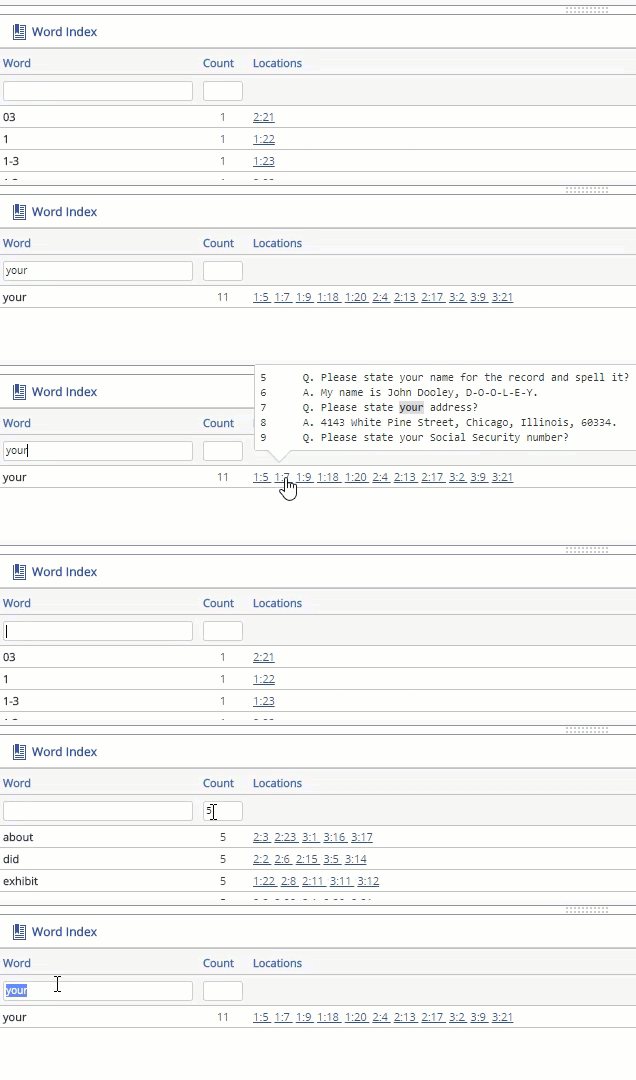
The Word Index lists out all the different terms that are found in the transcript.
To access the Word Index, click the Word Index icon, located along the bottom right corner of the Viewer.
You can search the Word Index for a phrase that has up to 5 words. For example, you can search for Exhibit 1.
When you hover over a location hyperlink, a pop-up appears that shows you the section of the transcript where the term appears. You can also filter by word or count.
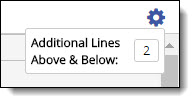
You also have the ability to add up to three additional lines above and below the line where the term is located by using the tool tip. To access the tool tip, click Gear icon and enter the number of lines you would like to add above and below where the word is located. The default additional lines above and below is two.
The Word Index contains the following fields:
