


Feedback

Last date modified: 2026-Sep-21
Data Breach Response includes pre-configured PI detectors (also called out-of-the-box, or OOTB, detectors) and supports any custom detectors you add. Quality control (QC) is an optional step that you perform before the Project Lead begins review. The goal is to minimize the number of documents with over-predictions and under-predictions by refining existing detectors or adding new ones. Because QC is iterative and varies from project to project, the workflows below are recommendations for both unstructured and structured (spreadsheet) documents.
Changes you make during these steps take effect only after you re-run Data Analysis. Keep documents unlocked during pre-review QC so that you can continue making updates to them.
After you run Data Analysis, verify that the system identifies all documents in the data set that contain applicable PI. This verification process is called Document Recall. It involves the following steps:
To make sure all documents containing personal information are identified within the data set, it is important to QC for documents with no PI hits so that no information is missed.
We recommend QCing documents with PI misses for high frequency PI types such as SSN and project specific PI types. High frequency PI types will vary from project to project. As a baseline, we recommend QC for the following:
To QC Recall:
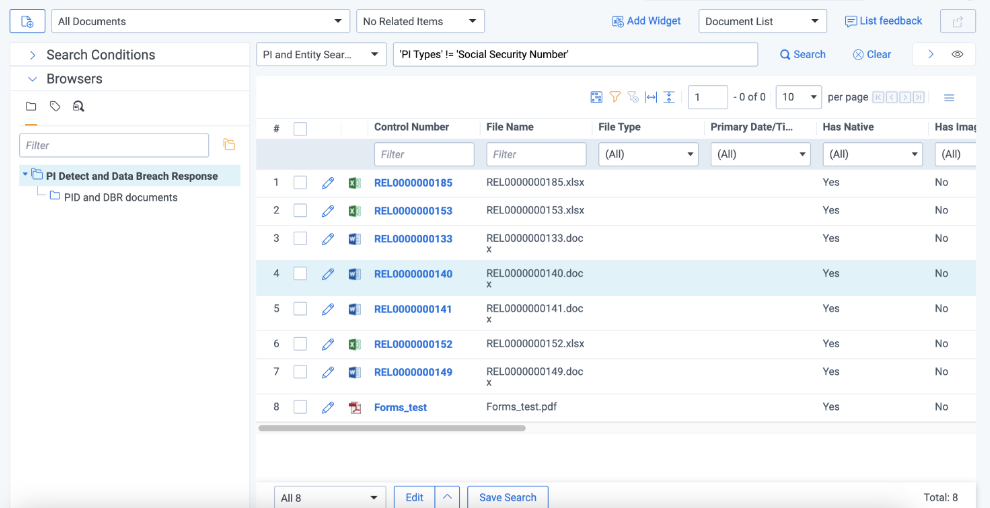
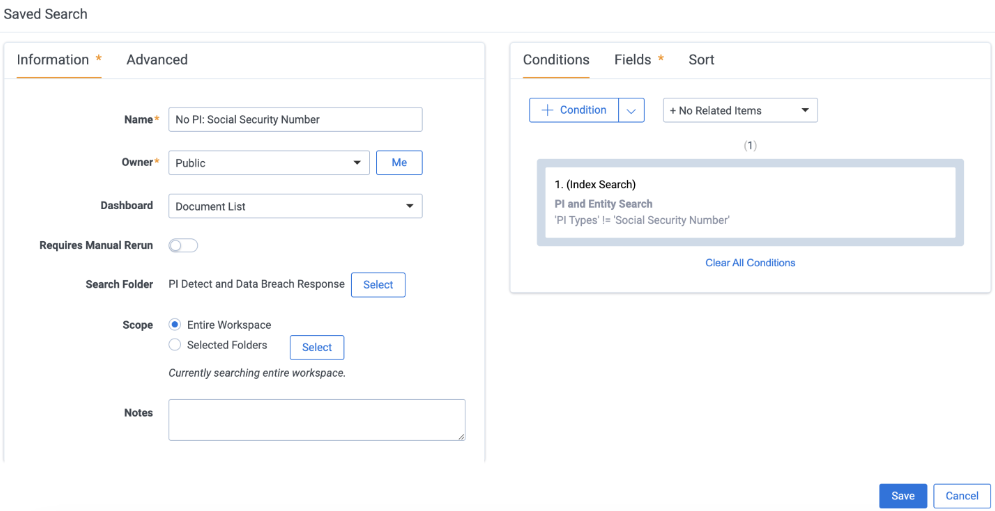
Once you create QC batches, you should review them using the instructions outlined in Detector QC. As you review documents, store suggestions for detector changes in a shared spreadsheet or other platform to collaborate with others executing QC. You should not mark documents complete during this review.
If you discover any information during document review that should be captured by a token level detector, you can update detectors during this process. There are two possible actions you can take. For more information on updating detectors, see Personal information detectors.
Add a new detector when the required PI can’t be captured by an OOTB detector.
Reducing the number of documents with over captures is another important step in the QC process that helps reduce document and annotation volumes, therefore reducing the work for the review team.
To QC for precision on unstructured documents:
To QC for precision:
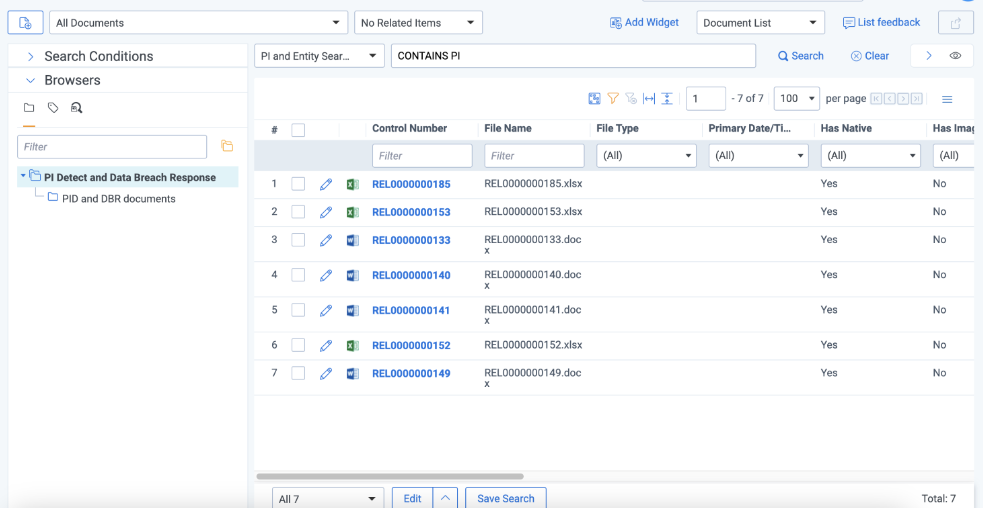
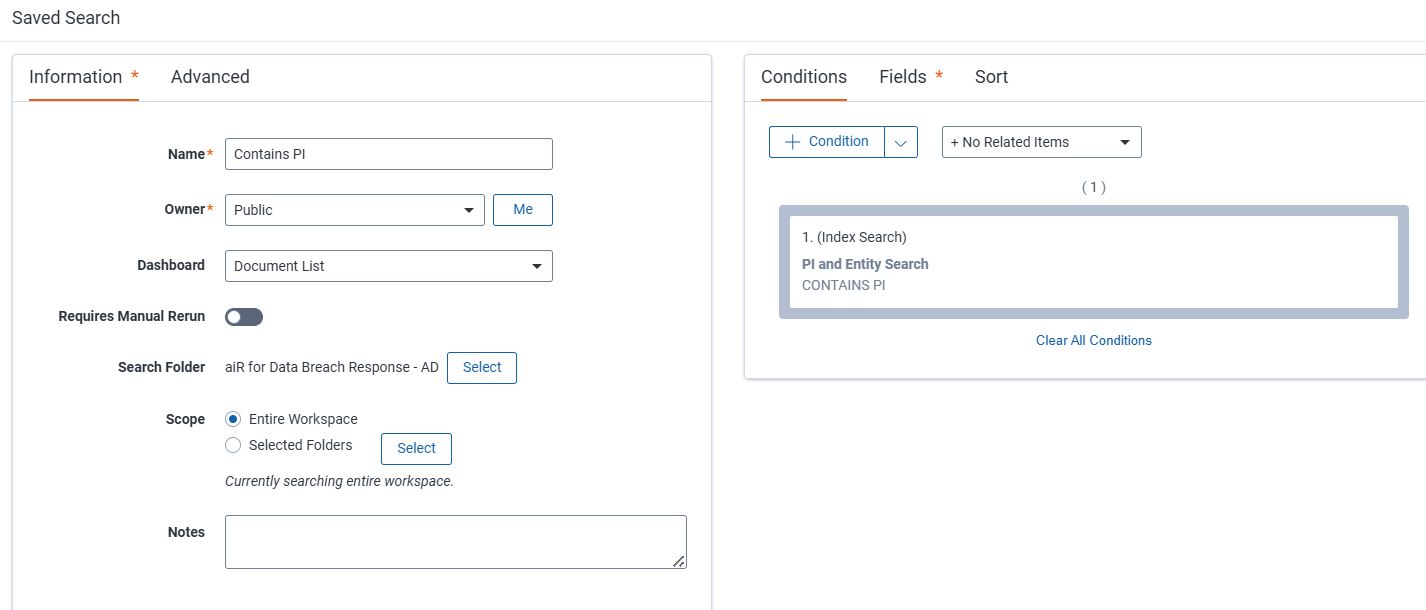
Once you create QC batches, you should review them using the instructions outlined in Detector QC. As you review documents, store suggestions for detector changes in a shared spreadsheet or other platform to collaborate with others executing QC. You should not mark documents complete during this review.
For consistent over captures, you can take the following actions:
In addition to identifying personal information within non-spreadsheet documents, Data Breach Response also identifies table boundaries in spreadsheets and the potential personal information within them.
When reviewing spreadsheets for recall, the goal is to ensure that table boundaries are being properly detected, and that detectors are capturing any unstructured PI within the tables. To achieve this, create Recall batches for spreadsheets documents.
When table boundaries are off, the likelihood of under captures increases. For documents where the boundaries need to be adjusted, column annotations will need to be made, and the document marked complete.
Spreadsheets can also have localized text-based PI detections. Be sure to scan through Notes and Comments columns, as they could contain a mix of PI types that may not be appropriate for full column annotation.
To review spreadsheets headers for precision, use the Spreadsheet QC tool. For instructions on using the Spreadsheet QC tool, see Spreadsheet QC tool.
 How long should be spent on QC?
 Quality Control is an iterative process that may vary in time spent from project to project, depending on how much time can be devoted to it, as well as what type of information is contained within the data set. For example, if project A requires 10 new custom detectors to be created and project B requires 5, more QC time may be allotted to project A. Usually, only 2-3 iterations of feedback incorporation are required to complete the QC process after all detectors are included. To achieve this follow the guidelines below:
There is a balance between precision and recall. If you make your detectors too precise, you could miss PI in other documents. Prioritize your document recall and refine the precision of your results during review. Because this is an interactive process, you can continue to update your detectors with feedback from the review team.
