


Feedback

Last date modified: 2026-Jul-10
With the Production application, you can prepare documents for production—selecting non-privileged documents and turning them over to opposing counsel after review. You can customize productions with placeholders, branding, and other options.
For more information about working with productions, see the following pages:
Also see these related recipes:
For information about troubleshooting the production application through the Service Host Manager, see Service Host Manager in the system guides section.
The following security permissions are required to run productions in Relativity.
| Object security | Tab visibility | Other settings |
|---|---|---|
|
|
Mass Operations
Admin Operations
|
Production application upgrades occur concurrently with Relativity product updates. You can find information about production updates in the Relativity release notes and What's new.
To upgrade the application, use one of the following methods:
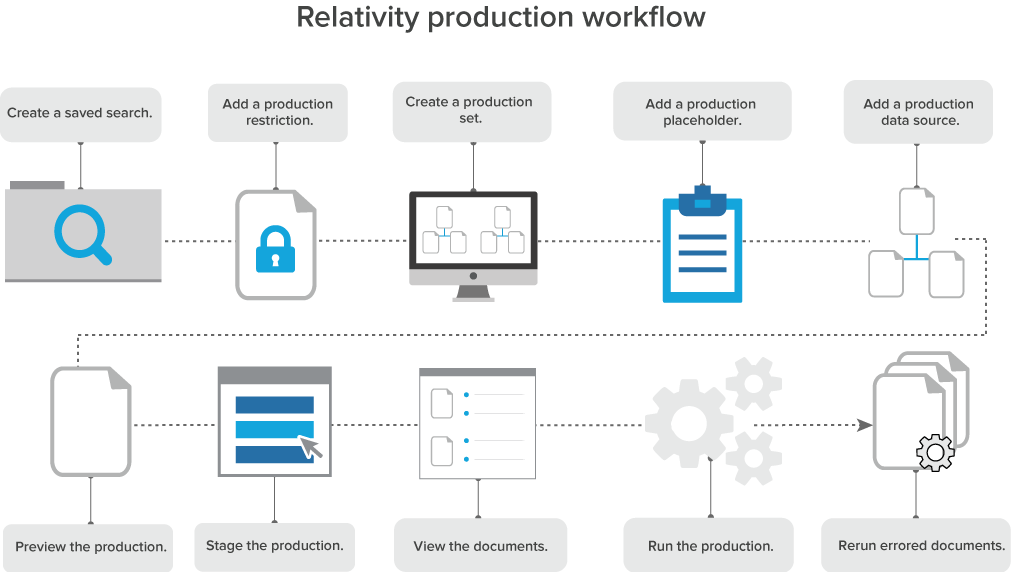
To produce documents, use the following workflow to create the required production components. Use the links in the image below for more information on each part of the production workflow.
The production information object stores important information about your production. Staging a production populates this object in your workspace. For example, you can use the production information object to check:
The production information object also stores the Bates numbers associated with the production. When you delete a production, the Bates number fields clear automatically.
To view the information stored on this object, click View Documents in the production console. The View Documents pop-up displays information about documents and individual pages. You can also view document information in the saved search that is created automatically when the production job finishes.
After you run a production, you can view this information on the documents list for each produced document. Add the fields to a view, then create a tab from that view.
To view detailed production information, create a production information tab and associate it with the production information object.
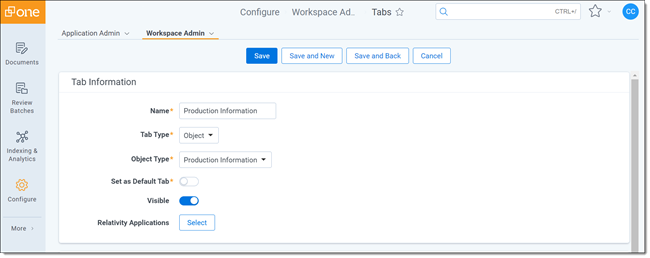
 The following fields are stored on the production information object. You can view them on the production information tab:
