


Feedback

Last date modified: 2026-Feb-05
Coding refers to capturing and storing metadata about a contract or its clauses. You can code a contract by clicking into fields, from send-to-field, or via data point suggestions.
Relativity is flexible in creating custom fields with varying format options, so the sky is the limit in terms of the type of data you can extract. Examples of use cases include extracting a lease's renewal date, or determining the risk level of a change-in-control provision from an employment agreement.
Supported field types:
Unsupported field types:
In the Contracts Viewer, you can code contracts by clicking into fields. Contracts organizes fields by field type.
For information on field types in Relativity, see Fields.
Field types and their coding limitations
| Field | Coding limitations |
|---|---|
|
Fixed-Length Long Text |
You can configure fixed-length text fields with length up to 4,999 characters and long text fields can exceed this. The technical limitation of a long text field is 2 GB. If you try to code a text field and you exceed these limitations, you'll receive an error. |
| Date | After selecting a date using the date picker, it will always display in the format of "March 14, 2011." When you save, Contracts store it in a format friendly to your SQL server's regional settings. |
|
Currency Whole Number Decimal |
Enter a whole number or decimal number. |
| Yes/No | Select Yes or No from the drop-down menu. |
| Single Choice | Enter a choice, or select from the drop-down menu. The list results will update as you type. |
| Multiple Choice | Enter a choice, or select from the drop-down menu. The results will update as you type. |
You can use the send to field feature to send text found in a document to a field on a layout via the context menu of the Contracts Viewer.
You can intuitively select text and populate a field. Contracts saves the location of your text and links it to the field so that whenever you click that field again, it opens to that location in the document. This is powerful for QC workflows where the QCer wants to know why a reviewer made a certain coding decision.
Send to field works for all field types that Contracts supports for coding documents.
For each field type listed in Group 1, Contracts uses the contract text you select to send to field to populate the field value. It will then create a link between the text in the contract and the field.
You can configure fixed-length text fields with length up to 4,999 characters. Long text fields can exceed this. The technical limitation of a long text field is 2 GB. If you try to code a text field and you exceed these limitations, you'll receive an error.
For the field types in Group 2, sending to field will create the link between the text in contract and the field but you must select your values to finish coding the field.
To send text to field from the text viewer:

Send to field highlights appear as green blocks in the Highlights minimap.
To send to field from the image viewer, follow the steps for sending to field from the text viewer. The slide out at the top of the page will include the cropped image of your selection to compare to the extracted text below it. As with the text viewer, you can edit the text before sending to field.
For long text fields, you can send to one field many times from different locations. For example, if you have an All Assignment Language field and assignment language appears throughout the contract, you can send each location to the field.
When a long text field already contains text and you send to field again, you'll see a modal to append, prepend, or replace.
If you choose to Prepend or Append, hover over the field after you Save to see how many highlight locations that field has associated with it. If you click the field multiple times, it will cycle through all highlights.
Administrators can configure data point suggestions, which use regular expressions and persistent highlights results to suggest possible values to help reviewers make a coding decision.
For an explanation on how to configure data point suggestions, see Set up data points in the viewer.
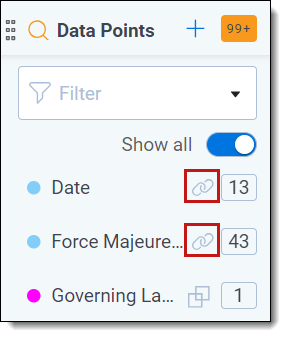
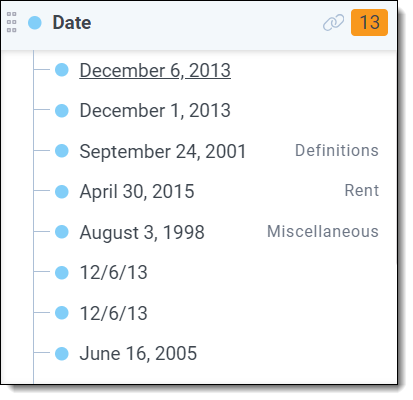
Using data point suggestions, reviewers can expand a field to show suggested values, and send them to the field. This can guide reviewers in the direction of highly relevant data and increase the speed and accuracy of review projects.
To code documents using fields linked by data point suggestions:
When you are coding a document in the Contracts Viewer, your coding decisions will save on the parent root agreement by default . If you would like a coding decision to save on a section document instead:

