Cold Storage
Cold Storage is a feature that allows you to archive inactive workspaces for long-term retention when they are not regularly accessed. By moving a workspace to Cold Storage, you can reduce storage costs for dormant cases while preserving the data. When the workspace becomes needed again, you can retrieve it from Cold Storage to return it to an active state for use. Cold Storage is ideal for cases on hold or near completion. It provides a lower-cost storage tier for inactive data, with the trade-off of limited accessibility until retrieval. You migrate workspaces to Cold Storage to archive them, retrieve workspaces to bring them back for use, and can delete workspaces after a minimum retention period in Cold Storage.
Permissions
Certain security permissions are required to migrate or retrieve workspaces to/from Cold Storage. These permissions involve both instance-level and workspace-level settings:
Instance-level permissions:
| Object Security |
Tab Visibility |
Other Settings: Admin Operations |
| Workspace: View, Edit, and Delete |
|
Manage Cold Storage |
Workspace-level permissions:
| Object Security |
Tab Visibility |
Other Settings: Admin Operations |
| Workspace: View, Edit |
Workspace Details |
View Workspace Details |
Migrating a Workspace to Cold Storage
Before migrating a workspace to Cold Storage, ensure you have the necessary security permissions. In general, you must be a system admin with the Manage Cold Storage admin operation permission, and have appropriate rights to the workspace. If your workspace was recently migrated from Relativity Server to Relativity aiR, you should also run any pending Text Migration jobs (for Data Grid) on the workspace before Cold Storage migration.
To migrate a workspace to Cold Storage:
- Navigate to the Workspace – Go to the Workspace Details tab in Relativity aiR. You must have the correct permissions to see the Workspace Details tab.
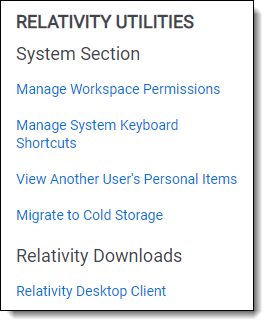
- Initiate Cold Storage Migration – In the Relativity Utilities console on the Workspace Details tab, click Migrate to Cold Storage. A Cold Storage confirmation dialog appears.
- Confirm the Migration – In the confirmation dialog, click Migrate Workspace to proceed. The workspace will immediately move to Cold Storage.
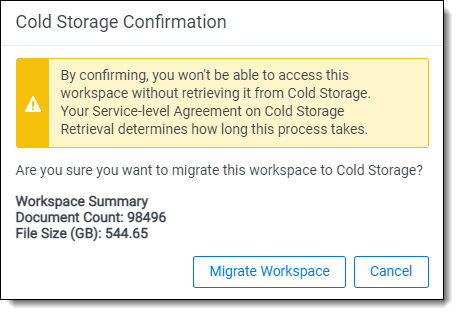
Once you confirm, the migration takes effect immediately. The workspace’s Workspace State field will update to “Cold Storage,” indicating the workspace is now archived. (The workspace Status field is not linked to Cold Storage state and changing it to "Cold Storage" manually will not affect the actual state or billing.)
After migration:
- Inaccessible Data – The workspace and its documents become read-only and inaccessible to users until retrieved. You cannot enter or work in a Cold Storage workspace .
- Workspace Restrictions – A workspace in Cold Storage cannot be used as a template for new workspaces. It also cannot be used for data imports/exports or by Integration Points jobs. Essentially, no modifications or data transfers can occur until the workspace is restored to active status.
- Billing Implications – For more information on billing implications, click the Community link: Understanding and Measuring Cost in Relativity aiR.
- Retention Requirement for Deletion – Once in Cold Storage, a workspace must remain in Cold Storage for at least 30 days before it can be deleted. After 30 days, the option to delete becomes available. See the Deleting from Cold Storage section below for details.
Migrating a workspace to Cold Storage does not impact any active billing period or due date charges for that month. If needed, you can also archive Cold Storage workspaces using ARM without retrieving them first (see
Creating and running an Archive job for more information).
Retrieving a Workspace from Cold Storage
Retrieving a workspace brings it out of Cold Storage back into an active state so users can access it again. You will need the same level of permissions to retrieve a workspace as for migrating one (workspace edit rights and the Manage Cold Storage admin permission). Keep in mind that retrieval is not instantaneous and is a queued operation that requires some time to complete.
To retrieve workspaces from cold storage, follow these steps:
- Navigate to the Workspaces tab.
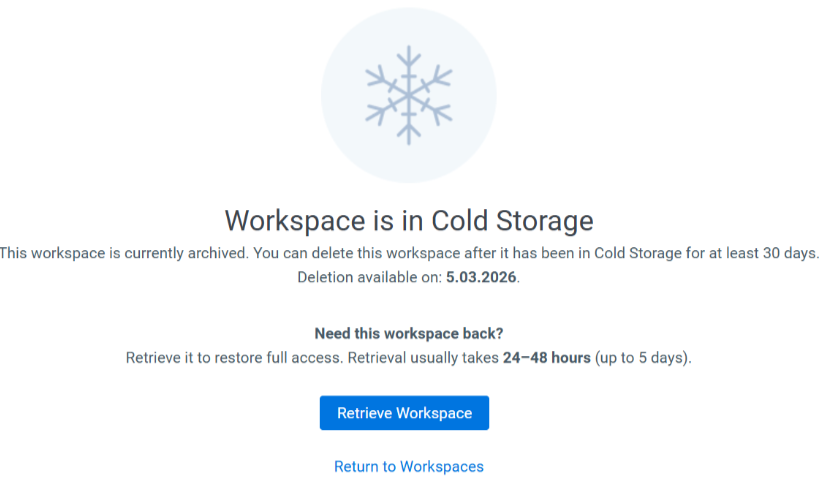
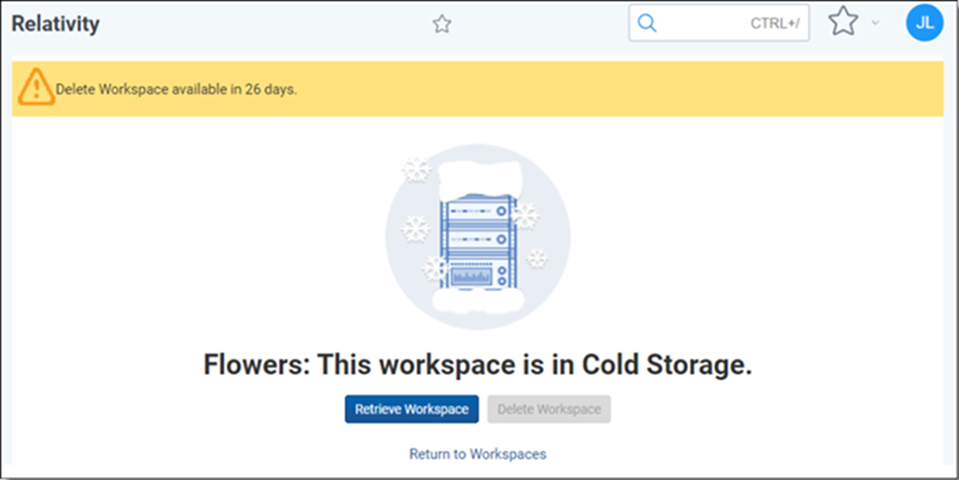
- Click the workspace name of the workspace you want to retrieve from cold storage. The Cold Storage Retrieval page displays.
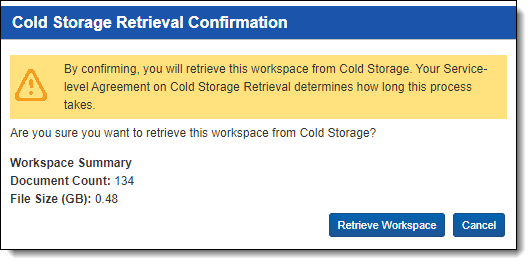
- Click Retrieve Workspace to retrieve the workspace from cold storage. The Cold Storage Retrieval Confirmation pop-up displays.
-
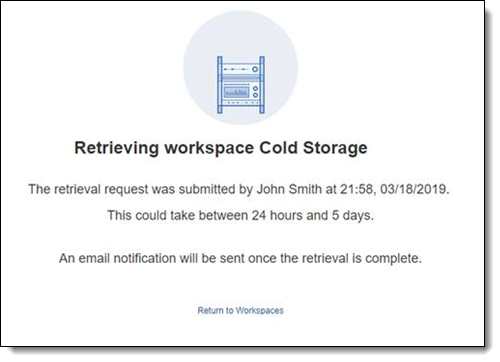
Click Retrieve Workspace to retrieve the workspace from cold storage. The Cold Storage Retrieval confirmation page displays.
After you submit a retrieval request, the workspace undergoes a restoration process to become active again. Retrieval occurs asynchronously. Your request is placed into a queue and handled by back-end Cold Storage services and agents. It will take some time for the workspace to be available.
Key points about Cold Storage retrieval:
- Timeline - Most workspace retrievals complete within 24 to 48 hours. However, larger or numerous concurrent retrievals may take longer. 5 days is the maximum time you should expect in normal circumstances. Every retrieval, even for a very small workspace, follows this same timeline and queue process. None are instantaneous.
- This is an automated process that cannot be sped up or bypassed by support; there is no “expedite” option for Cold Storage retrievals. Once a workspace is in Cold Storage, you must wait for the system to restore it.
- Plan Ahead - If you know you will need to use a Cold Storage workspace by a certain date or deadline, initiate the retrieval well in advance of that date. Do not wait until the last minute. It’s recommended to start retrieval at least one full day (24 hours) before you need the workspace active, or even earlier for safety. You should wait for the completion email (see below) before assuming the workspace is available.
- Progress During Retrieval - The workspace's Workspace State stays on ColdStorage until the restore completes, then changes to Active. To check progress in the meantime, open the workspace from the Workspaces list. The Cold Storage Retrieval page shows the estimated retrieval time and the estimated completion timestamp. Developers can also check retrieval progress programmatically through the Cold Storage Manager REST API's Get Workspace Cold Storage Status endpoint.
- Completion Notification - The user who initiated the retrieval will receive an email notification when the workspace has finished restoring and is active again. Additionally, once complete, the workspace's state will revert to Active in the Workspaces list, and it can be used like any other active workspace.
- Limitations during Retrieval - After a retrieval is started, you cannot cancel it mid-process. You also cannot prioritize one workspace's retrieval over another; all requested restores share the same pool of system resources in the queue.
A back-end agent called the Cold Storage Case Retrieval Agent must be present and running in your Relativity aiR environment for workspaces to be retrieved from Cold Storage. If a workspace is not coming out of Cold Storage as expected, verify that this agent is enabled. All Cold Storage migration and retrieval actions are logged in the audit history for traceability.
Deleting a workspace from Cold Storage
If you decide a workspace is no longer needed at all, you can delete it after it has been in Cold Storage for at least 30 days. Relativity aiR enforces this 30-day retention period to prevent accidental or premature deletion of recently archived workspaces.
To delete a workspace that is in Cold Storage, navigate to that workspace’s Cold Storage page (by clicking the workspace name from the Workspaces list). The page will display a countdown of how many days remain until deletion is allowed. Once the workspace has been in Cold Storage for the full 30 days, a Delete Workspace option becomes available. Clicking Delete Workspace will prompt for confirmation, and then move the workspace to the Recycle Bin .
Key points about Cold Storage deletion:
- You cannot delete a Cold Storage workspace until the 30-day period has elapsed. The system will not allow it, and the UI will not present a delete option.
- After 30 days in Cold Storage, you may delete the workspace. This will follow the standard deletion safeguards (Recycle Bin retention) that apply to any workspace deletion.
- If you need to free up space or no longer require a workspace’s data, but 30 days have not yet passed, you must wait out the period. Planning your Cold Storage usage is important if deletion is a goal.
Frequently Asked Questions (FAQ)
 How long does a retrieval take if the workspace is very small?
Even very small workspaces follow the same Cold Storage retrieval process and queue. You should still expect the standard window of about 24–48 hours, up to a maximum of 5 days. Smaller workspaces may end up on the lower end of that timeframe, but none are restored immediately upon request.
Why can’t I track the progress of a Cold Storage restore?
Cold Storage retrieval runs on back-end infrastructure without a user-facing progress bar or status updates API. In the interface, the workspace will simply show Retrieving status until it’s done. You will get an email when the process is complete. Relativity aiR currently doesn’t offer real-time tracking for this operation.
What should I do if a retrieval is still not complete after 5 days?
It is uncommon for a restore to exceed 5 days. If it does, you should contact Relativity Support for assistance. Provide them with the workspace details (Workspace ID, the date/time you initiated the retrieval, and any relevant screenshots showing the status) so they can investigate the delay.
Can I delete a workspace while it is in Cold Storage?
Not immediately. You can delete a Cold Storage workspace only after 30 days have passed since it was migrated to Cold Storage. Before 30 days, the deletion option is not available. After 30 days, you may delete it (which moves it to Recycle Bin for final disposition). If you need to remove the workspace completely, plan to leave it in Cold Storage for at least 30 days first.
I clicked “Retrieve Workspace” by accident. Can I cancel the retrieval?
No. Once a retrieval is initiated and confirmed, it cannot be canceled mid-process. Even though an accidental click is unlikely due to the confirmation prompt, if you started a retrieval in error, the workspace will still be restored. There is no way to stop it. You’ll have to wait for the restore to finish, and then you could potentially migrate the workspace back to Cold Storage again if it’s not needed, or simply leave it active.
Troubleshooting Cold Storage Operations
Retrieval exceeds 5 days: If a workspace has not returned to Active status within five days of clicking Retrieve Workspace, gather the relevant details and contact Relativity Support. Provide the Workspace ID, the date and time you initiated the retrieval, and a screenshot of the workspace’s status (if available) showing it stuck in “Retrieving.” Support can assist in determining if an issue occurred in the restore queue.
Accidental or unnecessary retrievals: As noted, you cannot cancel a retrieval once it’s in progress. Always double-check that you truly need to restore a workspace before clicking Retrieve Workspace. (A confirmation dialog is in place to help prevent mistakes.) If you initiate a retrieval in error, you will have to wait until it completes. To avoid this, use Cold Storage planning and communication – for example, clearly label Cold Storage workspaces and ensure team members know not to retrieve them unless necessary.
“Manage Cold Storage” option not visible: If you do not see the Migrate to Cold Storage or Retrieve Workspace options where expected, you likely do not have the required permissions. Confirm that your account or group has the Manage Cold Storage admin operation and the necessary workspace rights, or have a system admin perform the action (see the Required Permissions section above).
Additional Considerations
Use Cold Storage for true long-term inactive workspaces: If a workspace might need to be accessed frequently or on short notice, consider whether Cold Storage is the right choice. Cold Storage is best for workspaces you do not anticipate needing for a while (weeks or months). For short-term holds or pauses, leaving the workspace active (or using a Repository workspace) might be more convenient despite cost. Use Cold Storage primarily to reduce costs for dormant data where some lead time for restoration is acceptable.
Security and auditing: All Cold Storage actions require admin permissions and are tracked. Make sure only authorized personnel manage Cold Storage to prevent unwanted migrations or deletions. Review the audit logs if there’s any question about who migrated or retrieved a workspace.


