Prompting
You can ask Assist about indexed documents in natural, conversational language. Follow-up prompts build on earlier ones, and Assist uses the conversation context and any people or events mentioned.
Users must be granted Prompting permission to ask questions and manage their conversations. See Permissions for details on the Prompting permission.
ARM is not supported for Assist. Assist permissions, indexes, conversations, and metadata mapping cannot be archived, restored, or moved using ARM.
Suggested resources:
Considerations
- Prompts and responses are private to each user and persist across the user's sessions. Additionally, they cannot be shared. See Using Conversation Manager more information on managing conversations. However, you can export the contents of a conversation to an MS Word (.docx) file and share them that way. See Exporting a conversation for details.
- It is important to note that document security may differ between users. As a result, two users could ask the exact same question and receive different answers because the LLM interaction used for each response only considers the documents that the requesting user is authorized to access. Assist does not retain knowledge from other users' conversations, and every interaction is evaluated against the requesting user's document security permissions at the time of the prompt. See Understanding Assist responses for more details.
- For OCR documents, Assist citations from Extracted Text may not exactly match the source text or display citation highlights due to OCR quality issues, such as extra spaces or misrecognized characters. These OCR-related issues can affect matching, and the LLM may correct minor OCR errors when citing.
- When Relativity updates the underlying large language model (LLM), results may differ even when using the same prompt criteria text because they are tied to the model used when the result was generated. Results generated before a model update use the previous version, while those generated after the update use the new model. Previous results are not automatically reprocessed when LLM models are updated. For additional information, see AI products and features in Relativity aiR.
- Indexing and prompting do not incur additional costs.
Navigating the prompt composer
Refer to the following descriptions below to learn how to use the prompt composer (Ask a question box).
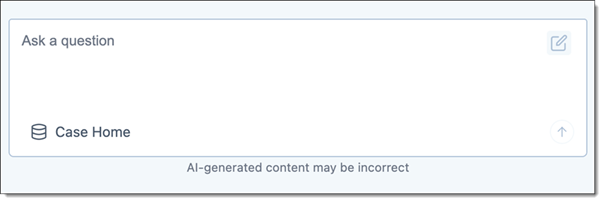
- Ask a question—type your prompt into this box. Prompts must be at least three characters long to submit.
- Index used—name of the index used for the query appears in the lower left corner of the box.
- Hover over the name to view the saved search source used, number of documents within the index, date/time last indexed and by whom, and description entered when the index was created.
- Click the index name to display the Index Manager pane where you can select to use a different index for the prompt. See Working with indexes for more information on indexes.
- Use Metadata toggle—if metadata mapping is enabled in your workspace, the Use Metadata toggle displays next to the Index Name. Toggle it on to use metadata for the query or toggle it off to not use it. See Metadata mapping for more information.
- Send message—after typing your question, click the circled up arrow to submit it for a response.
Navigating the responses
Refer to the following descriptions below to learn how to navigate the responses generated by Assist.
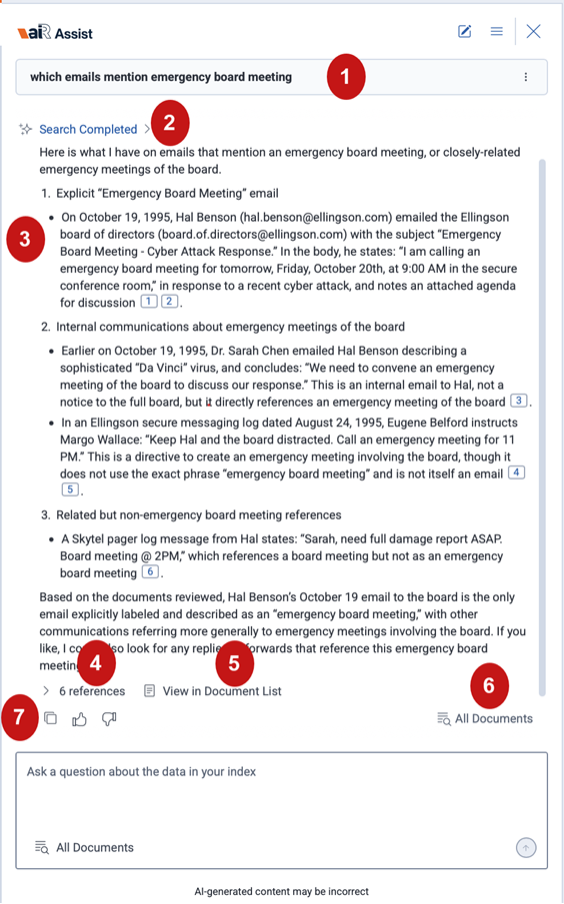
- Prompt asked—the prompt that was asked displays above the response.
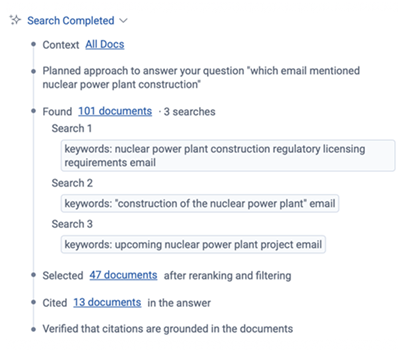
- Search Completed—click the expand arrow to view a summary that outlines the steps the AI agent took to answer the question.
- It includes the index name (data source) used, the number of documents found, the searches it attempted, the number of documents selected after re-ranking and filtering, the number of documents cited in the answer, and whether it verified that the citations were grounded in the documents.
- Click the links where available to view specific documents corresponding to that step.
- Natural language response and citations—the responses to the question based on the retrieved documents, with inline numbered citations to specific document references.
- Hover over a citation number (for example 1, 2, 3) to quickly see a preview fragment of the citation from the document. You can click the Document Control Number in the preview to open the document in the Viewer. See Viewer documentation for more information on using the Viewer.
- Click the citation number to open the cited content, highlighted in light blue, on the document’s Native or Extracted Text tab in the Viewer. See Viewer documentation for more information on using the Viewer.
For OCR documents, Assist citations from Extracted Text may not exactly match the source text or display citation highlights due to OCR quality issues, such as extra spaces or misinterpreted characters. These OCR-related issues can affect matching, and the LLM may correct minor OCR errors when citing.
- # references—click the expand arrow next to the number of references to show or hide the full list of cited referenced documents generated for the response.
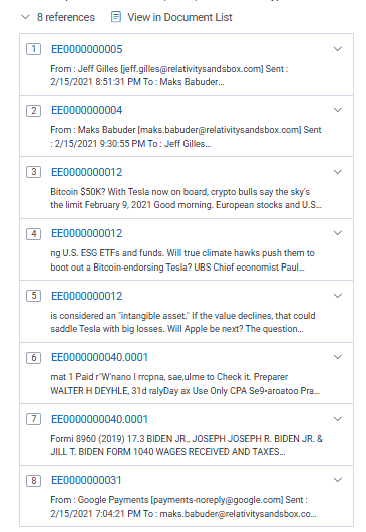
- Below the Document Control Number link are the first few pieces of information associated with the reference. Click the down arrow associated with each document to view more information.
- Click the Document Control Number link to open the document in the Native Viewer or Extracted Text Viewer with the cited content highlighted in light blue. See Viewer documentation for more information on using the Viewer.
- View in Document List—click to filter the Document List to only show documents that include a reference.
- Be aware that choosing a specific folder in the Folder Browser might change which references appear in the Document List. To ensure all references are visible, select the root folder level.
- From the Document list, you can create a saved search by using the Save Search button. See Saving searches on the Documents tab for the details.
- Index name—the name of the index used for the query displays below the list of references. Hover over the name to view the number of documents within the index, date/time last indexed and by whom, and the description entered when the index was created.
- Action buttons—click the action buttons to do the following:
See Understanding Assist responses for more details on how the system operates on a Retrieval-Augmented Generation (RAG) architecture to retrieve and analyze documents for responses.
Submitting prompts
To submit a prompt (question):
Assist responses are based only on the documents the requesting user is allowed to access at the time they ask the question. Because document-level access can vary by user, different users may receive different answers to the same question.
- Click the Assist icon in the side bar to open the Assist chat panel.
- Type your prompt in the Ask a question box using natural language, as if chatting with a person.
Assist formats responses for you, but you can include instructions to use headers, tables, bullets, or numbered lists, which is helpful for longer outputs.
- Use the default index that displays in the Ask a Question box or click the index name to select a different one from the Index Manager list and click Set index.
- If available, enable the Use Metadata toggle to leverage metadata for the prompt or disable it to not use metadata. See Metadata mapping for more information.
- Users with Prompting permissions enabled can use this toggle. See Permissions for more information.
- The Use Metadata toggle is only supported for indexes created using Assist. Currently, Case Strategy Case Home index does not support metadata mapping so the toggle is disabled.
- Click the Send Message up arrow icon to submit the prompt.
Assist displays a response that includes a list of references and documents with control numbers. For additional information on responses, see Navigating the responses and Understanding Assist responses.
- Click View in Documents List to filter the Document List to only show documents that include a reference.
Be aware that choosing a specific folder in the Folder Browser of the Document List might change which references appear in the list. To ensure all references are visible, select the root folder level. From the Document list, you can create a saved search by using the Save Search button. See Saving searches on the Documents tab for the details.
- Continue prompting the system using the selected index. If you want to use a different index for querying, click the current index name link, select another one from the index list, and click Set. Then, repeat these steps.
Responses and citations should be reviewed and verified before using them. Where appropriate, record your feedback using the thumb up or down icon.
The system maintains chat context within the current sessions for follow-up questions and more natural conversation. For more information on managing conversations, see Using Conversation Manager.
Chat history for all chat sessions:
- are private to each user
- cannot be shared
- persists across each user's Relativity session
When Relativity updates the underlying large language model (LLM), the same prompt criteria text may produce different results because they are tied to the model used when the result was generated. Previous results are not automatically reprocessed when LLM models are updated.
Starting a new prompt conversation
You can start a new conversation using the same or different index. The new conversation does not reference previous conversations for its responses.
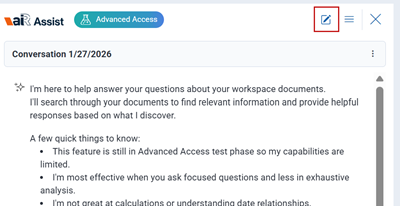
In the Assist chat panel, click the New conversation pencil and paper icon and begin typing your query in the box.
For more information on managing individual conversations, see Using Conversation Manager.
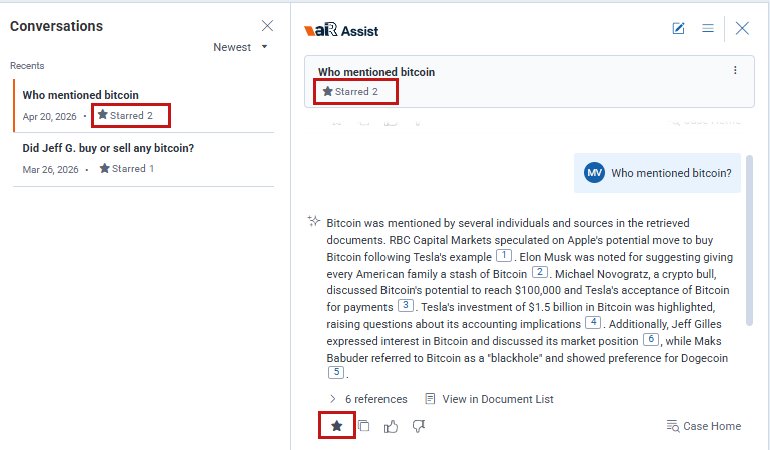
Starring (bookmarking) a prompt and response
You can star (bookmark) important prompt and response pairs to quickly find them later from the conversation header in the Assist panel or from Conversation Manager. For example, you might star key findings or deposition leads to keep them easy to locate among other conversations.
- Click the Star icon below a response to bookmark the prompt and response pair as important. A solid star icon indicates the information has been starred. Click it again to remove the selection.
A Starred # badge appears on the conversation banner in both the conversation header and the Conversation Manager, showing how many responses have been starred. The number indicates how many prompt and response pairs are starred in that conversation.
- Click the Starred # badge in either location to display a pop-up list of all starred pairs for that conversation, sorted by most recently starred. Click an entry in the pop-up list to immediately go to that prompt and response pair. Click the Starred # badge again to close the pop-up list.
Copying a response
The Copy action lets you copy the full response, including citations, to your clipboard with formatting intact for use elsewhere.
Conversation history and sessions
Assist maintains a continuous conversation history for each user in the workspace to keep responses consistent. Users can create unlimited conversations, and each user’s history remains private and cannot be shared with or accessed by others in the workspace within the application. However, conversations can be exported to use elsewhere if the user was granted the conversation exporting permissions. See Exporting a conversation and Permissions for more details.
Conversation history in the panel is also saved across sessions and retained as long as the workspace exists, unless the conversation is deleted. For details on managing conversations, see Using Conversation Manager.
All conversations, including deleted ones, are retained per workspace for defensibility reasons, and can be retrieved by contacting Relativity Support for assistance.
Follow-up memory is limited to the 10 most recent messages in the current user session. As a conversation gets longer, earlier messages may no longer be referenced once the model reaches its context limit.