


Feedback

Last date modified: 2026-Oct-02
An Azure Admin must complete all steps to create and configure preservation hold credentials before creating a preservation data source in Relativity. For more information, see Microsoft preservation source manual setup.
You must complete all steps to use Preservation in-place.
The steps are as follows:
After completing the setup, you can set up the Microsoft 365 data source in Relativity. For more information, see Microsoft preservation source manual setup.
See these related topics:
The permissions, roles, and Exchange Online configuration steps described in this topic are the minimum supported requirements for Preservation in place.
Relativity does not support alternative permission models, substitute roles, or reduced access scopes for these operations. Changing or omitting required permissions may result in failed holds or unsupported preservation behavior.
Follow the steps below to set up app-only authentication in Entra ID. For more information, see Microsoft's documentation for setting up app-only authentication in Entra ID.
The person performing the steps below should be a Microsoft Azure admin and familiar with setting up certificates.
Start with registering your app by following the steps below:
The person completing the application registration process needs to be an Azure Administrator with sufficient privileges.
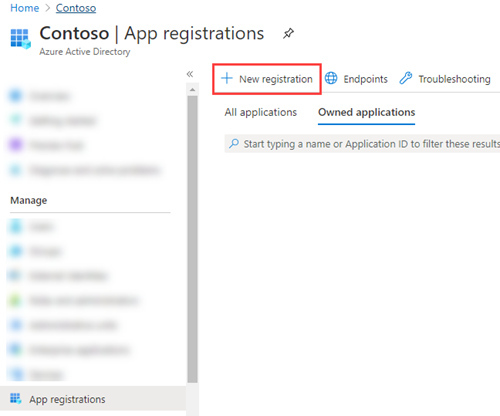
You must add the Sites.Read.All and Exchange.ManageAsApp API permissions to your application.
To add the Sites.ReadAll permission,
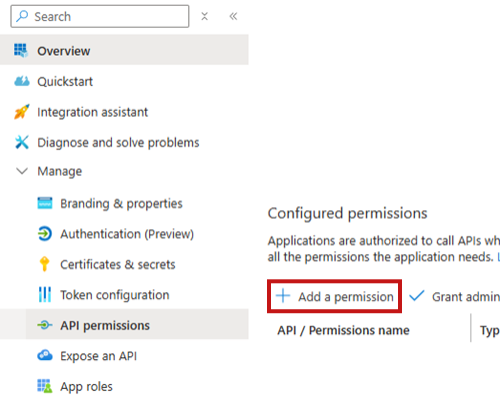
The Sites.ReadAll permission should now be added to your application.
To add the Office 365 Exchange Online - Exchange.ManageAsApp permission,
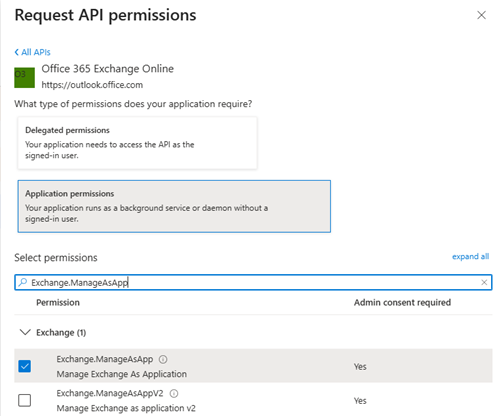
Microsoft Exchange Online Protection - Exchange.ManageAsApp
The Microsoft Exchange Online Protection - Exchange.ManageAsApp permission should now be added to your application.
If you cannot add this permission, contact Microsoft Support.
Next, you must generate a self-signed certificate. For more information, see Generate certificate.
You must create a self-signed certificate. Use the script below. The script below will create two files:
The script creates a certificate that is valid for one year. After a year, you must replace this certificate with a new valid certificate.
To generate a self-signed certificate,
# Create certificate
$mycert = New-SelfSignedCertificate -DnsName "contoso.org" -CertStoreLocation "cert:\CurrentUser\My" -NotAfter (Get-Date).AddYears(1) -KeySpec KeyExchange
# Export certificate to .pfx file
$password = ConvertTo-SecureString "test" -AsPlainText -Force
$mycert | Export-PfxCertificate -FilePath mycert.pfx -Password $password
# Export certificate to .cer file
$mycert | Export-Certificate -FilePath mycert.cerTo assign the required application roles,
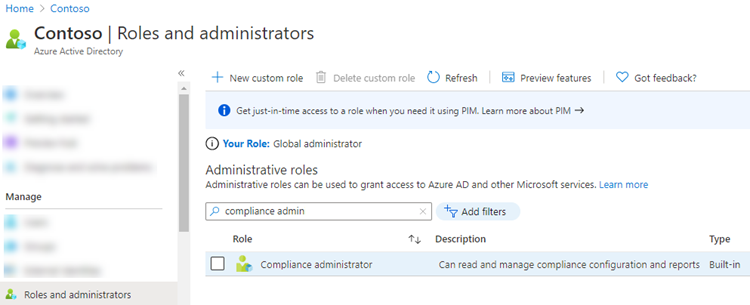
You now have the Compliance Administrator and Exchange Administrator roles assigned to the application. For information on roles, see Microsoft’s documentation.
You will use the information created for the next steps.
After setting up an app in Entra ID in the Register the application section, you need to create a Service Principal to associate with the app.
You may need to install the AzureAD and ExchangeOnlineManagement modules.
Exchange Online PowerShell is required only where Microsoft requires it to support preservation and mailbox hold operations. Relativity uses Microsoft‑supported modules and roles and does not rely on legacy or unsupported APIs.
To install the modules, add the following to PowerShell:
Install-Module Microsoft.Graph.Authentication
Import-Module Microsoft.Graph.Authentication
Install-Module Microsoft.Graph.Applications
Import-Module Microsoft.Graph.Applications
Install-Module ExchangeOnlineManagement
Import-Module ExchangeOnlineManagement
To create the Service Principal, assign it to the application, and add it to the eDiscovery Manager role group, add the following to PowerShell. For more information, see the Relativity Community.
You must have a Global Admin run the following PowerShell script.
## Authenticate with Microsoft (including providing answer for MFA)
$AppId = "Application-ID-FROM-AZURE-AD"
$appName = "AppNAME-FROM-Azure-AD"
$spDisplayName = "your_sp_displayname"
# access token is passed to Connect-AzureAD
# the user logging, will require admin permissions.
Connect-MgGraph
$AADApp = Get-MgServicePrincipal -Filter "displayName eq '$appName'"
# create service principal in scc
connect-ippssession
New-ServicePrincipal -AppId $AADApp.AppId -ObjectId $AADApp.Id -DisplayName $spDisplayName
$SP = Get-ServicePrincipal -Identity $spDisplayName
Add-RoleGroupMember -Identity "eDiscoveryManager" -Member $SP.ObjectId
Add-eDiscoveryCaseAdmin -Confirm:$false -User $appId
disconnect-exchangeonline -Confirm:$false
For more information on the eDiscover Manager role group, see Microsoft's documentation.
Use the copy button to copy the script.
Replace these values in the script with your information:
Next, you can open Relativity and use the information to create the Microsoft 365 data source. For more information, see Microsoft preservation source manual setup.
