Scheduling Import/Export jobs with Automated Workflows
You can use Automated Workflows to run Import/Export jobs on a schedule when your job’s data source or export location is set to Staging.
On this page, you will learn how to:
- schedule existing Import/Export jobs from the Automated Workflows interface.
- handle parent job append and overlay settings as well as overwrite imported document values when necessary.
- view scheduled jobs with timestamps and source details in the Import/Export job list.
Before you begin
Check the following before scheduling an Import/Export job with Automated Workflows:
- Make sure you have access to Import/Export and Automated Workflows in the Relativity instance.
- Make sure your workflow accesses Staging.
- Confirm you have Allow Staging Import permission granted.
Limitations
Consider the following before scheduling an Import/Export job with Automated Workflows:
- Only jobs with Staging sources or targets can be scheduled.
- Only jobs created after 8/15/2025 will be available for scheduling.
- Only structured (processed) data can be scheduled.
- If the parent job exported to Staging and downloaded ZIP files to your computer, scheduled runs skip zipping and local download. All child runs created by Automated Workflows write only to Staging.
- A scheduled import job uses the same Staging location as its parent job. A scheduled export job writes to StructuredData folder in Staging.
- If you are scheduling a Saved Search, it must be set to Public.
- Jobs created by Automated Workflows cannot be scheduled again from Import/Export.
- You can have a maximum of 10 active Automated Workflows per workspace.
Scheduling a job
To schedule a job with Automated Workflows, follow these steps:
- In Import/Export, confirm the job has Staging set as its data source or export location.
- Navigate to Automated Workflows.
- Create a new workflow, or open an existing one, and define Workflow Info. For more information on creating an automated workflow, go to Automated Workflows.
- Select Scheduled Run trigger. For more details on Scheduled Run trigger options, go to Triggers.
- Configure frequency and start time of the schedule.
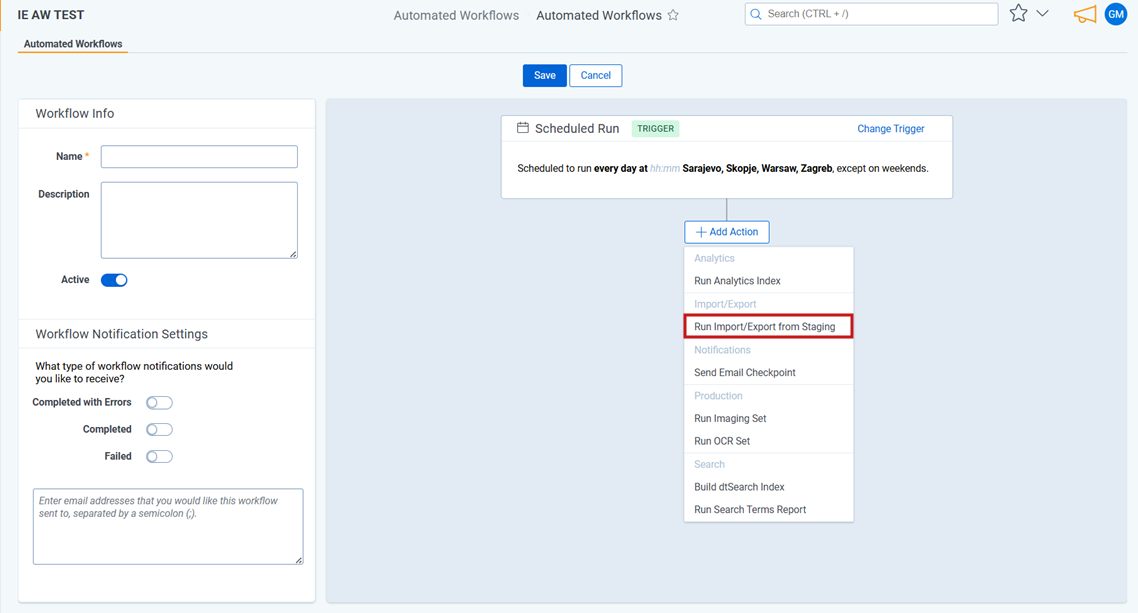
- Add action Run Import/Export from Staging.
Scheduled Run supports only one Run Import/Export from Staging action per run. If you add more actions, the run will fail.
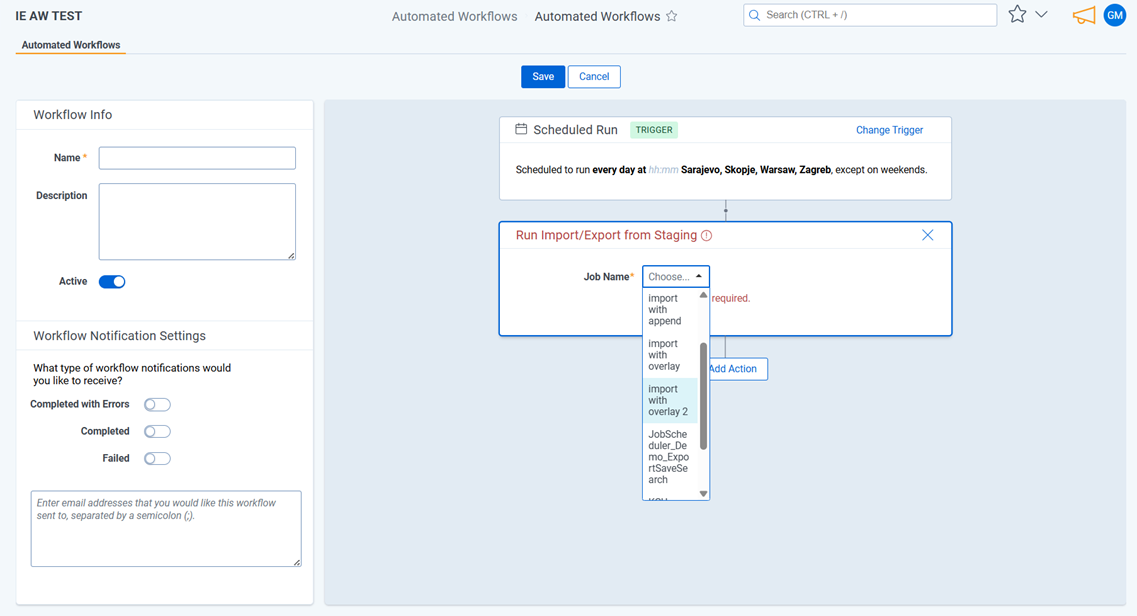
- From the Job Name drop‑down list, select the Import/Export job you want to schedule.
The list includes only jobs that use Staging as the source or export location, were created after August 15, 2025, and which you have access to.
- Click Save to save the workflow.
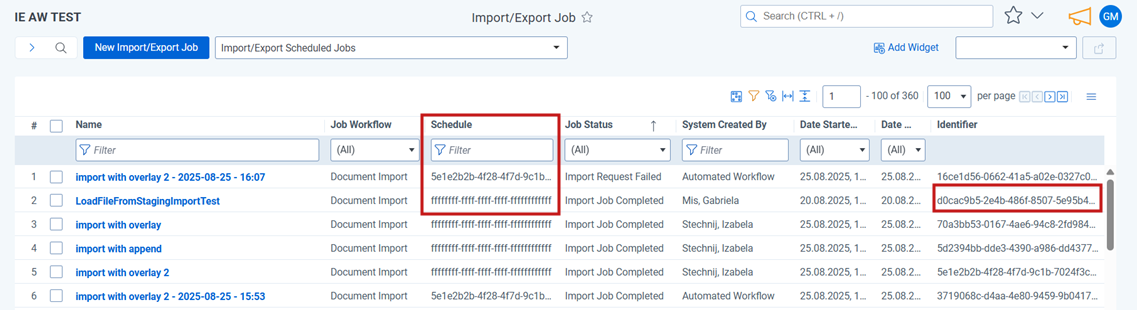
In the Import/Export Job list, scheduled runs inherit the parent job name with a timestamp suffix: JobName – YYYY‑MM‑DD – HH:MM (local time). Therefore, if more than one run using the same parent job was scheduled for the exact same date and time, there will be several records with that name and timestamp. However, they will have different identifiers.
The System Created By column displays Automated Workflow.

To focus on scheduling activity, select Import/Export Scheduler Jobs view.
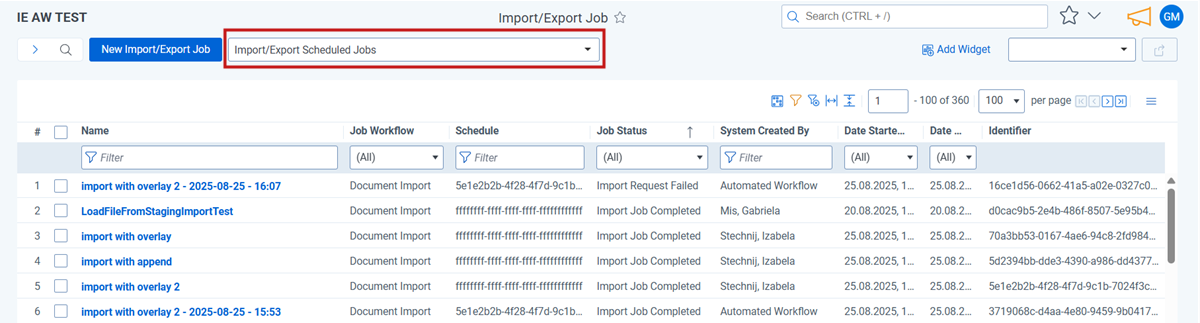
In this view, you can:
- See parent jobs eligible for scheduling and all jobs created by an automated workflow.
- Use the Schedule column to identify each automatically created job’s original (parent) job. The value is the parent's identifier.
- Observe that manually created jobs that use Staging as a location also appear here and display a placeholder in the Schedule column (ffffffff-ffff-ffff-ffff-ffffffffffff).