Last date modified: 2026-May-15
Transcript reports
If you have the Transcripts application installed, you can export the different annotations and items that have been linked to transcripts, including Case Dynamics items. This feature only works with the following transcript file formats: .ptf, .xmptf, .rtf, .trn, .lef, .xmef, and .txt.
Transcripts application
Creating a transcript report
To create a transcript report:
- Navigate to the Documents tab.
- Select one or more transcript documents to report on.
- Click the mass operations button and select Transcript Report. A pop-up appears.
- Select one of the following report types:
- Complete the remaining applicable fields.
- Select Export.
Annotations Digest
The Annotations Digest report exports a PDF with the selected annotations that contains the following information:
- Case Name
- Transcript Name
- Type of annotation with total number of annotations selected
- Individual representations of each annotation with corresponding page and line numbers
- Case Dynamics items
- Time and date of digest generation
To run the Annotations Digest, fill out the following fields:
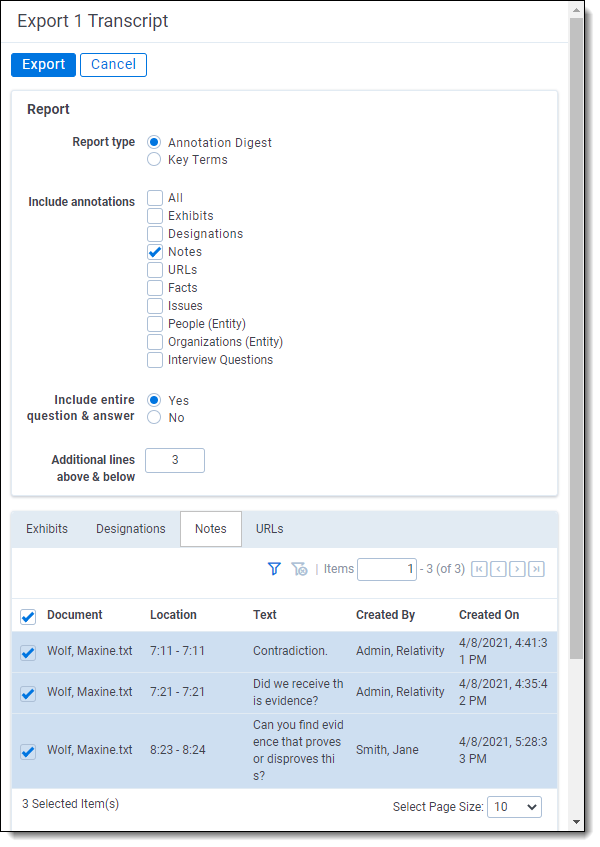
- Include All Annotations - select all or which annotation types and Case Dynamics items you would like to include. In the bottom section of the report pop-up, you can choose to include or exclude specific annotations.Comments within notes are included when you select Notes, so you can see the full dialogue on printed transcripts.
- Include Entire Question and Answer - select Yes/No to include the nearest question and answer in the selected annotation.
Key Terms
The Key Terms report exports a PDF with the chosen key terms that contains the following information:
- Case Name
- Transcript Name
- List of key terms
- Individual representations of each key term with corresponding page and line numbers, including the additional lines above and below the term
- Time and date of digest creation
Key terms are highlighted in the report.
To run the Key Terms report, fill out the following fields:
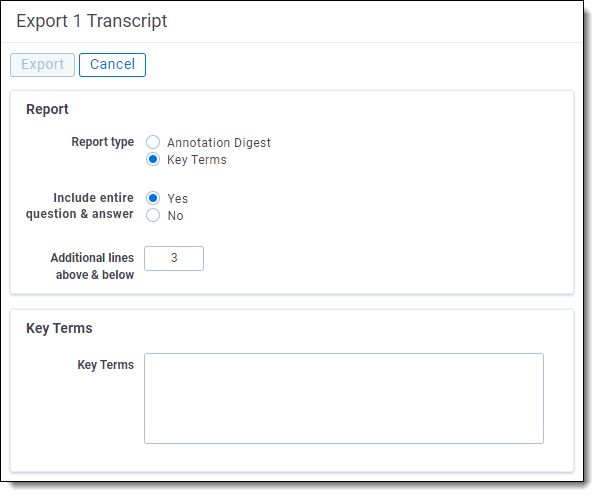
- Include Entire Question and Answer - select Yes/No to include the nearest question and answer in the selected annotation.
- Additional Lines Above & Below - enter up to 10 additional lines that you would like to include above and below the line where the term is located.
- Key Terms - enter the key terms you would like to run the report on, with each term on a separate line.