Using Conversation Manager
Conversation Manager provides a central place to organize and navigate all your conversations. From here, you can rename, delete, pin, and export conversations, as well as switch between threads or pick up where you left off in a previous one.
Users must be granted Prompting permission to manage their conversations. See Permissions for details on the Prompting permission.
ARM is not supported for Assist. Assist permissions, indexes, conversations, and metadata mapping cannot be archived, restored, or moved using ARM.
Suggested resources:
Navigating the Conversations panel
The Conversations panel slides open next to the Assist chat panel. Refer to the following to learn more about the panel.
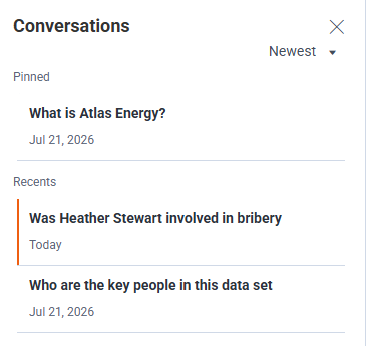
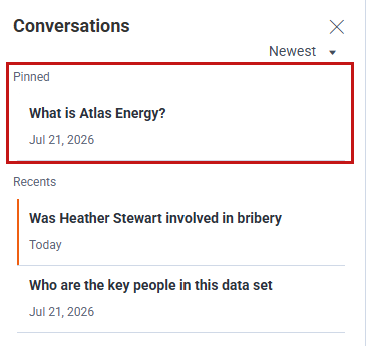
- The newest conversation appears at the top of the Recents list. Click the drop-down arrow to sort by Newest first, Oldest first, A→Z (for ascending order), or Z→A (for descending order).
- Pinned conversations appear at the top of the Conversations pane in the Pinned section.
- Click on a conversation to view it in the Assist chat panel. A vertical highlight bar displays next to a conversation to indicate it is open in the chat panel.
- Hover over the conversation to:
- View the full conversation name and number of messages in the conversation.
- View the three vertical ellipses More icon to rename, pin, export, or delete the conversation.
- Click the X to close the entire Conversations panel.
Opening conversation manager
Use the steps below to open conversation manager.
- To display the Conversations panel, select Conversations from the hamburger icon in the Assist chat panel.
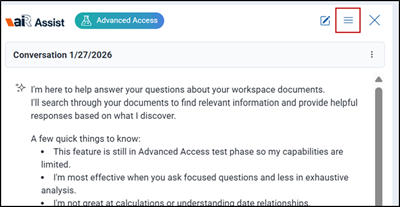
The Conversations panel slides open next to the Assist chat panel.
- To close the panel, click the X opposite the Conversations panel heading or select Conversations again from the hamburger icon in the Assist chat panel.
Viewing a conversation
Use the steps below to open a particular conversation to view its contents.
- Open the Conversation panel. See Opening conversation manager for details.
- Locate and click the conversation name.
A vertical highlight bar displays next to the conversation that is open in the Assist chat panel.
- Optionally, continue asking questions within the conversation or click another conversation name to switch conversations.
Audit logs capture this action. See Auditing user activity for more information.
Renaming a conversation
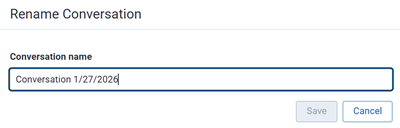
By default, when you open Assist initially or begin a new conversation, it automatically names the conversation using the current date (for example, "Conversation MM/DD/YYYY"). After you submit your first prompt or question, the conversation name updates to reflect that content. You can rename any conversation from the Conversations panel or while viewing the conversation.
- From either the Conversations panel or within an active conversation, click the three vertical ellipses More icon next to the conversation to be renamed.
- Select Rename.
- Enter new name for the conversation (up to 50 characters) in the Conversation name field.
- Click Save.
Audit logs capture this action. See Auditing user activity for more information.
Deleting a conversation
You can permanently delete an entire conversation from either the Conversations panel or within the active conversation itself. Conversation history is kept as long as the workspace exists, unless the conversation is deleted.
- From either the Conversations panel or within an active conversation, click the three vertical ellipses More icon next to the conversation to be deleted.
- Select Delete.
- Click Delete on the confirmation dialog to proceed with deleting the conversation.
The conversation permanently disappears from the panel.
Audit logs capture this action. See Auditing user activity for more information.
Pinning a conversation
For quick access to important conversations, you can pin them to the top of the Conversations list. They will appear above the All conversations section.
- From either the Conversations panel or within an active conversation, click the three vertical ellipses More icon next to the conversation to be pinned.
- Select Pin. The conversation moves to the Pinned section at the top.
- To remove a pinned conversation from the Pinned section, click the three vertical ellipses More icon next to the conversation to be unpinned and select Remove from pins.
The conversation will return to the All conversations list in date order.
Exporting a conversation
Users with permission to export conversations can save a conversation as a Microsoft Word (.docx) file while preserving its context, citations, and source links. This is particularly valuable for legal and review teams who need to share findings with external parties (clients, co-counsel, opposing counsel) or internal stakeholders who lack Relativity access. See Permissions for more details on setting user permissions.
- From either the Conversations panel or within an active conversation, click the three vertical ellipses More icon next to the conversation to be exported.
- Select Export.
The exported file is saved to the user's default browser download folder.
Audit logs capture this action. See Auditing user activity for more information.