Google Workspace
Google Workspace connects a Google Cloud client to Relativity as a single sign-on (SSO) provider using OpenID Connect.
This topic covers the settings specific to Google Workspace. For the shared wizard steps, see SSO setup.
This documentation contains references to third-party software, or technologies. While efforts are made to keep third-party references updated, the images, documentation, or guidance in this topic may not accurately represent the current behavior or user interfaces of the third-party software. For more considerations regarding third-party software, such as copyright and ownership, see
Terms of Use.
Before you begin
Complete these items before you configure the provider:
- Create a project in the Google Cloud console.
- Confirm you have administrator access to the project.
- Review the prerequisites in Prerequisites.
Google Workspace settings in Relativity
When you reach the connection screen in the wizard, complete these fields:
- Name—enter a name for the connection. The name must be unique, fewer than 120 characters, and cannot contain backslashes.
- Client ID—enter the Client ID from your Google Cloud client.
- Client Secret—enter the Client Secret from your Google Cloud client.
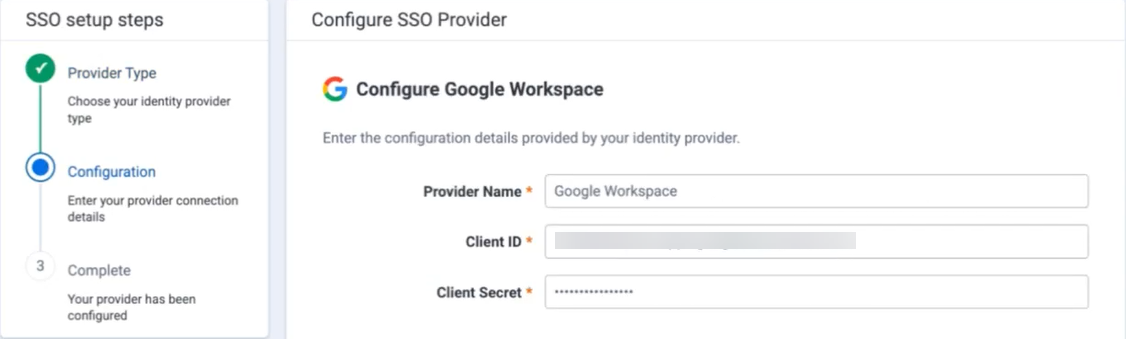
Google displays the client secret only once. Copy and save it when you create the client.
Getting the values from Google Cloud
Create a client in the Google Cloud console and copy its credentials before you enter them in Relativity.
To get the values:
- In the Google Cloud console, open your project.
- Go to the Clients tab.
- Create a client.
- Select Web application.
- Enter a name for the client.
- Click Create. Google generates a Client ID and a Client Secret.
- Copy the Client ID and the Client Secret.
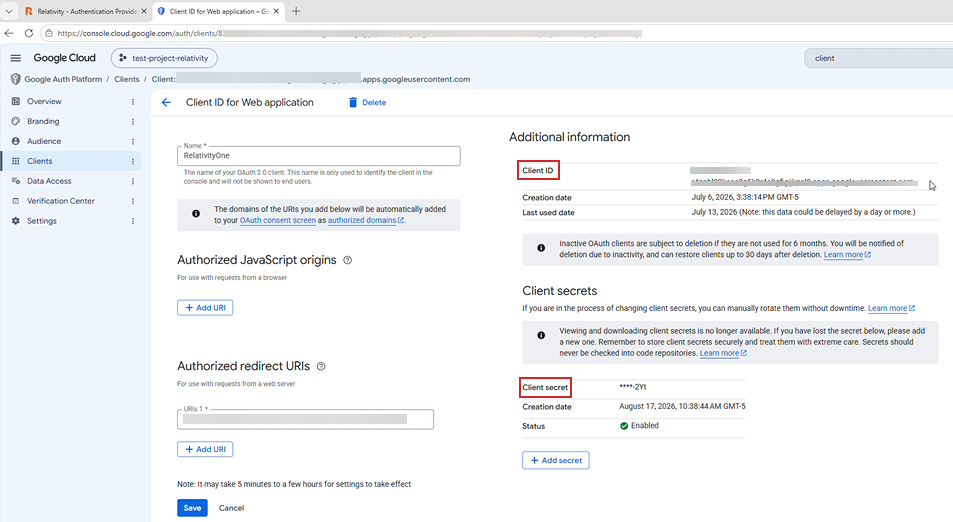
Adding the redirect URI in Google Cloud
After you enter the Relativity settings and continue, the wizard generates a redirect URI. Add it to your Google Cloud client.
To add the redirect URI:
- In the wizard, copy the redirect URI.
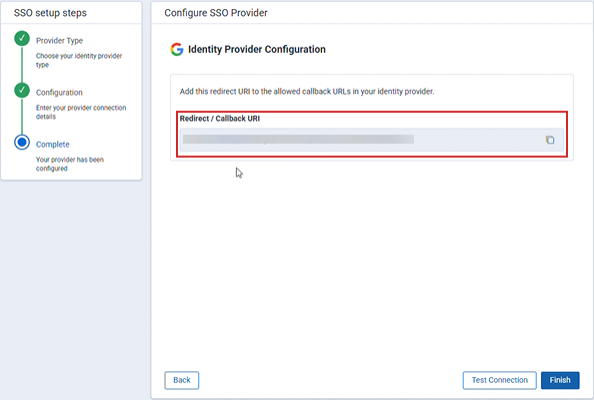
- In your Google Cloud client, add the redirect URI to the authorized redirect URIs.
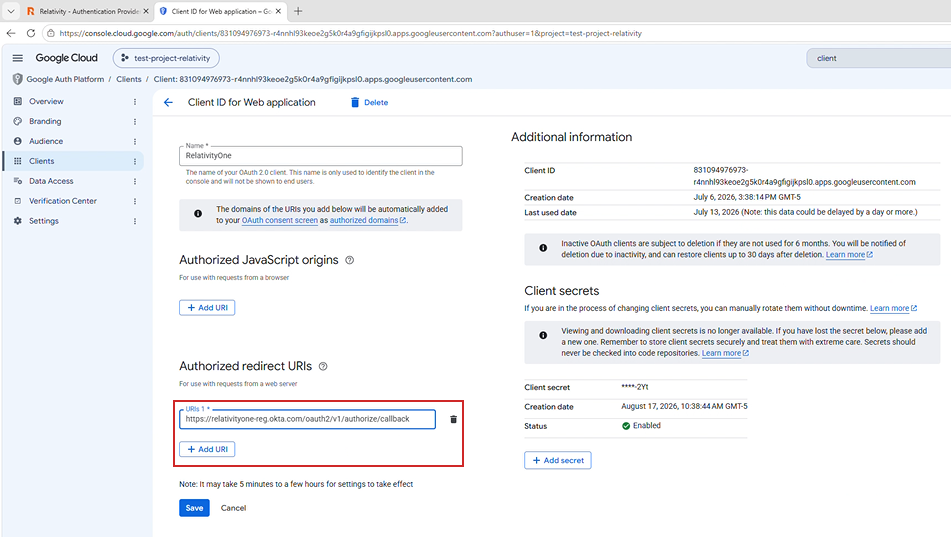
- Click Save.
Testing and enabling the provider
To test the connection and finish setup, follow the shared steps in Registering an SSO provider. The connection test prompts you to sign in with your organization email address. If your organization requires multi-factor authentication (MFA), complete the MFA prompt.
See these related pages:


