Feedback

Last date modified: 2026-Sep-17
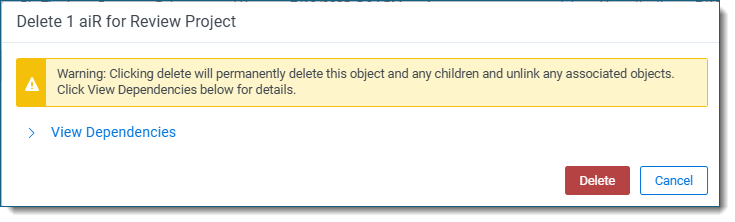
Use Mass Operations to delete one or more projects from the project list. For more information on Mass delete, see
Mass delete is permanent action, so be sure to double-check your selections before proceeding. This operation cannot be undone.
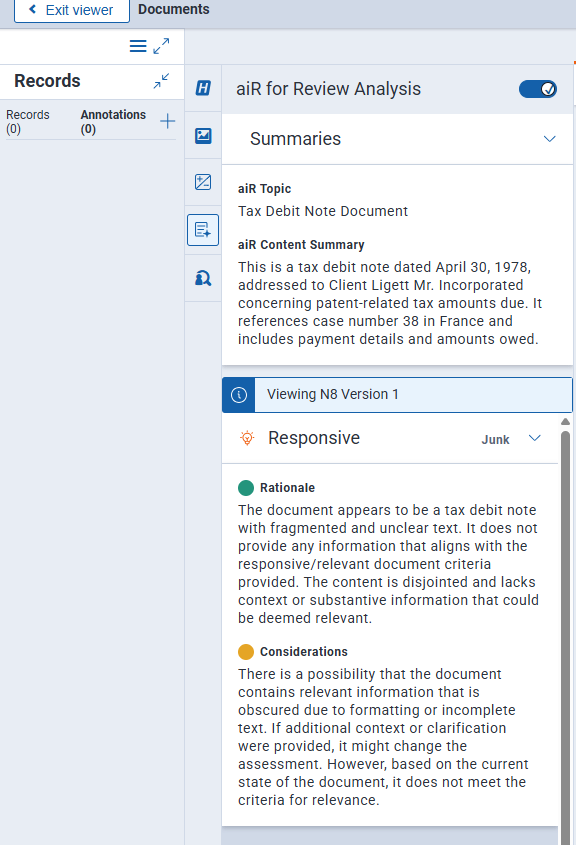
Even though an aiR Review project is deleted, the associated analysis results remain linked to the document and are not deleted. These results will still be displayed in the Document Viewer. For more information on document linking, see Managing aiR Review jobs and see aiR Review Analysis for more information on aiR Review analysis results in the Viewer.
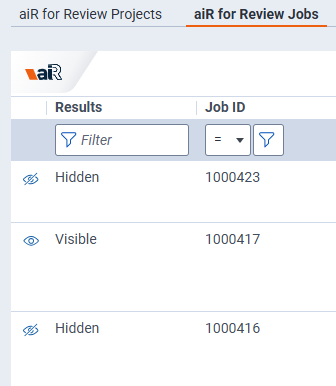
To hide the results from the Viewer, go to the aiR Review Jobs tab and click the Visible eye icon beside the Job ID to change the setting to Hide results. The Results column will update from Visible to Hidden, and the eye icon will have a slash through it. This removes the link to the analysis results so they do not display in the Document Viewer's panel. Click the icon again to relink them and show results in the Viewer. For more information on document linking, see Managing aiR Review jobs.