


Feedback

Last date modified: 2026-Sep-18
Use the Review Queues tab to check out batches, review documents, and check completed batches back in.
This page is for batches created using Review Center. For other batches, see Assigning batches and checking batches in and out.
For instructions on how to assign batches to users as an administrator, see Managing batched queues.
See these related pages:
When you log in as a reviewer, you can see all active queues and batches assigned to you from the Review Queues tab.

Near the top of the page, you can filter which queues and batches to show:
Under the My Work filter, you can see queues and batches that are assigned to you.
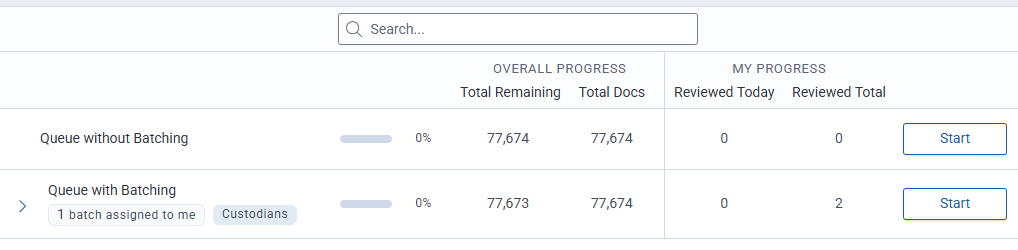
A search bar appears at the top of the queue and batch list. Currently, you can search by queue name.
Depending on how the queue is set up, your administrator may have assigned you batches in advance. The administrator may also have left some batches unassigned, which you can assign to yourself.
Queues and batches are visible if you have been assigned to the reviewer group for that queue.
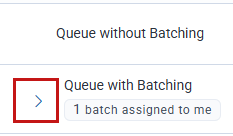
Queues that contain batches assigned to you have a Start button on the right. Clicking Start without choosing a specific batch will serve up the first batch assigned to you. You can also expand the list of batches and select a specific one to review.
To choose a specific batch:
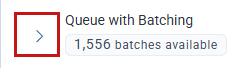
If the administrator has left some batches unassigned, you can assign them to yourself.
To self-assign a batch:
The checked-out batch now appears under the My Work filter.
Each batch assigned to you has a three-dot menu on the far right.
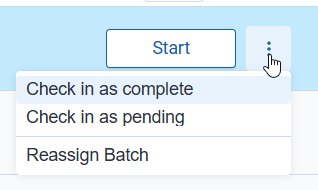
The batch options include:
Both pending and complete batches can be reassigned from the Review Center dashboard and then checked back out. For more information, see Managing batched queues.
