


Feedback

Last date modified: 2026-Sep-16
Relativity supports short message conversion for Google Chat in Relativity aiR. During processing, Relativity automatically converts Google Chat exports in MBOX format to Relativity's Short Message Format (RSMF).
Relativity Processing supports Google Chat exports from Google Vault. A Google Vault export for Google Chat produces two files:
Both files are generated automatically by Google Vault as part of the same export. When downloading the export from Google Vault, make sure to include the MBOX file, as it is required. If the metadata XML file is not uploaded alongside the MBOX file, conversion continues but the following warning is generated and some metadata will be missing in the output RSMF file and in the Short Message viewer:
During conversion to RSMF, no metadata XML file was found. This will cause some of the metadata to be missing in the output RSMF file and in the Short Message viewer, but does not stop the full processing of the Google export file. You can continue.
You should import both the XML file and MBOX file(s) to the same level so that the XML file is matched to the MBOX file(s).
For example:
If you are using Express Transfer, you must use a two-level folder structure. The top-level folder contains sub-folders for each data source, for example, sub-folders for each custodian. If using the standard zip import option, both folder levels must be zipped together to maintain the two-level hierarchy.
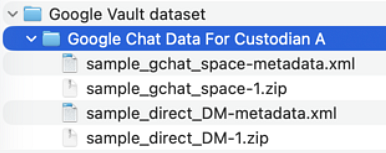
See Create Processing Job in the Import/Export documentation for expanded details on importing data using Import/Export.
Relativity uses the conversation ID embedded in each MBOX message to group messages into conversations. Messages sharing the same conversation ID are grouped together and sorted chronologically before the conversion begins.
By default, conversations that span more than 24 hours, have more than 10,000 events, or are larger than 2 GB in size (including attachments) are split into separate RSMF files (slices). You can change the time slicing interval in the short message conversion settings of a processing profile.
Relativity processes the following message types from Google Chat exports:
The following table lists the metadata fields found in RSMF files after Google Chat conversion.
| Relativity source field name | Field type | Description |
|---|---|---|
| Subject | Long Text | The value of the RoomName field from the metadata XML file. The content depends on what Google Vault includes in that field for each conversation type. If no metadata XML file is provided, this field defaults to "Unknown". |
| EmailFrom | Long Text | The email address and name of the sender of the first event in the conversation. If no metadata XML file is provided, only the name extracted from the export content is available. |
| EmailTo | Multiple Choice | A list of email addresses and names of all participants in the conversation. If no metadata XML file is provided, only the names of participants who sent at least one message are available. |
| Date | Date | The date of first event in conversation. |
| Rsmf/Version | Long Text | 2.0.0 |
| Rsmf/Participants | Multiple Choice | A list of email addresses of all participants in the conversation. If no metadata XML file is provided, only the names of participants who sent at least one message are available. Use the Long Text field type when mapping this field. Selecting Multiple Choice can lead to hundreds of unique choices that may impact performance. [relativity...assian.net] Use the Long Text field type when mapping the Rsmf/Participants field. Selecting Multiple Choice can lead to hundreds of unique choices that may impact performance. |
| Rsmf/Generator | Long Text | Relativity Processing |
| Rsmf/Application | Long Text | Google Chat |
| Rsmf/MessageCount | Whole Number | The number of events in the conversation. |
| Rsmf/AttachmentCount | Whole Number | The number of attachments in conversation. |
| Rsmf/EventCollectionId | Long Text | The conversation ID that is persisted between file slices. |
| Rsmf/BeginDate | Date | The date and time of first event in conversation. |
| Rsmf/EndDate | Date | The date and time of last event in conversation. |
During processing, no conversion-time deduplication is applied; edits/deletions are folded into the original event. File-level deduplication happens only at Publish.
See Deduplication for short message formats for expanded details.
| Discover error message | Details |
|---|---|
| Error message, "Relativity encountered invalid MBOX file format. Export the source file again and retry processing. If the file was provided by a third party, contact the data source to request a new export. If the issue persists, contact Relativity Support." | Can't expand MBOX. The Google Chat export file isn't in the expected MBOX format. Continue by re-exporting the data from Google Vault without modifications and retry. If the issue persists, contact Support with Job ID: {jobId}. |
| Warning, "During conversion to RSMF, Relativity could not find the XML metadata file. Relativity processed the file, however, some metadata will be missing in the output RSMF file and the short message viewer. You can continue." | Metadata file missing. No XML metadata file was found, so some metadata may be missing in RSMF and Short Message Viewer. You can continue, or re-export including the XML file from Google Vault and reprocess for complete metadata. |
| Warning, "Relativity couldn't process Google Chat XML metadata. Verify if the file is correct and try again, if you'd like to process all metadata from the exported files. Processing continued anyway, but some metadata was not included." | Malformed sidecar XML. The XML metadata file could not be parsed (e.g. corrupt or invalid XML structure). Processing continued without sidecar metadata. Re-export the XML from Google Vault and reprocess for complete metadata. |
| Warning, "During conversion to RSMF, Relativity found empty messages in the input MBOX file. Relativity processed the file, however, these messages will appear as empty in the output RSMF file and the short message viewer. You can continue." | Some data types from Google Chat are not included in the export, which results in empty messages in MBOX file. |
| Error message, "An unexpected internal error occurred during RSMF conversion. Please retry the dataset to proceed." | Infrastructure-level failure on the last retry attempt. The job cannot continue. Retry the dataset. |
| Error message, "An error occurred during RSMF conversion. The error may be due to an unsupported package structure. Please consider reprocessing the data." | Catch-all for any unhandled conversion exception. May indicate an unsupported or corrupt package structure. |
| Warning, "Some attachments are likely corrupted. You can ignore this warning as the missing attachments will appear as names or links in the generated RSMF files." | Per-attachment: an occurred while adding an attachment to the RSMF file. The attachment is likely corrupted. It will appear as a name k instead of an embedded file. |
| Warning, "The total attachment size would exceed the maximum allowed limit for a single RSMF file. You can ignore this warning as the missing attachments will appear as names or links in the generated RSMF files." | Per-attachment: adding this attachment would push the RSMF past the 2 GB size limit. The attachment is skipped and appears as a name instead. |
| Warning, "One or more files appear to contain a virus or potentially unwanted software. You can ignore this warning as the missing attachments will appear as names or links in the generated RSMF files." | Per-attachment: the file was flagged as containing a virus or potentially unwanted software. The attachment is skipped and appears as a name instead. |
| Warning, "Relativity encountered invalid message format in {section_name} or an additional unexpected section. Export the source file again and retry processing. If the file was provided by a third party, contact the data source to request a new export. If the issue persists, contact Relativity Support. | Malformed message structure. A Google Chat message contained an invalid or unexpected section ({section_name} is one of: data id, thread metadata, message metadata, quote metadata, or assets metadata), or an additional section that Relativity did not recognize. Some content from the affected message may be missing in the RSMF output and the Short Message Viewer. Processing continued. In case of any doubts or missing critical information, re-export the conversation from Google Vault without modifications and retry. If the issue persists, contact Relativity Support with the Job ID: {jobId}. |
