


Feedback

Last date modified: 2026-Sep-16
The following tables provide detailed breakdowns of the security permissions required to use Integration Points.
To submit a job for a non-Relativity source provider, such as FTP, LDAP, or load file, and display console errors for that job, you need the following permissions:
|
Workspace |
Object/operation/tab |
Permission type |
|---|---|---|
|
Source |
Workspace |
View, Edit, Add |
|
Source |
Integration point |
View |
|
Source |
Job History |
View, Edit, Add |
|
Source |
Destination Provider |
View |
|
Source |
Source Provider |
View |
|
Source |
Integration Point Type |
View |
|
Destination |
Destination RDO |
View, Edit, Add |
|
Destination |
Allow Import |
Admin operation |
To submit a job with Relativity as the source provider and display console errors for that job, you need the following permissions:
|
Workspace |
Object/operation/tab |
Permission type |
|---|---|---|
|
Source |
Workspace |
View, Edit, Add |
|
Source |
Integration point |
View |
|
Source |
Job History |
View, Edit, Add |
|
Source |
Destination Provider |
View |
|
Source |
Source Provider |
View |
|
Source |
Integration Point Type |
View |
|
Source |
Document |
View, Edit |
|
Source |
Search |
View, Edit, Add |
|
Source |
Advanced & Saved Searches
|
Browser |
| Source | View Workspace Details |
Admin operation |
|
Destination |
Destination Workspace |
View, Edit, Add |
|
Destination |
Allow Export |
Admin operation |
| Destination | View Workspace Details |
Admin operation |
If you are creating an integration point for a non-Relativity source provider, such as FTP, LDAP, or load file, Relativity assumes you have the following system admin permissions:
|
Workspace |
Object/operation/tab |
Permission type |
|---|---|---|
|
Source |
Integration point |
View, Edit
|
|
Source |
Job History |
View, Edit, Add |
|
Source |
Job History Error |
View, Edit, Add
|
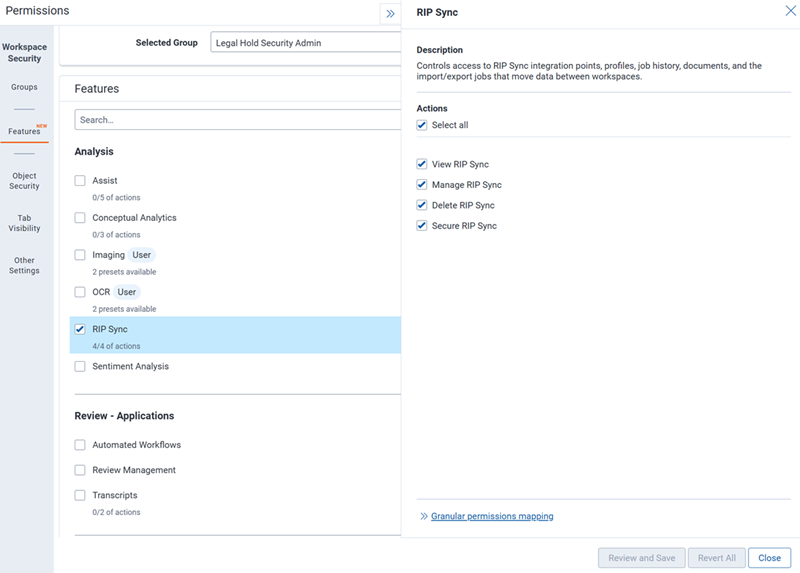
If you are creating an integration point with Relativity as the source provider, Relativity assumes you have
the following system admin permissions:
|
Workspace |
Object/operation/tab |
Permission type |
|---|---|---|
|
Source |
Destination workspace |
View, Edit, Add
|
| Source |
Sync Configuration
|
View |
| Source |
Sync Batch
|
View |
| Source |
Sync Progress
|
View |
| Source |
Sync Statistics
|
View |
|
Destination |
Manage Object Types
|
Admin operation |
|
Destination |
Source workspace |
Add, Edit
|
|
Destination |
Source job |
Add |
To view an integration point with any source provider, you need the following permissions:
|
Workspace |
Object/operation/tab |
Permission type |
|---|---|---|
|
Source |
Job History |
View |
|
Source |
Integration point |
View |
|
Source |
Integration point type |
View |
To create and edit an integration point with any source provider, you need the following permissions:
|
Workspace |
Object/operation/tab |
Permission type |
|---|---|---|
|
Source |
Integration point |
View, Edit, Add
|
|
Source |
Integration point type |
View |
|
Destination |
Allow Import |
Admin operation |
To create an integration point with a Relativity source provider, you need the following permissions:
|
Workspace |
Object/operation/tab |
Permission type |
|---|---|---|
|
Source |
Allow Import |
Admin operation |
To create an integration point with any source provider from an integration point profile, you need the following permissions:
|
Workspace |
Object/operation/tab |
Permission type |
|---|---|---|
|
Source |
Integration point profile |
View |
To view any integration point profile, you need the following permissions:
|
Workspace |
Object/operation/tab |
Permission type |
|---|---|---|
|
Source |
Integration point profile |
View |
|
Source |
Source provider |
View |
|
Source |
Destination provider |
View |
|
Source |
Integration point type |
View |
To create and edit an integration points profile with any source provider, you need the following permissions:
|
Workspace |
Object/operation/tab |
Permission type |
|---|---|---|
|
Source |
Integration Point Profile |
View, Edit, Add
|
|
Source |
Integration Point Type |
View |
|
Source |
Source Provider |
View |
|
Source |
Destination Provider |
View |
|
Destination |
Allow Import |
Admin operation |
To create and edit an integration points profile with a Relativity source provider, you need the following permissions:
|
Workspace |
Object/operation/tab |
Permission type |
|---|---|---|
|
Source |
Allow Import |
Admin operation |
If you do not have sufficient permissions and you attempt to perform either of the following actions, you will see an error message stating "You do not have sufficient permissions. Please contact your system administrator." In each case, Relativity creates an error listing all missing permissions.
Integration points is tenant-aware. This means that workspace admins within a tenancy receive an error if they attempt to push to a workspace they do not have permissions to. This error occurs when they click Run Now on the integration point that they create to push documents to review.
