


Feedback

Last date modified: 2026-Sep-25
Coding refers to capturing and storing metadata about a contract or its clauses. You can code a contract by clicking into fields, using Send to Field, or using data point suggestions.
You can create custom fields with different format options to extract a wide range of data. For example, you can extract a lease's renewal date or determine the risk level of a change-in-control provision from an employment agreement.
Supported field types:
Unsupported field types:
In the Contracts Viewer, you can code contracts by clicking into fields. Contracts organizes fields by field type.
For information on field types in Relativity, see Fields.
he following table describes field types and their coding behavior.
| Field | Coding limitations |
|---|---|
|
Fixed-Length Long Text |
You can configure fixed-length text fields with length up to 4,999 characters and long text fields can exceed this. The technical limitation of a long text field is 2 GB. If you try to code a text field and you exceed these limitations, you'll receive an error. |
| Date |
After you select a date using the date picker, the field displays the date in the format "March 14, 2011." When you save, Contracts stores the date in a format compatible with your server's regional settings. Confirm whether the SQL server reference applies to Relativity aiR. If it is Server-only behavior, label it accordingly or remove it.
|
|
Currency Whole Number Decimal |
Enter a whole number or decimal number. |
| Yes/No | Select Yes or No from the drop-down menu. |
| Single Choice | Enter a choice, or select from the drop-down menu. The list results will update as you type. |
| Multiple Choice | Enter a choice, or select from the drop-down menu. The results will update as you type. |
You can use the Send to Field feature to send text found in a document to a field on a layout via the context menu of the Contracts Viewer.
You can select text and populate a field. Contracts saves the location of the selected text and links it to the field, so when you click the field again, it opens to that location in the document. This is useful for QC workflows where the reviewer performing quality control can see why a coding decision was made.
Send to Field works for all field types that Contracts supports for coding documents.
For the following field types, Contracts uses the text you select with Send to Field to populate the field value and creates a link between the text in the contract and the field.
For the following field types, Send to Field creates a link between the text in the contract and the field, but you must manually select a value to finish coding the field.
To send text to field from the text viewer:
 Send to Field
 Send to Field highlights appear as green blocks in the Highlights minimap.
To Send to Field from the image viewer, follow the steps for sending to field from the text viewer. The slide out at the top of the page will include the cropped image of your selection to compare to the extracted text below it. As with the text viewer, you can edit the text before sending to field.
For long text fields, you can send to one field many times from different locations. For example, if you have an All Assignment Language field and assignment language appears throughout the contract, you can send each location to the field.
When a long text field already contains text and you Send to Field again, you'll see a modal to append, prepend, or replace.
If you choose to Prepend or Append, hover over the field after you Save to see how many highlight locations that field has associated with it. If you click the field multiple times, it will cycle through all highlights.
Administrators can configure data point suggestions, which use regular expressions and persistent highlights results to suggest possible values to help reviewers make a coding decision.
For information on how to configure data point suggestions, see Set up data points in the viewer.
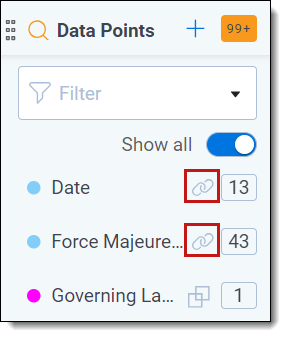
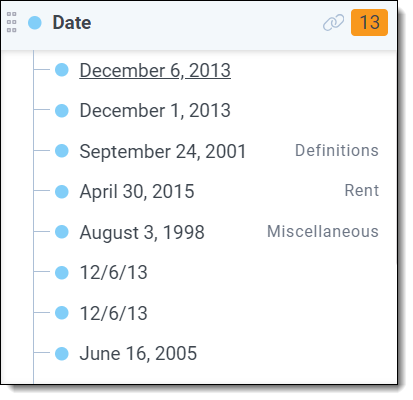
Using data point suggestions, reviewers can expand a field to view suggested values and send them to the field. This can help reviewers locate relevant data and make coding decisions more quickly.
To code documents using fields linked by data point suggestions:
When you are coding a document in the Contracts Viewer, your coding decisions will save on the parent root agreement by default. If you would like a coding decision to save on a section document instead:
