Import Purview cases
This document will describe how you can import Purview cases and hold policies that were created outside of Relativity into the Legal Hold and Preservation in-place application.
Prerequisites
Before you import Purview Cases from Purview to Legal Hold, you must complete the following tasks:
- Create and configure a preservation data source for Microsoft 365 with the new Preservation in-place app. For more information, see PIP.
- Create roles for Preservation including the Preserve Data (New) tag.
- Create a Legal Hold project with custodians assigned with the role containing the Preserve Data (New) tag.
After completing these steps, you can begin to import the Purview case.
Identify Case ID and Hold ID from Purview
To import the existing holds into Relativity, you will need to identify the Case ID and Hold ID from Purview.
The Hold Report feature can be used to help identify this information:
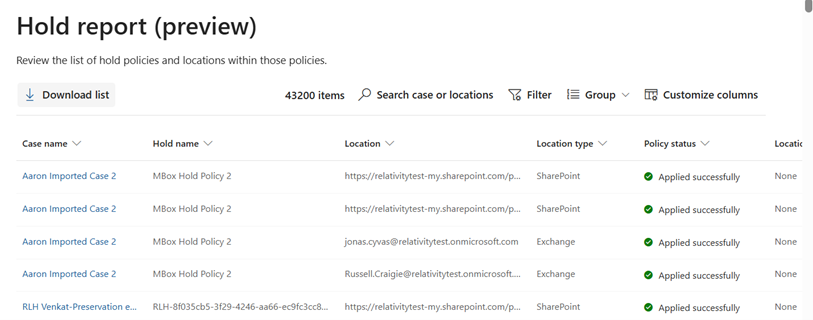
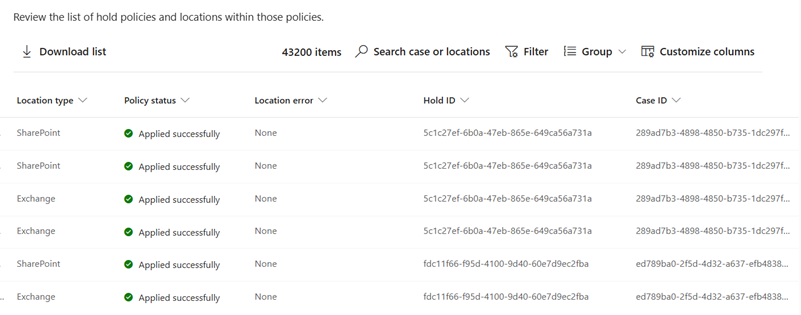
For more information, see Microsoft’s Use the hold report in eDiscovery documentation.
Importing Objects into Relativity
You must import three object types for each Project that you would like to import a case for. When you import them, you must import them in order.
These objects, they must be imported in order, are:
- Preservation
- Preservation Hold
- Preservation Hold Entity Status
After importing the objects:
- There will be a single preservation associated with a Legal Hold project.
- There can be multiple preservation holds on each preservation.
- Each preservation hold will associate with a single service in Microsoft.
- Mailbox
- OneDrive
- SharePoint
- For each Preservation Hold you will have multiple Preservation Hold Entity Status objects. Each of these will represent a custodian, Outlook mailbox or OneDrive, or site, SharePoint, on the hold.
For example, if we are preserving Mailbox and OneDrive for Custodian A and Custodian B on a project we will have:
- 1 Preservation Object
- 2 Preservation Hold Objects
- 1 for Mailbox
- 1 for OneDrive
- 4 Preservation Hold Entity Status Objects
- 2 for Mailbox
- 2 for OneDrive
Here are the fields required for each object:
Preservation
- Name—Fixed-length text. Usually the same as the Project name.
- Legal Hold Project—Single Object – Legal Hold Project. Links to the Legal Hold Project you are Preserving.
- Status—Single choice. Use the Open choice.
Preservation Hold
- Name—Fixed-length text. Usually is {Project Name} - {Service} Hold. For example, Test Project – Mailbox Hold.
- Status—Single choice. Use the Preserved choice.
- Service—Single object. Links to the Preservation Data Service object corresponding to the service you are preserving.
- Matter ID—Fixed-length text. This is the Case ID from Purview.
- Preservation Holds—Multiple object. This will link back to the Preservation object we created above. A Preservation Hold should only be linked to a Single Preservation even though this field is Multi Object.
Preservation Hold Entity Status
- Name—Fixed-length text. Full Name of the Entity (Mailbox/OneDrive) or SharePoint site name.
- Entity—Single object. Links to the entity that is being preserved in the case of a Mailbox or OneDrive hold. If this is a SharePoint hold leave this blank.
- Non-Custodial Data—Single object. Links to the Non-Custodial Data object to be preserved when doing SharePoint preservation. Leave this blank if doing a Custodial (Mailbox or OneDrive) hold.
- Status—Single choice. Use the Preserved choice.
- Hold ID—Fixed-length text. This is the Hold ID from Purview.
- Entity Status—Multiple object. This will link back to the Preservation Hold object we created above. A Preservation Hold Entity Status should only be linked to a Single Preservation Hold even though this field is Multi Object.
Considerations
Consider the following when importing Purview cases.
- For the service principal to be able to modify cases that were created outside of Relativity, it needs to be an eDiscovery Administrator in Purview or added to the Purview Case.
- Relativity creates additional hold policies when you preserve additional data on a case that is already imported.
- Relativity assumes aa standard format for hold policy names when placing preservation holds so there is no way for us to add on to existing hold policies on the case if it does not follow our styling.
- This will not affect functionality otherwise.
- For the objects that are being imported, the Name field is the identifier, and Import/Export will expect these values to be unique.
- Objects include in import:
- Preservation
- Preservation Hold
- Preservation Hold Entity Status
- Using Object Manager will not force the same restrictions if a programmatic solution is being considered.
Using {Project Name} for Preservation Name and {Project Name} - {Service} Hold should make the names for those objects unique, if project name is unique. - For Preservation Hold Entity Status you may need to store a GUID or Unique ID for Name field.


