


Feedback

Last date modified: 2026-Sep-25
The Entities subtab is part of the Entity Analysis tab in Data Breach Response. An entity is a unique individual identified by their name and associated Personal Information (PI), such as Social Security Number, date of birth, or full address. Entities are assigned a unique Entity ID and are composed of one or more records. For definitions of related terms like Record and Conflict Cluster, see Entity Analysis.
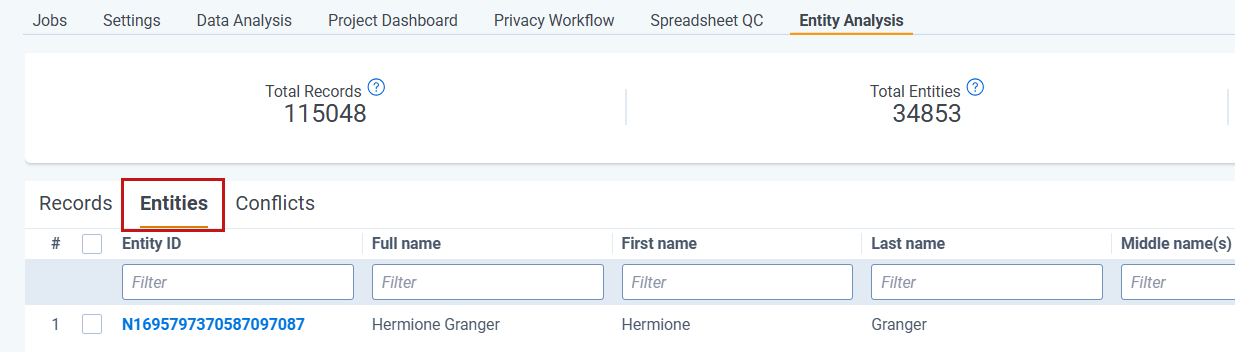
The Entities tab lists all identified entities such as names, organizations, and locations across the dataset with frequency and context. This is also where you can create an Entity Report. The Entity Report shows Total Entity Records, Total Entities, and information about each Entity.
Newly added Records will only appear in the Entity Report after Normalization has been run.
To review entities in your project:
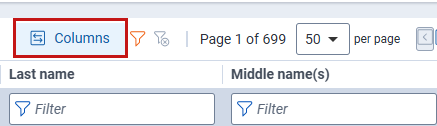
Following is a list of standard fields that appear on the Entity Report:
| Field | Description |
|---|---|
| Entity ID |
Unique identifier for the Entity. Click the Entity ID to view Entity information. |
| Full Name | Entity Full Name normalized from the underlying entity records |
| First Name | Entity First Name normalized from the underlying entity records. The machine attempts to parse the First Name from the Full Name. |
| Last Name | Entity Last Name normalized from the underlying entity records. The machine attempts to parse the Last Name from the Full Name. |
| Middle Name(s) | Entity Middle Name normalized from the underlying entity records. The machine attempts to parse the Middle Name from the Full Name. |
| Title | Entity title (for example, Mr., Mrs., Dr.) normalized from the underlying entity records. The machine attempts to parse the Title from the Full Name. |
|
Records |
Number of Records that make up the Entity. |
| Total PI | Total number of PI values in the report for the entity |
|
Merge Reason |
Summary of why Records were merged. There can be more than one reason on a single entity. Merge Reasons include:
|
|
Source |
Whether an entity was merged automatically during deduplication or by a user. Source will be System Generated for automatically merged entities, and User Generated for entities merged by a user. |
| Cluster ID | The unique identifier of the cluster in which the entity resides |
| Total Document Count | Number of documents in which an entity record is found |
| Total Unreviewed Document Count | Number of unreviewed documents where an entity record is found. |
| Total Reviewed Document Count | Number reviewed documents where an entity record is found. |
| Document Identifiers | Document IDs where entity records are located. |
| Address | A dynamic field that appears depending on your data. Address fields can be populated in two ways:
|
| PI Type | A dynamic field that appears depending on your data. Every PI Type with at least one value tagged to an Entity will appear as a separate column on the Entity Report. These fields will appear after the standard Entity Report fields, and can include PI Types such as Social Security Number, Drivers License Number, Personal Email Address, Employee ID, and more.
|
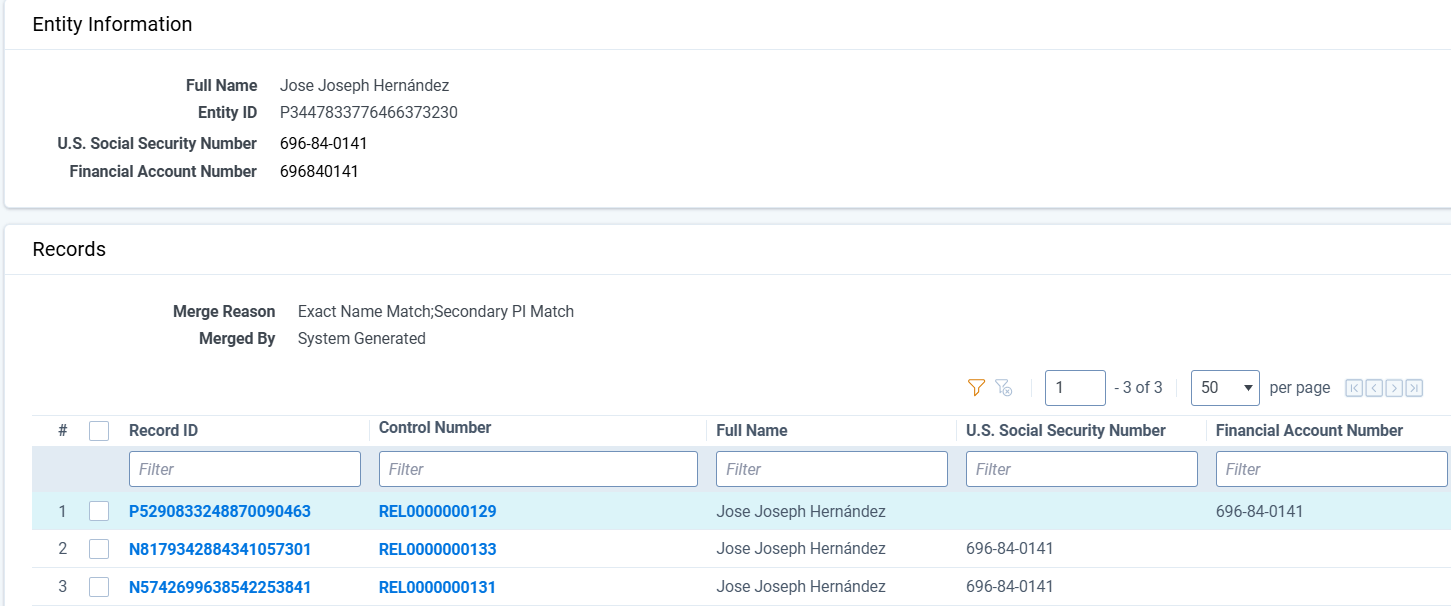
You can view information about an entity by selecting the Entity ID. Entity Information shows an entity's Full Name, Entity ID, Email Address, and other PI.
You can view Merge Reasons and Merged by (system or user name) information for the entity in the Records section. The Records in the Records card are the same as in the Records subtab and can be used to QC Normalization results.
Select entities from the document list and choose the Save as List mass action to generate a list of documents which contain the selected entities.
Select Export to File to save an .xlsx or .csv file to your downloads folder. Any filtering applied to the report in the UI is maintained in the downloaded file.
