Custodian Portal settings
System admins can customize the Custodian Portal's for the custodians in Legal Hold projects.
To customize the portal:
- Navigate to the Legal Hold Settings tab.
- In the Custodian Portal section, update the following fields:
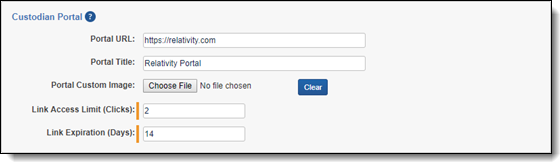
- Portal URL—this URL should only be modified if its displayed value does not match the current instance URL.
- Portal Title—enter a title that helps identify the name of the company, the litigation, or the custodian. The portal title appears on the top left of the custodian portal. By default, the maximum number of characters is 95. If you want to change that number, see Fields.
- Portal Custom Image—click Choose File and select a custom image for the portal. The portal custom image appears in the top left of the custodian portal next to the portal title. The size of the image is hard coded to be 130px x 28px.
- Link Access Limit (Clicks)—enter the number of times between 1 and 100 that a custodian can click the link.
- Link Expiration (Days)—enter the of days the link will be valid. This link can be valid for any number of days.
SSO for Custodian Portal
Use single-sign on (SSO) for a layer of security of the custodian portal. SSO requires a custodian to authenticate through your organizations SSO provider prior to gaining access to the custodian portal.
Legal Hold supports OpenID Connect using Microsoft Entra ID. For more information, see Integrating Azure with Legal Hold.
Requirements to display in the Custodian Portal
To see the requirements for the custodian portal to display, see Custodian portal (admin).


