


Feedback

Last date modified: 2026-Sep-25
A Record is a pairing of a raw name and PI data from a single document. If the same individual appears in multiple documents, each appearance creates a separate Record. After normalization, Records with matching PI may be consolidated into a single Entity — a unique individual identified by their name and associated PI, such as SSN, date of birth, or full address.
Use the Records tab to view and investigate each identified instance of an individual at the document level. You can trace how normalization consolidated individual Records into your final Entity List.
To review Records:
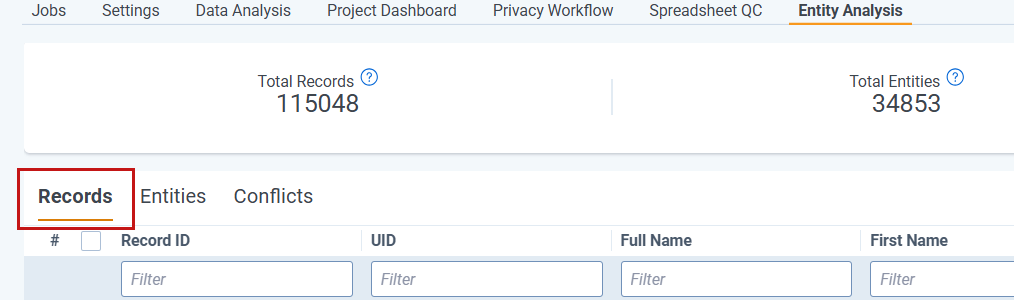
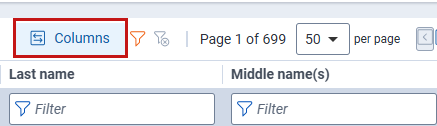
Records help you QC your final Entity Lists. The following scenario illustrates a common workflow.
 Scenario
You notice a person linked on Document_001 named "Ed Iscovery," but when you search for that name on the Entity List, it does not appear.
Possible reasons include:
To investigate:
Following is a list of Records fields:
| Field | Description |
|---|---|
| Record ID | Unique identifier for the Record. |
| Full Name | Full name including first, middle, last, prefixes, and suffixes. If Full Name is not identified as a single string in the original document, this field consists of the other name fields combined. |
| First Name | First name as entered on the document associated with this Record. |
| Last Name | Last name as entered on the document associated with this Record. |
| PI Count | Count of PI values linked to this Record. |
| Control Number |
Unique identifier for the document associated with the Record. Records are associated with a single document, while an Entity can be associated with one or more documents. |
| Entity ID |
Unique Entity identifier associated with this Record. If normalization has not been run since this Record was created, this field is empty. |
| Annotation Types | Comma-separated list of all PI Types associated with this Record. |
| User Created | True/False field indicating whether the Record was created by a user or generated by Data Analysis. |
| Status | Indicates whether the Record is Valid or Invalid. Invalid Records are not used in normalization and do not appear in the Entity List. |
| Invalid Reason | Reason the Record was deemed invalid. This field is populated only for Invalid Records. See Invalid Reasons for details. |
| PI Columns | PI columns for all PI Types in use in your workspace. |
This feature is designed to exclude junk annotations from your Entity List. The vast majority of Invalid Records require no action and are correctly being excluded from the Entity List.
If you disagree with a Record being invalid, the table below will help you determine how to make the Record Valid. If you need to contact support for any reason regarding Records, including the applicable messages will improve your support experience.
| Invalid Reason | Secondary Message | Description | Recommended Resolution |
|---|---|---|---|
|
NAME_PARSING_FAILED |
Can’t flip around multiple ‘,,’ characters in namestring. |
The system is designed to flip “Last, First” names into “First Last” for formatting in the entity list. However, when more than one comma is present it cannot action. |
To correct this you need to remove the excess commas from the name in the Record. |
|
Couldn’t find a last name in ‘{john doe}‘. |
There is no last name identifiable in processing this Record. A standalone first name is not generally reportable data and is not enough to put through Normalization. |
We recommend that you check the document for an appropriate Last Name for the Record. If one is not available, you can also put in a placeholder such as “Unknown”. |
|
|
Couldn’t find a first name in ‘{john doe}’. |
There is no first name identifiable in processing this Record. A standalone last name is not generally reportable data and is not enough to put through Normalization. |
We recommend that you check the document for an appropriate First Name for the Record. If one is not available, you can also put in a placeholder such as “Unknown”. |
|
|
Name could not be parsed by CJK or Latin parser |
We attempt to parse names across multiple formatting options, however some names cannot be handled by the CJK (Chinese, Japanese, Korean) parser or the Latin parser. |
We recommend that you review the documents containing these records and ensure the data has been properly extracted. If you still encounter issues, please contact support. |
|
|
INVALID_NAME_ANNOTATION |
Name string is empty |
The system could not find a value in the name field (field is blank). |
To correct this you need to add a valid name to the Record. |
|
Name string is ‘null’ |
The name for this Record is the exact string “null”, which we do not recognize as a legal name. |
To correct this you need to add a valid name to the Record. |
|
|
Name has no tokens |
The name field only contains non-alphanumeric characters (&*^%), which does not constitute a valid name. |
To correct this you need to add a valid name to the Record. |
|
|
Name has only one token |
We only support names with more than one token. This is to avoid junk names. |
To correct this you need to add a valid name to the Record. |
|
|
Name has more than the max token limit of 6 |
We only support up to six tokens in a single name string. This is to avoid junk names that are full sentences or other “dummy” values. |
To correct this, we recommend looking at the Name on the document and seeing if there are portions that can be excluded (for example, there may be many middle names and you can adjust the record to just first and last name). |
|
|
Name contains too many numeric characters |
We support up to a single numerical digit in a name string. |
To correct this you need to remove the excess numbers from the Name in the Record. |
|
|
Name contains too many punctuation characters |
We support up to three non-alphanumeric characters in a name string. |
To correct this you need to remove the excess punctuation characters from the Name in the Record. |
|
|
REGEX_TIMEOUT |
n/a |
One of our validation tools in Normalization involves a regex validator. |
This error is exceedingly rare - if you disagree with this designation please contact support. |
|
MISSING_FULL_NAME |
n/a |
This can only occur if there has been a technical backend error. |
If encountered, please contact support. |
|
INACTIVE_FULL_NAME |
n/a |
This indicates that the name associated with this Record has been deleted from the UI. |
To correct this, you would need to add the affected name back to the Record from the document viewer. |
|
EXCEEDS_MAX_LINKED_ANNOTATIONS |
n/a |
We currently support up to 50 unique PI Annotations connected to a single Record. We have never seen this limit exceeded in a customer project. |
If you exceed this limit, you can remove the least important PI links to get below 50 and it will run through Normalization. Please also contact us and we would love to hear your use case. |
You can view information about a Record, including the Entity it belongs to after normalization, by selecting the Record ID. This will take you to the Entity Information view.
If normalization has not been run since this Record was created, then you will not be able to view the Entity Information panel.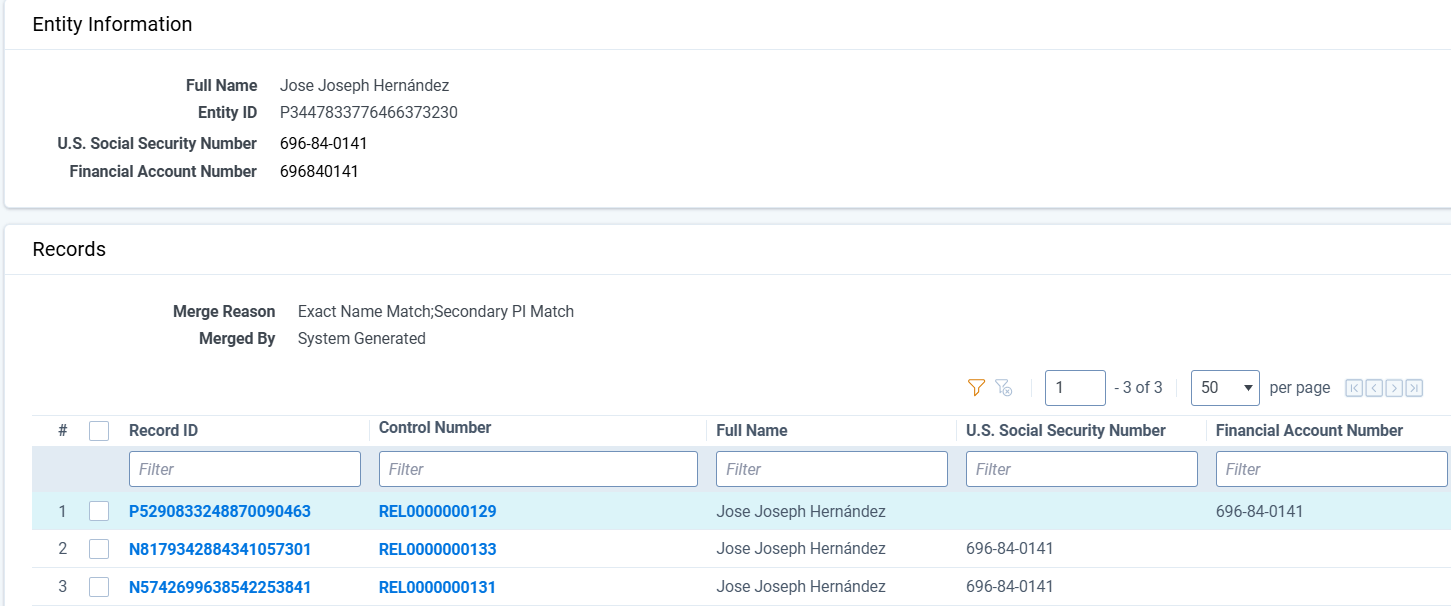
The Entity Information view matches the details you see when you select an Entity ID in the Entity Report.
When you open the Entity Information view from a Record ID, the system highlights that specific Record in yellow whenever the Entity contains multiple Records. This highlight helps you understand how the Record you selected fits into the full Entity.
Select records from the document list and choose the Save as List mass action to generate a list of documents which contain the selected records.
This list can be helpful for managing your review, especially if you have identified key errors or inconsistencies in your Entity List.
Select the Export to File button to save an .xslx or .csv file to your downloads folder. Any filtering or column changes applied to the report in the UI will be maintained in the downloaded file.
