


Feedback

Last date modified: 2026-Sep-25
The Project Dashboard populates once PI Detection begins during Data Analysis. It provides project leads with a centralized view of project status, key metrics, and overall progress in the Data Breach Response workflow. Use the Project Dashboard to derive insights across your Data Breach Response project.
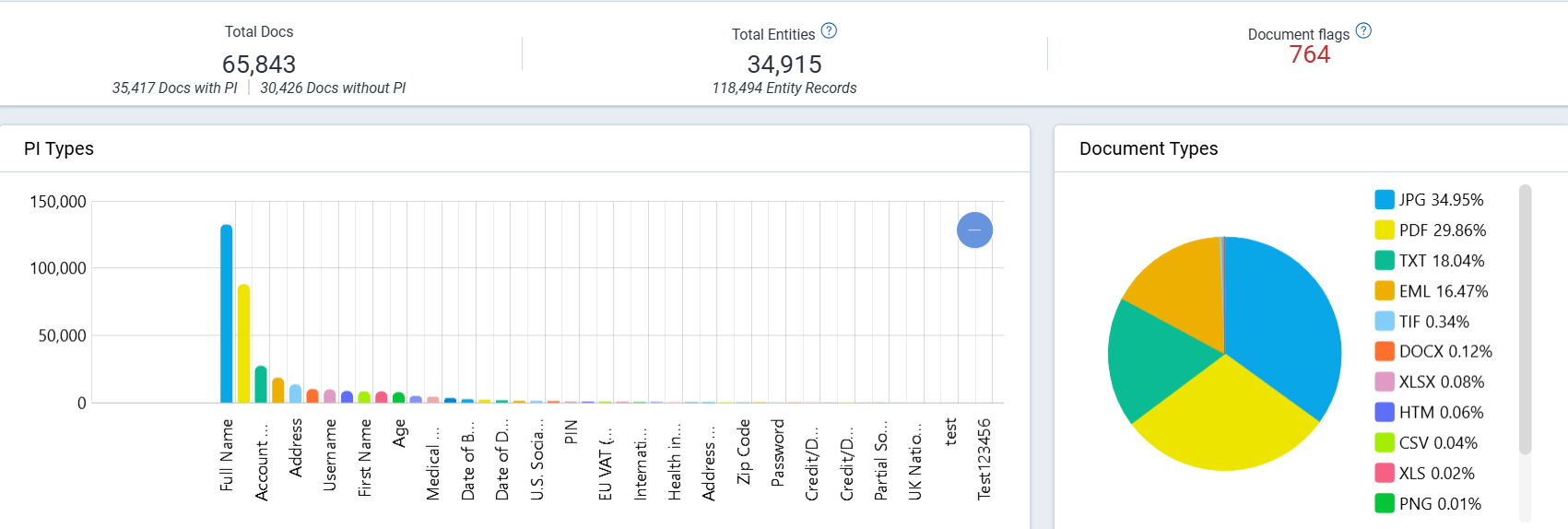
The Job Progress section displays the following summary metrics:
| Metric | Description |
|---|---|
| Total Docs | The total number of documents in the Data Breach Response project. |
| Documents with PI | The number of documents containing identified PI. |
| Documents without PI | The number of documents with no identified PI. |
| Total Entities | The number of identified entities. |
| Entity Records | The number of identified entity records. |
| Document Flags | The number of documents that encountered an issue during Data Analysis or require additional review. |

You can review details of all flagged documents in the Document panel at the bottom of the dashboard. See Document flags for descriptions of each flag and suggested next steps.
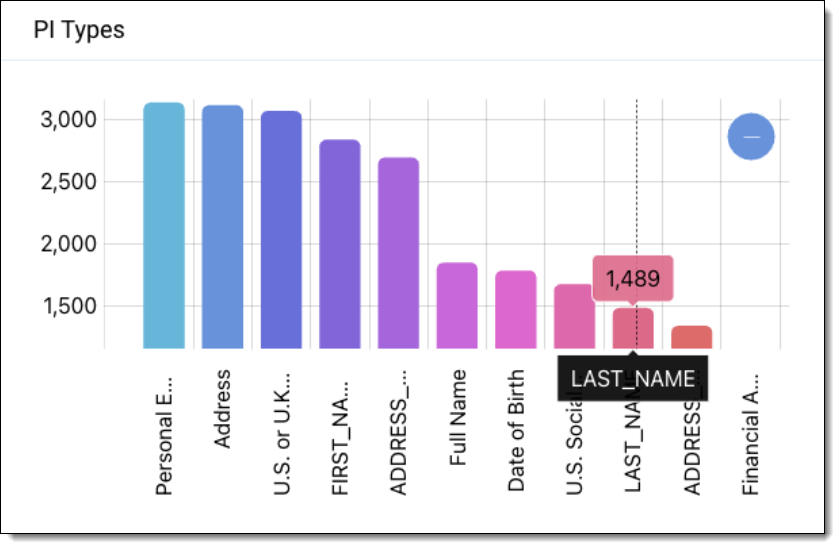
Use the PI Types chart to view the total identified PI across your document set, categorized by PI type. You can use your mouse wheel to zoom in and out of the view, and click and drag to change the focus area. Hover over a bar to see the total for that PI type. Click the minus (-) button to reset the view. Click on a bar in the chart to filter the Document List by that PI type.
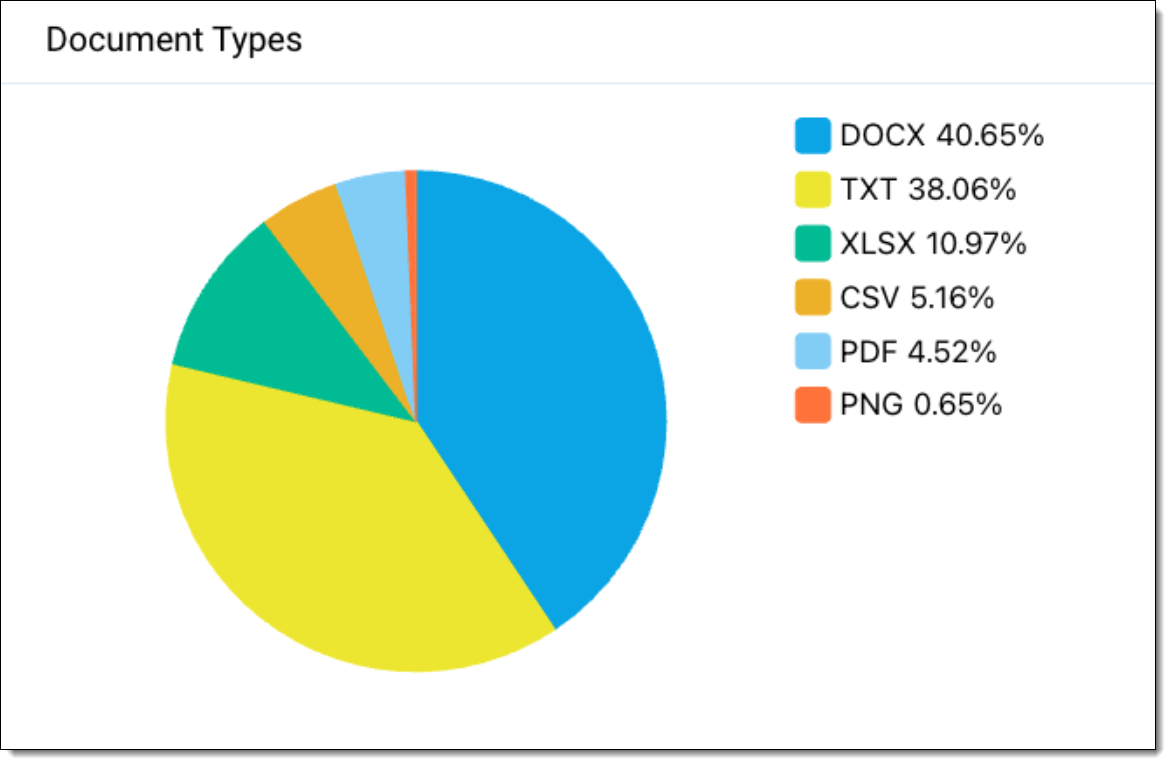
Use the Document Types chart to view the distribution of file types across all files in your Data Breach Response project. Click on a segment in the chart to filter the Document List.
Use the Document List to access all documents in your project and view details about each one.
Click the Column visibility icon to sort, filter, and rearrange the columns displayed in the Document List. Available columns include Document Type, Document Flags, Review Status, Data Analysis Status, PI Count, Entity Count, and PI Types.

Use the Mass Operation toolbar to manage annotations for selected documents. You can choose to:
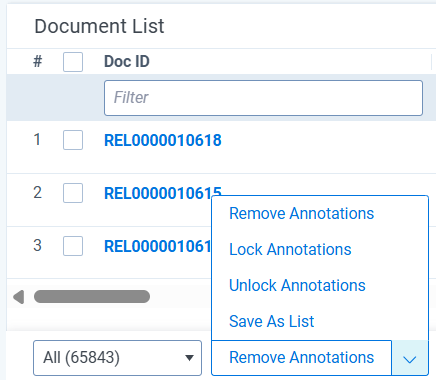
Select documents from the Document List and click the Save as List mass action to generate a list containing only the selected documents.
Click the Export to File button to download an .xlsx or .csv file. Any filters applied in the UI are maintained in the downloaded file.
