Last date modified: 2026-Jun-11

Selecting an archive destination

When you create an ARM Archive job, you choose where the archive is stored using the Archive Destination Directory field. This field lets you pick a folder directly within ARM—without preparing the folder in advance from outside of the application.

Considerations

Consider the following before selecting the archive destination:

  • Destination changes after job creation—the destination is fixed for the job at the time of creation. To change it, edit the job before it runs.
  • Paths in API requests—if you create ARM jobs through the API, the destination path is included as part of the job request. See the ARM API documentation for the expected format.

Choosing the destination

You can select an archive destination in the Archive Destination Directory field in two ways:
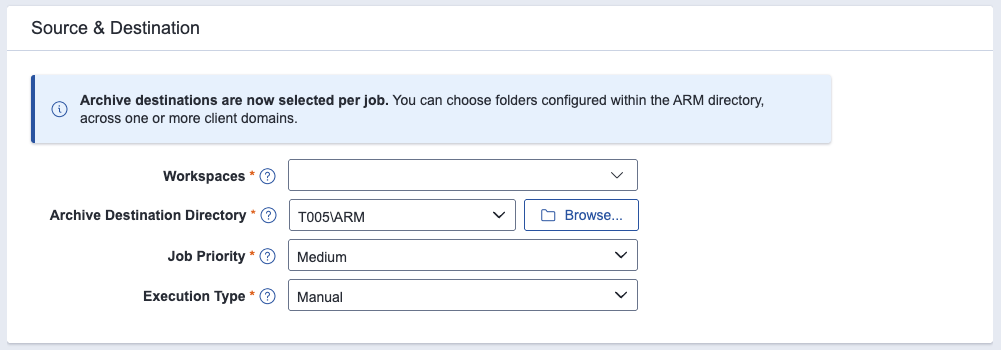
  • Choose one of the suggested ARM folders from the drop-down list.
  • Click Browse… to navigate to the ARM folder structure and select a subfolder.
Archive Destination Directory field in an Archive job.

Choosing a destination from the drop-down

The Archive Destination Directory drop-down includes the ARM folders available across the client domains in your instance, for example, T005\ARM and T005B\ARM.

The drop-down shows a simplified label for each folder—client domain identifier and the ARM folder name—rather than the full storage path. This keeps the list readable when you have many client domains.
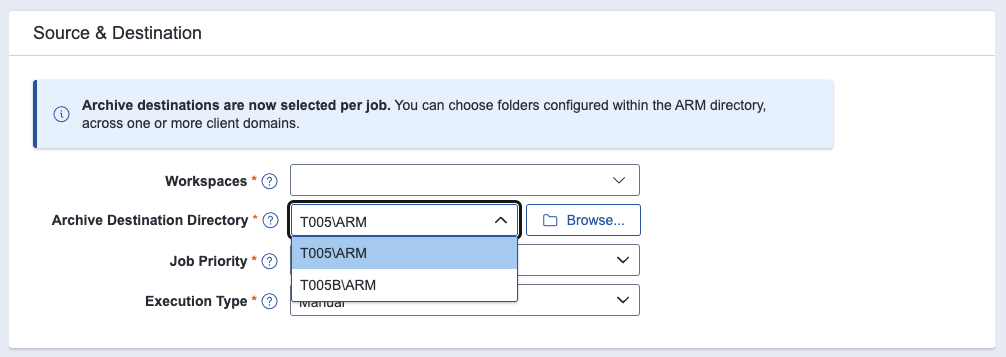
Drop-down list in the Archive Destination Directory field.

Browsing for a destination subfolder

To archive to a specific subfolder, use the folder browser:
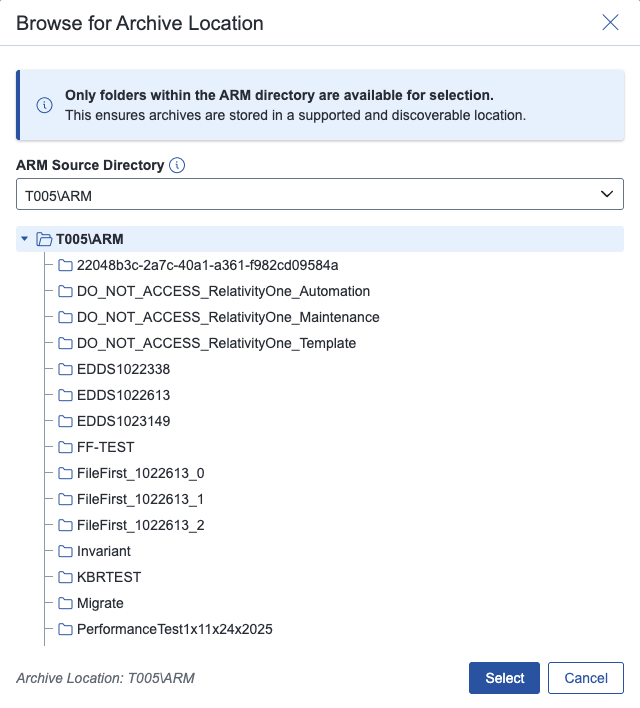
  1. Click Browse… next to the Archive Destination Directory field. The Browse for Archive Location pop-up opens.
  2. Use the ARM Source Directory drop-down list at the top of the window to choose which Client Domain ARM folder to view. You can switch between client domains without closing the window.
  3. Select a subfolder from the tree. The current selection is shown at the bottom of the window next to Archive Location.
  4. Click Select to set the chosen subfolder as the destination for the job.

Browse for Archive Location pop-up for selecting an archive destination.

For an Archive job, folders that follow the ARM archive naming convention are hidden from the list. This prevents you from accidentally archiving into a folder that already holds another ARM archive.

Browsing limits

The folder browser is intentionally scoped to keep selection clear and predictable:

  • You can browse one level below the selected Client Domain ARM folder. You cannot go deeper into subfolders from within the browser.
  • You cannot navigate above the selected Client Domain ARM folder.
  • Only folders within an ARM directory are available for selection. Folders stored elsewhere on your file share are not shown.
Return to top of the page
Feedback