Upload transcripts
The new transcript upload feature replaces the functionality of Simple File Upload.
You can upload multiple transcript files in a single job from the Transcripts tab. The following transcript file formats are supported by upload transcript: .mdb, .rtf, .ptf, .txt, .trn, .lef, .xmef, and .xmptf. If you are uploading an .mdb file, a video file must be associated for the .mdb file to be supported in the Viewer. You can attach .mp4 video files and exhibit files to transcript files as part of the upload process.
Once you have uploaded transcripts, you can interact with them on the Transcripts tab. To learn more, see Transcripts tab.
Alternatively, you can upload .mdb transcripts using Import/Export. To learn more, see Importing transcript MDB data for Processing via Import/Export.
Permissions
This feature supports feature permission actions. Each action grants access to a specific task within the feature. You can grant groups access to individual actions, allowing them to perform only the tasks they need. To grant access to the entire feature, select all of its actions. Manage feature actions on the Features tab in a group's workspace permissions. For instructions, see
Setting workspace permissions. For more information about feature permissions, see
Feature permissions.
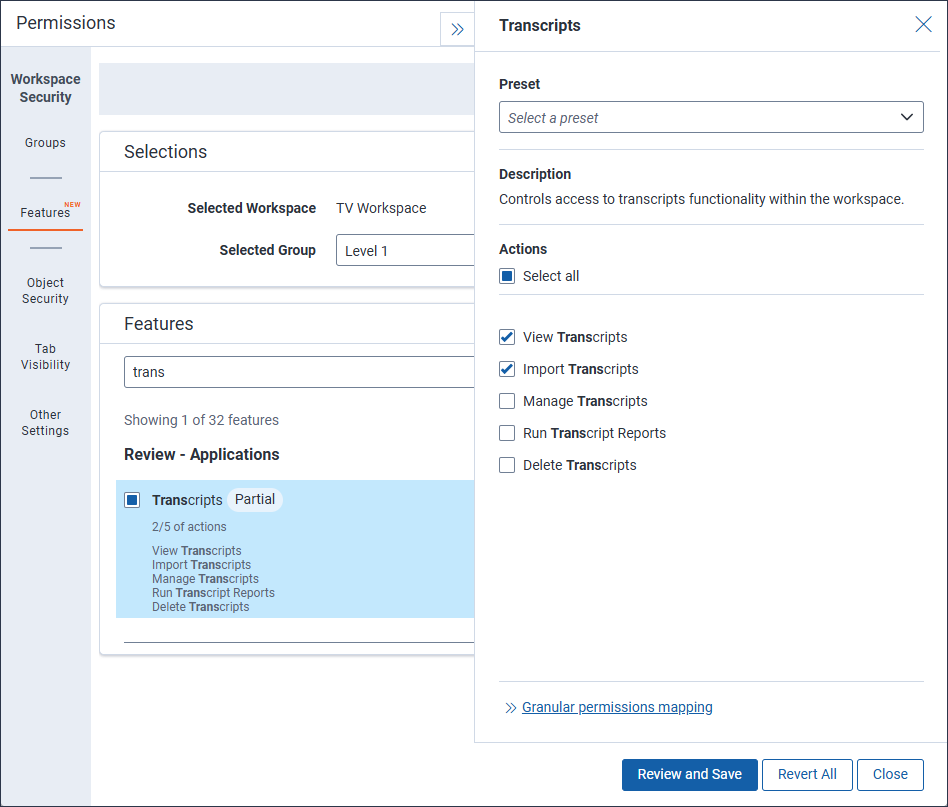
The following actions must be granted to users to upload transcripts:
- View Transcripts—Select to allow users in a group to open the Transcripts tab.
- Upload Transcripts—Select to allow users in a group to upload transcripts to Relativity.
Uploading transcripts
You can upload multiple transcript files at once by drag and dropping them into the upload area. Once this process is complete, you can optionally attach .mp4 video files and exhibit files associated with the transcript.
Once you start importing transcripts, you can navigate away from the Transcript tab and continue using Relativity while you wait. We do not recommend closing your internet browser when uploading transcripts because this disrupts data transfer. Once the upload process progresses to the import step, you can close your browser and the files will still import into the workspace.
To upload transcripts to Relativity:
- Navigate to the Transcripts tab.
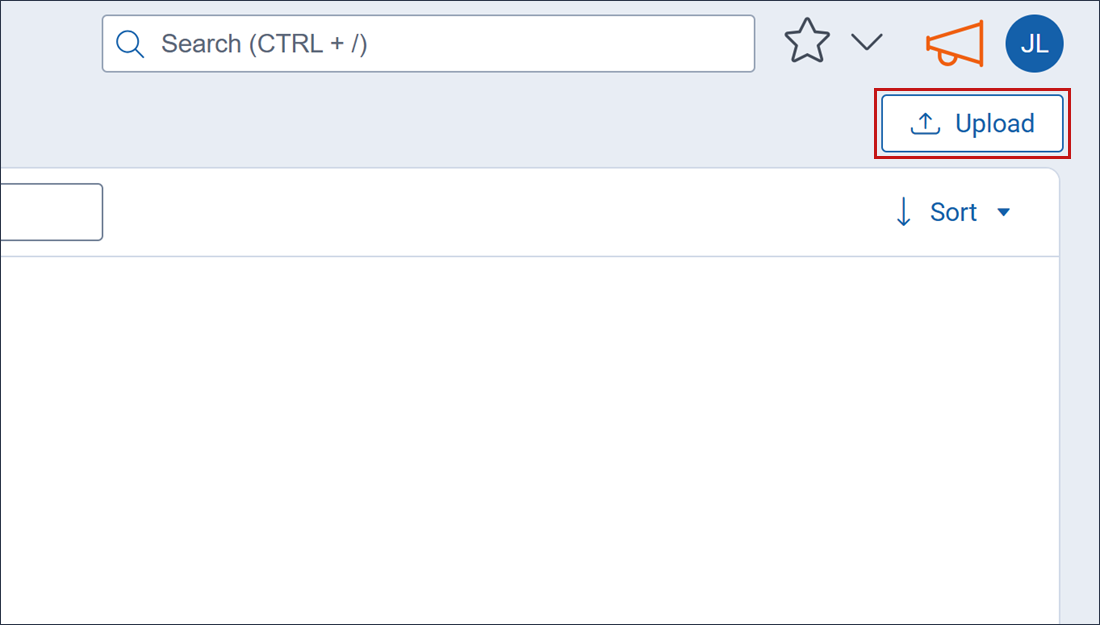
- Click on Upload.
- Either drag and drop the transcript file on the Drop transcript files here or click on that area, choose the transcript file you wish to upload, and click Open.
- Once you are done selecting transcripts to upload, click Next.
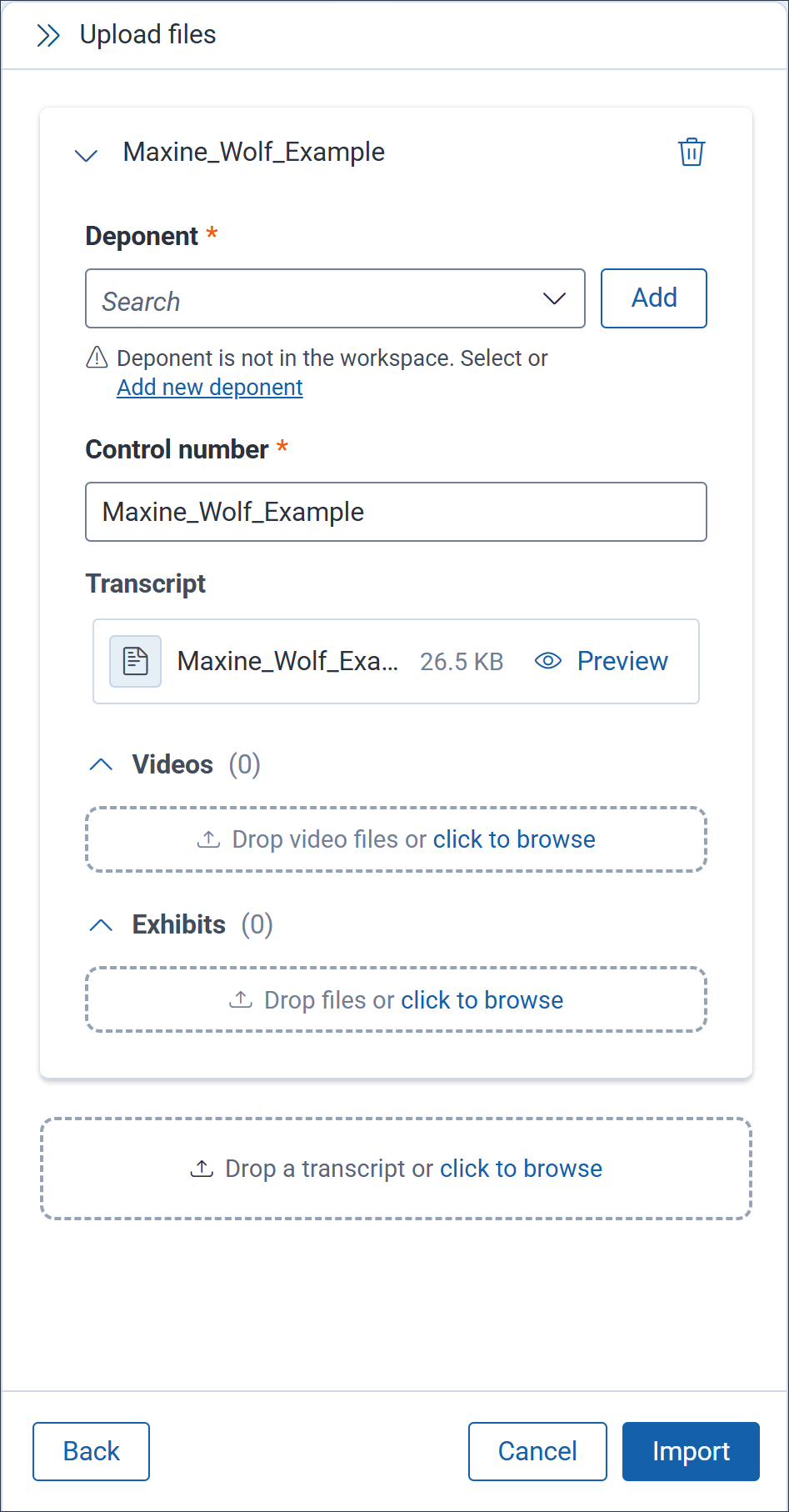
- Complete the following fields for each transcript you are uploading:
- Deponent—Either select an existing deponent from the drop-down menu or click Add, enter the deponent's first and last name using your keyboard, and click Add Deponent. Once a deponent has been added, it is available in the drop-down menu to use with other transcript files.
- Control number—The name of the transcript file populates in this field automatically. You can edit it to adjust the transcript file's control number. If a transcript file has a non-unique control number, (1) is automatically appended to their name. If another file already has (1) appended, then the next highest unique number is added instead. Once you click Import, you are notified if any transcript control numbers are not unique.
Any exhibit or video files that are uploaded are assigned the file name as a control number. If that results in a non-unique control number, (1) is appended to their name instead. If another file already has (1) appended, then the next highest unique number is added instead. - Transcript—The uploaded transcript file's original name and file type display here along with the file size. Optionally, click Preview to see what the transcript file looks like in the Viewer once the upload is complete.
- After clicking Preview, you can navigate to another transcript file that is being uploaded from the top drop-down menu.
- If you would like to adjust the formatting of the transcript compared to what was originally provided, you can adjust how the transcript displays by entering a value in the Lines per page field.
- Optionally, you can click on a line in the transcript to make it the new starting point in the document. All lines prior to the one you selected are transparent to help you visualize the new starting point.
- You can use the icons near the bottom of the page to navigate to different pages or the first or last page in the transcript.
- When you are done previewing transcript files, click Close Preview to return to the previous modal.
- Videos—Optionally, either associate .mp4 files to the transcript by dragging-and-dropping them on this field or click on the field, select the desired .mp4 files you wish to upload, and click Open. Multiple synced videos are currently only supported with .mdb transcripts.
- Exhibits—Any .lef or .xmef files that contain exhibits and are bundled with the transcript file are populated here along with their name and file size. These files are linked in-line with the transcripts as well. Optionally, you can click Remove to delete the exhibit.
To add an exhibit, either drag and drop each exhibit file on the field, drag and drop a folder that contains all of the exhibits grouped together, or click on the field, select the desired exhibit file you wish to upload, and click Open. Exhibits that are not part of the .lef or .xmef transcript bundle upload normally but these files are not linked in-line in the transcript document.
- Once you have completed the fields for each transcript file, click Import.
The process for uploading transcripts has two parts: upload to storage and import to workspace. You can continue using Relativity and navigate away from this tab once the process begins. Once the first step, upload to storage is complete, you can close your browser and the progress will not be disrupted. The Upload files panel displays information on the upload job so you can track progress. Once the upload is complete, you can click New to start a new upload job.
Viewing previously uploaded transcripts
You can view uploaded transcripts in two different places. Transcripts can be accessed on the Documents tab in the Transcripts folder. A folder for each deponent is automatically created by Relativity. Within each deponent folder, there are nested folders for transcripts, videos, and exhibits if they were imported alongside the transcript.
You can also view uploaded transcripts on the Transcripts tab. To learn more, see Transcripts tab.


