Importing transcript MDB data for Processing via Import/Export
Import/Export uploads raw (unprocessed) data to the ProcessingSource folder and triggers the Processing application. The ProcessingSource folder is included in your Staging threshold. To avoid additional storage costs, you may want to delete the uploaded raw (unprocessed) data from this folder when it is no longer needed.
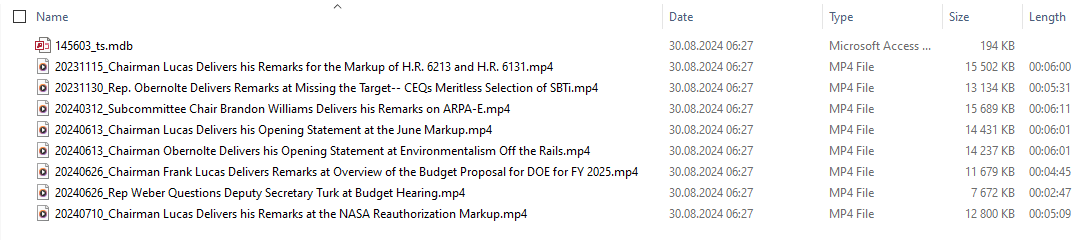
You can use Import/Export to import transcript MDB data with the linked audio/video files into Relativity aiR. This automatically triggers a Processing job to extract metadata from the selected transcript MDB file, create documents, and link them with audio/video content included in the dataset, in one operation. Once the transcript data is successfully imported into your workspace, you can use the Relativity Transcripts application to review the content.
Considerations
Consider the following before importing the transcript MDB data for Processing:
Before you begin
Before you import the transcript MDB data, complete the following:
Importing transcript MDB data workflow
To import transcript MDB data:
- Use tabs, search, or the quick nav bar to navigate to the Import/Export Job page.
- On the Import/Export Job page, click New Import/Export Job to start a new job.
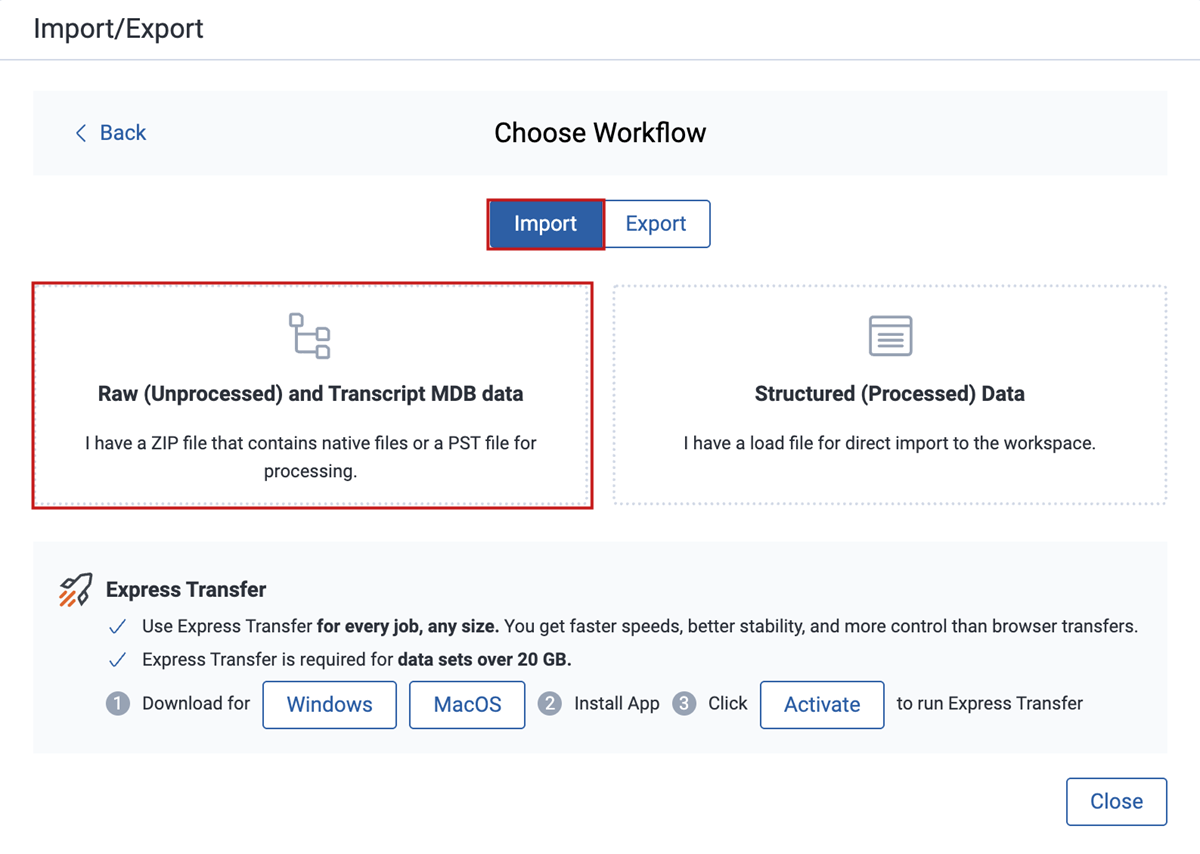
- On the Choose Workflow dialog, the Import button is selected by default. Next, click the Raw (Unprocessed) and Transcript MDB data workflow box.
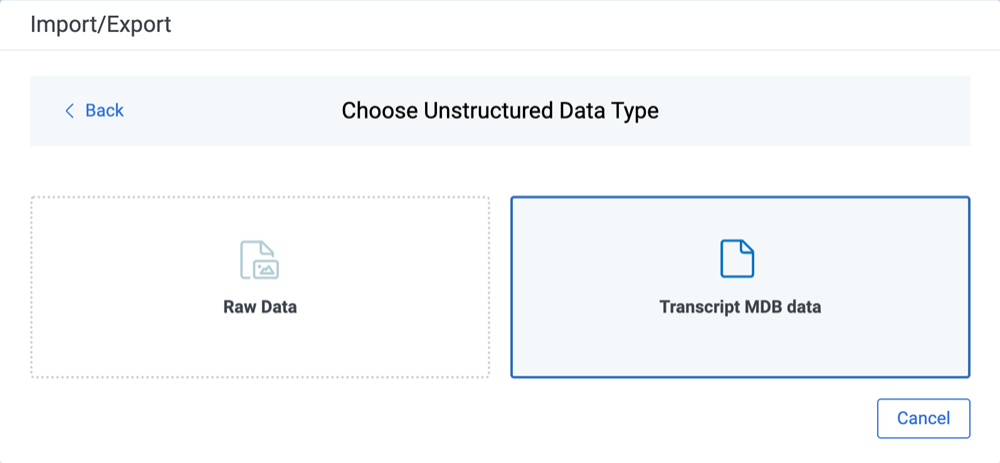
- On the Choose Unstructured Data Type dialog, click the Transcript MDB data workflow box.
- Select the transcript data files to import depending on the Express Transfer activation status. For more information, go to Selecting transcript data files.
- Complete fields on the Transcript Import and Processing dialog. For more information, go to Transcript Import and Processing fields.
- Click Run Job to start importing data.
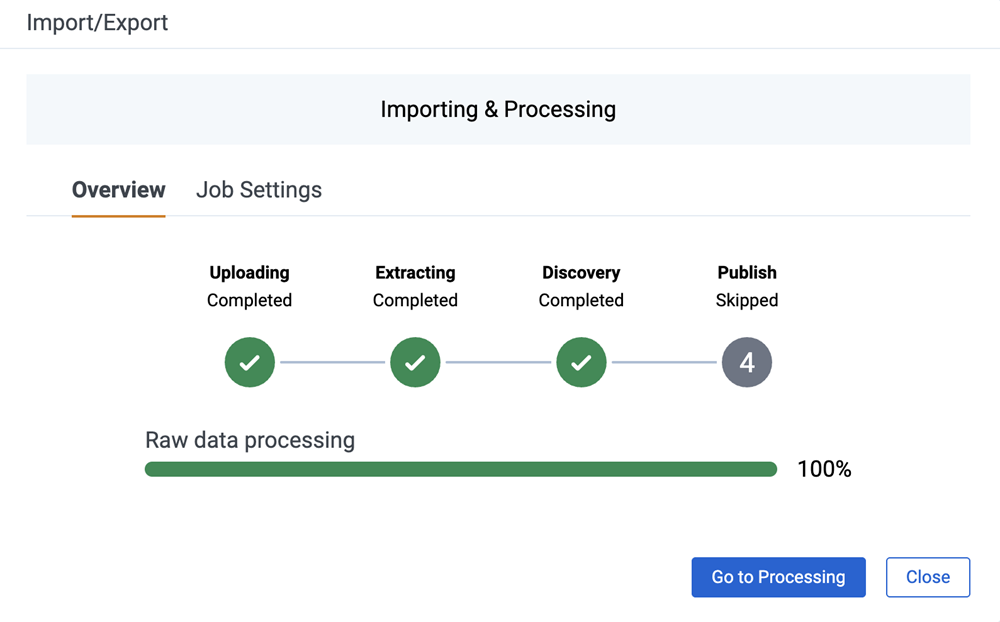
Import/Export uploads all the zipped transcript data to the Staging Area and creates a new Processing job based on the provided job configuration. The Processing application extracts the uploaded zip file and processes the attached MDB file with the audio/video files.
- Review the importing progress on the Importing & Processing dialog. For more information, go to Import & Processing options.
For more information on where Import/Export saves files, see the Community article Import/Export: Where Files Are Saved By The Import/Export Application.
When a job is running using Express Transfer, you can close the Import/Export application. The transfer job continues without interruption. You can monitor the progress and history of jobs within Express Transfer. For more information, see Express Transfer Job tracking and history. You do not have to be logged in to Relativity aiR to view information within the Express Transfer application.
Selecting transcript data files
 Select the transcript data files to import as follows, depending on the activation status of Express Transfer:
- With Express Transfer active:
- Click Select on the Select data to Import dialog to browse to your local drive and select the folder that includes only the zipped transcript data you want to upload. In the case of universal naming convention (UNC) paths, you can copy and paste the path into the Select Folder address bar in the dialog box to access the desired folder. For example, \\ServerName\SharedResourceName\FilePath.
- Or select transcript data from a file share:
- Click Choose From File Share.
- Select the import source folder that includes only the zipped transcript data.
- Click Select Folder.
- After you select the folder, click Continue.
When you select a folder to upload, ensure that it contains only the zipped transcript data. Express Transfer transfers all the data from the selected folder, including sub-folders, to the Staging Area, regardless of the specific job configuration. If the selected folder contains any other files than the zipped transcript data, the import job may fail.
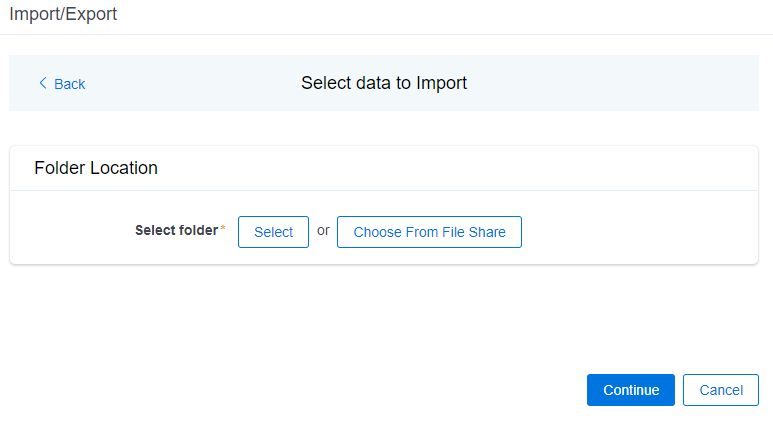
- With Express Transfer not active: On the Select File dialog, do one of the following to upload a file. You must zip the transcript MDB file along with the linked audio/video files when using the first two options.
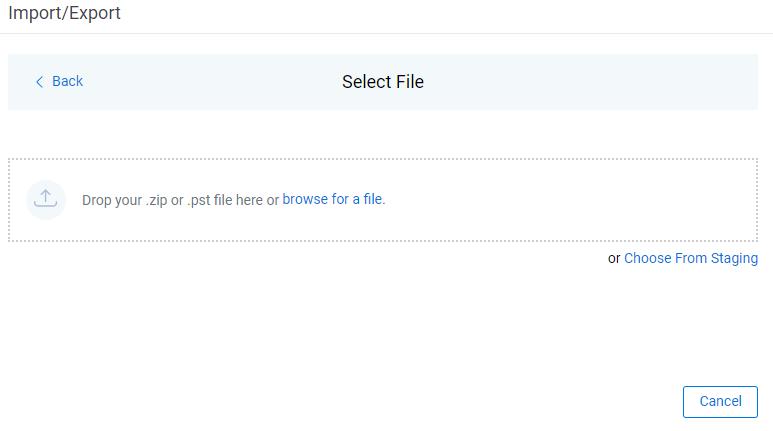
- Drag and drop the zipped transcript data file into the upload area.
- Click browse for a file to select a zipped transcript data from your local drive.
- Click Choose From Staging to upload files directly from the Staging Area, select the folder that contains the zipped transcript file, and click Select.
Transcript Import and Processing fields
Complete fields on the Transcript Import and Processing dialog
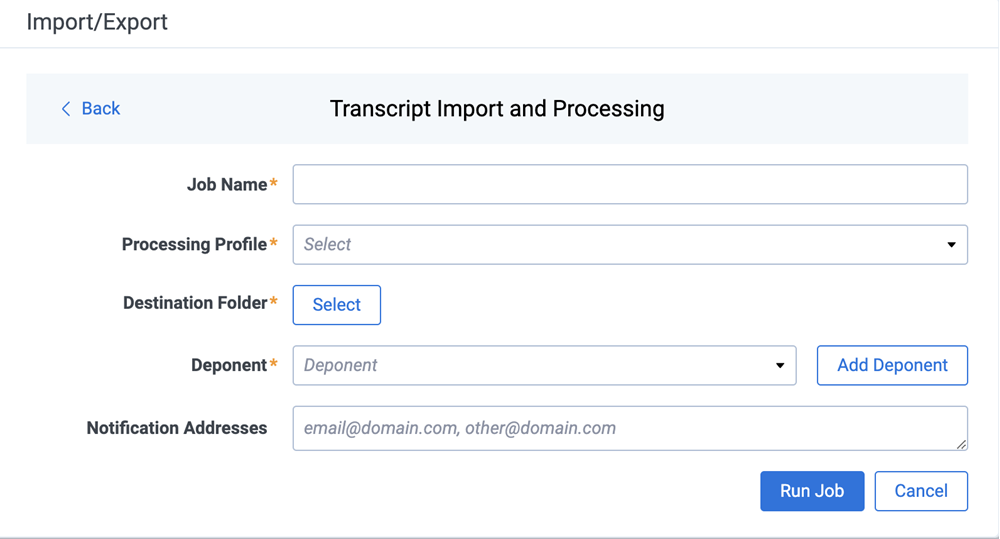
- Job name—provide a descriptive job name so that you can identify and track that job on the Import/Export Job page. The Job Name field accepts up to 50 characters.
- Processing Profile—select the Processing profile. The Processing profile must already exist in Relativity aiR.
Select the Processing profile with the Auto-Publish setting enabled to automatically publish the discovered documents.
- Destination folder—by default, Relativity aiR populates the destination with the root workspace folder to simplify job creation. You can do one of the following:
- Keep the default destination folder.
- Choose a different folder by clicking Clear, followed by Select, and then selecting the folder from the list.
- Create a new workspace folder by right-clicking on an existing folder, clicking Create, entering a new folder name, clicking out of the new folder to save it, then clicking Select.
- Deponent—assign the deponent by selecting it from the list or by adding a new deponent with the Add Deponent button.
The Deponent drop-down list shows custodians available in the workspace. When you create a new deponent with the Add Deponent button, it is stored in the Entity Object as a custodian.
- (Optional) Notification Addresses—enter the email addresses of the people you want to notify after the job completes, fails, or is canceled.
Import & Processing options