


Feedback

Last date modified: 2026-Nov-16
You can manage permissions more efficiently using the Features tab. Instead of adjusting individual settings across Object Security, Tab Visibility, and Other Settings, you can enable permissions by feature.
Features represent key system capabilities such as Preservation, Production, Imaging, and Configure Doc Review. Each feature groups together the necessary permissions from the three tabs. When you enable a feature, all related permissions are automatically applied.
To achieve this, all permission changes must now be made through Feature Permissions instead of the older granular settings in Object Security, Tab Visibility, and Other Settings/Admin Operations. The modernization of Feature Permissions simplifies permissions management and creates consistency across workflows. This update ensures that feature behavior is standardized and easier for end users to understand and use.
Feature Permissions are rolling out through a phased modernization. Migration tooling supports controlled adoption with full audit visibility.
During migration, each feature exists in one of two states:
When you enable or disable a feature, Feature Permissions applies or revokes the entire set of dependent permissions in a single action. This simplifies configuration and reduces the risk of misaligned settings.
Below you will find the current Feature Permissions that are modernized. When a feature is modernized, its associated Object Security, Tab Visibility, and Admin Operations permissions are locked and can only be modified through the Feature Permission toggle. For more information, see Modernized features.
 = Shared granular permission
| Modernized Feature Permission | Level | Object Security | Tab Visibility | Admin Operations / Other |
|---|---|---|---|---|
| aiR Review | Instance | None | aiR Review Jobs |
View Admin Repository |
| Application Management | Instance |
Library Application – View OAuth2 Client – View, Add, Edit, Delete, Secure Resource File – View, Add, Edit, Delete, Secure Custom Page – View, Add, Edit, Delete, Secure Sanitizer – View, Add, Edit, Delete, Secure
|
Application Library
OAuth2 Client Resource Files Custom Pages Sanitizer
Relativity Script Library |
View Admin Repository |
| Archive and Restore (ARM) | Instance | None |
ARM ARM Jobs Configuration |
View Admin Repository |
| Audit | Instance |
Data Grid Audit – View
|
Audit
Audit Migration Reports |
View Audits
|
| Authentication | Instance |
Group Claim Mapping – View, Edit, Add, Delete, Secure Required Claim – View, Edit, Add, Delete, Secure JIT Settings – View, Edit, Add, Delete, Secure Federated Instance – View, Edit, Add, Delete, Secure |
Authentication Provider Authentication Provider (legacy) Authentication Provider Type Federated Instance |
View Admin Repository |
| Case Metrics | Instance |
Schedule – View, Edit, Add ScheduleReport – View, Edit, Add ScheduleReportField – View, Edit, Add ScheduleReportFilter – View, Edit, Add |
Case Metrics Reports Scheduler |
View Admin Repository |
| Client and Matter Management | Instance |
Client – View, Edit, Add, Delete, Secure Matter – View, Edit, Add, Delete, Secure |
Clients Matters |
View Admin Repository |
| Cost Explorer | Instance | None |
Cost Explorer
|
View Cost Explorer |
| Data Transfer | Instance | None | Staging Explorer |
Access Staging Explorer Send Email Notification |
| Instance Configuration | Instance |
View – View, Edit, Add, Delete, Secure Field – View, Edit, Add, Delete, Secure + Add Field Choice By Link Object Type – View, Edit, Add, Delete, Secure Object Rule – View, Edit, Add, Delete, Secure Layout – View, Edit, Add, Delete, Secure Tab – View, Edit, Add, Delete, Secure Choice – View, Edit, Add, Delete, Secure Dashboard – View, Edit, Add, Delete, Secure Agent – View, Edit, Add, Delete, Secure Agent Type – View, Edit, Add, Delete, Secure InstanceSetting – View, Edit, Add, Delete, Secure |
Admin Workspace Configuration Views Fields Object Type Choices Dashboards Tabs Tab Sync Agents Server & Agent Management Instance Settings |
Delete Object Dependencies Manage Object Types Agent Operations |
| Job Queues | Instance | None |
Queue Management OCR Queue PDF Queue Processing and Imaging Queue DtSearch Queue Admin Import/Export Queue Branding Queue Branding Queue Legacy Production Queue Production Queue Legacy Processing Administration Processing History Translate Jobs kCura Admin Workspace Upgrade Queue Text Migration Jobs Text Migration Reports Transcription Queue |
Change Queue Priority |
| Migrate | Instance |
Migrate Migration – View, Edit, Add, Delete, Secure Migrate Restore Job – View, Edit, Add, Delete, Secure |
Migrate |
Access Migrate |
| Security Center | Instance | None | Security Center | None |
| Staging Reports | Instance | None |
Staging Reports
|
View Instance-wide Staging Reports View Client Domain Staging Reports |
| Usage Reports | Instance | None |
Management Console |
View Instance-wide Usage Reports View Client Domain Usage Reports |
| Users and Groups Management | Instance |
User – View, Edit, Add, Delete, Secure Group – View, Edit, Add, Delete, Secure
|
Groups Users
Centralized Authentication User Status |
Send Message Force Logout on User Status |
| Workspace Management | Instance |
Workspace – View, Edit, Add, Delete, Secure
Matter – View, Add Resource Pool – View |
Workspaces |
Manage Cold Storage |
This table is updated as additional features move to the modernized state. Check back regularly or review the release notes for the latest changes.
Keep these factors in mind when setting Feature permissions:
The Features tab lists the features available for the selected group. Each feature shows its current state for that group.
To apply a preset to a feature:
Some features control only a few permissions and do not offer presets. Select the checkbox next to the feature to grant access. Clear the checkbox to remove access.
You can also do the following from the Features tab:
Actions are available within Feature Permissions. An action represents a specific task that users can perform within a feature. Actions allow administrators to customize access for a group by granting only the tasks they need instead of granting access to the entire feature.
Example: the Audit feature includes two actions: View Audit and View Audit Migration Reports.
Key details about actions:
A preset is an optional group of related actions. It gives you a starting point for a feature. When you select a preset, Relativity selects the actions defined for that preset. You can then select or clear individual actions before you save.
Most features with presets offer Viewer and Administrator. Staging Reports and Usage Reports offer Client Domain and Instance-wide. Some features have no preset. For those, select all actions, or select individual actions.
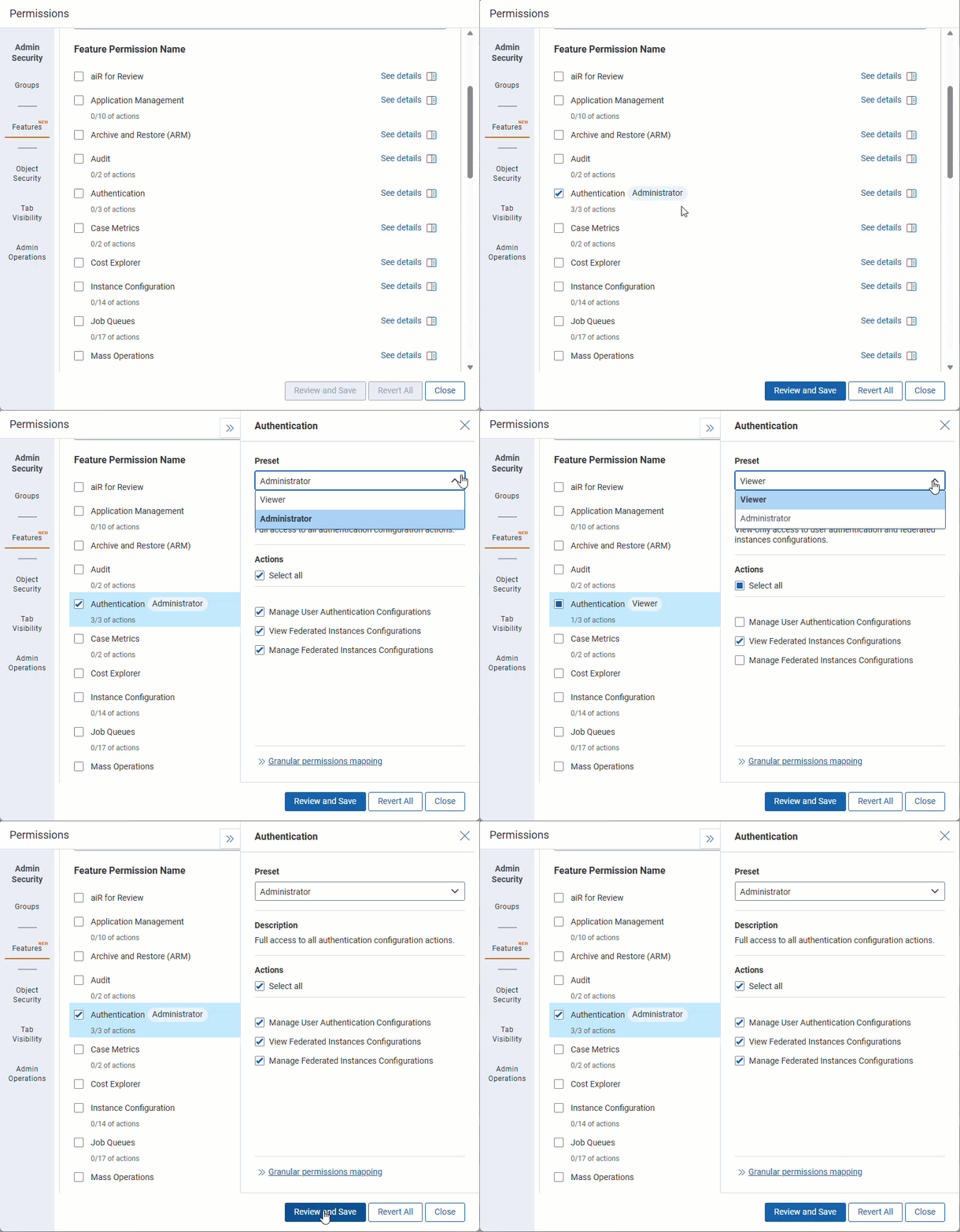
A feature’s state for a selected group depends on how many actions are enabled:


A feature with no actions has only two states: Disabled or Enabled.
Some features map their actions to granular permissions. To see this mapping, open the feature's See details panel. Click Granular permissions mapping. The mapping is a read-only reference. It shows the granular permissions behind each preset or action.
The mapping uses these icons:
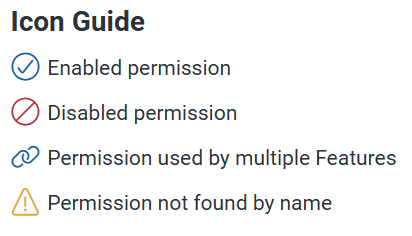
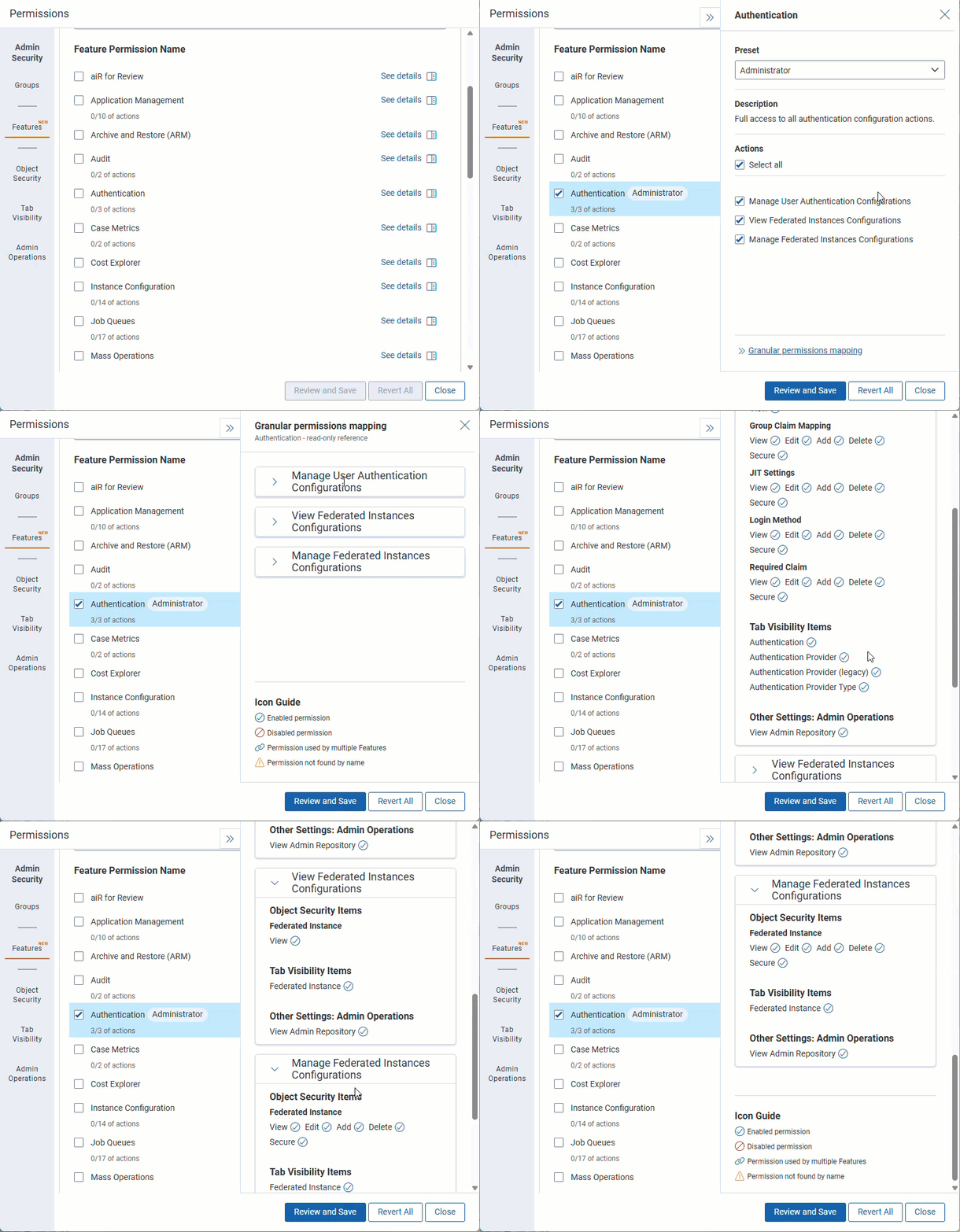
Feature permissions and granular permissions represent the same access from different perspectives. How changes are applied depends on whether the feature has been modernized.
These behaviors apply to every feature, whether or not it is modernized:
A modernized feature locks its granular permissions, so you cannot change them directly. Changing a granular permission is therefore the one behavior that applies only to features that are not modernized.
For non-modernized features, access can be managed from either the Features tab or the Object Security, Tab Visibility, and Other Settings tabs. The standard feature behaviors described above still apply. You can also enable or disable granular permissions directly. When you do, the state of every enabled feature that includes that permission is updated. A feature is considered enabled only when all of its associated permissions are enabled.
Keep the following behaviors in mind:
As features move to the modernized state, the way you manage permissions for them changes. The Features tab becomes the only way to change access. The feature permission is its own entity rather than a collection of the granular permissions behind it. Relativity locks those granular permissions and manages them, so you cannot change them on the Object Security, Tab Visibility, or Other Settings tabs. Only the behaviors for all features apply.
Legacy granular permission pages, such as Object Security, show a banner directing you to make permission changes on the Features tab.
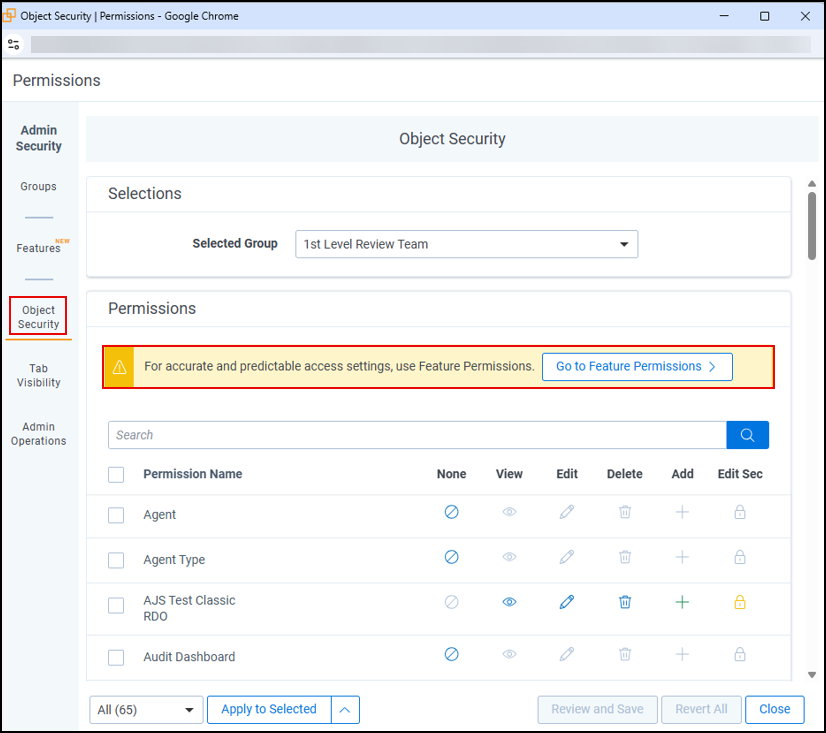
Whether you can change a granular permission depends on the features it belongs to:
| Granular permission | Feature state | Can you change it |
|---|---|---|
| Not modernized—belongs to no modernized feature | Any | Yes |
| Fully modernized—belongs only to modernized features | Any | No |
| Partially modernized—belongs to both modernized and non-modernized features | At least one modernized feature is enabled | No |
| All modernized features are disabled | Yes |
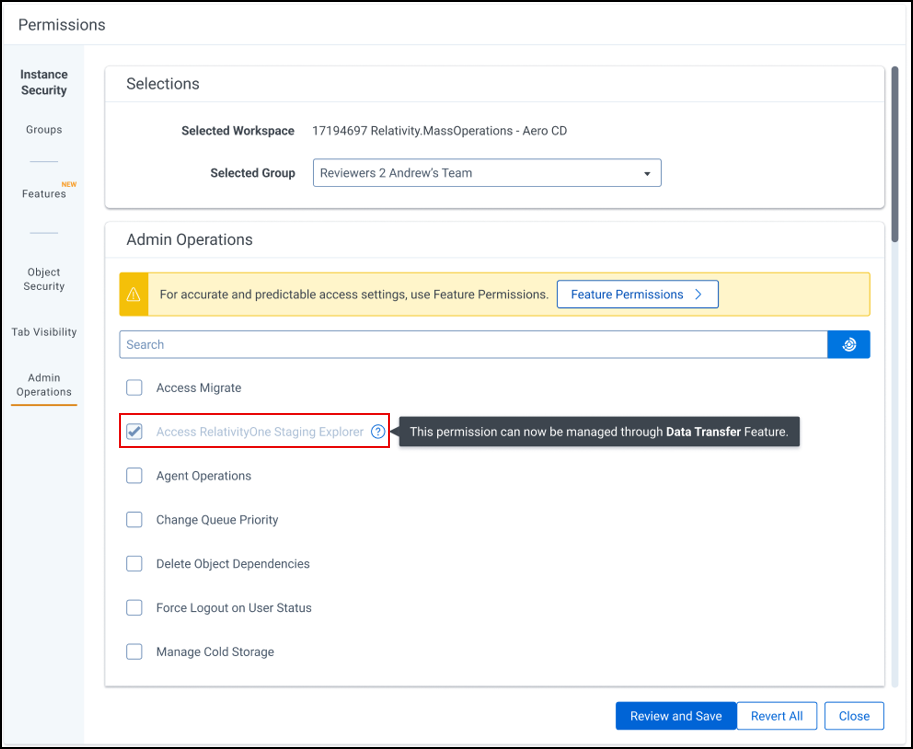
A fully modernized granular permission is read-only. A tooltip names the feature permission to use instead.
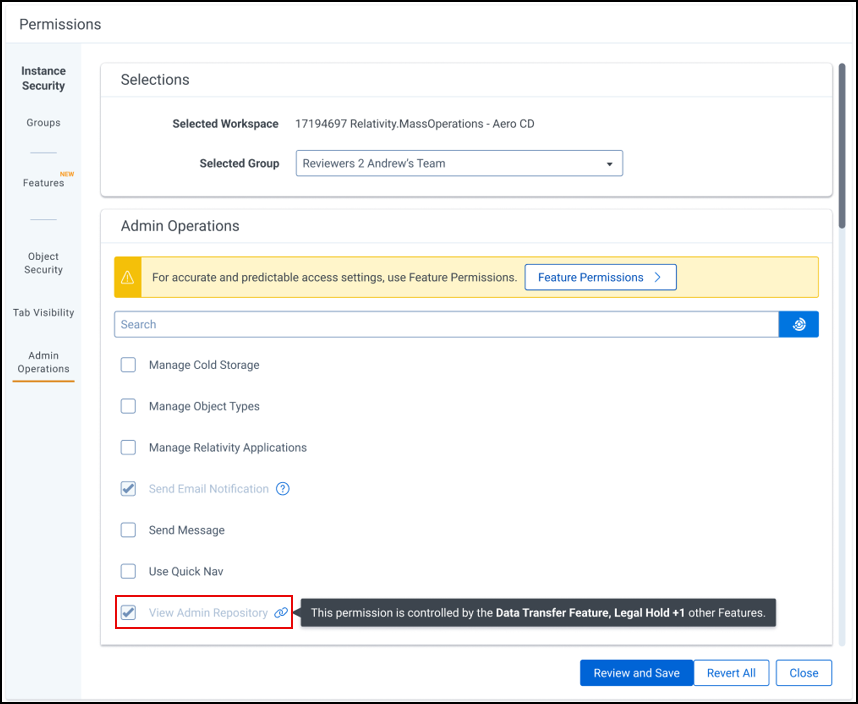
A partially modernized granular permission is read-only while at least one of its modernized features is enabled. A message names the feature permissions that require it.
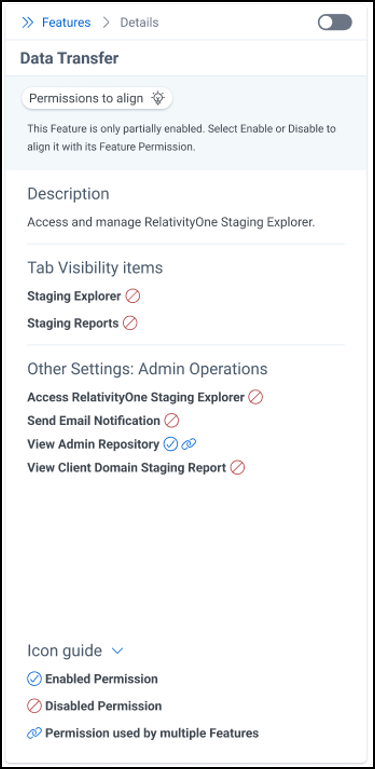
A granular permission shared across multiple features does not always reflect the state of any one of them. The See details panel lists every granular permission a feature includes, and a blue link icon marks the shared ones.
The Object Security and Tab Visibility tabs, along with Admin Operations at the instance level and Other Settings at the workspace level, include a Filter non locked permissions toggle. When the toggle is on, the tab hides every row whose granular permissions are all locked by modernized features. You manage those permissions on the Features tab. When the toggle is off, the tab shows every row, including locked ones. Locked permissions stay read-only either way.
The toggle's default depends on the level:
| Level | Default |
|---|---|
| Instance | On. Most instance-level permissions belong to modernized features and are locked. |
| Workspace | Off. Fewer workspace-level permissions are locked. |
With the toggle on, these rows stay visible:
Leave the toggle on to find the permissions you still manage outside the Features tab.
 Will I be able to continue to use granular permissions for certain use cases?
No, if the feature is modernized, management can only be done via the feature permission. If the feature has not been modernized granular permissions can be leveraged to manage the permissions.
What is the difference between a modernized and non-modernized Feature Permission?
A modernized Feature Permission is the sole control point for granting or revoking access to that feature. The underlying granular permissions are locked and managed automatically. A non-modernized Feature Permission works as it does today. You can still edit granular permissions directly on the Object Security, Tab Visibility, and Other Settings tabs.
What does the blue lightbulb icon mean?
The blue lightbulb icon indicates that a group's current permissions configuration is out of alignment with a modernized Feature Permission. You should enable or disable the feature to bring the group into alignment. See Aligning permissions with modernized features for steps.
Do I need to take action immediately when a feature is modernized?
Existing groups and their permissions configurations are not impacted at the time of modernization. However, it is highly encouraged to align each group's permissions as soon as possible so that they are prepared for the future state of permissions.
Why is the user not seeing a tab that should be available as part of the enabled feature?
Why are certain features not available in my workspace?
I had enabled a Feature for a specific group earlier, but now it appears as disabled for that same group. What could have caused this?
Workspace-level features grant access through actions and presets. To see the granular permissions behind a feature or one of its actions, use the feature's mapping in Relativity:
For more information on actions and presets, see Feature actions.
For more details on setting feature permissions, refer to Setting workspace permissions.
