


Feedback

This dashboard provides a consolidated, near real-time view of imaging job activity, throughput, and outcomes across your Relativity environment. It tracks how imaging jobs move through the pipeline - from submission, to pickup by the request agent, to completion - and summarizes the documents and images produced, the mix of imaging job types, and the success/error/skip breakdown of processed documents. It helps administrators validate that imaging is processing efficiently, detect stalled or failing jobs, understand which file types drive volume or warnings, and confirm imaging health after installations, upgrades, or configuration changes.
The Imaging Overview dashboard is available in Relativity Server 2026 and later. Its visualizations depend on imaging instrumentation shipped with the server and its built-in applications. If the dashboard loads empty, the target environment does not yet include the required imaging instrumentation, or no imaging activity occurred in the selected time range.
The Imaging Overview is part of the Document Transformation feature domain, which also includes the Document Transformation, OCR, PDF, and Production overviews. A tab strip at the top of the dashboard lets you switch between these related views:
A left-hand navigation panel provides quick links to other Environment Watch feature domains (Platform, Applications, Logs/Searches/Alerts), making it easy to move between imaging and adjacent areas such as Processing, Review, and Monitoring.
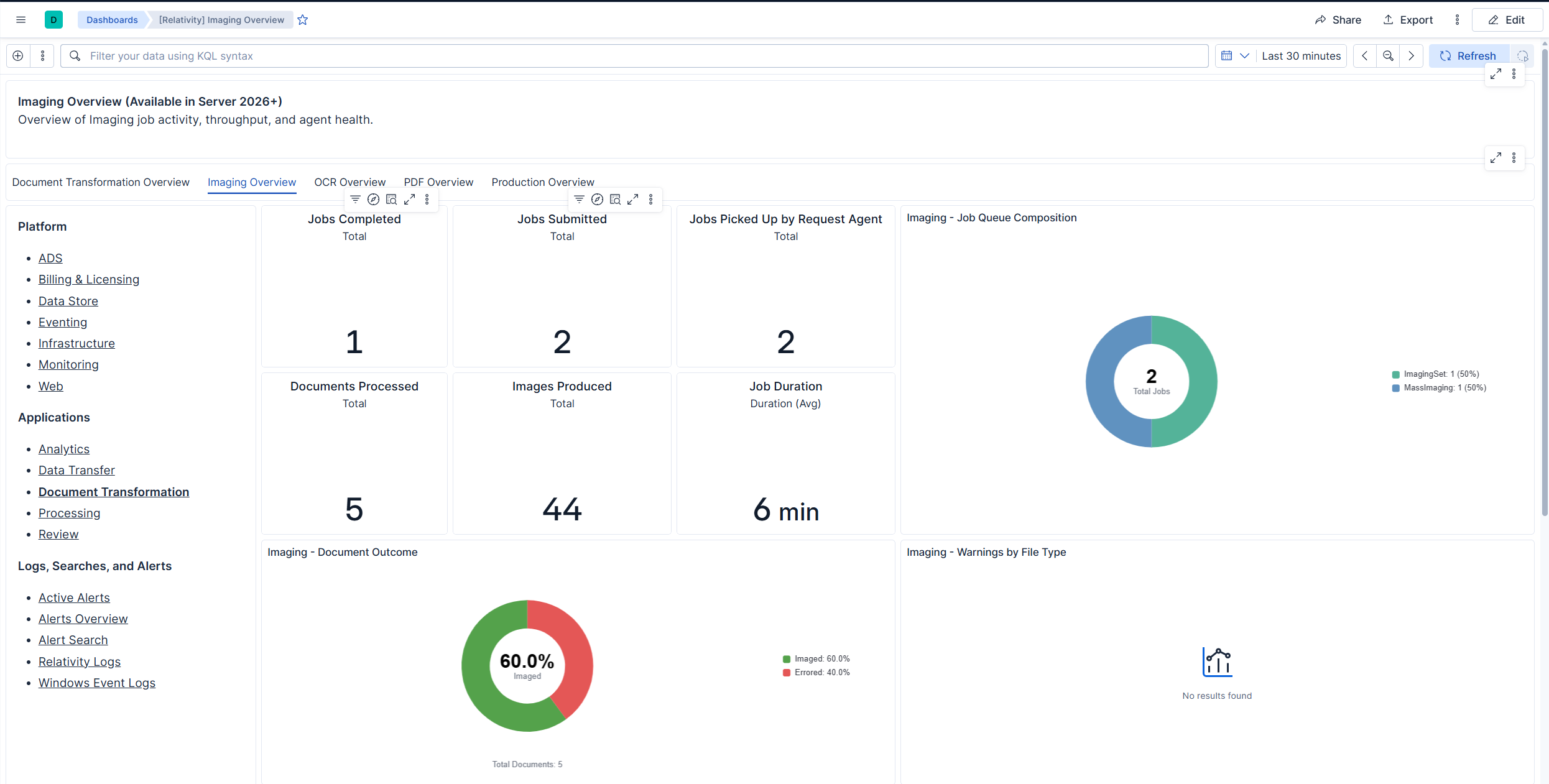
The metric tiles across the top of the dashboard summarize imaging job flow and output for the selected time range:
Large values are automatically formatted into compact, human-readable form (for example, 1.2k, 3.4M) for consistency with the other Environment Watch dashboards.
The Imaging - Job Queue Composition donut shows the distribution of imaging jobs by job type for the period, with the total job count displayed in the center. Job types include:
This breakdown helps administrators understand what kind of imaging work dominates the environment and spot unexpected spikes in retries or mass operations.
The Imaging - Document Outcome donut summarizes the result of processed documents as a percentage of the total, with the imaged percentage highlighted in the center and the total document count shown beneath the chart:
This visualization provides an at-a-glance measure of imaging quality and reliability. A rising Errored slice is an early signal of file-type, configuration, or resource issues that warrant investigation.
The Imaging - Warnings by File Type table lists file types that generated imaging warnings, along with the count of cut-off image warnings for each. It helps pinpoint problematic content types (for example, oversized emails or images) that may need rendering or configuration attention.
The Document Outcome and Warnings by File Type panels are shown in the dashboard screenshot at the top of this page.
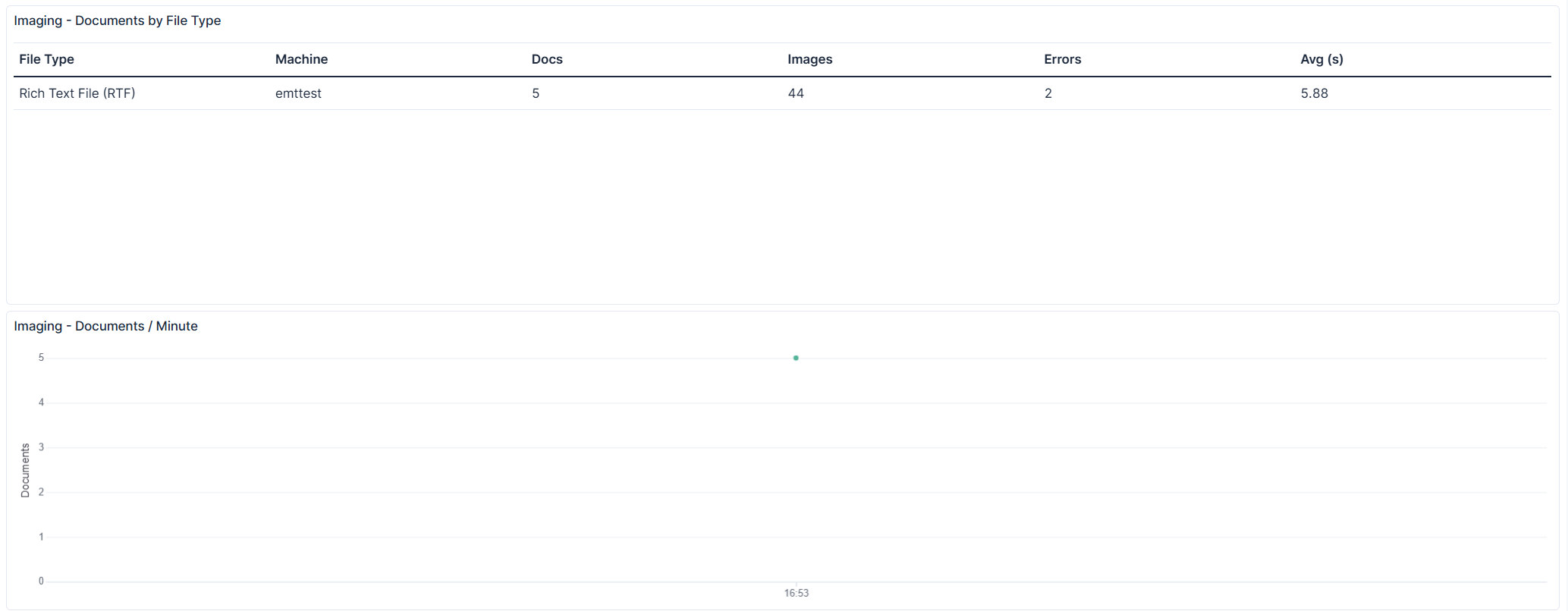
The Imaging - Documents by File Type table breaks imaging results down per file type and processing machine, including:
This granular view is useful for identifying which content types are slow, error-prone, or high-volume, and for comparing performance across worker machines. The table is paginated for environments with many file types.
The Imaging - Documents / Minute line chart plots document imaging throughput over time. It reveals demand patterns, ramp-up and ramp-down behavior, and dips or plateaus that may indicate contention, throttling, or stalled processing.
The dashboard is powered by the following imaging OpenTelemetry (OTEL) metrics and their associated label fields.
| OTEL metric | Description |
|---|---|
relsvr.imaging.job_submission
|
An imaging job was submitted to the queue. |
relsvr.imaging.job_picked_up_by_request_agent
|
A request agent picked up a job to process. |
relsvr.imaging.job_started
|
An imaging job started running. |
relsvr.imaging.job_completed
|
An imaging job finished. |
relsvr.imaging.warning_created
|
An imaging warning was raised (e.g., cut-off image). |
relsvr.imaging.status_per_invariant_file_type
|
Imaging results grouped by Invariant file type. |
relsvr.imaging.status_per_relativity_native_type
|
Imaging results grouped by Relativity native type. |
| Field | Description |
|---|---|
labels.Imaging_JobType
|
Type of imaging job (MassImage, ImageDocument, ImagingSet, RetryImagingSet, Stop). |
labels.Imaging_Documents_Total
|
Number of documents processed by a job. |
labels.Imaging_Images_Total
|
Number of images produced by a job. |
labels.Imaging_TotalTimeInSeconds
|
Time taken by a job, in seconds. |
labels.Imaging_Documents_Imaged
|
Documents imaged successfully. |
labels.Imaging_Documents_Errored
|
Documents that failed imaging. |
labels.Imaging_Documents_Skipped
|
Documents skipped during imaging. |
labels.Imaging_FileType
|
File type associated with a warning. |
labels.Imaging_TotalCutOffImageWarnings
|
Count of cut-off image warnings. |
labels.Imaging_DocumentTotal
|
Documents processed per file type. |
labels.Imaging_ImagesTotal
|
Images produced per file type. |
labels.Imaging_ErrorTotal
|
Errors per file type. |
labels.Imaging_AverageImagingTime
|
Average imaging time per file type. |
| Panel | Type | Metric(s) | Key fields |
|---|---|---|---|
| Jobs Completed | Metric | relsvr.imaging.job_completed
|
count |
| Jobs Submitted | Metric | relsvr.imaging.job_submission
|
count |
| Jobs Picked Up by Request Agent | Metric | relsvr.imaging.job_picked_up_by_request_agent
|
count |
| Documents Processed | Metric | relsvr.imaging.job_completed
|
sum of Imaging_Documents_Total |
| Images Produced | Metric | relsvr.imaging.job_completed
|
sum of Imaging_Images_Total |
| Job Duration (Avg) | Metric | relsvr.imaging.job_completed
|
avg of Imaging_TotalTimeInSeconds |
| Imaging - Job Queue Composition | Donut | relsvr.imaging.job_started
|
grouped by Imaging_JobType |
| Imaging - Document Outcome | Donut | relsvr.imaging.job_completed
|
Imaging_Documents_Imaged, Imaging_Documents_Errored, Imaging_Documents_Skipped |
| Imaging - Warnings by File Type | Table | relsvr.imaging.warning_created
|
Imaging_FileType, Imaging_TotalCutOffImageWarnings |
| Imaging - Documents by File Type | Table | relsvr.imaging.status_per_invariant_file_type, relsvr.imaging.status_per_relativity_native_type |
Imaging_DocumentTotal, Imaging_ImagesTotal, Imaging_ErrorTotal, Imaging_AverageImagingTime |
| Imaging - Documents / Minute | Line | relsvr.imaging.job_completed
|
Imaging_Documents_Total over time |
| Use Case | Description |
|---|---|
| Monitor imaging throughput | Track jobs submitted, picked up, and completed along with documents and images produced to confirm imaging is keeping pace with demand. |
| Detect queue backlog or stalls | Compare Jobs Submitted, Jobs Picked Up by Request Agent, and Jobs Completed to identify jobs that are queued but not draining or completing. |
| Assess imaging quality | Use the Document Outcome donut to watch the imaged/errored/skipped mix and catch rising error rates early. |
| Isolate problematic file types | Review the Documents by File Type and Warnings by File Type tables to find content types that are slow, error-prone, or generating cut-off image warnings. |
| Analyze workload composition | Use the Job Queue Composition donut to understand the balance between on-the-fly, imaging set, mass imaging, and retry work. |
| Validate post-install/upgrade health | After a deployment or configuration change, confirm imaging jobs complete successfully and durations remain within expected ranges. |
| Investigate performance trends | Use the Documents / Minute chart and Job Duration (Avg) to correlate throughput dips or duration spikes with load or resource constraints. |
No imaging-specific Environment Watch alerts are currently associated with this dashboard. This section will be updated as imaging alerts are published.
