Last date modified: 2026-Oct-29

Production workflow diagram Production workflow diagram Production workflow diagram Production workflow diagram Production workflow diagram Production workflow diagram Production workflow diagram Production workflow diagram Production workflow diagram Production workflow diagram

Production

With the Production application, you can prepare documents for production—selecting non-privileged documents and turning them over to opposing counsel after review. You can customize productions with placeholders, branding, and other options.

For more information about working with productions, see the following pages:

Also see these related recipes:

For information about troubleshooting the production application through the Service Host Manager, see Service Host Manager in the system guides section.
Production permissions

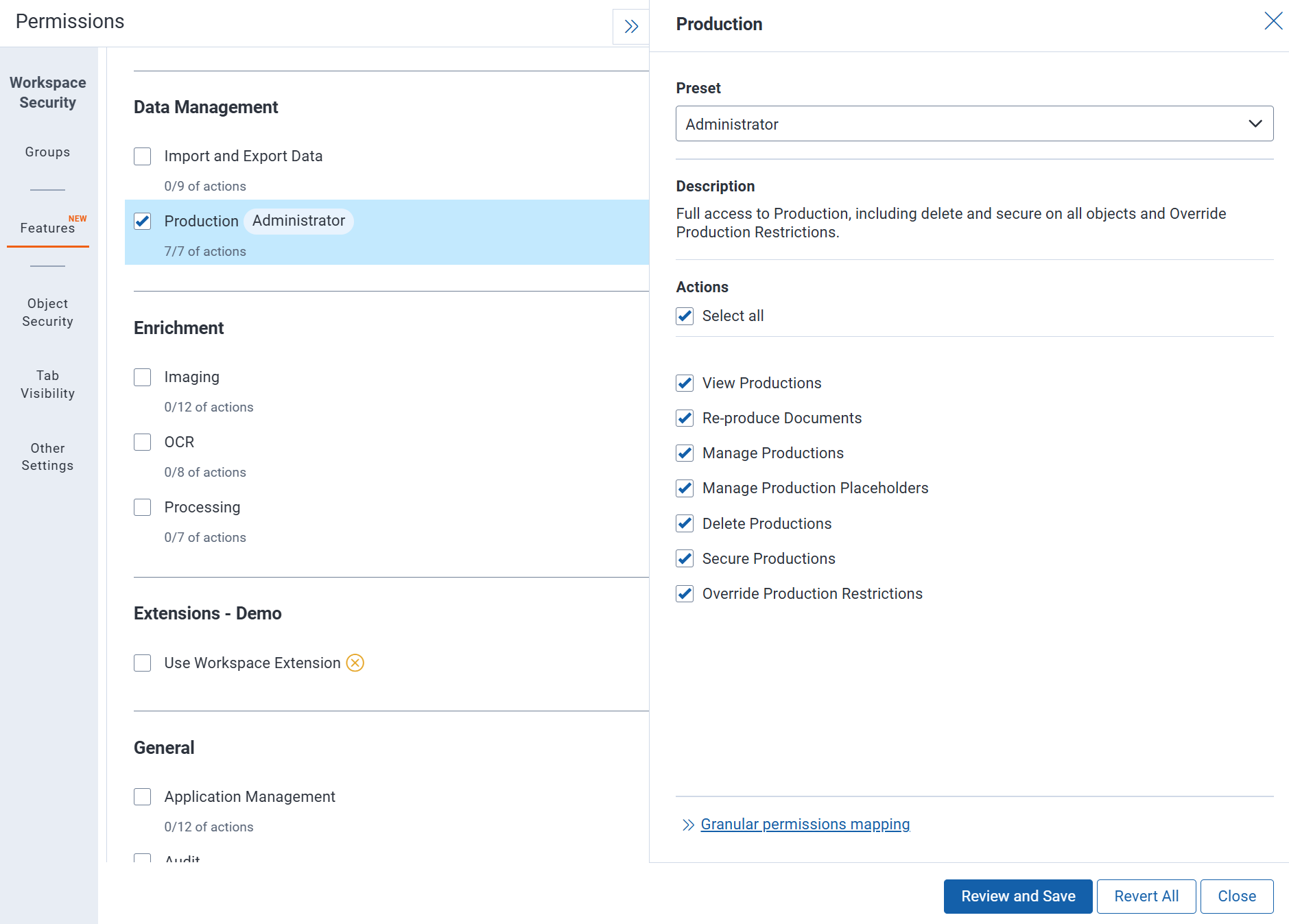
This feature supports feature permission actions. Each action grants access to a specific task within the feature. You can grant groups access to individual actions, allowing them to perform only the tasks they need. To grant access to the entire feature, select all of its actions. Manage feature actions on the Features tab in a group's workspace permissions. For instructions, see Setting workspace permissions. For more information about feature permissions, see Feature permissions.

An image of feature permissions for Production

The following features must be granted to users for production:

  • View Productions - Select to allow users to view productions and their details, but not create, edit, or delete them.
  • Re-produce Documents - Select to allow users to produce documents again after they were produced in a previous production run.
  • Manage Productions - Select to allow users to create, edit, and run productions, including configuring production data sources and stamping options.
  • Manage Production Placeholders - Select to allow users to create and edit production placeholders, which are images used in place of documents that are withheld or cannot be imaged.
  • Delete Productions - Select to allow users to delete productions, data sources, production information, and placeholders.
  • Secure Productions - Select to allow users to edit the security settings on productions, data sources, production information, and placeholders.
  • Override Production Restrictions - Select to allow users to override conflicts with the production restriction, which is a saved search set in Workspace Details.

Upgrading production

Production application upgrades occur concurrently with Relativity product updates. You can find information about production updates in the Relativity release notes and What's new.

To upgrade the application, use one of the following methods:

  1. Upgrade to the latest Relativity product update - Upgrading to the latest Relativity update automatically upgrades production to the latest version.
  2. Upgrade production only - Download the newly released RAP file from the Relativity Community and import it into the Application Library.

Basic production workflow

To produce documents, use the following workflow to create the required production components. Use the links in the image below for more information on each part of the production workflow.
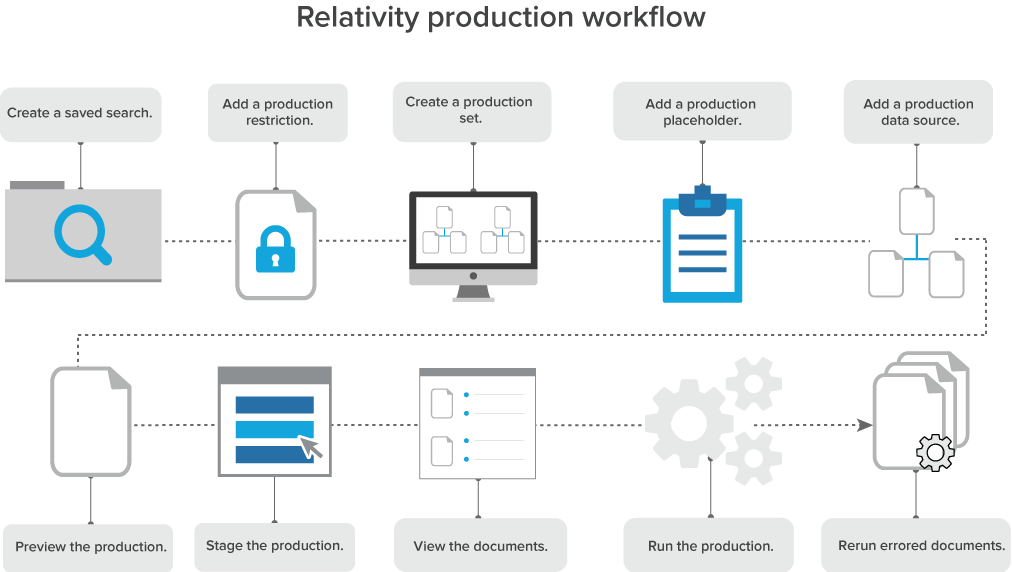
Production workflow diagram

Production information

The production information object stores important information about your production. Staging a production populates this object in your workspace. For example, you can use the production information object to check:

  • The number of documents with redactions
  • The control numbers of documents in your production
  • Which documents were produced with a placeholder
  • Which documents were produced as a native

The production information object also stores the Bates numbers associated with the production. When you delete a production, the Bates number fields clear automatically.

To view the information stored on this object, click View Documents in the production console. The View Documents pop-up displays information about documents and individual pages. You can also view document information in the saved search that is created automatically when the production job finishes.

After you run a production, you can view this information on the documents list for each produced document. Add the fields to a view, then create a tab from that view. See Views and Tabs for more information.

Production information tab

To view detailed production information, create a production information tab and associate it with the production information object.
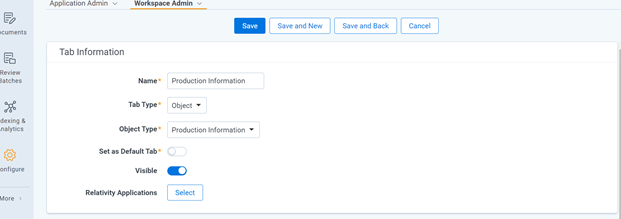
  1. Navigate to Tabs.
  2. Click New Tab.
  3. Enter Production Information as the name for the tab.
  4. Select Object as the tab type.
  5. Select Production Information as the object type.
    An image of the Tab Information form.
  6. Configure the tab location.
  7. Click Save.
  8. Navigate to the Production Information tab to view information about your production set.


Feedback