---
title: "Production errors"
description: "When staging and running a production job, staging, validation, and branding errors can occur."
feature: "Production"
audience: ["end user", "developer", "system analyst", "system administrator", "system engineer"]
version: "Relativity aiR"
type: ["User Guide", "Tutorial"]
url: "https://help.relativity.com/RelativityaiR/Content/Relativity/Production/Production_errors.htm"
lastModified: "2026-11-23"
---
# Production errors
When staging and running a production job, staging, validation, branding, and post production errors can occur.
## Staging errors
Staging errors occur when:
- **The same document is found in multiple data sources.**
When the same document appears in multiple data sources, an error message appears. The error message identifies the data sources that returned the same document and which document they returned. To resolve the error, modify the saved searches you selected as your data sources so they do not return any of the same documents.
- **There are no documents in the data sources.**
When no documents are found in the data sources, an error message appears. To resolve the error, make sure the saved searches you selected as your data sources are returning documents.
- **There are missing files in the data source.**
When documents in the data source do not have images, natives, or PDFs, an error message appears. To resolve the error, modify the data sources, then click Stage and Run Production.
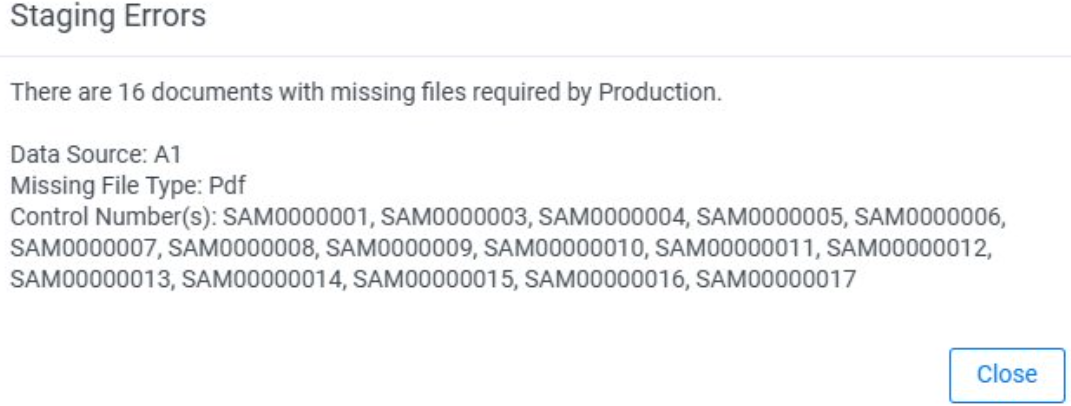
When an error occurs, click **View Production Errors and Warnings** on the Production console to open the Error Starting Production pop-up. The Error Starting Production pop-up lists the errors that occurred.
**Conflicts** occur when the data sources have documents that are also in the saved search selected in the Production Restriction field.
## Validation errors
When a validation error occurs, click **View Production Errors and Warnings** on the Production console to open the Error Starting Production pop-up. The Error Starting Production pop-up lists the errors that occurred.
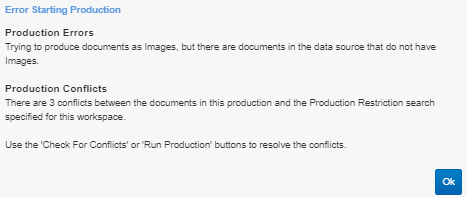
**Conflicts** occur when the production data sources contain documents that the saved search in the Production Restriction field also contains.
| Conflict resolution option | Fix |
| --- | --- |
| **Remove the conflict** | Remove documents from the production set that are also in the saved search selected in the Production Restriction field.
To remove the conflict:
1. Click **Check for Conflicts** on the Production console. The Production Restrictions pop-up will open.
2. Click **Remove Conflict** on the Production Restrictions pop-up.
3. Click **Run Production** on the Production console. |
| **Override the conflict** | Keep the documents in the production set that are also in the saved search selected in the Production Restriction field.
To override the conflict:
1. Click **Run Production** on the Production console. The Production Warnings pop-up will open.
2. Click **Override and Continue** on the Production Warnings pop-up. The production job will continue without removing the conflict documents. |
| **Modify the production restriction** | Modify the Production Restriction field so none of the documents in the production restriction saved search are also in the production set. For information on modifying a production restriction, see [Adding and editing production restrictions](https://help.relativity.com/RelativityaiR/Content/Relativity/Workspaces/Workspaces.md#Producti).
After modifying the production restriction, click **Stage and Run Production** on the Production console. |
## Branding errors
To resolve branding errors:
1. Click **View Branding Errors** on the Production console to open the Branding Errors pop-up.

2. In the **Branding Error Message** column, find the error and apply the fix:
| Branding Error Message | Fix |
| --- | --- |
| Could not find file \. | Because the system can not find the file path to the image, make sure the image exists at the file path mentioned in the Branding Error Message. Image or re-import the document. |
| The file at \ could not be opened or is not a valid image file. | • If the document is encrypted, add the document's password to the Password Bank. For more information, see [Password Bank](https://help.relativity.com/RelativityaiR/Content/Relativity/Processing/Password_bank.md).
• Make sure Relativity supports the file type of the image. You may need to image or import the document again. |
| The process cannot access the file \ because it is being used by another process. | Click **Rerun Errored Documents** on the Production console. |
| The number of images for document has changed after this production was initially run. | After reimaging, the number of images related to this particular document has changed. This may be related to issues with imaging or applied redactions.
To ensure Bates numbering is correct for the entire production, recreate the production set. |
3. Click **Rerun Errored Documents** to finish the production job.
### Post Production errors
These errors are usually related to transient issues. To resolve Post Production errors:
1. Click **Rerun Post Production errors** on the Production console.