


Feedback

Last date modified: 2026-Oct-27
Import/Export validates your permissions and checks if all required applications are installed in your workspace. If you do not have permission to run a given workflow or if any application needed for that workflow is not installed, Import/Export disables the workflow button and displays a warning message below it explaining why it is inactive. This validation process works separately for each workflow. For example, if you do not have permission to run a Processing job, you may still be able to import load file data but will not be able to process it.
All permissions are set at the workspace level in
The Features tab is the primary location for managing access to Relativity features. It lists all of the features and their associated permissions. Use the Features tab to set permissions to Import/Export workflows for a group per preset. The workflows are grouped into the following feature permissions:
To grant permissions to Import/Export workflows for a group:
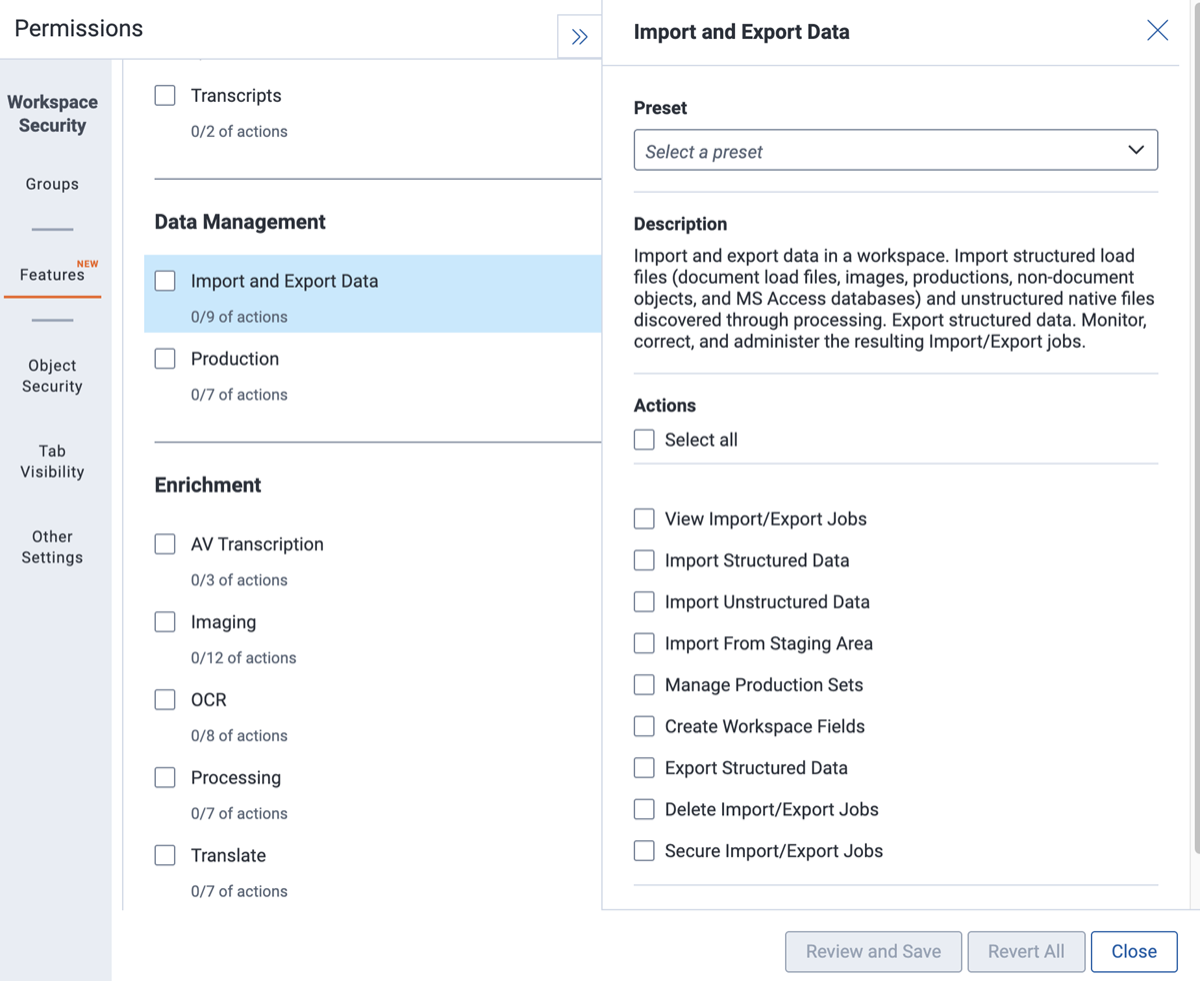
You can select the following actions within Import and Export Data feature presets:
To view granular permissions for Import/Export, click Granular permissions mapping link.
 The following granular permissions are designated for all import and export workflows:
| Object Security | Tab Visibility | Other Settings |
|---|---|---|
|
|
Additional permissions designated for Raw (Unprocessed) Data import and Transcript MDB Data import workflows only:
| Object Security | Tab Visibility | Other Settings |
|---|---|---|
|
|
Admin operations
|
Additional permissions designated for Structured Data import workflows only:
| Object Security | Tab Visibility | Other Settings |
|---|---|---|
|
|
Admin operations
|
Import/Export now allows importing data directly from the Staging locations, such as StructuredData (load file) and ProcessingSource (raw data). You must have Allow Staging Import permission to activate these import options in the application UI.
Additional permissions designated for Export workflows only:
| Object Security | Tab Visibility | Other Settings |
|---|---|---|
|
|
Admin operations
|
For more detailed information on what is included in each Import/Export feature permission, see
When performing imports in Relativity, additional permission requirements apply, depending on the workflow and the object type being imported. The following requirements apply to all document import workflows, regardless of the import source or format.
When importing data that includes field mappings, you must have appropriate permissions for each field mapped in the import configuration:
If you do not have permissions for one or more mapped fields, the import may fail or result in incomplete ingestion of field values.
In addition to mapped fields, Relativity evaluates several system fields during document ingestion. The user performing the import must have the following system field permissions when importing Document object:
These permissions are required even when the system fields are not explicitly mapped during import. Missing permissions may cause validation errors or prevent the import from completing successfully.
