Feedback

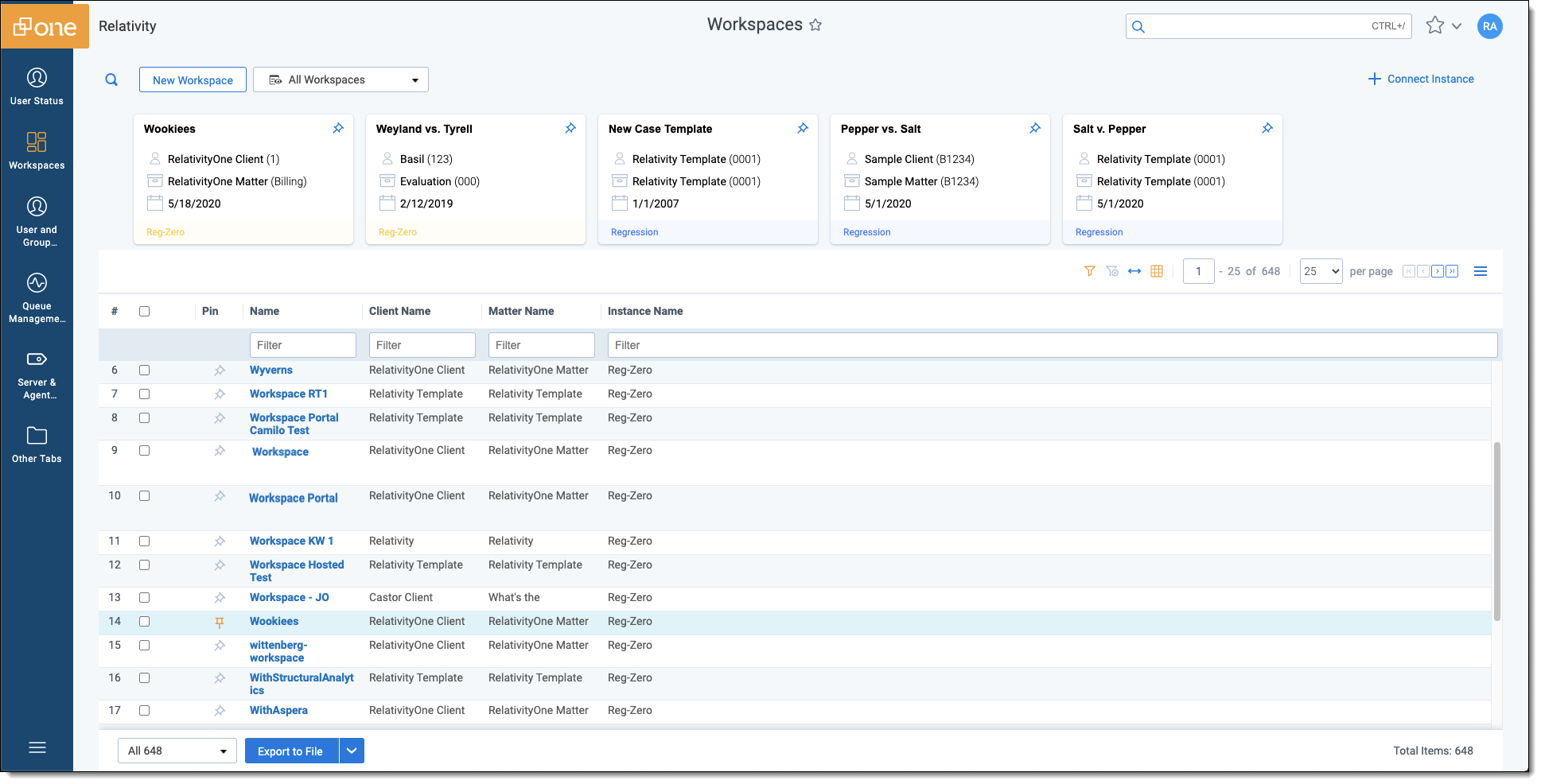
The Workspaces tab enables you to view a list of all the workspaces for both your master and satellite Relativity Server and Relativity aiR instances from a single tab. The available list of workspaces displays in the grid, and you can pin your favorite workspaces and access them in the carousel at the top of the page.
You can navigate between the instances seamlessly using single sign-on.
For information on creating and managing your workspaces, refer to Workspaces and for navigating a workspace itself, refer to Workspace navigation.
Only users who have access to both the master and duplicate instance will be able to view workspaces from your linked instances.
At the top, the workspace carousel displays all of your "pinned" workspaces. You can use the arrow buttons to the left or right to navigate through this list. In addition, workspace cards in this list will be automatically color-coded by instance so that all workspace cards from a particular Relativity instance will be visually distinguishable. This can help users tell which instance a workspace is from at a glance.
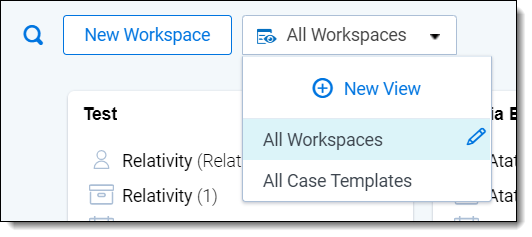
Clicking into the Views menu to the right of the New Workspace button lets you access the Relativity workspace views that you have access to within your local instance. You can also
You can perform the following additional actions from the Workspaces tab:
The Connect Instance icon is only available to Relativity system admins.
 ) - click this button to the left of a listed workspace in your list to pin it in the Pinned Workspaces carousel at the top for easy access to your most used workspaces. Click the orange
 icon to unpin the workspace from the pinned workspaces list or click the icon in the carousel section to unpin it.
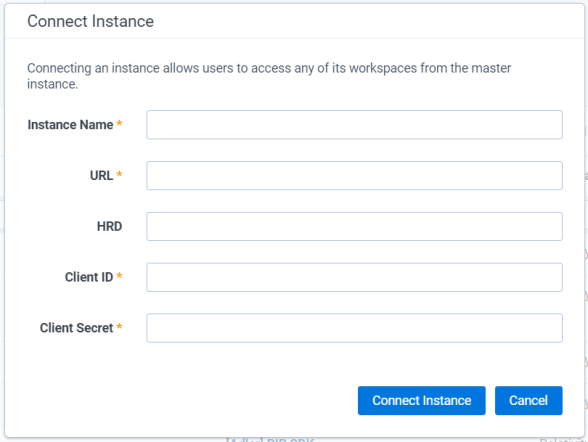
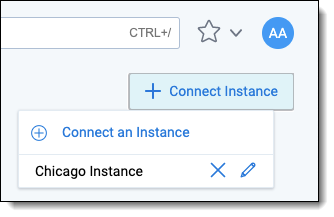
Click the Connect Instance icon to link a new instance to the current instance or view a list of existing instances. See Linking additional Relativity instances for more information on how to connect a new satellite instance.
Only users who have access to both the master and duplicate instance and are system administrators on the master instance will be able to connect a new instance.
Click the (  ) icon to edit an existing registered instance connection or the (
  ) icon to delete a registered instance connection. When editing the current instance, you can select a custom name to display for workspaces associated with that instance instead of the instance name.
If you are using the
To create a new workspace:
To search for a workspace across your connected Relativity instances, you can click the Search icon ( ) to create a quick search to locate a list of matching workspaces
You can also use the QuickNav menu to locate a workspace in your master instance by typing in the name of the workspace or you can also sort and filter the list of workspaces below by using standard Relativity item list functionality. Workspaces in remote instances will not be searchable here.
The following minimum instance-level security permissions are required to use the full Workspaces tab / Workspace portal functionality. To access this tab, users must be part of a group that is added at the instance level.
| Object security | Tab visibility | Admin operations |
|---|---|---|
|
|
|
For new groups that you want to grant access to the Workspaces tab and linked workspaces, add item-level security permission to the SMTPPassword instance setting.
The Workspaces tab will only display the workspaces that you have View permissions for.
The Connect Instance button only displays for Relativity System Administrators.
Custom fields created in linked instances that do not exist in the master instance will not be filterable or sortable. The content in those fields will be visible, but filtering and sorting on that field will not be enabled.
To view and navigate to workspaces in other Relativity aiR instances that you may have (this does not apply to Relativity Server instances).
To link Relativity Server instance workspaces to your Relativity aiR instance, you will need to install the Workspace Portal application and configure your Relativity Server instance appropriately.
Please have the following actions completed before proceeding with configuration steps:
Please ensure that you complete the steps in the order listed.
 1) Configuring your Relativity aiR duplicate instance
If you have already set up an OAuth2 Client for User and Group Synchronization, and have the Client ID and Client Secret generated for that, you can use the existing OAuth2 client, and skip to step 2.
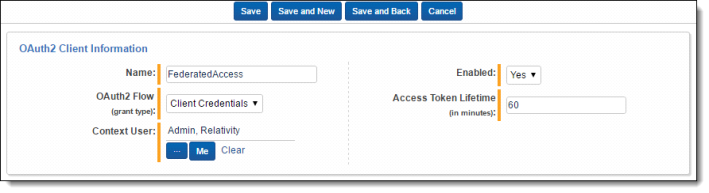
This will be the only point at which you can copy the generated Client Id and Client Secret.
2) Configuring your Relativity aiR master instance
Create the instance connection referencing the duplicate instance and the OAuthClient that was set up in your duplicate instance.
 ).
). ) to link a new instance to the current instance.