Last date modified: 2026-Oct-29

Imaging

Imaging converts native documents into static image files (TIFF or JPEG) that you can review, redact, and produce. Use imaging profiles to control output settings like file format, DPI, and document-type-specific options. Then use imaging sets, mass image, or image on the fly to convert your documents.

There are three ways to image documents:

  • Imaging sets — image a group of documents based on a saved search and a specific imaging profile. Imaging sets also provide error-handling functionality you can use to view error messages and rerun imaging on specific documents or jobs.
  • Mass image — select multiple documents from a document list and image them at once using a specific imaging profile.
  • Image on the fly — image a single document directly in the Viewer using any imaging profile you have permission to use.

See these related pages:

Imaging permissions

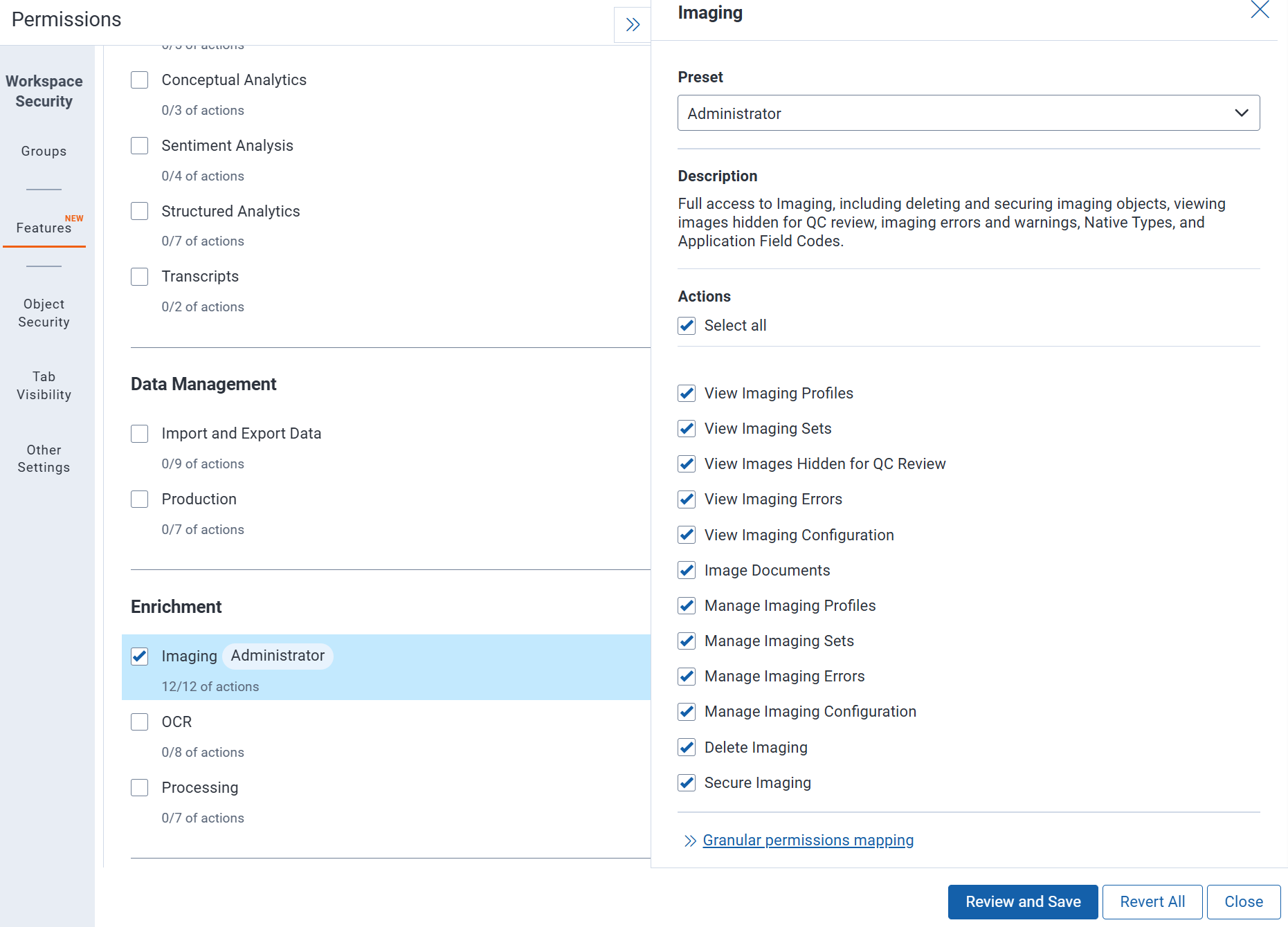
This feature supports feature permission actions. Each action grants access to a specific task within the feature. You can grant groups access to individual actions, allowing them to perform only the tasks they need. To grant access to the entire feature, select all of its actions. Manage feature actions on the Features tab in a group's workspace permissions. For instructions, see Setting workspace permissions. For more information about feature permissions, see Feature permissions.

An image of feature permissions for Imaging

The following features must be granted to users for imaging:

These apply to all imaging options, including image-on-the-fly, mass image, and imaging sets, unless otherwise noted.
  • View Imaging Profiles - Select to allow users to view imaging profiles and their settings, but not create, edit, or delete them.
  • View Imaging Sets - Select to allow users to view imaging sets, including their saved search, imaging profile, and status.
  • View Images Hidden for QC Review - Select to allow users to view images that are hidden from reviewers until a quality control (QC) review is complete.
  • View Imaging Errors - Select to allow users to view imaging errors and imaging warnings, including the document and error details.
  • View Imaging Configuration - Select to allow users to view native types and application field codes, but not change them.
  • Image Documents - Select to allow users to run imaging jobs on documents, including running an imaging set and imaging documents on the fly.
  • Manage Imaging Profiles - Select to allow users to create, edit, and copy imaging profiles, which define the settings used to image documents.
  • Manage Imaging Sets - Select to allow users to create and edit imaging sets, which define the group of documents to image and the profile used to image them. This permission is also required to retry errors from the imaging set page.
  • Manage Imaging Errors - Select to allow users to edit imaging error records, for example, their status.
  • Manage Imaging Configuration - Select to allow users to create and edit native types and application field codes.
  • Delete Imaging - Select to allow users to delete imaging profiles, imaging sets, imaging errors, imaging warnings, native types, and application field codes.
  • Secure Imaging - Select to allow users to edit the security settings on imaging profiles, imaging sets, imaging errors, imaging warnings, native types, and application field codes.

When you run imaging on a specific saved search used in an imaging set, documents that don’t have the "Add Image" permission will be skipped.

Troubleshooting imaging

If Image commands are missing from the Viewer or mass operations menu, or the Run button on an imaging set is disabled, check the following:

Symptom Possible cause Resolution
Image commands missing from the Viewer or mass operations menu The Imaging application is not installed in the workspace. Reinstall the Imaging application from Relativity Applications.
Image commands missing from the Viewer or mass operations menu The user's group does not have the Mass Images permission (under Mass Actions) or the Add Image document permission. Grant the required permissions to the user's group. See the Security permissions section for details.
The Run button on an imaging set is disabled The user's group does not have the required permissions. Verify that the user has View, Edit, and Add permissions on the Imaging Set object, and the required document permissions.

Image on the fly

By using the Imaging option in the Viewer, you can image a single document on the fly with any imaging profile you have permissions to. For more information, see Imaging on the fly.

Mass image

You can image multiple documents at the same time by using the Mass Image operation in the document list. Select an Imaging Profile to use when imaging a group of documents. For more information on mass imaging, see Mass image.

Feedback