Relativity FOIA
The Freedom of Information Act (FOIA) is a federal law that gives the public the right to request access to records from government agencies, promoting transparency and accountability. Relativity Government is being modernized to help agencies manage the entire FOIA process with a modular, AI-powered ecosystem that streamlines intake, tracking, review, publication, and reporting. By integrating secure infrastructure and automated tools, Relativity FOIA enables agencies to efficiently process requests, apply statutory exemptions, and maintain oversight throughout the FOIA life cycle.
Public and agency portals
Relativity supports FOIA operations through two portals: a public-facing Public Portal and the agency-only Relativity FOIA environment. Public access to the Public Portal is provided through the government-managed authentication service, Login.gov. Agency users access FOIA functionality through Relativity. The Public Portal is fully integrated with Relativity to ensure a seamless experience.
Public Portal
The Public Portal is the public-facing interface that allows users to view released documents, submit new FOIA requests, and track request status. It integrates seamlessly with agency systems, creating a unified and efficient communication channel between public users and agencies.
Navigation options include:
- Reading Room—search, read, and download released documents.
- View Requests—track the status of requests.
- Create Request—submit new FOIA requests (available in GA).
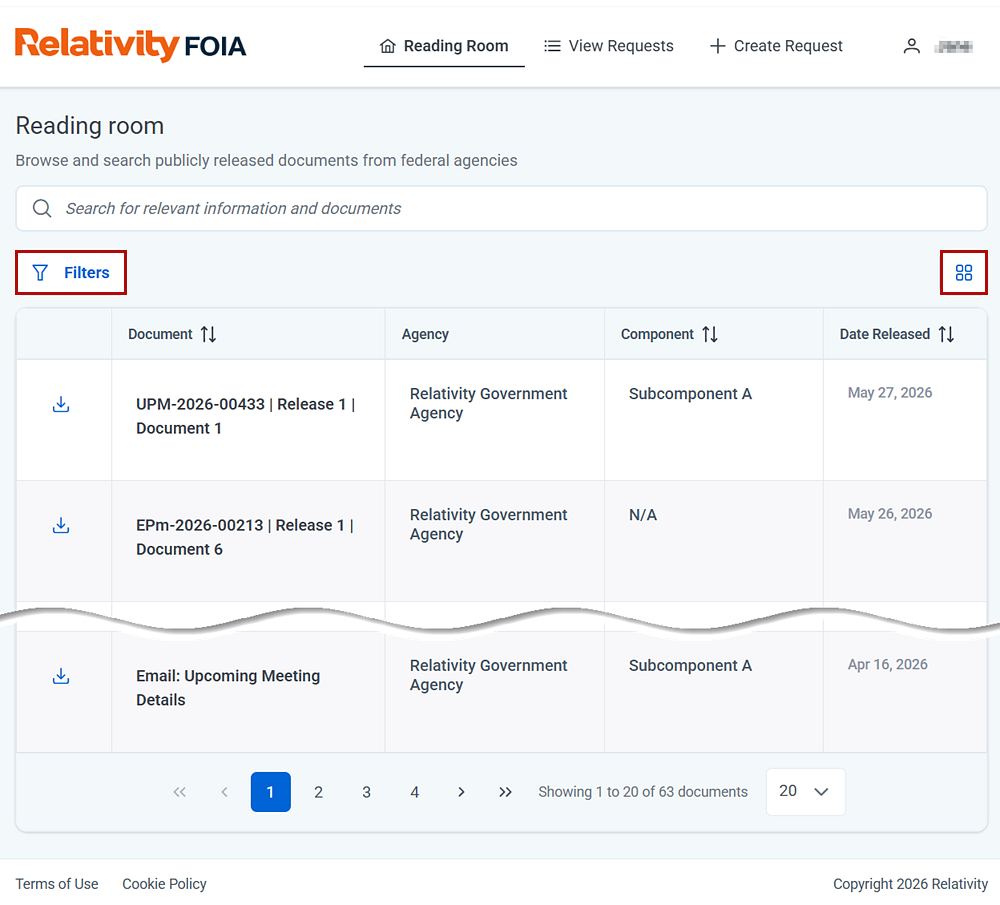
See Public Portal for details on the portal's features and use.
Relativity FOIA
Relativity FOIA is the agency access point for receiving, searching, reviewing, and responding to FOIA requests. Click FOIA in the Relativity sidebar to access the environment. The FOIA landing page features a dashboard display of request statistics, along with a list of recently submitted requests. Click the Request ID to open a request. From there, you can drill down further into the workflow steps: Intake, Search, Review, and Response.
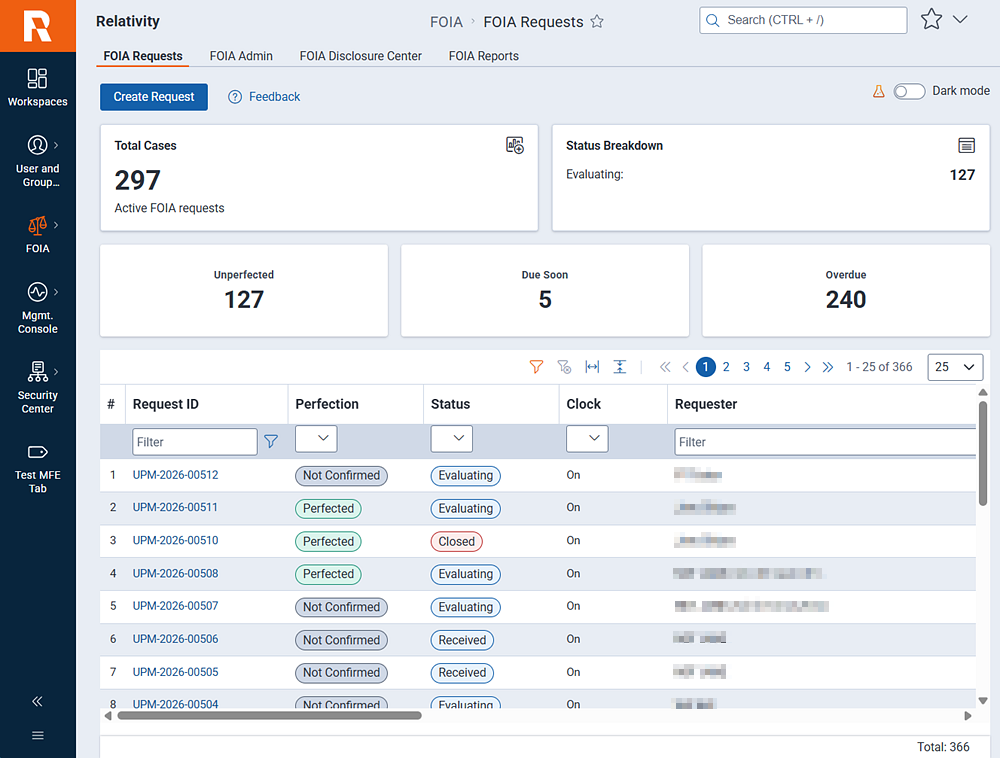
Create Request, Create Consultation, and Feedback
 Create Request
Create a new request outside of the FOIA public portal.
Steps:
- Click Create Request.
- Contact information
- Intake Source—select the source of the request from the drop-down menu. This lets the assigned
agency know how the request was received. Options include:
- FOIA.gov
- Fax
- Mail
- Email
- Portal
- Referral
- Requester's First Name—enter the requester's first name.
- Requester's Last Name—enter the requester's last name.
- Your Organization—enter the organization you are affiliated with.
- Requester's Primary Contact—select Mailing Address or Email. As you make a
selection, additional fields appear that you can use to enter the email address, mailing address, city,
state, and zip code.
- Requester's Additional Contacts—select Fax or Phone. As you make a selection, additional fields
appear that you can use to enter the fax and phone numbers.
- Request information
- Request Type—the classification of request. Options include:
- FOIA—is the standard request type for agency records.
- FOIA + Privacy Act—is a request for records about the requester that may be processed
under both FOIA and the Privacy Act.
- Privacy Act—is a first-party request in which the requester is the individual named in
the records or is authorized to represent that individual.
- Consultation—another agency's input is required before records can be released; your
agency retains the response responsibility.
- Referral—responsibility for processing the records should be transferred to the agency
that owns or originated them.
- Request Date—enter the date the requester sent the request. For mailed or emailed requests, this
may be earlier than the date it was received.
- Request Received Date—enter the date the agency received the request.
- Request Narrative—provide a detailed description of the request.
- FOIA Team Notes—add any internal notes you may have for processing the request.
- Fees & Fee Waiver
- What type of requester are you?—select from one of the following options:
- Commercial
- Educational or Scientific
- Media
- Other
- Fee amount willing to pay—enter the amount you are willing to pay for the records.
- Request a fee waiver?—select Yes or No. If you select Yes, a box appears where you must also
enter a justification for the waiver.
- Expedited Processing
- Request expedited processing?—select Yes or No. If you select Yes, a box appears where you must
also enter a justification for the expedited request.
- Additional Information & Attachments
- Attach any additional documents that support this request.
- Preview and submit
- Click Preview & Create Request. Review the content. Use the Back button to return to the
editable form if necessary.
- Click Create Request to submit the information.
After you submit the new request, you are redirected to the Intake step of the FOIA workflow. See Intake for instructions on working through the Intake steps and sub-steps.
Create Consultation
Create a new consultation outside of the FOIA public portal.
Steps:
- Click Create Consultation.
- Consultation Details
- Requesting Agency—enter the requesting agency's name.
- Requesting Agency Contact First Name—enter the first name of the requesting agency contact.
- Requesting Agency Contact Last Name—enter the last name of the requesting agency contact.
- Requesting Agency Contact Email—enter the email for the requesting agency contact.
- Requesting Agency Reference Number—if available, enter the case reference number.
- Consultation Received Date—enter the date the consulting agency received the consultation request.
- Request Information
- Original Request Received Date—enter the date the original FOIA request was received.
- Original FOIA Requester—enter the name of the original FOIA requester.
- Request Narrative—provide a detailed description of the request.
- FOIA Team Notes—add any internal notes you may have for processing the request.
- Attachments
- Attach any additional documents that support this request.
- Preview and Submit
- Click Preview & Create Consultation. Review the content. Use the Edit button to return to the editable form if necessary.
- Click Create Consultation to submit the information.
After you submit the new consultation request, you are redirected to FOIA Requests page. Note that your consultation request now appears in your active FOIA cases list.
Feedback
Use this link to provide any feedback on your Relativity FOIA experience. We welcome feedback of all kinds. Please be as detailed as possible.
Dashboard widgets:
- Total Cases—the total number of active FOIA requests.
- Status Breakdown—the current number of requests under evaluation, in processing, and waiting for a response.
- Not Perfected—the number of requests that are under review or not complete.
- Due soon—the number of requests that are reaching the end of the allotted time frame for processing.
- Overdue—the number of requests that have passed the allotted time frame for processing.
List fields:
- Request ID—the unique identifier assigned to the request.
- Date Perfected—indicates whether the request is complete and meets the requirements of the agency. A non-perfected status indicates the review is not complete or more information is required to process the request.
- Status—the current status of the request.
- Request Type—the classification of request. Options include:
- FOIA—is the standard request type for agency records.
- FOIA + Privacy Act—is a request for records about the requester that may be processed under both FOIA and the Privacy Act.
- Privacy Act—is a first-party request in which the requester is the individual named in the records or is authorized to represent that individual.
- Consultation—another agency's input is required before records can be released; your agency retains the response responsibility.
- Referral—responsibility for processing the records should be transferred to the agency that owns or originated them.
- Clock—indicates if the clock is running. Relativity follows DOJ rules for starting and stopping the clock. The clock starts when the request is received. If the request is not perfected, then the clock is stopped until perfection is achieved. After perfection, the clock starts again.
- Requester—the person submitting the FOIA request.
- Assigned Component—the office, agency, or person assigned by the reviewer to search for and provide documents.
- Date Submitted—the date the request was submitted.
- Fee Waiver—indicates the status of the fee waiver, if requested.
- Due Date—the due date for completing the request processing.
- Days Overdue—the number of days the request processing is overdue.
- Fee Category—the fee category confirmed by the assigned officer.
- Case Complexity—indicates the estimated amount of time and effort for processing the request. Options include simple, complex, and expedited. See (FOIA Intake) Processing Track for more details.
- Last Updated—indicates the date the request was last updated.
- Date Completed—indicates the date the request was completed.
- Organization—the requester's organization, if any.
FOIA Workflow
The FOIA process begins with a request for documents. Once the request is received, the FOIA workflow starts with the Intake step. In all, there are four steps to the workflow:
- Intake—begins after a document request is received. The agency reviews the request and decides whether it passes FOIA submission policies. The response clock starts when the request is received.
- Search—if the request is perfected (all of the FOIA submission guidelines are met), agencies then locate records that are responsive to the request.
- Review—during this phase, agencies assess the records to determine the appropriate level of release (such as partially or fully released) in accordance with legal requirements.
- Response—in this final step, agencies deliver the records to the customer. The response clock stops.
Permissions
Relativity feature permissions are assigned through groups, which are then applied to workspaces, object types, tabs, and individual items. Administrators have precise control over feature actions accessible at multiple levels.
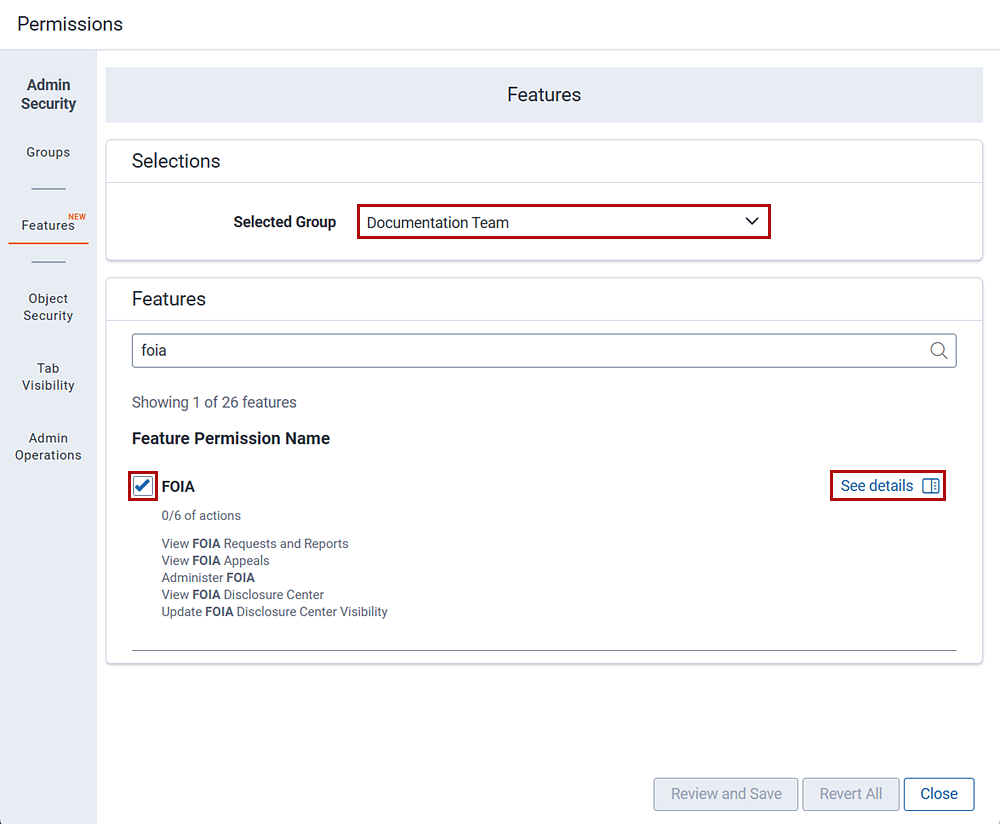
To access FOIA feature permissions:
- Use the search bar to navigate to Instance Details.
- Click Manage Permissions.
- Select the Features tab.
- Use the Select Group drop-down menu to select the group for which you want to view permissions. If you do not know which group to select, contact your Relativity administrator. Groups and group assignments are managed by an organization's Relativity administrator.
- Scroll down and check the box next to FOIA. You can also use the search bar to jump to the FOIA settings.
- Click See details.
A modal appears listing the actions associated with FOIA. One item to note is the Preset drop-down menu. When you select a preset, Relativity selects the actions defined for the preset. You can then add or clear actions as needed.
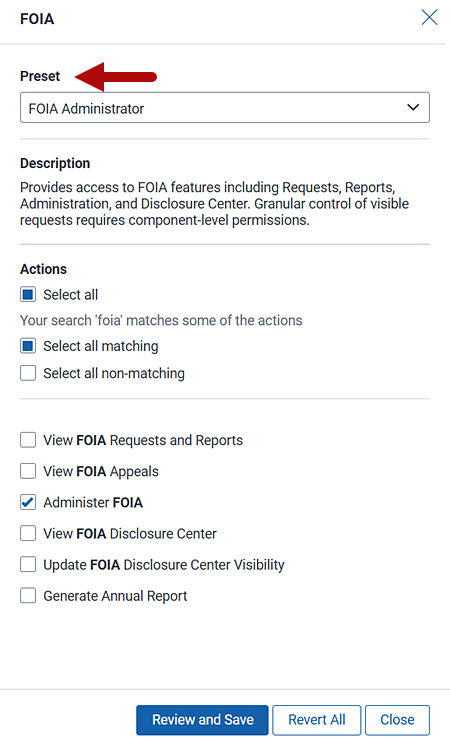
To add or edit actions:
- Check or clear actions as needed.
- Click Review and Save. Expand the Features changes section for FOIA to view all of the changes made to permissions in the current session. This button is only enabled if you changed action settings.
- Click Save.
- Click Close to exit the screen if you did not change any settings.


