



Feedback

Last date modified: 2026-Oct-27
Case Strategy transforms your key document set into a structured fact chronology, to help you understand who did what and when. As part of fact extraction, facts are grouped and in some cases, higher-level facts are constructed to deliver a succinct chronology that minimizes fact duplicates.
Once extracted, you can view facts in a chronological list on the Facts tab. Extracted facts can also be used to create memos.
Before using AI-based capabilities, we recommend learning about how the AI components in Case Strategy work so that you can leverage the features effectively.
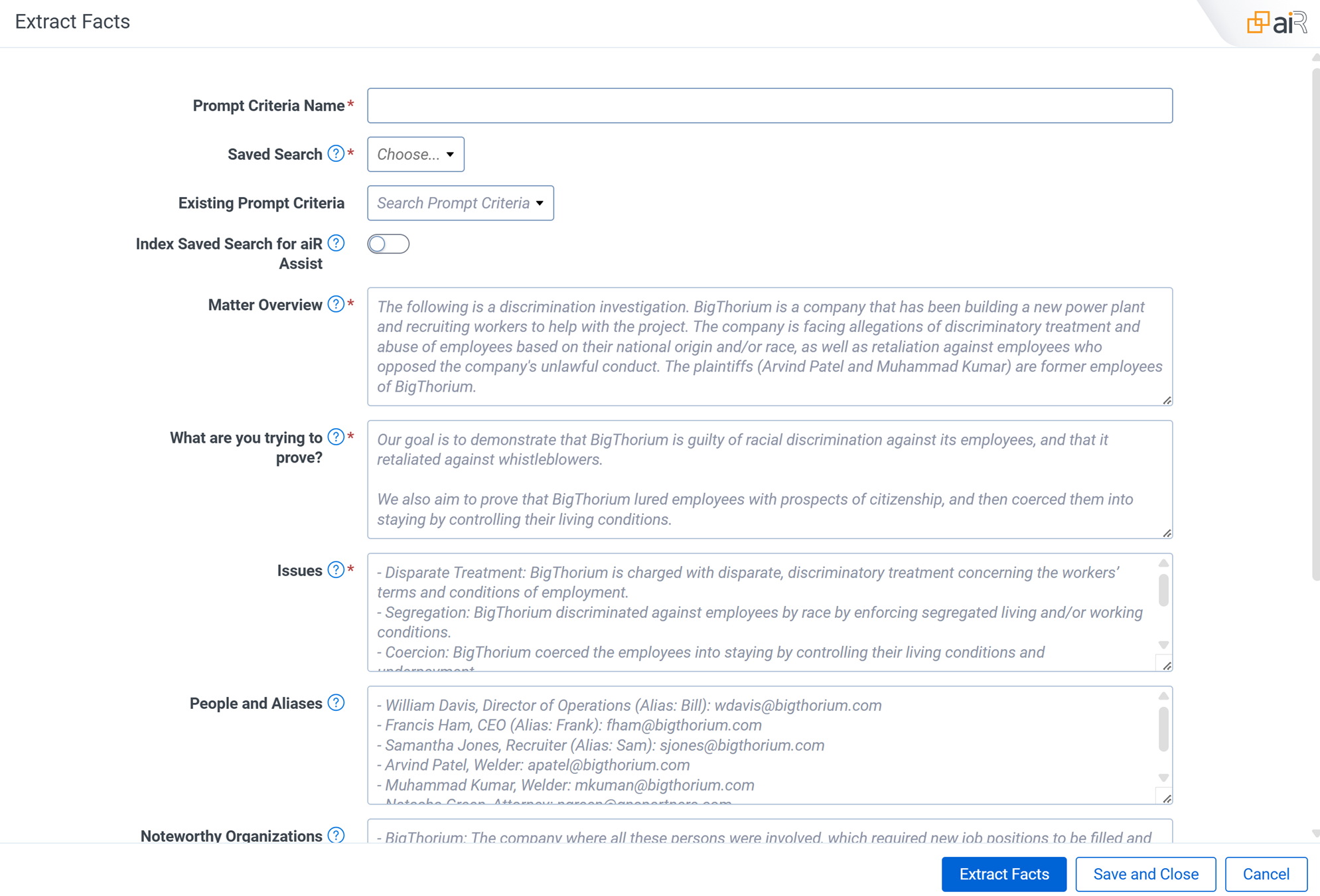
You can extract facts using Case Strategy on a saved search using the matter-specific information you enter in the prompt criteria fields.
While completing the prompt criteria fields, you can save your progress as a draft, referred to as a Working Copy, by clicking the Save and Close button and then resume completing the fields at another time. Only one draft can be saved for fact extractions per user at a time. A user can only access a draft that they saved.
If you do not enter a Prompt Criteria Name, the draft is named Fact Chronology: Working Copy.
To extract facts using a saved search on the Matter Home tab:
If any documents error during fact extraction, your organization is not charged for them, and the errored documents do not count towards your organization's Case Strategy total document count. Documents can error for a number of reasons including that the extracted text is empty or too large.
If there are documents that error during fact extraction, the user that started fact extraction is notified via email and a saved search is created to help you track those documents. The saved search is named after the entered Prompt Criteria Name value. Only the user that started the job can access the saved search initially.
To make the saved search available to other users:
The prompt criteria in Case Strategy give the large language model (LLM) the broad context surrounding a matter. This includes an overview of the matter, people and entities involved, detail on the legal issues that facts must relate to, and any jargon or terms that might help in understanding the documents.
Most fields display information which can guide the voice and tone of what you write. Further description of the fields for extracting facts is provided below.
After fact extraction, a set of fields populate with information based on your selected documents. Case Strategy creates up to 9 facts per document and the AI looks for any information relevant to your prompt criteria.
The following fields populate on extracted facts:
Fact extraction uses Generative AI to read the extracted text of the documents, describe the contents using a document summary, and to create and score the facts. We strongly recommend that you provide an appropriate amount of oversight by having an attorney working on the case review the facts and then confirm or correct their language as needed. For further information, see the Generative AI considerations in Case Strategy.
If the same facts occur in multiple documents, duplicate or overlapping facts can be extracted. Case Strategy tags duplicate facts to help reduce the clutter, but if you avoid including duplicate content in the documents selected for fact extraction, you can reduce their prevalence.
Running multiple fact extraction jobs on the same document can also result in duplication, as prior facts are never deleted. We recommend that you filter fact lists using the Prompt Criteria Name, or consider deleting old facts if you have made improvements to your prompt criteria.
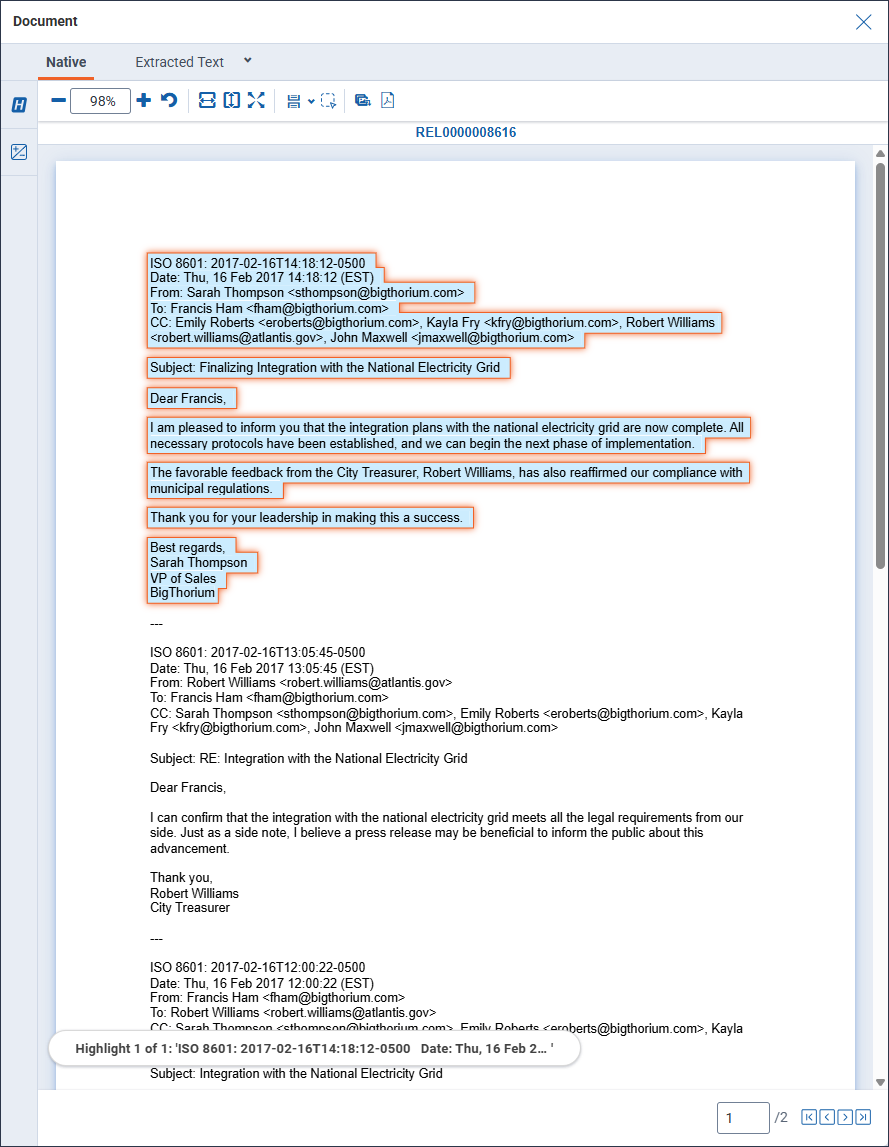
The Document Preview panel is available from the Matter Home tab. You can use the Document Preview panel to view documents without having to open them in the Viewer.
Citation highlights display in the Document preview panel so you can locate key information at a glance without leaving the Matter Home tab. Citation highlighting displays for all facts created after August 14, 2025. Some facts created prior to that date may not support highlighting. Citation highlights display in a light blue color.
For the prompt criteria in all of the setup tabs, we recommend:
Based on the limits of the underlying LLM, Case Strategy has size limits for the documents and prompts you submit.
The documents and prompt criteria have the following size limits:
Once a fact extraction job concludes, an email with additional information is sent to the user that started it. Each potential result is described below:
| Name Result | Description |
|---|---|
| Job completed successfully | The job ran successfully and no further action is needed. |
| Job completed with errors | The job ran successfully but errors occurred. Case Strategy creates a saved search with the errored documents in it. Using the saved search, you can rerun a new job to resolve those errors. |
| Job is still running | The job has not completed yet. An email is sent to the user every hour after the job begins running and no action is needed on the user's part until the job concludes. |
| Job has timed out | The job has not completed successfully in time. You can rerun the job. |
| Job has failed | The job has not completed successfully. The email contains instructions on how to delete the created facts so that you can remove them and rerun the job. |
Once you extract facts, you can review facts in a consolidated fact list designed to help streamline analysis, apply advanced filters to focus on details that may be most relevant, and visualize a generated chronology of events with the Timeline. You can also view issues, entities, and related documents from the Facts tab.
On this tab, you can review facts in a consolidated fact list designed to help streamline analysis, apply advanced filters to focus on details that may be most relevant, and visualize a generated chronology of events with the Timeline, based on extracted facts.
The Facts tab contains the following sections:
1. Fact list
2. Fact Detail card
3. Filter panel
4. Timeline
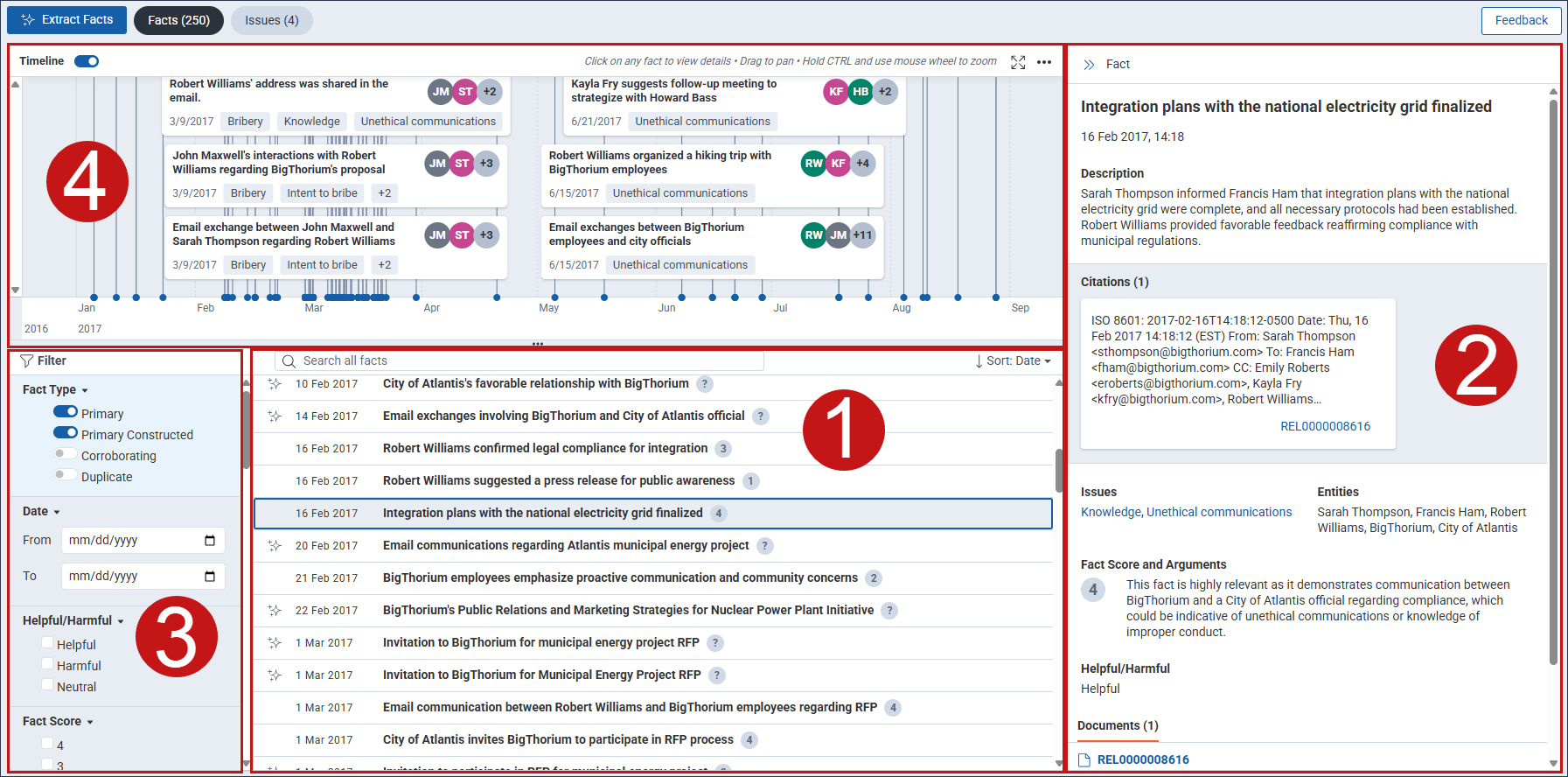
The fact list displays each Primary and Primary Constructed fact that was identified and extracted along with the date that the fact occurred and its Fact Score.
You can identify certain fact types by the icon displayed on the left side of the fact. The following fact type icons display in the fact list:
| Icon | Fact Type |
|---|---|

|
Corroborating fact |

|
Primary Constructed fact |

|
Duplicate fact |
| No icon | Primary fact |
To filter facts based on a keyword search, enter search terms into the Search all facts textbox and press Enter on your keyboard.
To adjust how facts are sorted in the list, click on the Sort: drop-down menu and select a sort option.
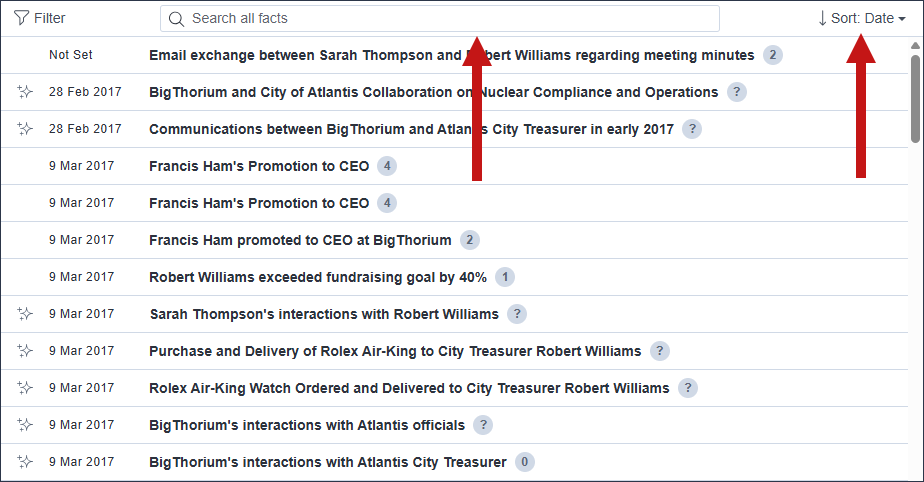
To view more information about a fact, click on the fact in the list to expand the Fact Detail card. To learn more, see Fact Detail card.
To view additional information about a fact, click on it in the fact list. The Fact Detail card expands to display the fact info. This includes a more detailed description of the fact, citations used in fact extraction, the Fact Score and rationale behind it, and a summary of the relevant documents. You can also edit the fact fields in the card. To learn more, see Editing a fact.
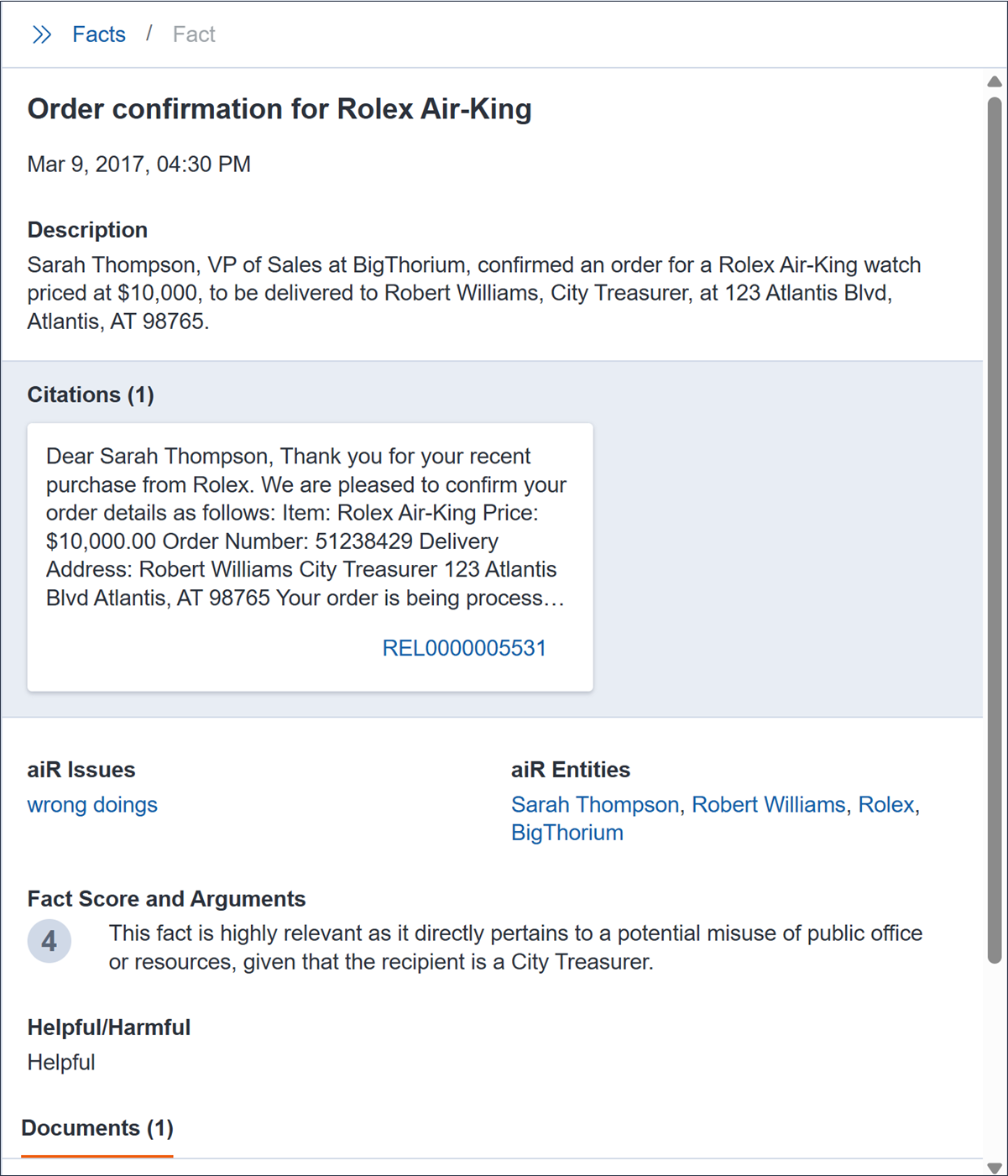
If you view a Primary (Constructed) fact, the Issues, Entities, and Citations that display originate from the corroborating and duplicate facts used to construct the Primary (Constructed) fact. Fact Score, Fact Score Argument, and Helpful/Harmful fields are not populated for Primary (Constructed) fact in the Fact Detail card.
Document Control Numbers listed in the Citations and Documents sections are hyperlinked so that you can click and open them in the Document Preview panel which launches next to the Fact list and Fact Detail card. After clicking on a hyperlinked Control Number, the Document Preview panel displays and navigates you to the highlighted citation in the document that was used to extract the fact.
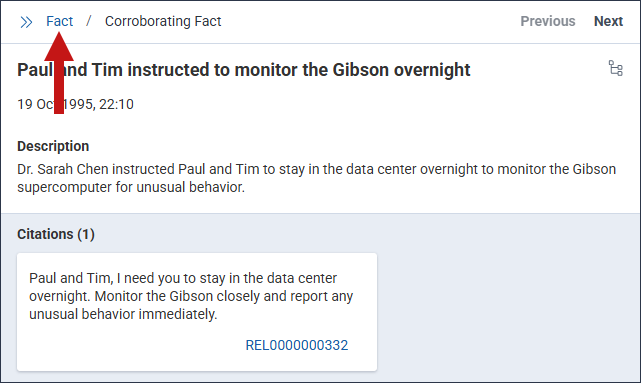
If there is more than one document in the Citations and Documents section, the Next and Previous options display at the top of the Document Preview panel. You can click on these options to navigate from one document to the next.
You can navigate from the Document Preview panel back to the Fact Detail card by clicking on the Fact link.
While reviewing facts, you can edit a fact's fields from the Fact Detail card. The process for editing fact fields varies by field.
You can edit the Fact Name, Primary Fact Date, Fact Description, Fact Score, Arguments, and Helpful/Harmful fields. To edit any of these fields:
You can edit the aiR Issues and aiR Entities fields to either remove issues or entities from a field or add new ones from the Fact Detail card.
To add an issue or entity value:
To remove an issue or entity value:
You can also filter the fact list using the Filter panel. Click on the Filter icon to expand the panel. Each section in the panel can be expanded or collapsed by by clicking on the name. You can filter using the following fields: Primary Fact Date, Helpful/Harmful, Fact Score, Issues, Entities, and Prompt Criteria.
To apply a Date filter to the fact list, select an option or by click on the From or To Date options and enter a date using your keyboard. After a filter is applied, the list updates to only display facts that occur during or overlap with the date range you selected.
For example, if you enter a date range of From: 01/01/2020 and To: 01/01/2025, any facts that occur during that time span display in the fact list, including a fact that started on 3/7/2018 and ended on 7/2/2027.
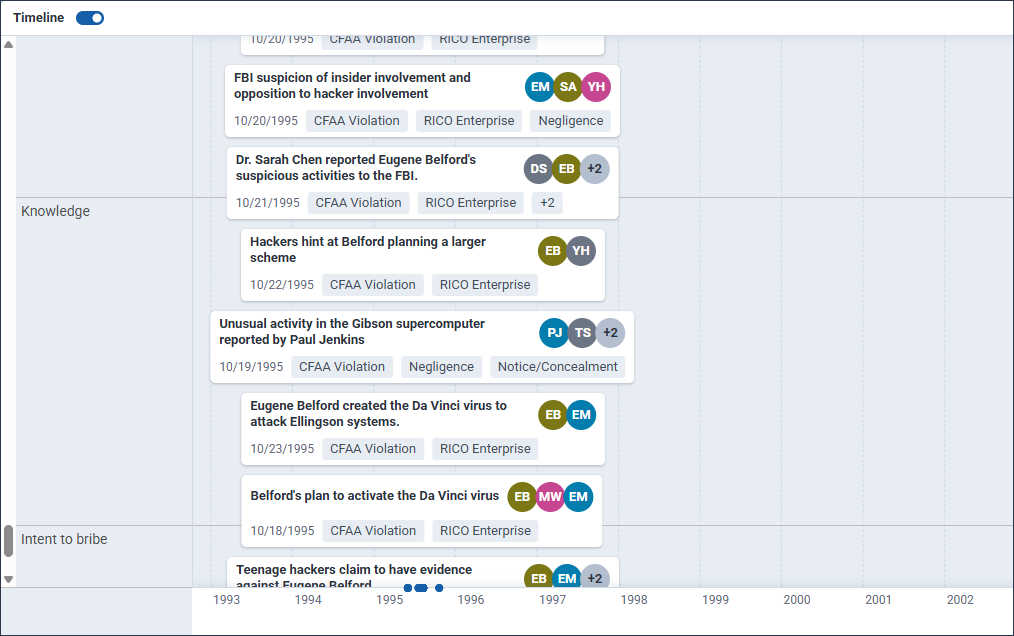
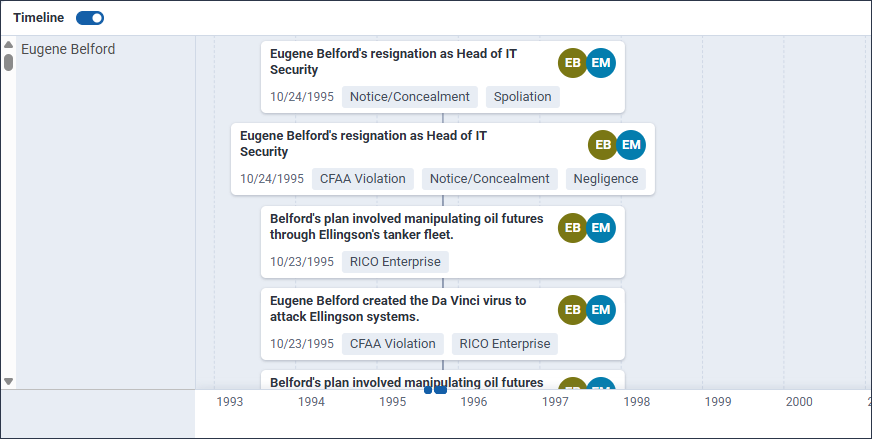
You can view facts in chronological order using the Timeline. Each fact displays the date when it occurred, avatars with the initials of the entities involved with each fact, and any aiR issues associated with the fact.
To expand or collapse the Timeline section, click on the Timeline toggle.
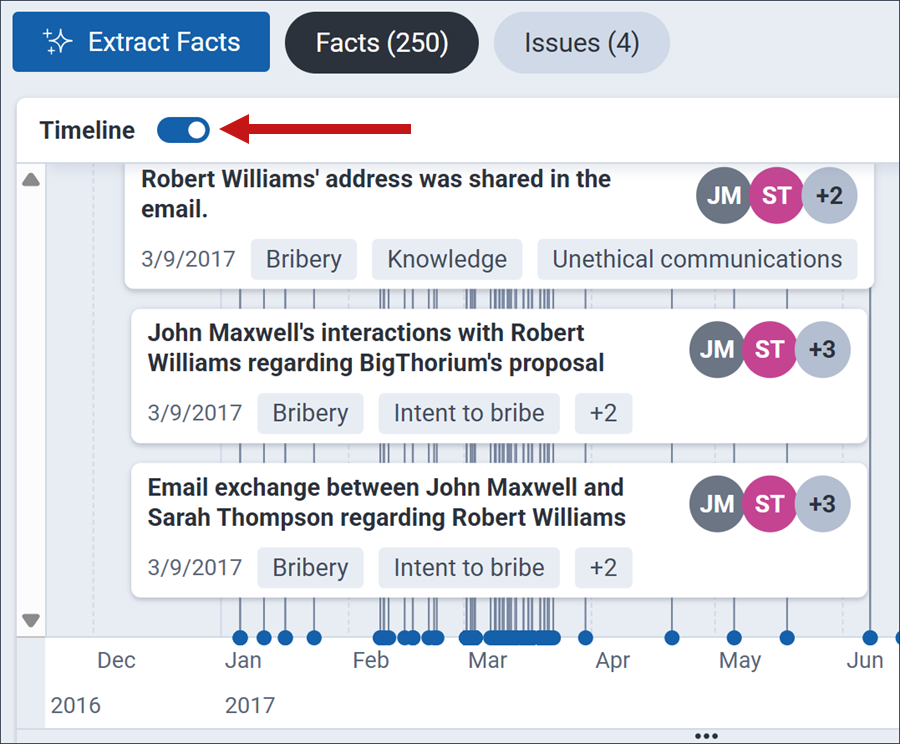
You can click on a fact in the Timeline to expand the Fact Detail card and view additional information about the fact. To learn more, see Fact Detail card.
To pan the Timeline up or down, you can either scroll with your mouse wheel up or down or left-click in the Timeline and hold down on your mouse and drag the cursor up or down to pan in that direction.
To zoom the Timeline in or out, press and hold Control on your keyboard and scroll your mouse wheel up or down.
While viewing the Timeline, you can expand the size of the Timeline to get a broader view of the Fact Chronology. To expand the Timeline, click the Fullscreen Timeline icon.
To reduce the size of the Timeline, click the Exit Fullscreen icon.
There are four different modes you can choose from when viewing the Timeline. Each mode is described below.
| Mode Name | Description |
|---|---|
| Default | Facts are displayed individually based on the date that they occurred. |
| Cluster | Facts are grouped based on the date that they occurred and the total number of facts are displayed instead of each one individually. |
| Group by Issues |
Facts with the same issues are grouped together. If facts share the same issues but occurred on a different date, then they are indented differently to help you visually distinguish them. Facts that have no issues assigned display together at the bottom of the Timeline.
|
| Group by Entities |
Facts that involve the same entities are grouped together. If facts share the same entities but occurred on a different date, then they are indented differently to help you visually distinguish them.
|
You can view a list of issues with the number of facts, entities, and documents for each issue displayed on the Issues tab.
To view the facts, entities or documents associated with an issue, click on the desired issue.
You can then select either the Facts sub-tab, Entities sub-tab, or Documents sub-tab to view more information. To learn more, see Facts sub-tab, Entities sub-tab, and Documents sub-tab.
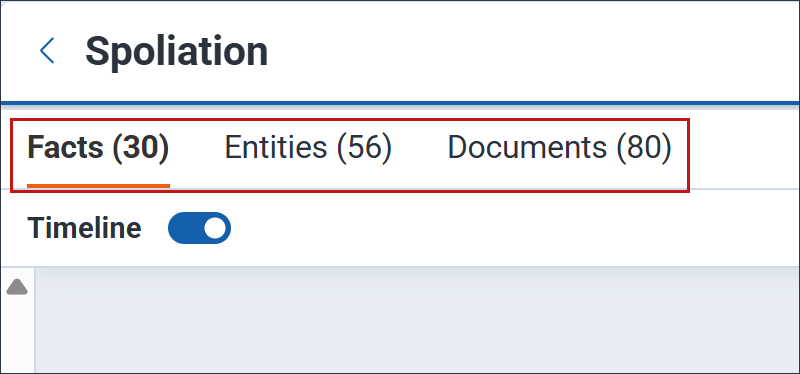
The Facts sub-tab filters facts so that you only see the ones that are associated with the issue you selected on the Issues tab. From this sub-tab, you can access the Fact list, Fact Detail card, Filter panel, and Timeline which function the same way as on the Facts tab. To learn more, see Fact list, Fact Detail card, Filter panel, and Timeline.
The Entities sub-tab displays a list of entities associated with the selected issue. To filter the entities based on a keyword search, enter search terms into the Search all Entities textbox, and press Enter on your keyboard.
Click on an entity to see any facts associated with both the selected entity and issue. The Fact list, Fact Detail card, Filter panel, and Timeline are all accessible for these facts. To learn more, see Fact list, Fact Detail card, Filter panel, and Timeline.
To go back to the Entities list, click the Back icon.
The Documents sub-tab displays a list of documents associated with the selected issue as well as a summary of each document. Click on the document's Control Number to open it in the Document Preview panel.
