Feedback

Last date modified: 2026-Oct-27
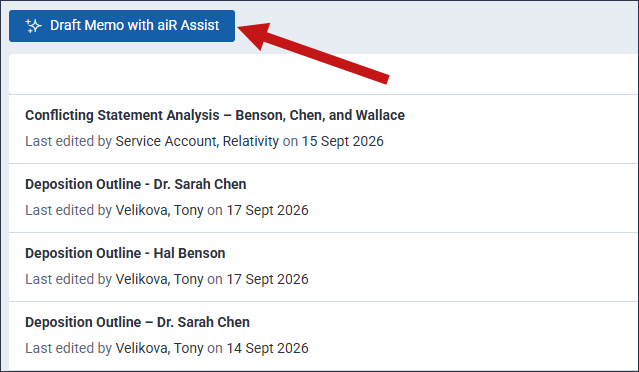
Using the power of Assist and Generative AI, you can draft memos from the Memos tab. While you can draft any type of memo you would like, some common examples include: Witness summary, Deposition outline, Case summary, and Issue summary. Once memos are drafted, you can open, edit, and export them on the Memos tab.
Before using AI-based capabilities, we recommend learning about how the AI components in Case Strategy work so that you can leverage the features effectively. For more information, see Generative AI considerations for Case Strategy.
Memos are drafted using Assist.
To create a new memo:
For the prompt criteria in all of the setup tabs, we recommend:
Based on the limits of the underlying LLM, Case Strategy has size limits for the documents and prompts you submit.
The documents and prompt criteria have the following size limits:
After you have drafted memos, you can open, edit, and export them to your workstation from the Memos tab.
The memo list contains all of the memos that have been drafted using Assist. Click in the row of a memo to open it the editor where you can edit it. To learn more see, Editing a memo.
You can filter the memo list to help you find a memo. Using your keyboard, enter the desired terms in the Search all Case Memos textbox. As you type, the memo list updates to only show memos that match what you have entered in the textbox. You can click the Close icon in the textbox to remove the filter from the memo list.
You can also change how the memo list is sorted to help you locate a particular memo. Click on the Sort order: option and select one of the following options to change how memos are sorted:
| Sort Option | Description |
|---|---|
| Alphabetical | Sort the memos from A-Z. |
| Created on | Sort the memos from newest to oldest or oldest to newest. Each time you select this option it toggles to whichever sort method is not currently selected. |
| Last edited on | Sort the memos based on the date when each one was most recently edited. This sorts the memo list by most recently edited to least recently edited or vice versa. Each time you select this option it toggles to whichever sort method is not currently selected. |
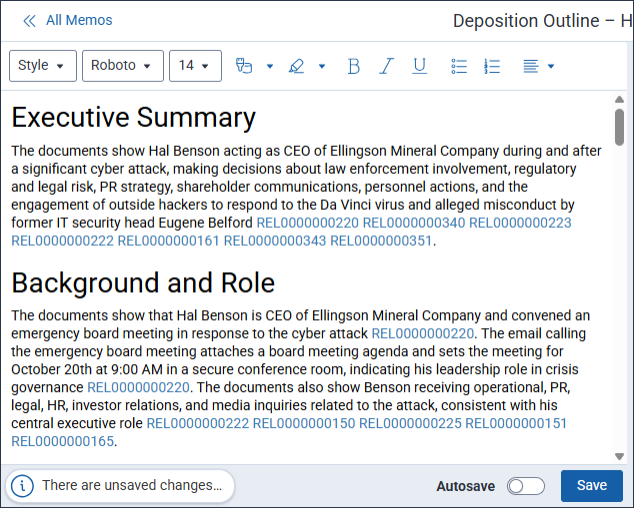
You can open a memo from the memo list to launch the text editor. You can use the editor to make any desired edits.
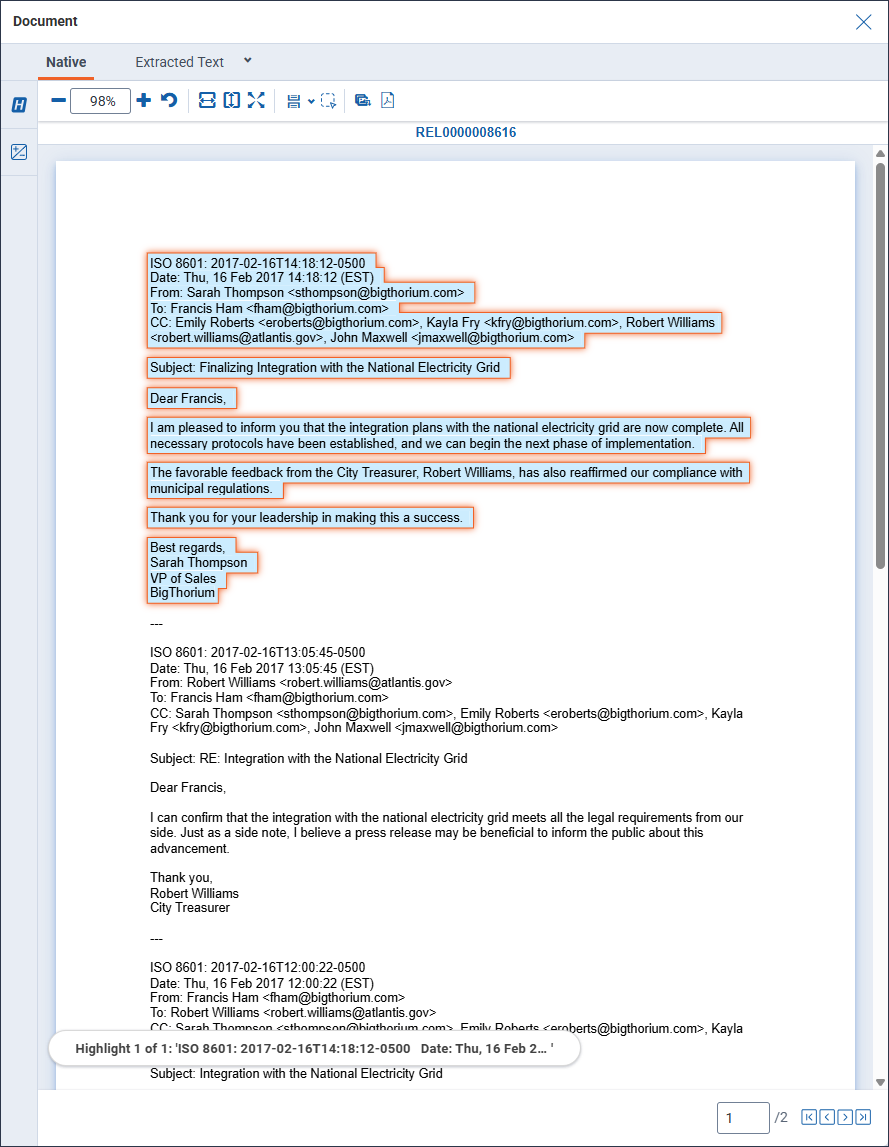
While reviewing a memo, you can click on a document with a Control Number hyperlink to open it in the Document preview panel without leaving the text editor. While viewing a document in the Document preview panel, the citation highlights for that document display.
After making an edit, a message denoting the unsaved changes displays in the editor and the Save button is available. Once you are finished editing, click Save. If you have unsaved changes and try to navigate away from the case document, a pop up displays. Click OK to discard any unsaved edits and navigate away from the current document or click Cancel to stay on the current case document so that you can save your edits.
Alternatively, you can enable autosave to save any edits you make every 15 seconds. After each autosave, the timestamp next to the autosave toggle updates to help you track when the last autosave occurred. With this option enabled, your changes are automatically saved when you navigate away from the current case document.
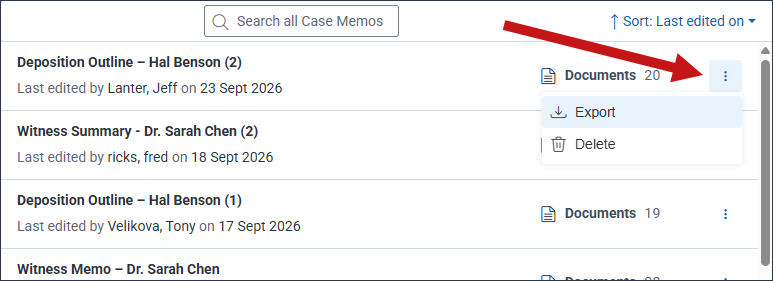
You can download a memo as a .docx file to your workstation from the Memos tab or from the text editor.
To download a memo from the Memos tab:
To download a memo from the text editor:
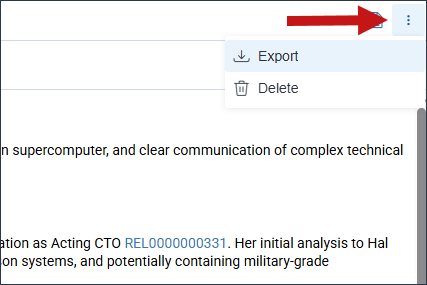
You can remove a memo from the Memos tab or while view it in the text editor.
To remove a memo from the Memos tab:
To remove the currently opened memo from the text editor:
The Document Preview panel is available from the Matter Home tab. You can use the Document Preview panel to view documents without having to open them in the Viewer.
Citation highlights display in the Document preview panel so you can locate key information at a glance without leaving the Matter Home tab. Citation highlighting displays for all facts created after August 14, 2025. Some facts created prior to that date may not support highlighting. Citation highlights display in a light blue color.