


Feedback

Last date modified: 2026-Oct-20
Usage Reports is the modern way to gather information and gain oversight across your instance. Typically, metrics presented in Usage Reports are used for end-client billing, tracking adoption, and general usage metrics. System and Client Domain Administrators can create custom reports at the instance level to report on their workspace utilization and Processing consumption metrics for billing and usage tracking. Users with the Cost Explorer permission can also add billing metrics, such as billable file sizes and costs, to Workspace reports.
For a complete list of fields available in the Usage Reports, see Usage Report fields, below. To match a report field to its Billing Insights API path, see Billing Insights API field mapping.
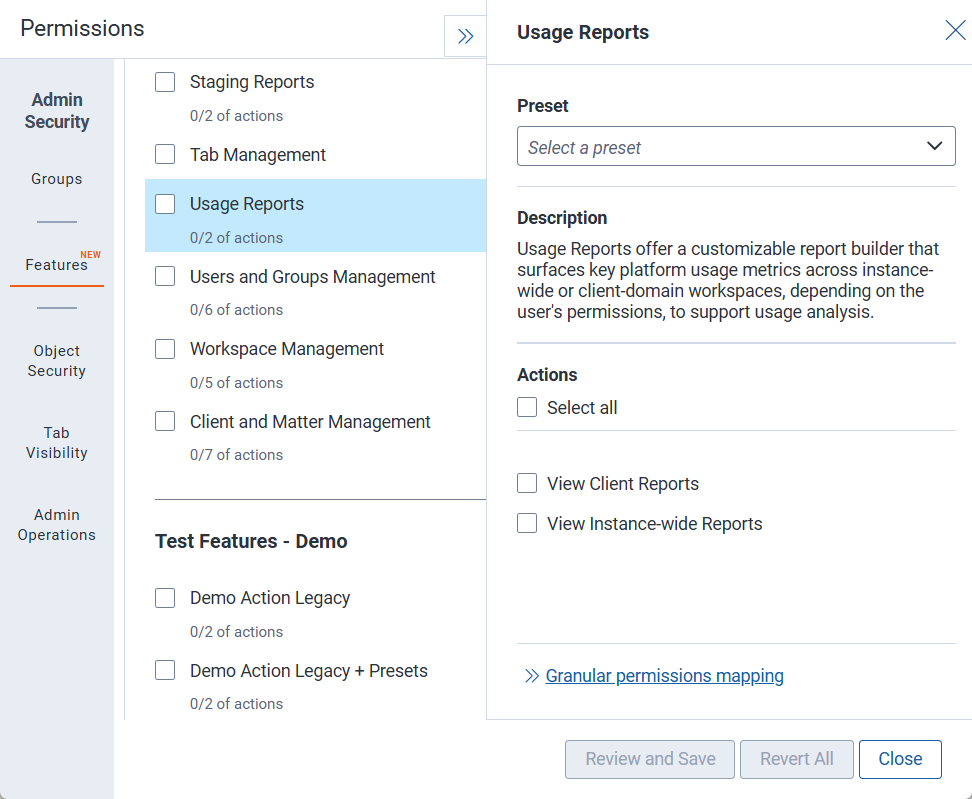
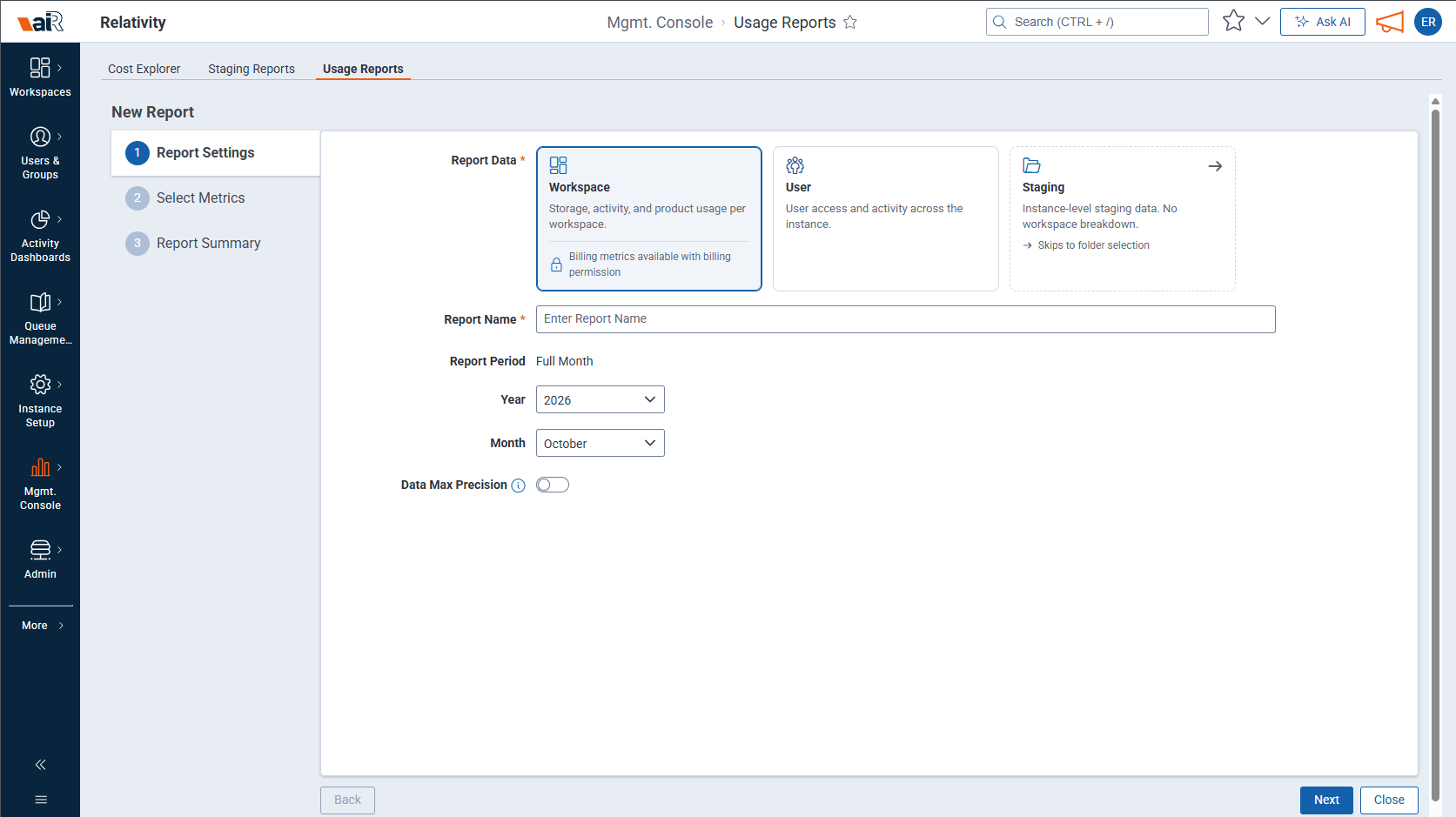
To add metrics from the Billing group to a report, you also need the permission that controls access to Cost Explorer. If you don't have the Cost Explorer permission, the Billing group doesn't appear on the Select Metrics step. The Workspace option on the Report Settings step notes that billing metrics require this permission. You need both permissions for any report that includes billing metrics, including a report that contains only billing metrics. Billing metrics are available in Workspace reports only.
 Usage Reports permission details
| Tab Visibility | Admin Operations |
|---|---|
| Management Console and Usage Reports |
|
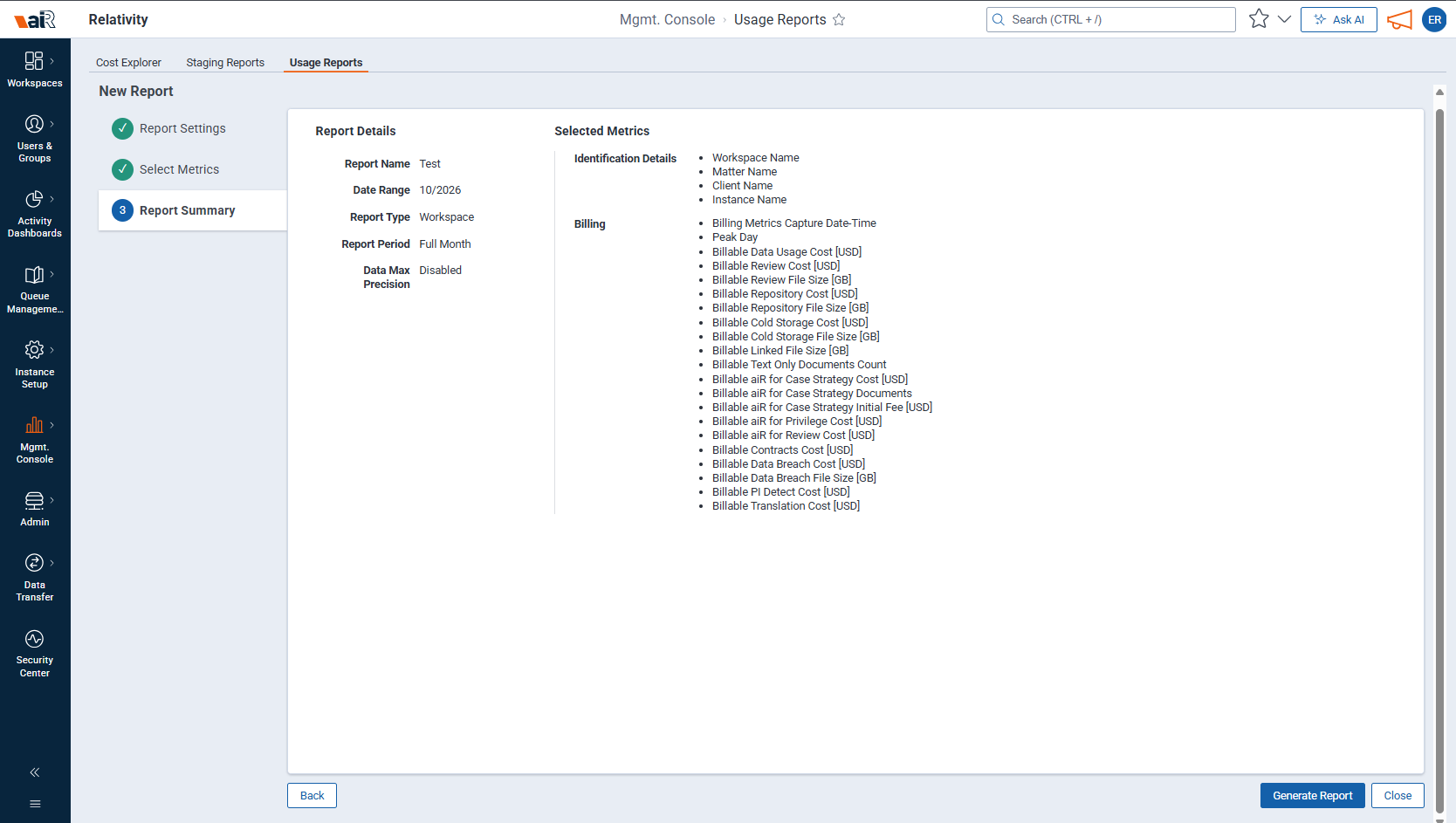
To create a new Usage Report:
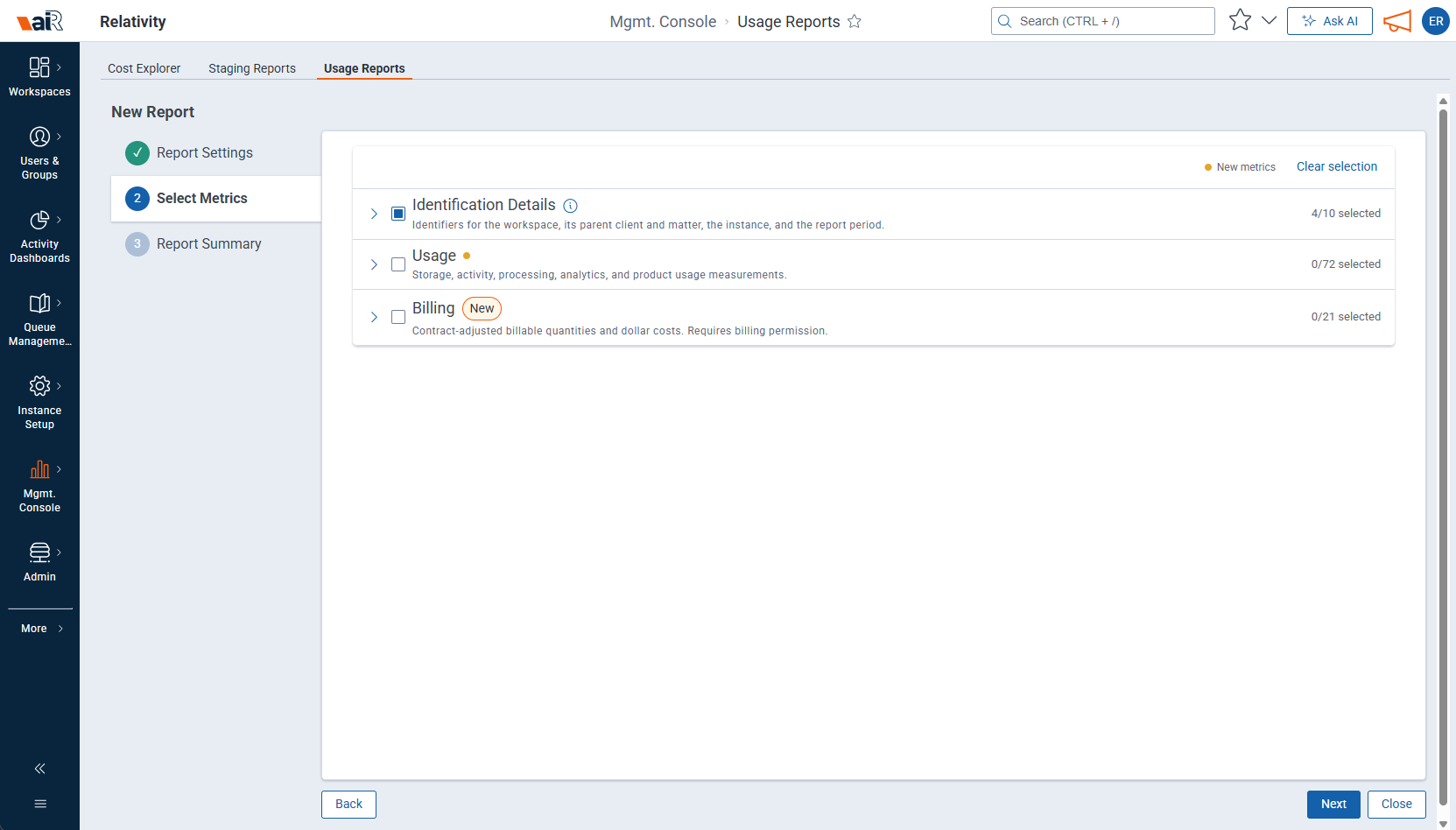
To work with the metric list:
Every Workspace report has these metrics selected by default. They are labeled Default in the Identification Details group:
For User reports, metrics are organized into the following groups. User reports don't include a Billing group.
The Staging Reports tab in Usage Reports lets System Administrators and Client Domain Administrators generate reports on staging folder size and file counts. For full details on creating and managing staging reports, see Staging reports.
Usage Reports may not show data immediately after capture.
In rare cases, Usage Reports can be up to 36 hours behind the live system. Newly created workspaces can also take up to 36 hours to fully populate with data, so their values may be incomplete. This typically happens when:
Relativity captures each type of data separately, so capture times can differ within one report. To see exactly when each data set was pulled, add the matching capture metric to your report:
These metrics aren't selected by default. Check them to confirm how current a given report is.
You can export a report to an Excel file from the following areas:
The Billing group in Workspace reports contains billable quantities and dollar costs that were previously available only in Cost Explorer. Use them to report billable data alongside usage data for each workspace. Cost Explorer remains available.
Before you add billing metrics, review the following:
For a full list of billing metrics and their descriptions, see the Billing rows in Usage Report fields.
Linked Repository Statistics fields show which Repository workspaces a Review workspace links data from, and how much data comes from each one. Workspace data is linked using integration points.
These fields differ from the linked-size fields under Workspace Utilization. Workspace Utilization fields report the total linked volume for a workspace. Linked Repository Statistics fields break that total down by source workspace.
Before you add these fields, review the following:
The following fields return different values after a workspace is deleted.
| Field | Before deletion | After deletion |
|---|---|---|
|
The client or matter value |
No value |
|
The current status |
|
|
The ArtifactID of the linked source workspace |
|
|
The size linked from that source, in GB |
|
|
The total linked size for the workspace, in GB |
0.00 |
The table below lists the complete set of fields currently available in the Management Console - Usage Reports product.
Workspace Reports| Data Source | Field Name | Previous Billing Statistics Script Field Name | Description |
|---|---|---|---|
| Identification Details | Instance Name | None | The Relativity aiR instance the report was generated from. |
| Identification Details | Workspace Name | None | The name of the workspace. |
| Identification Details | Client Name | None | The name of the client associated to the workspace. If the workspace is deleted, no value is shown. |
| Identification Details | Matter Name | None | The name of the matter associated to the workspace. If the workspace is deleted, no value is shown. |
| Workspace Utilization | Workspace Utilization Capture Date-Time | None | The date/time that all the workspace utilization metrics were captured from the instance. This value is shown in UTC. |
| Processing Statistics | Processing Statistics Capture Date-Time | None | The date/time that all the processing statistics were captured from the instance. This value is shown in UTC. |
| Identification Details | Report Period | Year Month | The month and year that the workspace utilization metrics covers. This will be formatted in month/year. |
| Identification Details | Workspace ArtifactID | None | The unique identifier for the workspace within the instance. |
| Identification Details | Client Number | None | The client number associated with the workspace. If the workspace is deleted, no value is shown. |
| Identification Details | Client ArtifactID | None | The unique identifier for the client within the instance. |
| Identification Details | Matter Number | None | The matter number associated with the workspace. If the workspace is deleted, no value is shown. |
| Identification Details | Matter ArtifactID | None | The unique identifier for the matter within the instance. |
| Workspace Utilization | Current File Count | None | The number of all files (including but not limited to natives, images and produced images) in storage for the workspace at the workspace utilization capture date-time. |
| Workspace Utilization | Current File Size [GB] | None | The combined size of all files stored in the workspace at the time of the utilization capture date-time, expressed in gigabytes (GB). This includes linked files from a repository workspace, natives, images, and produced images. |
| Workspace Utilization | Current Workspace Hosted Size [GB] | Current Billable File Size GB | The total size of all natives, images and produced images in the workspace at the workspace utilization capture date-time, in GB. This does not include files that have been imported using Integration Points when the import used "Links Only". |
| Workspace Utilization | Current Native File Size [GB] | None | The total size of all native files at the workspace utilization capture date-time, in GB. This includes native and transcript files. |
| Workspace Utilization | Current Image File Size [GB] | None | The total size of all image files at the workspace utilization capture date-time, in GB. This includes Tiff files and PDFs classified as PDF. |
| Workspace Utilization | Current Production File Size [GB] | None | The total size of all production files at the workspace utilization capture date-time, in GB. This includes stamped Tiff and PDFs classified as produced PDF and produced redacted native files. |
| Workspace Utilization | Current Review File Size [GB] | None | The Review size of all files in the workspace as of the report date. The size represents billable size for the current date, applying all calculations according to contract type. |
| Workspace Utilization | Current Repository File Size [GB] | None | The Repository size of all files in the workspace as of the report date. The size represents billable size for the current date, applying all calculations according to contract type except Repository Usage Limitations. |
| Workspace Utilization | Current Cold Storage File Size [GB] | None | The Cold Storage size of all files in the workspace as of the report date. The size represents billable size for the current date, applying all calculations according to contract type except the data cadence requirement. |
| Workspace Utilization | Current Document Count Text Only | None | The number of documents without native, images or produced images at the workspace utilization capture date-time. |
| Workspace Utilization | Activity Status | None | The status (active or inactive) of the workspace in the given time period. This status is determined solely by a single document view by any user; no other actions within the workspace affect its activity. |
| Workspace Utilization | Peak File Count | File Count | The largest number of all files (including but not limited to natives, images and produced images) in storage for the workspace within the given month. |
| Workspace Utilization | Peak File Size [GB] | File Size | Peak total size, in GB, of all files in the workspace, including files linked from another workspace. |
| Workspace Utilization | Peak Document Count | Document Count | The largest total document count within the workspace in the given month. |
| Workspace Utilization | Peak Document Count Text Only | Document Count Text Only | The largest total number of documents that do not have any associated natives, images or produced images within the workspace in the given month. |
| Workspace Utilization | Peak Workspace Hosted Size [GB] | Total Billable File Size | The peak size of all files in the workspace in GB. It does not count files promoted through Integration Points when the import used "Links Only." |
| Workspace Utilization | Peak Image File Size [GB] | Image File Size | The summed size of all image files from the same day as the peak workspace hosted size, in GB. This includes TIFF files and PDFs classified as image. |
| Workspace Utilization | Peak Native File Size [GB] | Native File Size | The total size of all native files and transcripts, in GB. The value is taken from the same day as the peak workspace hosted size. |
| Workspace Utilization | Peak Production File Size [GB] | Production File Size | The total size of all production files, in GB. The value is taken from the same day as the peak workspace hosted size. This includes stamped TIFF, produced PDF and produced redacted native files. |
| Workspace Utilization | Linked Total File Size [GB] | Linked Total Billable File Size | The total file size of all linked files in the workspace, in GB, at the workspace utilization capture date-time. Linked Total File Size is reporting on the size of linked natives, images and productions. Workspace data is linked using integration points. |
| Workspace Utilization | Linked Image File Size [GB] | None | The total image file size of data, in GB, linked to another workspace at the workspace utilization capture date-time. This includes TIFF files and PDFs classified as image. Workspace data is linked using integration points. |
| Workspace Utilization | Linked Native File Size [GB] | None | The total native file size of data, in GB, linked to another workspace at the workspace utilization capture date-time. The value includes natives and transcripts. Workspace data is linked using integration points. |
| Workspace Utilization | Linked Production File Size [GB] | None | The size of production files, in GB, linked to another workspace at the workspace utilization capture date-time. This includes stamped TIFF, produced PDF, and produced redacted native files. Workspace data is linked using integration points. |
| Workspace Utilization | Workspace Type | None | The Workspace Type (data tier) for a given month, either Review, Repository or Cold Storage. |
| Workspace Utilization | Workspace State | None |
The system-defined state of the workspace at the time usage data was captured. Possible values are:
This field reflects the official system state used for billing purposes and is distinct from the user-modifiable Workspace Status field.
|
| Workspace Utilization | Workspace Status | Peak Status | This field reflects the official status assigned to the workspace object itself, which could be labeled anything like "Open," "Closed," "Archived," or something else defined by your organization. If a workspace was deleted during the month, it will show the last status value. |
| Workspace Utilization | Project Type | None | The project categorization set during workspace creation. |
| Workspace Utilization | Keywords | None | Any values present in the keywords field of the workspace |
| Workspace Utilization | Notes | None | Any values present in the notes field of the workspace |
| Product Utilization | Translate Document Units | None | The total number of document units processed using Relativity Translate. |
| Product Utilization | aiR Review Documents | None | The number of aiR Units consumed by aiR Review, counted as successful aiR Unit Analyses rather than unique documents. If a document is analyzed more than once, each successful analysis adds to this count again. See |
| Product Utilization | Privilege Documents | None | The total number of documents processed using Privilege. |
| Product Utilization | Case Strategy Documents | None | The total number of documents used for Case Strategy analysis. |
| Product Utilization | Contracts Document Units | None | The total number of document units processed using Contracts. |
| Product Utilization | Current Data Breach File Size | None | The current size of data included in Data Breach Response. |
| Product Utilization | Peak Data Breach File Size | None | The maximum size of data included in Data Breach Response during the given month. |
| Product Utilization | PI Detect Document Units | None | The total number of document units processed using PI Detect. |
| Processing Statistics | Processing Data Source Count | None | The number of data sources for the processing set where the status is either “Completed” or “Completed with Errors”. |
| Processing Statistics | Preprocessed File Count | None | The number of all native files before extraction/decompression. |
| Processing Statistics | Preprocessed File Size [GB] | None | The sum of all the native file sizes, in GB, before extraction/decompression. |
| Processing Statistics | Container Count | None | The number of all native files classified as containers before extraction/decompression. This also includes nested containers that haven’t been extracted yet. |
| Processing Statistics | Container Size [GB] | None | The sum of all native file sizes, in GB, classified as containers before extraction/decompression. This value may be larger than the preprocessed file size because it also includes nested containers. |
| Processing Statistics | Inventoried Files | None | The number of all files found during an inventory run. |
| Processing Statistics | Nisted File Count | None | The number of all files denisted out during discovery. |
| Processing Statistics | Nisted File Size [GB] | None | The sum of all the file sizes, in GB, denisted out during discovery. |
| Processing Statistics | Filtered File Count | None | The number of all files excluded from discovery by way of an exclusion filter after inventory. |
| Processing Statistics | Filtered File Size [GB] | None | The sum of all the file sizes, in GB, excluded from discovery by way of an exclusion filter after inventory. |
| Processing Statistics | Discovered Document Count | None | The number of all the native files discovered that are not classified as containers. |
| Processing Statistics | Discovered Document Size [GB] | None | The sum of all native file sizes discovered, in GB, that are not classified as containers. |
| Processing Statistics | Duplicate File Count | None | The number of duplicate native files associated to the user, processing set and workspace. |
| Processing Statistics | Duplicate File Size [GB] | None | The sum of duplicate native file sizes, in GB, associated to the user, processing set and workspace. |
| Processing Statistics | Published Documents | None | The number of published native files associated to the user, processing set and workspace. |
| Processing Statistics | Published Document Size [GB] | None | The sum of published native file sizes, in GB, associated to the user, processing set and workspace. |
| Processing Statistics | Total File Count After Discovery | None | The number of all native files (including duplicates and containers) after decompression and extraction. |
| Processing Statistics | Total File Size After Discovery [GB] | None | The sum of all native file sizes (including duplicates and containers), in GB, after decompression and extraction. |
| Processing Statistics | Storage File Size After Publishing [GB] | None | The sum of all file sizes, in GB, after publishing. This is the total file size minus any files that were ingested twice. This value only counts the file once, ignoring duplicates. |
| Analytics Statistics | Analytics Documents Image-Only | CA Image Documents | The number of documents with images, but no natives, run through a conceptual analytics index or structured analytics set for the first time. |
| Analytics Statistics | Analytics Documents Native-Only | CA Native Documents | The number of native documents run through a conceptual analytics index or structured analytics set for first time. |
| Analytics Statistics | Analytics Documents Native Size [GB] | CA Native Size GB | The size of all native documents, in GB, run through a conceptual analytics index or structured analytics set for the first time. |
| Analytics Statistics | Analytics Documents Text-Only | CA Text Only Documents | The number of documents without an image or native that were run through a conceptual analytics index or structured analytics set for the first time. |
| Analytics Statistics | Analytics Total Documents | CA Total Documents | The total number of documents run through a conceptual analytics index or structured analytics set. |
| Infrastructure Statistics | Long Text Size [GB] | Data Grid File Size | The size of all Long Text data stored in Data Grid, in GB |
| Infrastructure Statistics | Peak SQL FT Size [GB] | SQL FT Size | The largest size of the disk space that is allocated to the index (the file group) in GB. This will be within 5-10% of the actual size of the index. To estimate the actual size of the Full Text Index, reduce the value reported by 5-10%. This value could fluctuate due to the day-to-day running of the platform. |
| Infrastructure Statistics | Peak LDF Size [GB] | LDF Size | The largest database log data file (LDF) size of the workspace in GB. This value could fluctuate due to the day-to-day running of the platform |
| Infrastructure Statistics | Peak MDF Size [GB] | MDF Size |
The largest database primary data file (MDF) size of the workspace in GB. This value could fluctuate due to the day-to-day running of the platform. |
| Linked Repository Statistics | Linked Source Workspace ArtifactID | None | The Artifact ID of the source linked workspace. Data is captured only for source workspaces that have the Repository application installed. Including this field creates a many-to-many relationship table between source and destination workspaces. |
| Linked Repository Statistics | Linked Source Image File Size | None | The total image file size, in GB, linked to the source workspace at the workspace utilization capture date-time. This includes TIFF files and PDFs classified as image. Including this field creates a many-to-many relationship table between source and destination workspaces. |
| Linked Repository Statistics | Linked Source Native File Size | None | The total native file size, in GB, linked to the source workspace at the workspace utilization capture date-time. This value includes natives and transcripts. Including this field creates a many-to-many relationship table between source and destination workspaces. |
| Linked Repository Statistics | Linked Source Production File Size | None | The total production file size, in GB, linked to the source workspace at the workspace utilization capture date-time. This includes stamped TIFF, produced PDF, and produced redacted native files. Including this field creates a many-to-many relationship table between source and destination workspaces. |
| Linked Repository Statistics | Linked Source Total File Size | None | The total size of all linked files, in GB, for the source workspace at the workspace utilization capture date-time. This value reports the size of linked natives, images, and productions. Including this field creates a many-to-many relationship table between source and destination workspaces. |
| Billing | Billing Metrics Capture Date-Time | None | The date and time that all the billing metrics were captured from the instance. This value is shown in UTC. |
| Billing | Peak Day | None | The day within the report period on which the billable peak occurred. |
| Billing | Billable Data Usage Cost [USD] | None | Total billable data usage cost, in USD, for the Review, Repository, and Cold Storage data tiers for the contract billable peak. |
| Billing | Billable Review Cost [USD] | None | Billable cost, in USD, for the Review data tier. |
| Billing | Billable Review File Size [GB] | None | Billable Review size based on the Peak Day. Includes text-only documents. For Pay-as-you-Go and Flex Commit contracts, files promoted via links to Review workspaces are also included. |
| Billing | Billable Repository Cost [USD] | None | Billable cost based on the Peak Day, in USD, for the Repository data tier. |
| Billing | Billable Repository File Size [GB] | None | Billable Repository size based on the Peak Day. Includes text-only documents and accounts for files promoted via links to Review workspaces. If Repository Usage Limitations are broken, the calculation reverts to standard Review with Billable Review File Size. A 24-hour grace period applies after workspace creation to install the Repository application. |
| Billing | Billable Cold Storage Cost [USD] | None | Billable cost based on the Peak Day, in USD, for the Cold Storage data tier. |
| Billing | Billable Cold Storage File Size [GB] | None | Billable Cold Storage size based on the Peak Day, including text-only documents. A workspace that is not in Cold Storage for the full month is treated as Review and reports Billable Review File Size instead. |
| Billing | Billable Linked File Size [GB] | None | Size of files promoted from Repository to Review workspaces via links. For Pay-as-you-Go and Flex Commit contracts, this is already included in Billable Review File Size. Reported on the source Repository workspace only. Documents promoted to multiple Review workspaces are charged once. |
| Billing | Billable Text Only Documents Count | None | Number of documents that do not have any images, natives, or productions, per workspace, for the contract billable peak. Relativity calculates the size by dividing the count by 4,000. For example, 80,000 documents are counted as about 20 GB. |
| Billing | Billable Case Strategy Cost [USD] | None | Cost of Case Strategy analyzing content within a single workspace. |
| Billing | Billable Case Strategy Documents | None | Total amount of billable data used for Case Strategy analysis over the threshold. |
| Billing | Billable Case Strategy Initial Fee [USD] | None | Fixed initial fee for enabling Case Strategy within a single workspace. |
| Billing | Billable Privilege Cost [USD] | None | Cost of running Privilege within a single workspace. If your subscription includes aiR Units in Standard Workspaces, this cost is informational until usage exceeds the aiR Unit Threshold. |
| Billing | Billable aiR Review Cost [USD] | None | Cost of aiR Review analyzing content within a single workspace. If your subscription includes aiR Units in Standard Workspaces, this cost is informational until usage exceeds the aiR Unit Threshold. |
| Billing | Billable Contracts Cost [USD] | None | The cost of using Relativity Contracts in the workspace. |
| Billing | Billable Data Breach Cost [USD] | None | Total cost of using Data Breach Response in the workspace. |
| Billing | Billable Data Breach File Size [GB] | None | Billable size of the data included in Data Breach Response, based on the Peak Day. |
| Billing | Billable PI Detect Cost [USD] | None | Total cost of using PI Detect in the workspace. PI Detect was deprecated in February 2025. |
| Billing | Billable Translation Cost [USD] | None | Cost of translating content within a single workspace. |
The table below lists the complete set of fields for User Reports:
User Reports
| Data Source | Field Name | Usage Reports Field Description |
|---|---|---|
| Identification Details | User Email Address | The email address associated to the user. |
| Identification Details | Enabled User Information Capture Date-Time | The date/time that the enabled user information were captured from the instance. The value is shown in UTC. |
| User Information | User ArtifactID | The unique identifier for the user within the instance. |
| User Information | Is System Admin | Indicates whether the user is included in the “System Administrators” group in the given month. |
| User Information | Last Relativity login Date-Time | The date/time that the user last logged into the Relativity instance. The value is shown in UTC. |
| Workspace Information | Workspace ArtifactID | The unique identifier for the workspace within the instance. Including this field creates a many-to-many relationship table between user information and workspace details. |
| Workspace Information | Workspace Name | The name of the workspace. Including this field creates a many-to-many relationship table between user information and workspace details. |
| Workspace Information | Client Name | The name of the client associated to the workspace. If the workspace is deleted, the client ArtifactID will show. Including this field creates a many-to-many relationship table between user information and workspace details. |
| Workspace Information | Matter Name | The name of the matter associated to the workspace. If the workspace is deleted, the matter ArtifactID will show. Including this field creates a many-to-many relationship table between user information and workspace details. |
This section covers common questions about Usage Reports and how to resolve them.
A report you created no longer appears in the Usage Reports tab
This can happen when a report includes a workspace that is later deleted. You see this behavior only with the View Client Domain Usage Reports permission.
To display a report, Relativity confirms your access to every workspace in it. A deleted workspace cannot be verified. As a result, the report does not appear in your Usage Reports tab.
Workaround: Ask a System Admin to export the report. A user with the View Instance-wide Usage Reports permission can also export it. They can then send the exported file to you. For the export steps, see the Exporting Usage Reports section.
