Last date modified: 2026-Oct-29

Contracts

Contracts is an application for reviewing contracts in Relativity. You can use Contracts to extract structured data from executed agreements and organize that data into Relativity fields for analysis. Instead of manually entering contract data from PDFs into spreadsheets, you can centralize your review process in Contracts.

With Contracts, you can:

  • Extract data points from contracts into Relativity fields using generative AI, custom ML models, or regular expressions.
  • Navigate key sections and clauses in your contracts using the Contracts Viewer, a review interface designed for contract review.
  • Compare contracts using the compare mass action to identify textual differences across sections or full agreements.
  • Generate amendments or notices based on the structured data you extract during review.

Watch the Contracts overview video for more information.

Requirements

Before using Contracts, verify that the following requirements are met:

  • You must have an active Relativity aiR license that includes Contracts.
  • Contracts is a separate application that you must install to your instance and to each workspace where you want to use it. For installation steps, see Installing the Contracts application.
  • Use workspaces with Contracts installed only for contract review. Do not conduct eDiscovery document review in a Contracts workspace. The standard Relativity Document Viewer may not work as expected in workspaces where Contracts is installed.

Contract review workflow

A typical contract review project in Contracts follows these steps:

  1. Install and configure — Install the Contracts application to your workspace and configure permissions.
  2. Import contracts — Import your contracts into the workspace as documents.
  3. Run Contracts OCR — Run OCR on your contracts to extract text and enable the Contracts Viewer.
  4. Run analysis — Run analysis to segment contracts into sections and classify contract and section types.
  5. Extract data — Use generative AI, custom ML models, or regular expressions to populate fields with contract data points.
  6. Review contracts — Review contracts and code documents using the Contracts Viewer.
  7. Compare and report — Compare contracts or sections and run reports on your data.

Installing the Contracts application

Once you install the Contracts application in your instance, you can install it to any workspace.

To install Contracts to a workspace:

  1. Navigate to the Relativity Applications tab in your workspace.
  2. Click Select from Application Library.
  3. Click the Select icon. The Select Library Application pop-up appears.
  4. Filter the list and select the Contracts application.
  5. Click OK.
  6. Click Import.

The Contracts application is now installed in the workspace.

Considerations

Review the following before setting up a Contracts workspace:
  • Contract review involves working with layouts and coding documents. Verify that your users have the necessary coding and layout permissions. For more information, see Coding permissions and Layout permissions.
  • To create sections in the Contracts Viewer, users need View, Edit, Delete, and Add permissions on the Document object. For more information, see Creating Sections.
  • Set the RestrictReferentialFileLinksOnImport instance setting to False.
  • To have documents open in the standard Relativity Review Interface instead of the Contracts Viewer, add users to a group with the Relativity Default Viewer checkbox selected under Contracts Viewer in Object Security. Alternatively, clear the Contracts Document Type field value for a document.
  • Data points in the Contracts Viewer are either Contracts Regular Expressions or Persistent Highlight Sets. Users need View permissions on both Contracts Regular Expression and Persistent Highlight Set in Object Security.

Contracts permissions

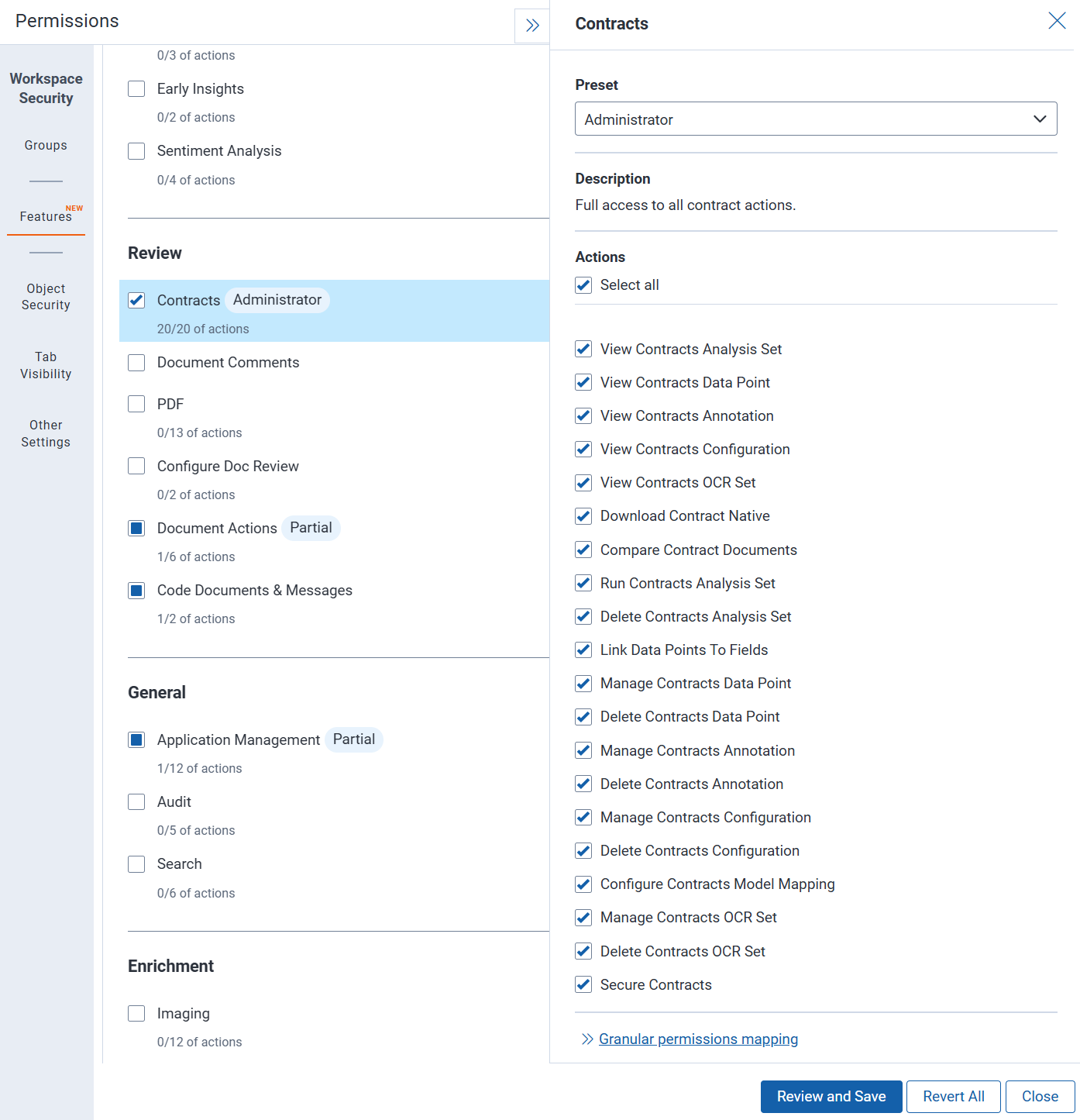
This feature supports feature permission actions. Each action grants access to a specific task within the feature. You can grant groups access to individual actions, allowing them to perform only the tasks they need. To grant access to the entire feature, select all of its actions. Manage feature actions on the Features tab in a group's workspace permissions. For instructions, see Setting workspace permissions. For more information about feature permissions, see Feature permissions.

An image of Contracts feature permissions

The following features must be granted to users for Contracts:

  • View Contracts Analysis Set—Select to allow users to view Contracts analysis sets and their details.
  • View Contracts Data Point—Select to allow users to view Contracts data points.
  • View Contracts Annotation—Select to allow users to view Contracts annotations on documents.
  • View Contracts Configuration—Select to allow users to view Contracts configurations.
  • View Contracts OCR Set—Select to allow users to view Contracts OCR sets.
  • Download Contract Native—Select to allow users to download the native files of contract documents.
  • Compare Contract Documents—Select to allow users to compare contract documents.
  • Run Contracts Analysis Set—Select to allow users to run Contracts analysis sets.
  • Delete Contracts Analysis Set—Select to allow users to delete Contracts analysis sets.
  • Link Data Points To Fields—Select to allow users to link Contracts data points to workspace fields.
  • Manage Contracts Data Point—Select to allow users to create and edit Contracts data points.
  • Delete Contracts Data Point—Select to allow users to delete Contracts data points.
  • Manage Contracts Annotation—Select to allow users to create and edit Contracts annotations.
  • Delete Contracts Annotation—Select to allow users to delete Contracts annotations.
  • Manage Contracts Configuration—Select to allow users to create and edit Contracts configurations.
  • Delete Contracts Configuration—Select to allow users to delete Contracts configurations.
  • Configure Contracts Model Mapping—Select to allow users to configure the mapping between Contracts models and data points.
  • Manage Contracts OCR Set—Select to allow users to create and edit Contracts OCR sets.
  • Delete Contracts OCR Set—Select to allow users to delete Contracts OCR sets.
  • Secure Contracts—Select to allow users to set security permissions on Contracts objects.

Job cost estimates

You can estimate job costs before running OCR or analysis. When you save an OCR set or analysis set, an option appears at the top of the page to view the estimated number of Contracts Units for the job.

A Contracts Unit equals 25 MB of native file size, rounded up. For example, a 26 MB contract uses 2 Contracts Units.

To estimate spending, compare the estimated number of Contracts Units to the unit price in your data tier. You can also view Contracts billing information in Management Console.

Feedback