Feedback

Relativity applications extend core functionality by providing specialized features or workflows. When you install Relativity, your environment is automatically updated with several applications that are called "system secured."
In addition, you may have workflow requirements or other business needs that require custom applications designed specifically for your organization. Business analysts or third-party developers can implement these applications using Relativity Dynamic Objects (RDOs), the Application Deployment System (ADS), and custom code.
See these related pages:
Relativity comes with several key out-of-box features called system secured applications, which you can find in the Application Library or at the workspace level.
In contrast to custom applications, you can't modify or edit system secured applications.
The Application Library tab includes these system secured applications:
Once you install the Active Learning application, you can't uninstall it.
The Analytics Core application must be present in all workspaces, and may not be uninstalled.
In a workspace, the Relativity Applications tab includes system secured applications:
Custom applications extend the existing Relativity functionality by providing new solutions for case management, review processes, specific workflows, or other business needs for your organization. For example, you might want to develop an application to manage tasks and projects or to facilitate a large-scale review of structured data.
You can implement custom applications using the following features in Relativity:
Starting with Relativity Server 2026, Relativity verifies the compatibility of Relativity Application Package (.rap) files when they are uploaded to the Application Library or imported into a workspace from a file. Relativity reads the build and validation results that the Server RAP Builder recorded inside the package and displays a compatibility notice describing the application's compliance status before the installation completes.
The Application Library and Relativity Applications pages also display the following policy banner:
Starting with Server 2026, all Relativity applications must be built and validated using Server RAP Builder with SDK packages from the Relativity Server Artifactory feed. Applications that are not rebuilt against the current SDKs and not created with Server RAP Builder may continue to work, but they will fall outside Relativity's supported build path, and Relativity Support and Engineering will not provide troubleshooting assistance for issues related to non-compliant third-party RAPs.
This requirement applies to applications compiled by developers outside of the Relativity front-end experience. Please visit the Relativity Developer Documentation website for more information on Server RAP Builder and adopting the supported SDK packages.
Applications built entirely within the Relativity front-end, with no custom resource files, are not subject to the Server RAP Builder requirement and are treated as compliant. This includes front-end-built applications exported from a pre-Server 2026 environment or from Relativity aiR into a Server 2026 environment.
After a RAP is uploaded, the compliance status remains visible on the Application object. The Application Information tab and the Application Library list view include the fields Built with Server RAP Builder, Built without Validation Warnings, Target Server Version for Build, Server RAP Builder Version, and Build Fully Compliant. The detailed validation check results from the build are available on the Server RAP Builder Validation Results tab of the Application object. Applications uploaded before Server 2026 show empty values in these fields, which indicates they were not built and verified with Server RAP Builder.
[Placeholder screenshot: compatibility notice pop-up and Application Information tab fields]
You can perform various admin tasks with custom applications that use the Application Deployment System (ADS). These administrative tasks include installing applications in your Relativity environment, exporting applications for installation on other Relativity environments or for further customization, and removing them from workspaces or your environment.
You can manage custom applications developed with ADS through the Relativity UI by performing these and other tasks:
Global applications are applications installed on the admin level of a Relativity instance. Their schema versions are not validated, they don't support RDOs, object-type or workspace-based event handlers.
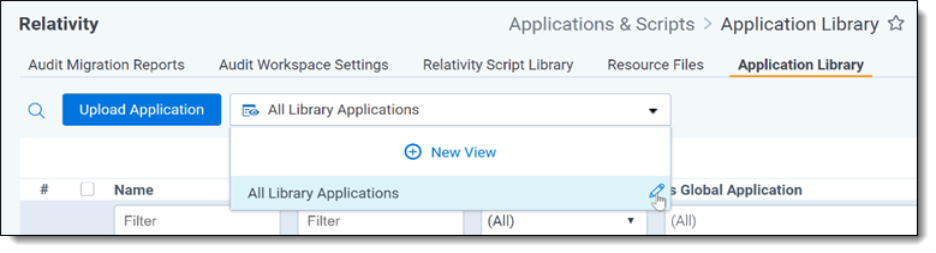
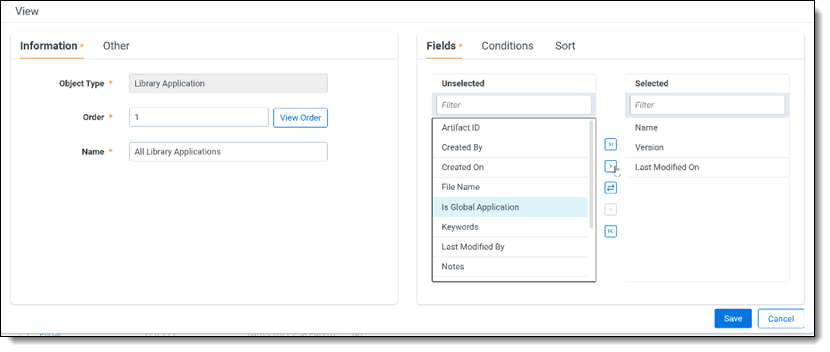
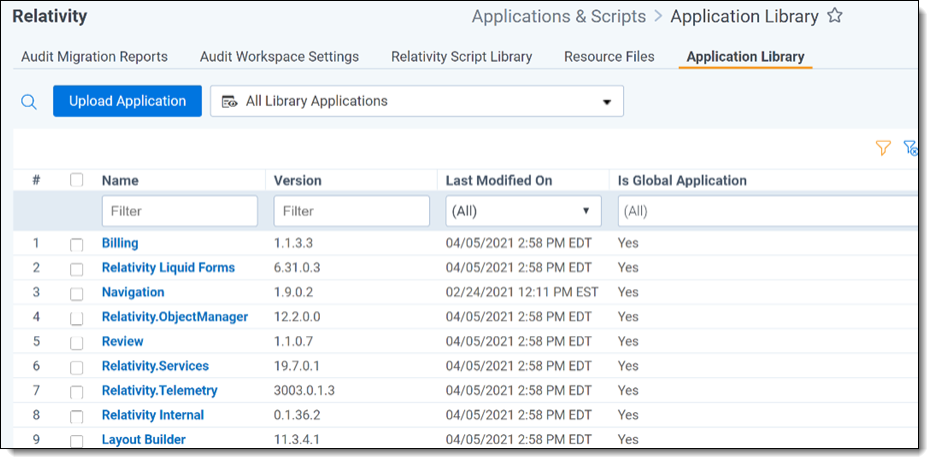
Administrators of production environments can view global applications in the Application Library. They cannot install them into workspaces. Complete the following steps to view which applications are applied to the environment globally:
 icon next to All Library Applications.