


Feedback

This document provides guidance for troubleshooting issues related to custom JSON configuration file in Relativity Server environments.
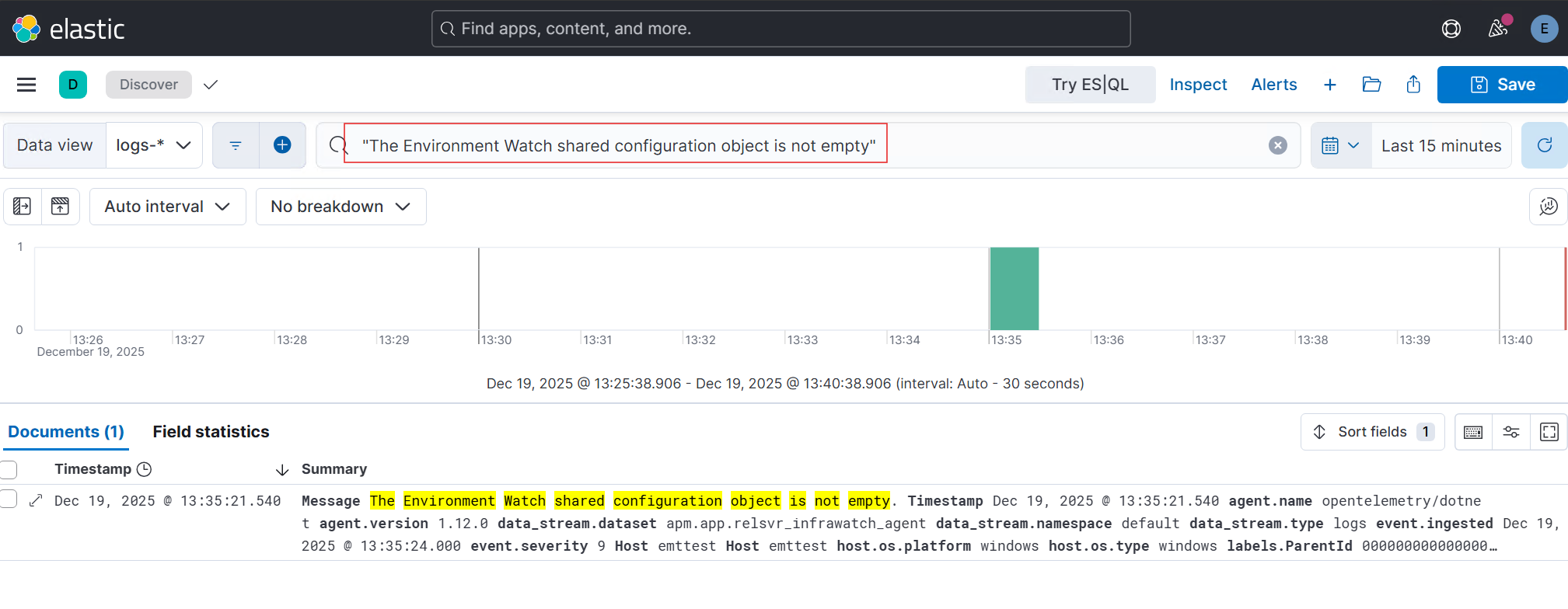
If the log message "The Environment Watch shared configuration object is not empty" does not appear in Kibana, review the following potential causes:
"The Environment Watch shared configuration object is not empty"
The custom JSON configuration file is not placed in the correct BCP path.
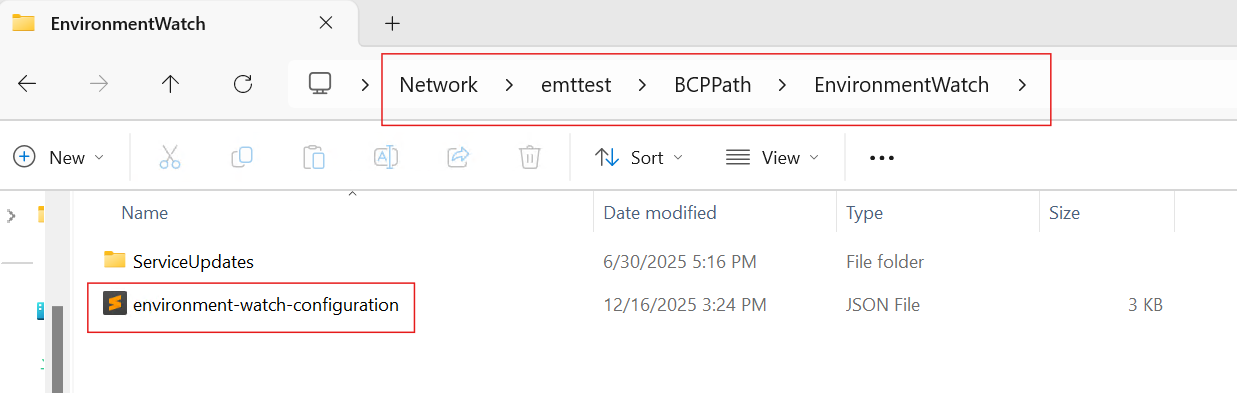
Verify that the custom JSON configuration file is located in the correct BCP path.
Base path: BCPPath
Folder: EnvironmentWatch
File name: environment-watch-configuration.json
Environment Watch automatically reads this file and applies the defined monitoring rules to the relevant instances, products, and hosts.
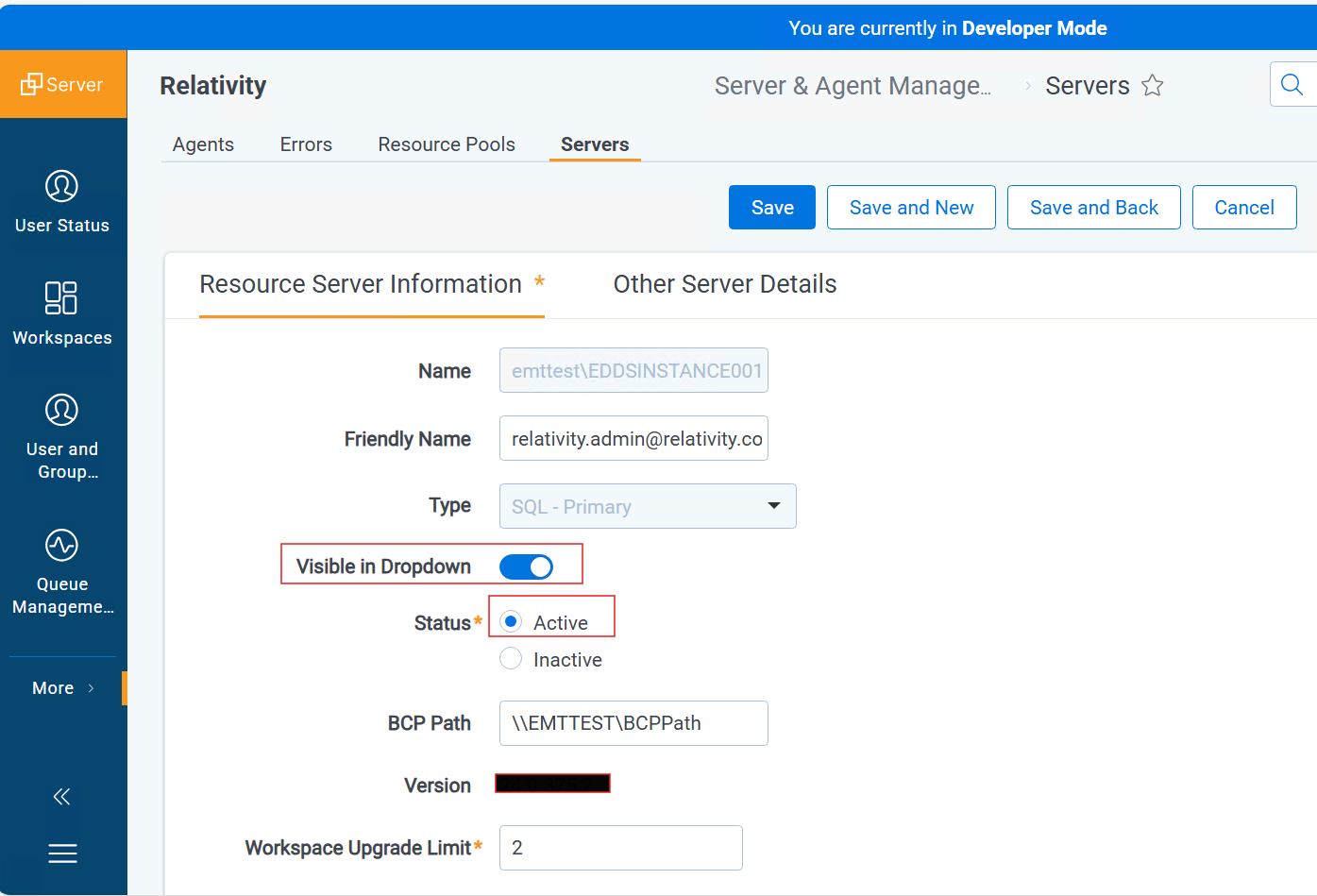
To identify the BCP path for the environment, navigate to the "Server" tab in the Relativity front end as below:
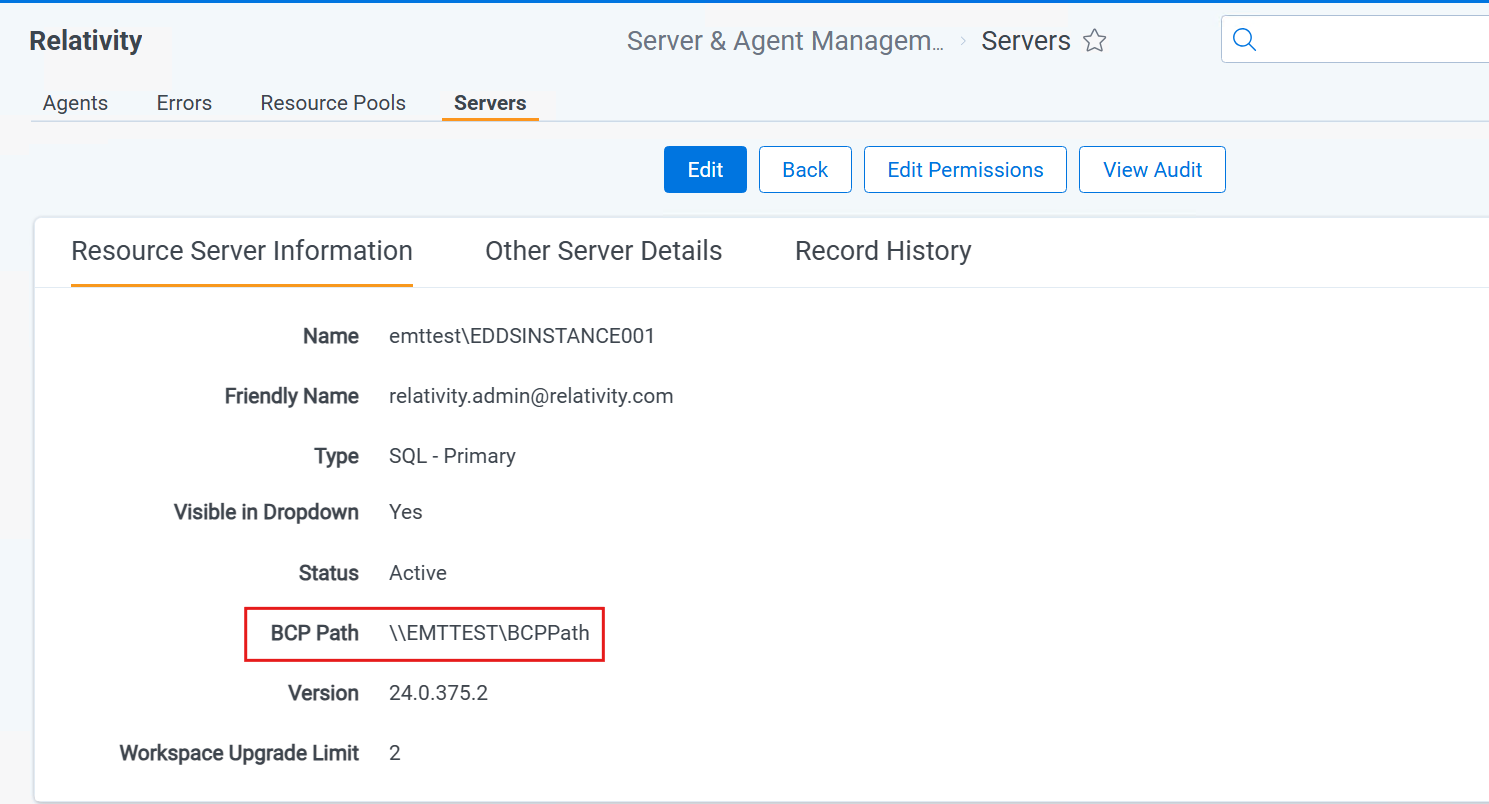
Complete path to the custom JSON configuration file will be:
\\EMTTEST\BCPPath\EnvironmentWatch\environment-watch-configuration.json
An example of the BCPPath and folder structure is shown below:
EW supports all BCP share configuration options available in Relativity. Primary SQL is just one of several supported configurations.
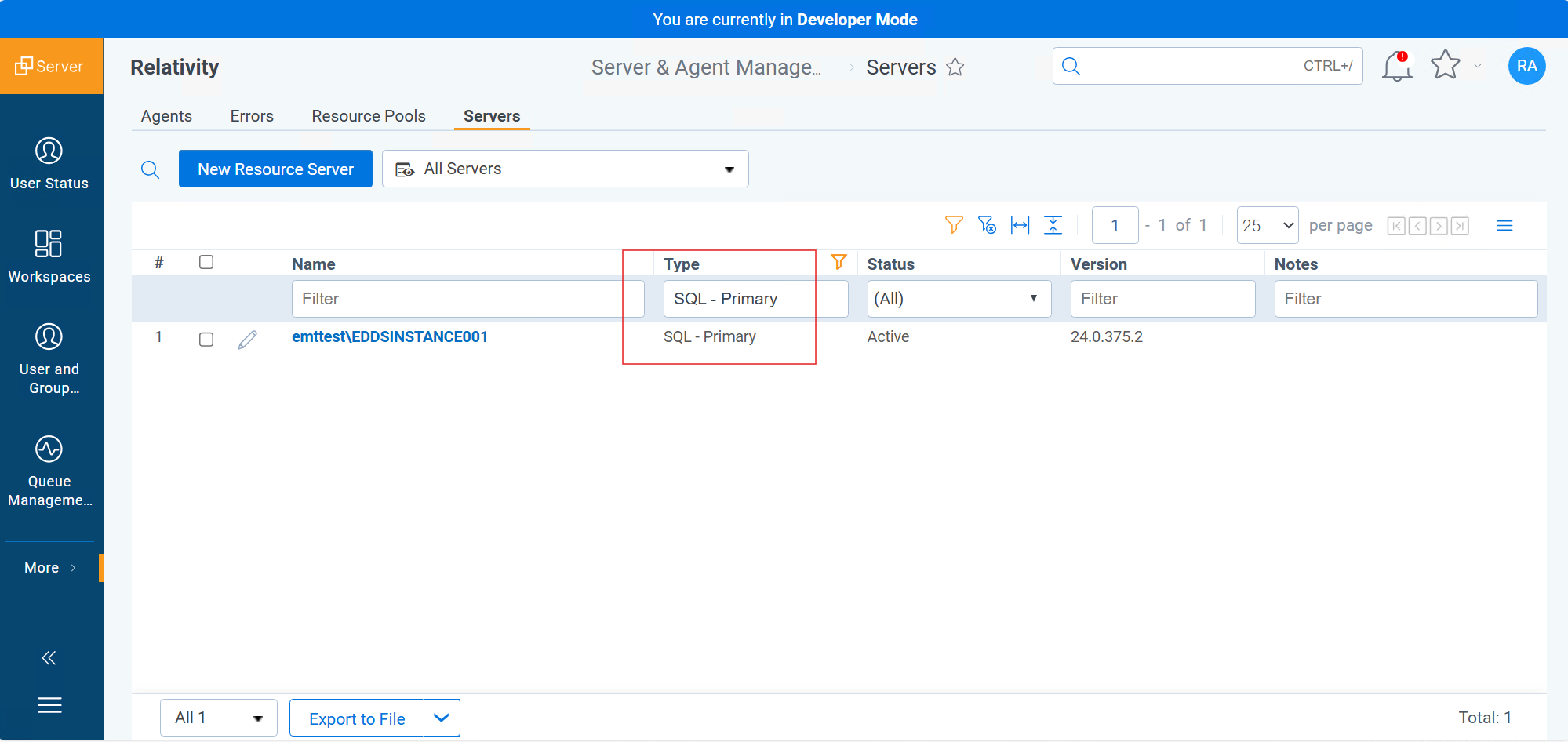
Activate the BCP path if it is not active.
SQL - Primary in the Type column.
Check the custom JSON configuration file for syntax errors.
Sample Custom JSON Configuration File
Update the Environment Watch Windows Service to the latest version.
Ensure the enabled flag is set to true in the custom JSON configuration file for the relevant monitoring section (hosts, instance, or installedProducts).
Before proceeding with the troubleshooting steps in later sections, review and fix the common issues outlined above to ensure the Environment Watch Windows Service correctly picks up the custom JSON configuration file changes.
If certificates do not appear in the Kibana dashboard after configuring the custom JSON configuration file, fix the common issues outlined in Common Issues before reviewing the following potential causes:
After fixing the common issues, If a certificate alert is triggered in Kibana, review the following potential causes:
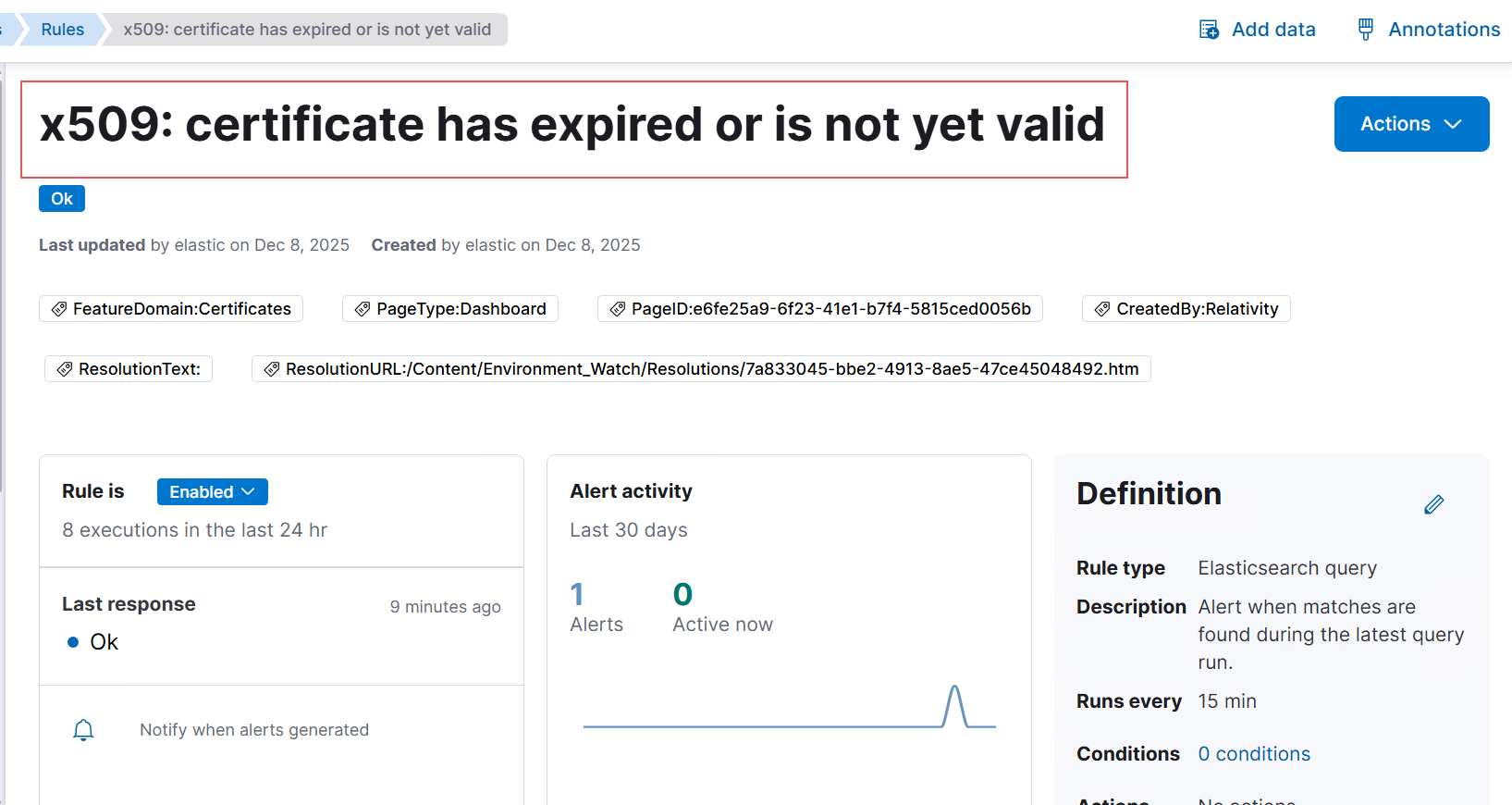
Certificate is misconfigured.
Run the following PowerShell command based on the certificate store location and name. For LocalMachine and My, use:
Get-ChildItem Cert:\LocalMachine\My
Certificate configured correctly, but the certificate is expired.
LocalMachine and My, use:Get-ChildItem Cert:\LocalMachine\My
Ensure the host name is correct for monitoring by Host or Installed Product.
hostname
hostName property in your configuration matches the output. Example:{
"environmentWatchConfiguration": {
"monitoring": {
"instance": {
"sources": {
"certificates": {},
"windowsServices": {
"enabled": false,
"include": []
}
},
"otelCollectorYamlFiles": []
},
"installedProducts": [
{
"productName": "Agent",
"sources": {
"certificates": {
"enabled": true,
"include": []
},
"windowsServices": {
"enabled": true,
"include": []
}
},
"otelCollectorYamlFiles": []
}
],
"hosts": [
{
"hostName": "SQL01",
"sources": {
"certificates": {
"enabled": true,
"include": []
},
"sqlServers": {
"enabled": true,
"include": [
{
"clusterVirtualName": "SQLCLUSTER",
"instanceName": "SQL_INSTANCE"
}
]
},
"windowsServices": {
"enabled": true,
"include": []
}
},
"otelCollectorYamlFiles": []
}
]
},
"alertNotificationHandlers": {}
}
}
Avoid configuring certificate thumbprints in Monitoring by instance.
Example configuration for instance monitoring:
{
  "environmentWatchConfiguration": {
    "monitoring": {
      "instance": {
        "sources": {
          "certificates": {
            "enabled": false,
            "include": []
          },
          "windowsServices": {
            "enabled": true,
            "include": [
              "WindowsAzureGuestAgent",
              "mpssvc"
            ]
          }
        }
      },
      "installedProducts": [
        {
          "productName": "Agent",
          "sources": {
            "certificates": {
              "enabled": false,
              "include": []
            },
            "windowsServices": {
              "enabled": false,
              "include": []
            }
          },
          "otelCollectorYamlFiles": []
        }
      ],
      "hosts": [
        {
          "hostName": "SQL01",
          "sources": {
            "certificates": {
              "enabled": false,
              "include": []
            },
            "sqlServers": {
              "enabled": false,
              "include": []
            },
            "windowsServices": {
              "enabled": false,
              "include": []
            }
          },
          "otelCollectorYamlFiles": []
        }
      ]
    },
    "alertNotificationHandlers": {}
  }
}
If Windows services do not appear in the Kibana dashboard after configuring the custom JSON configuration file, fix the common issues outlined in Common Issues before reviewing the following potential causes:
After fixing the common issues, if Windows services still do not appear in the Kibana dashboard, review the following potential causes:
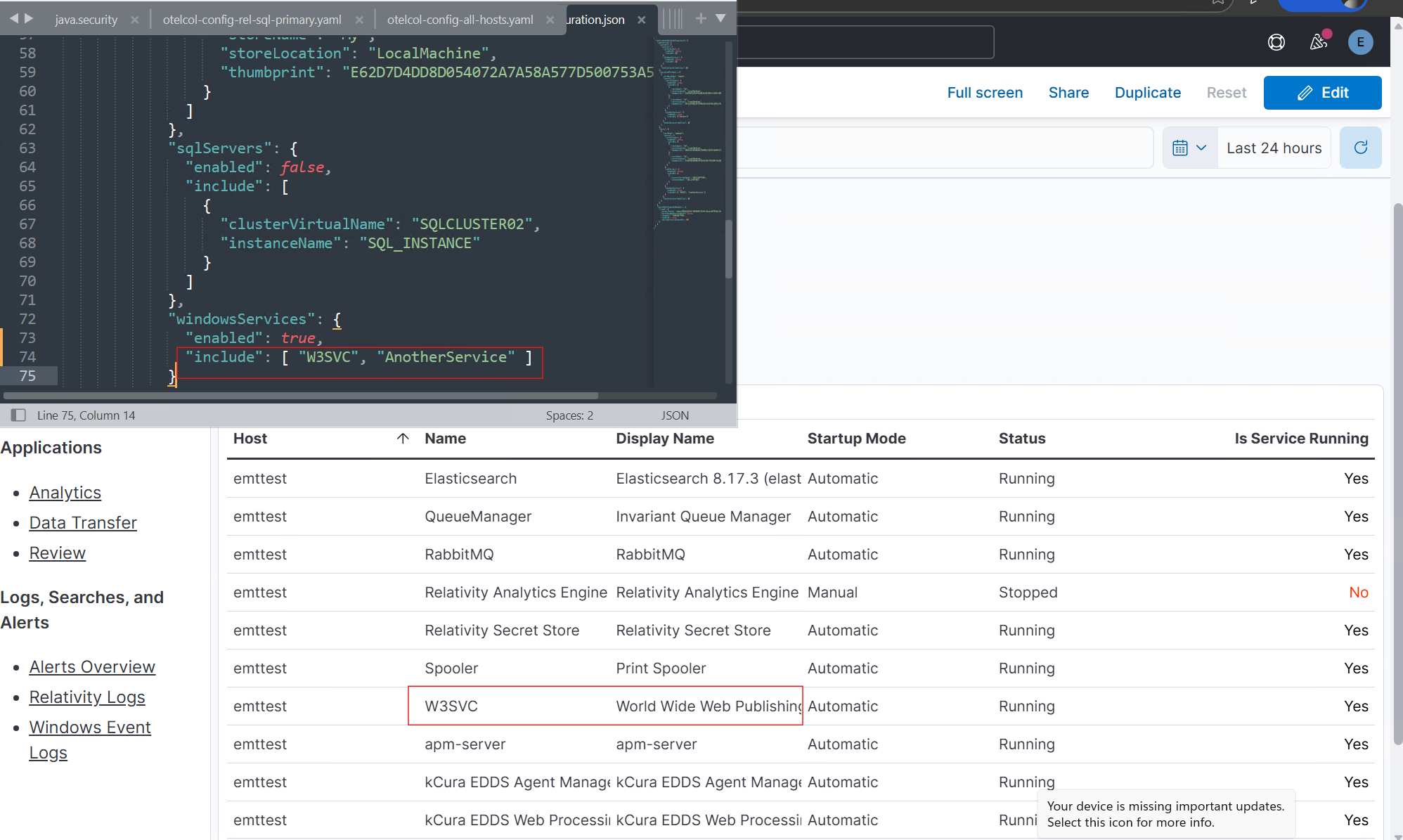
Verify the Windows services in the custom JSON configuration file.
windowsServices section for the relevant hosts, instance, or installedProducts entry.Example:
{
  "environmentWatchConfiguration": {
    "monitoring": {
      "instance": {
        "sources": {
          "certificates": {
            "enabled": false,
            "include": []
          },
          "windowsServices": {
            "enabled": true,
            "include": [
              "WindowsAzureGuestAgent",
              "mpssvc"
            ]
          }
        }
      },
      "installedProducts": [
        {
          "productName": "Agent",
          "sources": {
            "certificates": {
              "enabled": false,
              "include": []
            },
            "windowsServices": {
              "enabled": true,
              "include": []
            }
          },
          "otelCollectorYamlFiles": []
        }
      ],
      "hosts": [
        {
          "hostName": "SQL01",
          "sources": {
            "certificates": {
              "enabled": false,
              "include": []
            },
            "sqlServers": {
              "enabled": false,
              "include": []
            },
            "windowsServices": {
              "enabled": true,
              "include": ["MSSQLSERVER", "AnotherService"]
            }
          },
          "otelCollectorYamlFiles": []
        }
      ]
    },
    "alertNotificationHandlers": {}
  }
}
Verify the Windows services are running and exist on the host.
services.msc) or the following PowerShell command:Get-Service -Name MSSQLSERVER, AnotherService
Always include the Windows service name in the custom JSON configuration file.
include section of the custom JSON configuration file.When monitoring SQL server instances using the custom JSON configuration file, ensure the following:
Ensure all instances/nodes of the SQL environment are monitored.
hosts section of the custom JSON configuration file with the correct hostName, clusterVirtualName, and instanceName.sqlServers -> enabled to true for each host entry.{
"environmentWatchConfiguration": {
"monitoring": {
"instance": {
"sources": {
"certificates": {},
"windowsServices": {}
},
"otelCollectorYamlFiles": []
},
"installedProducts": [
{
"productName": "Agent",
"sources": {
"certificates": {},
"windowsServices": {}
},
"otelCollectorYamlFiles": []
}
],
"hosts": [
{
"hostName": "SQLNode1",
"sources": {
"certificates": {},
"sqlServers": {
"enabled": true,
"include": [
{
"clusterVirtualName": "SQLCLUSTER",
"instanceName": "SQL_INSTANCE"
}
]
},
"windowsServices": {}
},
"otelCollectorYamlFiles": []
},
{
"hostName": "SQLNode2",
"sources": {
"certificates": {},
"sqlServers": {
"enabled": true,
"include": [
{
"clusterVirtualName": "SQLCLUSTER",
"instanceName": "SQL_INSTANCE"
}
]
},
"windowsServices": {}
},
"otelCollectorYamlFiles": []
}
]
},
"alertNotificationHandlers": {}
}
}
Always specify SQL server configuration within the "hosts" section of the custom JSON configuration file.
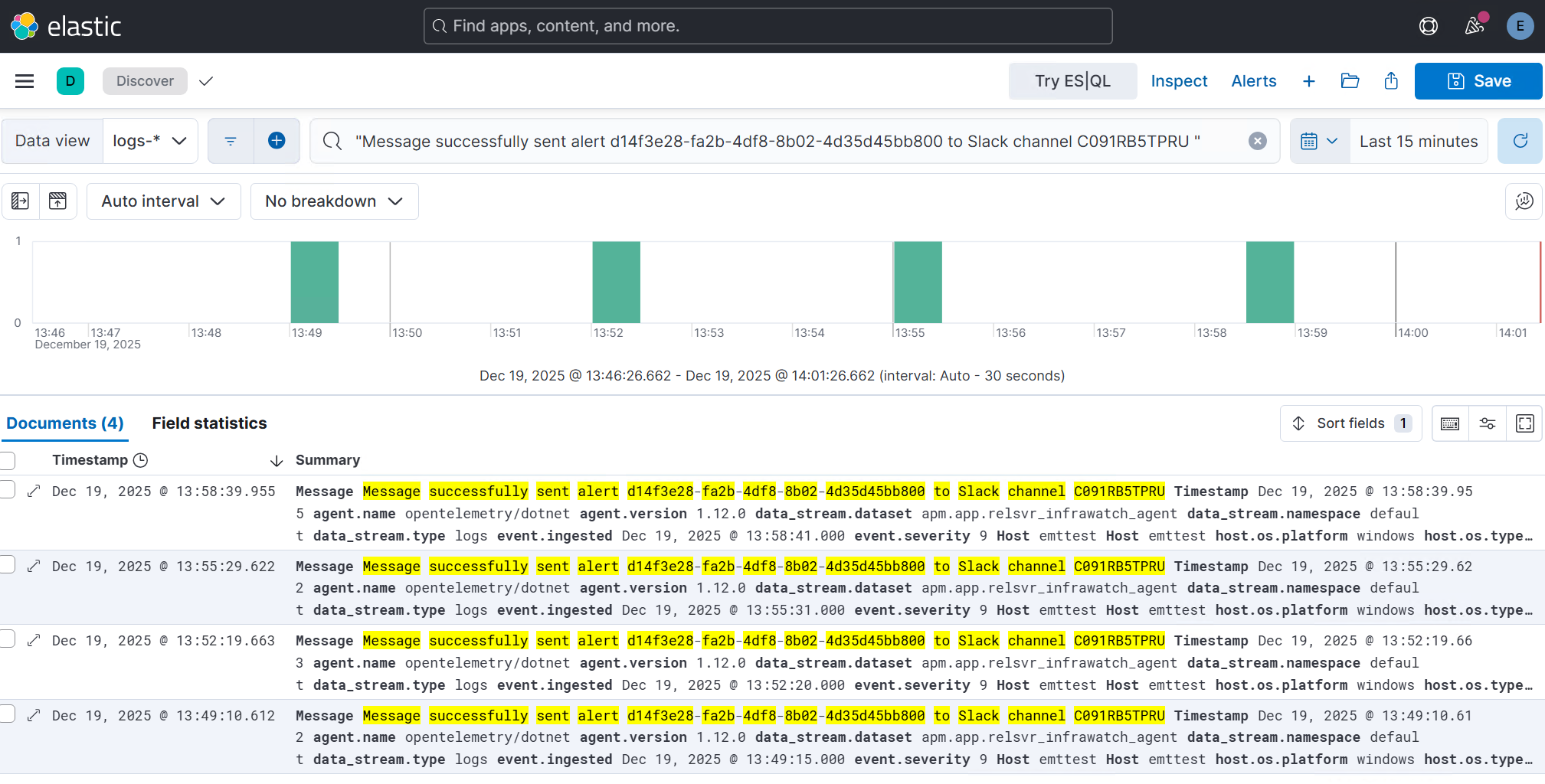
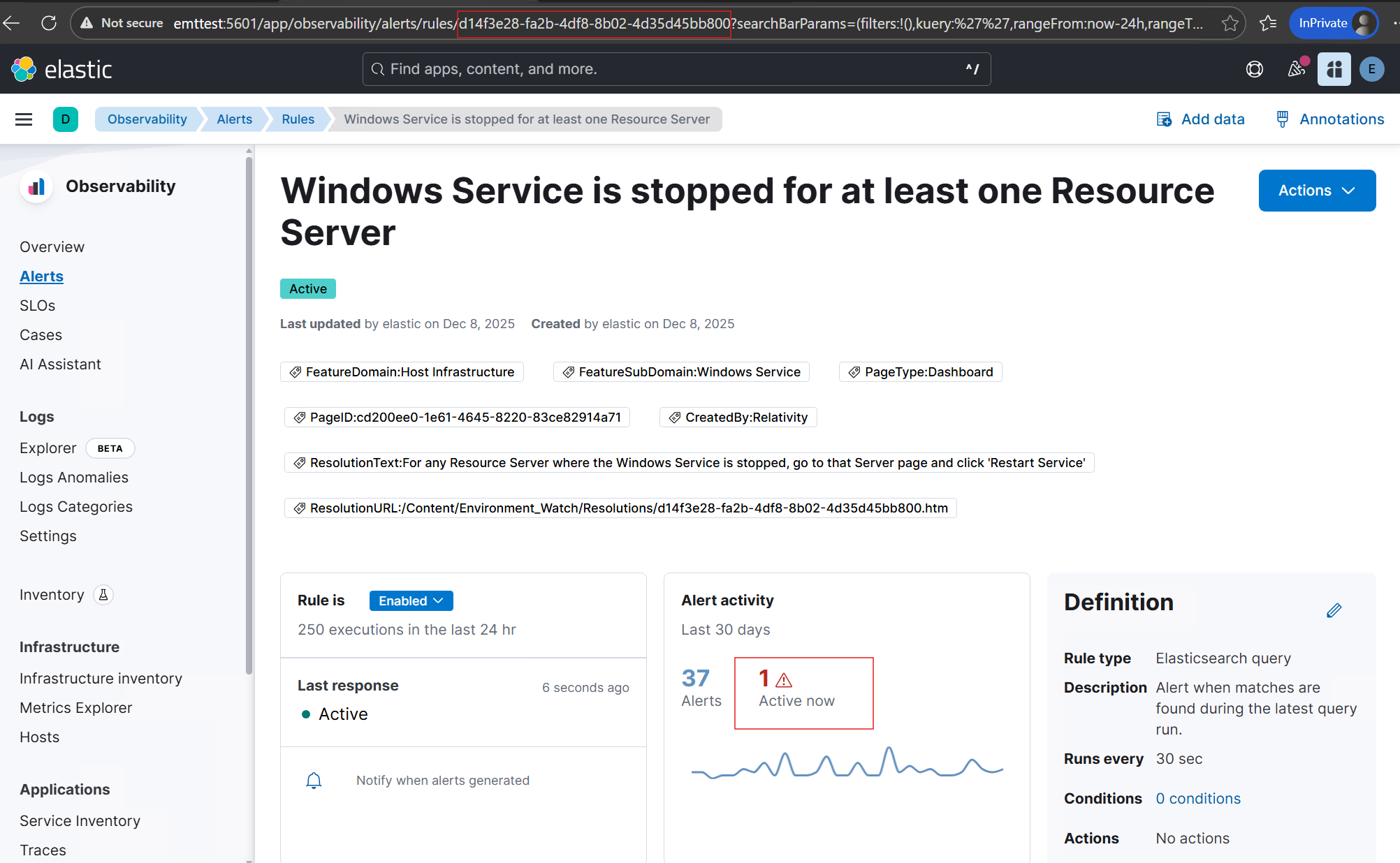
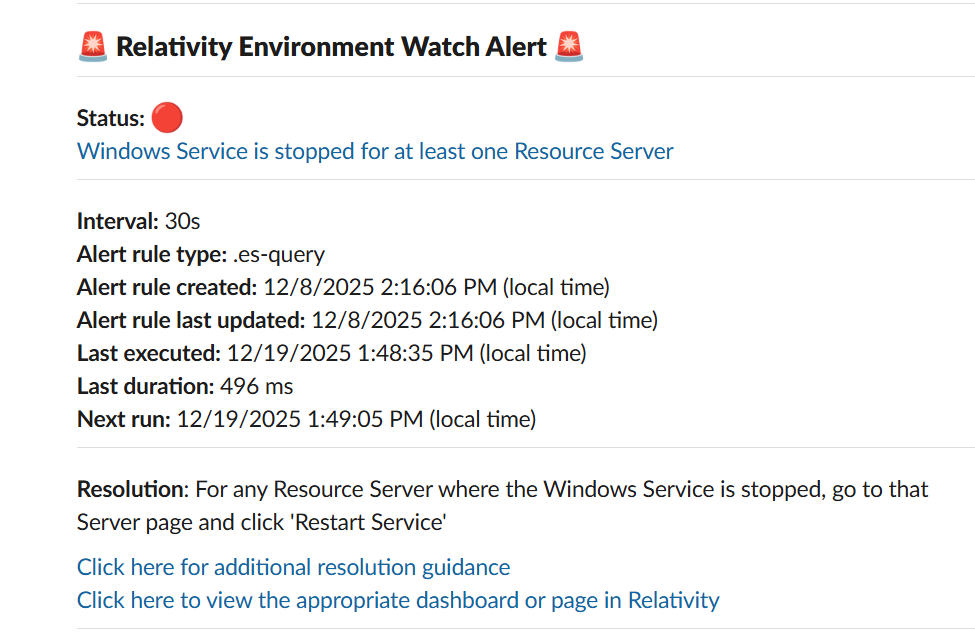
When troubleshooting Slack notification issues, the first step is to verify whether the following log message appears in Kibana Discover for the triggered alert.
Message successfully sent alert {AlertId} to Slack channel {SlackChannel}When a Kibana alert is triggered, and unable to see: "Message successfully sent alert to Slack channel " log in Kibana Discover
{AlertId}) and Slack Channel ID ({SlackChannel}) in Kibana Discover.The log message appears in Kibana Discover after fixing common issues, but Slack notifications are still not being sent
alertNotificationHandlers section of the custom JSON configuration file.accessToken, channel, enabled, and messageIntervalSeconds properties are set correctly.
If users need to adjust the frequency of Slack messages, follow these steps:
messageIntervalSeconds property in the Slack handler configuration to a value greater than or equal to 180 seconds to avoid rate limiting by Slack.If RabbitMQ logs do not appear in Kibana after configuring the file log receiver, fix the common issues outlined in Common Issues before reviewing the following potential causes:
After fixing the common issues, if RabbitMQ logs still do not appear in Kibana, review the following potential causes:
Verify the file log receiver configuration in the custom JSON configuration file.
openTelemetryOverrides section with a valid logSources array.enabled to true for the desired log source.openTelemetryOverrides section.Example:
{
  "environmentWatchConfiguration": {
    "monitoring": {
      "instance": {
        "sources": {
          "certificates": {},
          "windowsServices": {}
        },
        "otelCollectorYamlFiles": []
      },
      "installedProducts": [],
      "hosts": [],
      "openTelemetryOverrides": {
            "logSources": [
              {
                "type": "rabbitmq",
                "enabled": true,
                "logFilePath": "C:\\rabbitmq\\data\\log\\rabbit@localhost.log",
                "multilineStartPattern": "^\\d{4}-\\d{2}-\\d{2} \\d{2}:\\d{2}:\\d{2}\\.\\d{6}[+-]\\d{2}:\\d{2}",
                "regexPattern": "^(?P<rabbitmq_log_date_time>\\d{4}-\\d{2}-\\d{2} \\d{2}:\\d{2}:\\d{2}\\.\\d{6}[+-]\\d{2}:\\d{2}) \\[(?P<severity>[a-z]*)\\] <(?P<rabbitmq_pid_node>\\d+)\\.(?P<rabbitmq_pid_process>\\d+)\\.(?P<rabbitmq_pid_serial>\\d+)>[ \\t]*(?P<message>[\\s\\S]*)$",
                "timestampLayout": "%Y-%m-%d %H:%M:%S.%f%j"
              }
            ]
        }
    },
    "alertNotificationHandlers": {}
  }
}
Verify the log file path is accessible.
Verify the OpenTelemetry Collector detected the RabbitMQ configuration.
"RabbitMQ configuration found in the shared Json configuration."
enabled flag is set to true in the logSources array.Verify the regexPattern field names match the required field names.
regexPattern must exactly match the default field names defined in the source code. Incorrect field names will cause the OpenTelemetry Collector to throw a fatal error and stop working.rabbitmq_log_date_timeseverityrabbitmq_pid_noderabbitmq_pid_processrabbitmq_pid_serialmessageTimestamps are incorrect or missing in Kibana.
timestampLayout format matches the log file timestamp format."%Y-%m-%d %H:%M:%S.%f%j".%j suffix handles the timezone offset component.Multiline log entries are not grouping correctly.
multilineStartPattern regex matches the start of each new log entry.\\ instead of \).No log data in Kibana after configuration detection message appears.
enabled flag is set to true in the logSources array.
