


Feedback

This section describes how to configure certificate monitoring using the environmentWatchConfiguration JSON configuration file.
Monitors the presence and validity of specified certificates in Windows certificate stores. By default, the Relativity Secret Store certificate is monitored without requiring additional configuration. Other certificates can be added based on the installed product or specific requirements.
Default Certificates | Certificate Name | Description | |-----------------------------------|--------------------------------------------------| | Relativity Secret Store | Certificate for Relativity Secret Store. |
Properties in Custom JSON Configuration File Related to Certificates
| Property | Type | Description |
|---|---|---|
enabled
|
boolean | Enables or disables monitoring for certificates. |
include
|
array | List of certificate objects to monitor. |
storeName
|
string | Name of the certificate store (e.g., "My"). |
storeLocation
|
string | Location of the store (e.g., "LocalMachine"). |
thumbprint
|
string | Certificate thumbprint to identify the certificate. |
The storeLocation field specifies the location of the X.509 certificate store to use.
Possible Values
| Value | Description |
|---|---|
| CurrentUser | The X.509 certificate store is located in the current user's profile. |
| LocalMachine | The X.509 certificate store is located in the local computer's profile. |
The storeName field specifies the name of the Windows certificate store where the X.509 certificate is located.
Possible Values
| Value | Description |
|---|---|
| AddressBook | Other people |
| AuthRoot | Third party trusted roots |
| CertificateAuthority | Intermediate CAs |
| Disallowed | Revoked certificates |
| My | Personal certificates |
| Root | Trusted root CAs |
| TrustedPeople | Trusted people (used in EFS) |
| TrustedPublisher | Trusted publishers (used in Authenticode) |
Get Certificate Thumbprint
Depending on the store location and store name, run the following command on the host. For LocalMachine and My, use:
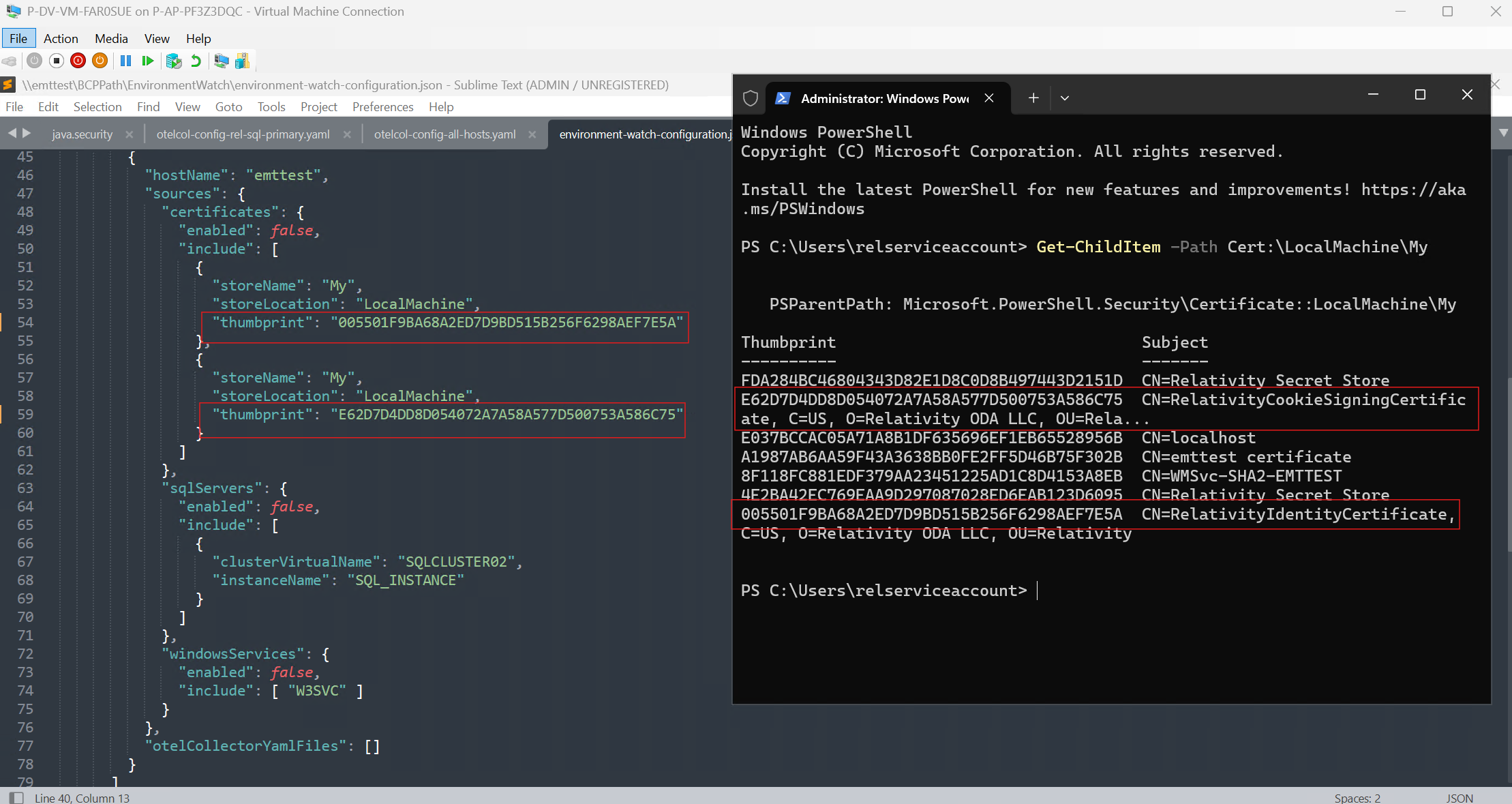
Get-ChildItem Cert:\LocalMachine\My
The command returns a list of certificates including their thumbprint and subject. Copy the thumbprint value for the certificate to be monitored and use it in the custom JSON configuration file. Modify the command as necessary based on the selected storeName and storeLocation.
Certificates can be monitored in the "hosts", "instance", or "installedProducts" level. For certificates to monitor, locate "certificates" under the desired section and update the configuration as shown below.
enabled : Set to true to enable certificate monitoring.include section, specify the storeName, storeLocation, and thumbprint for each certificate to be monitored.Example 1: Monitoring two certificates from the LocalMachine\My store. The certificate is identified by its thumbprint, which can be retrieved using the following PowerShell command: Get-ChildItem Cert:\LocalMachine\My
{
  "environmentWatchConfiguration": {
    "monitoring": {
      "instance": {
        "sources": {
          "certificates": {},
          "windowsServices": {
            "enabled": false,
            "include": []
          }
        },
        "otelCollectorYamlFiles": []
      },
      "installedProducts": [
        {
          "productName": "Agent",
          "sources": {
            "certificates": {
              "enabled": true,
              "include": [
                {
                  "storeName": "My",
                  "storeLocation": "LocalMachine",
                  "thumbprint": "005501F9BA68A2ED7D9BD515B256F6298AEF7E5A"
                },
                {
                  "storeName": "My",
                  "storeLocation": "LocalMachine",
                  "thumbprint": "E62D7D4DD8D054072A7A58A577D500753A586C75"
                }
              ]
            },
            "windowsServices": {
              "enabled": false,
              "include": []
            }
          },
          "otelCollectorYamlFiles": []
        }
      ],
      "hosts": [
        {
          "hostName": "emttest",
          "sources": {
            "certificates": {
              "enabled": true,
              "include": []
            },
            "sqlServers": {
              "enabled": false,
              "include": []
            },
            "windowsServices": {
              "enabled": false,
              "include": []
            }
          },
          "otelCollectorYamlFiles": []
        }
      ]
    },
    "alertNotificationHandlers": {}
  }
}
If the certificate specified in the custom JSON configuration file cannot be found on the host, an alert will be triggered indicating that the certificate is missing. For troubleshooting guidance, refer Troubleshooting section.
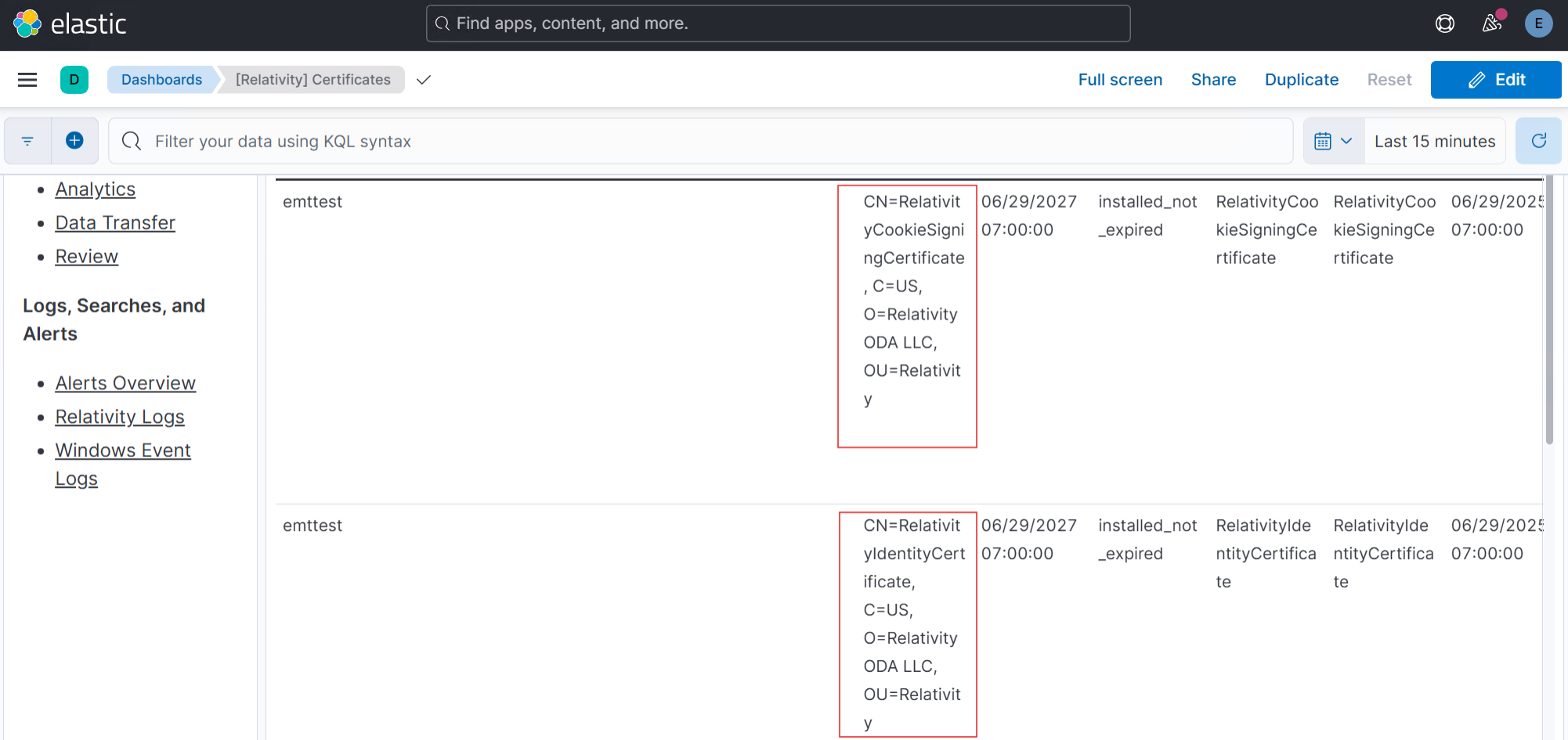
Refer to the Troubleshooting Guide to resolve any custom JSON certificate configuration issues.
