Feedback

This document provides step-by-step instructions for configuring IIS log fields required for proper log ingestion by Environment Watch. Incorrect or incomplete IIS log field configuration can result in parsing errors, incomplete data, or ingestion failures.
The Environment Watch monitoring agent uses OpenTelemetry (OTEL) collectors to parse and ingest IIS logs. The configuration requires specific fields to be enabled in IIS logging to ensure successful data collection and analysis.
The following abbreviations are used throughout this document:
| Abbreviation | Description |
|---|---|
| IIS | Internet Information Services |
| OTEL | OpenTelemetry |
| HTTP | Hypertext Transfer Protocol |
| URI | Uniform Resource Identifier |
| IP | Internet Protocol |
| W3C | World Wide Web Consortium |
| Win32 | Windows API status code |
The following fields must be enabled in your IIS log configuration for successful ingestion. These fields are configured in IIS Manager under W3C Logging Fields.
| Field Name | IIS Log Field | Description | Required |
|---|---|---|---|
date
|
date | Date when the log entry was created | Yes |
time
|
time | Time when the log entry was created | Yes |
s-ip
|
s-ip | Server IP address | Yes |
cs-method
|
cs-method | HTTP request method (GET, POST, etc.) | Yes |
cs-uri-stem
|
cs-uri-stem | URI stem (path) of the request | Yes |
cs-uri-query
|
cs-uri-query | Query string parameters | Yes |
s-port
|
s-port | Server port number | Yes |
cs-username
|
cs-username | Authenticated username | Yes |
c-ip
|
c-ip | Client IP address | Yes |
cs(User-Agent)
|
cs(User-Agent) | User agent string from the client | Yes |
cs(Referer)
|
cs(Referer) | Referer URL | Yes |
sc-status
|
sc-status | HTTP status code | Yes |
sc-substatus
|
sc-substatus | HTTP substatus code | Yes |
sc-win32-status
|
sc-win32-status | Windows status code | Yes |
time-taken
|
time-taken | Time taken to process the request (milliseconds) | Yes |
inetmgr and press EnterIn the left-hand Connections pane, expand your server node
Select the Sites folder or a specific website you want to configure
In the center Features View pane, double-click Logging
You can configure logging at the server level (applies to all sites) or at the individual site level. For Environment Watch, configure at the server level to ensure consistent logging across all Relativity web applications.
In the W3C Logging Fields dialog, ensure the following fields are checked:
Standard Fields:
Custom Fields (expand the sections as needed):
Verify that all required fields are selected
Click OK to close the dialog
Note the Directory path where IIS logs are stored (default: %SystemDrive%\inetpub\logs\LogFiles)
This path must match the OTEL_IIS_FILE_LOG_PATH environment variable configured during monitoring agent installation
If you need to change the log directory:
OTEL_IIS_FILE_LOG_PATH environment variable to matchThe default log path pattern should be: C:\inetpub\logs\LogFiles\W3SVC*\*.log
Click Apply in the Actions pane on the right
The changes will take effect immediately for new log entries
Existing log files will retain their previous format
You do not need to restart IIS for logging configuration changes to take effect. However, the new format will only apply to new log entries.
Navigate to your IIS log directory (e.g., C:\inetpub\logs\LogFiles\W3SVC1\)
Open the most recent log file with a text editor (e.g., Notepad)
Verify the #Fields: header line matches the required format:
#Fields: date time s-ip cs-method cs-uri-stem cs-uri-query s-port cs-username c-ip cs(User-Agent) cs(Referer) sc-status sc-substatus sc-win32-status time-taken
Verify that log entries contain all the required fields (example):
2025-06-10 22:14:03 ::1 POST /Relativity/Identity/connect/token - 443 - ::1 - - 200 0 0 25951
The Environment Watch monitoring agent uses the following OTEL configuration to parse IIS logs. This configuration is automatically deployed during installation.
Configuration File Location:
C:\ProgramData\Relativity\EnvironmentWatch\Services\InfraWatchAgent\Templates\otelcol-config-rel-web.yaml
This is a template file used by the monitoring agent. Do not modify these files directly as they are managed by the Environment Watch service.
receivers:
  filelog/iis:
    include: "${env:OTEL_IIS_FILE_LOG_PATH}"
    include_file_name: true
    start_at: beginning
    operators:
      # Filter out comment lines starting with #
      - type: filter
        expr: 'body matches "^#"'
        drop: true
      # Parse log entries using regex
      - type: regex_parser
        regex: ^(?P<iis_log_date_time>\d{4}-\d{2}-\d{2} \d{2}:\d{2}:\d{2})\s+(?P<iis_log_hostname>\S+)\s+(?P<iis_log_http_request_method>\S+)\s+(?P<iis_log_http_target>\S+)\s+(?P<iis_log_http_query>\S*)\s+(?P<iis_log_http_server_port>\d+)\s+(?P<iis_log_end_username>\S*)\s+(?P<iis_log_http_client_address>\S+)\s+(?P<iis_log_cs_useragent>.*?)\s+(?P<iis_log_cs_referer>.*?)\s+(?P<iis_log_http_server_status>\d+)\s+(?P<iis_log_http_server_substatus>\d+)\s+(?P<iis_log_http_sc_win32_status>\d+)\s+(?P<iis_log_http_server_duration>\d+)
The regex pattern above is designed to parse IIS log entries in W3C format. Here's a breakdown of each component:
| Regex Component | Description | Matches | Example |
|---|---|---|---|
^
|
Start of line anchor | Beginning of the log entry | - |
(?P<name>pattern)
|
Named capture group | Creates a field with the specified name | - |
\d{4}-\d{2}-\d{2}
|
Date format | YYYY-MM-DD | 2025-06-10
|
\d{2}:\d{2}:\d{2}
|
Time format | HH:MM:SS | 22:14:03
|
\s+
|
One or more whitespace | Separates fields | Space or tab |
\S+
|
One or more non-whitespace | Required field value | POST, ::1 |
\S*
|
Zero or more non-whitespace | Optional field value (can be -) |
- or param=value |
.*?
|
Non-greedy match any character | User-Agent or Referer (may contain spaces) | Mozilla/5.0...
|
\d+
|
One or more digits | Numeric values | 443, 200, 25951 |
Example log entry:
2025-06-10 22:14:03 ::1 POST /Relativity/Identity/connect/token - 443 - ::1 - - 200 0 0 25951
Regex pattern matched to fields:
Date and Time - (?P<iis_log_date_time>\d{4}-\d{2}-\d{2} \d{2}:\d{2}:\d{2})
\d{4}-\d{2}-\d{2} \d{2}:\d{2}:\d{2}2025-06-10 22:14:03Server IP - (?P<iis_log_hostname>\S+)
\S+ (one or more non-whitespace)::1 (IPv6 localhost)HTTP Method - (?P<iis_log_http_request_method>\S+)
\S+POSTURI Stem - (?P<iis_log_http_target>\S+)
\S+/Relativity/Identity/connect/tokenQuery String - (?P<iis_log_http_query>\S*)
\S* (zero or more non-whitespace)- (indicates no query string)? in URL, or - if noneServer Port - (?P<iis_log_http_server_port>\d+)
\d+ (one or more digits)443Username - (?P<iis_log_end_username>\S*)
\S* (zero or more non-whitespace)- (indicates anonymous/no authentication)- if not authenticatedClient IP - (?P<iis_log_http_client_address>\S+)
\S+::1 (IPv6 localhost)User-Agent - (?P<iis_log_cs_useragent>.*?)
.*? (non-greedy match any character)- (or full User-Agent string like Mozilla/5.0...).*? allows spaces, stops at next whitespace boundaryReferer - (?P<iis_log_cs_referer>.*?)
.*? (non-greedy match any character)- (or full Referer URL).*? allows spacesHTTP Status - (?P<iis_log_http_server_status>\d+)
\d+200HTTP Substatus - (?P<iis_log_http_server_substatus>\d+)
\d+0Win32 Status - (?P<iis_log_http_sc_win32_status>\d+)
\d+0Time Taken - (?P<iis_log_http_server_duration>\d+)
\d+25951The regex pattern must match the exact field order in the IIS log #Fields: header. If fields are reordered or added/removed in IIS configuration, the regex will fail to parse correctly.
The OTEL collector maps IIS log fields to the following internal field names:
| IIS Field | OTEL Field Name |
|---|---|
| date time | iis_log_date_time
|
| s-ip | iis_log_hostname
|
| cs-method | iis_log_http_request_method
|
| cs-uri-stem | iis_log_http_target
|
| cs-uri-query | iis_log_http_query
|
| s-port | iis_log_http_server_port
|
| cs-username | iis_log_end_username
|
| c-ip | iis_log_http_client_address
|
| cs(User-Agent) | iis_log_cs_useragent
|
| cs(Referer) | iis_log_cs_referer
|
| sc-status | iis_log_http_server_status
|
| sc-substatus | iis_log_http_server_substatus
|
| sc-win32-status | iis_log_http_sc_win32_status
|
| time-taken | iis_log_http_server_duration
|
Here's how the regex pattern maps to an actual IIS log entry:
Log Entry:
2025-06-10 22:14:03 ::1 POST /Relativity/Identity/connect/token - 443 - ::1 - - 200 0 0 25951

Field Mapping:
 2025-06-10 22:14:03          | iis_log_date_time
 ::1                           | iis_log_hostname
 POST                          | iis_log_http_request_method
 /Relativity/Identity/...      | iis_log_http_target
 -                             | iis_log_http_query (empty)
 443                           | iis_log_http_server_port
 -                             | iis_log_end_username (anonymous)
 ::1                           | iis_log_http_client_address
 -                             | iis_log_cs_useragent (empty)
 -                             | iis_log_cs_referer (empty)
 200                           | iis_log_http_server_status
 0                             | iis_log_http_server_substatus
 0                             | iis_log_http_sc_win32_status
└─ 25951                         | iis_log_http_server_duration (25.951 seconds)
The configuration includes a processor to convert the time-taken field to an integer type:
processors:
  attributes/iis_log_http_server_duration:
    actions:
      - key: iis_log_http_server_duration
        action: convert
        converted_type: int
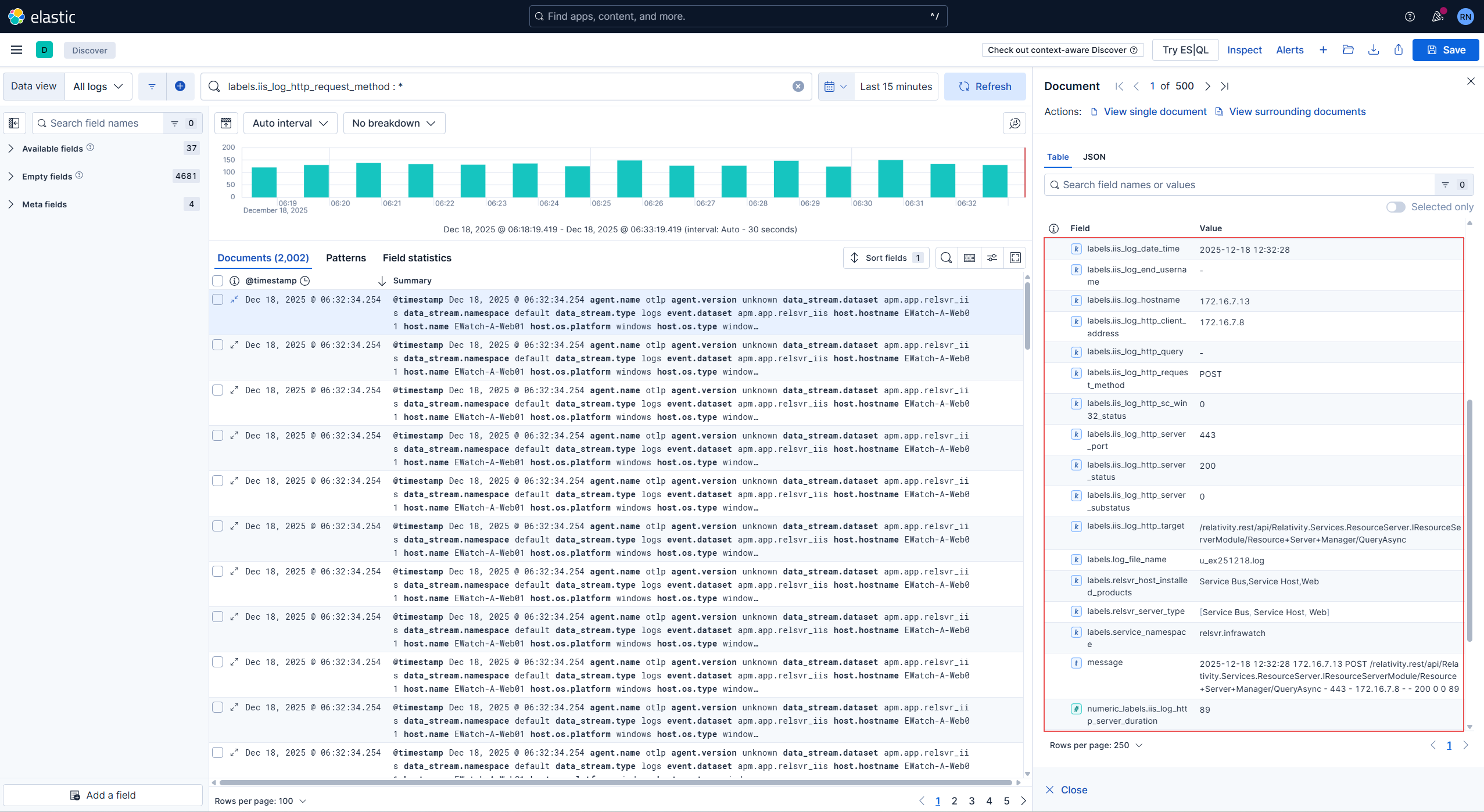
After configuring IIS logging and ensuring the Environment Watch monitoring agent is running, verify that logs are being ingested into Elasticsearch:
https://<elasticsearch-host>:5601)In the search bar, enter the following query to filter for IIS logs:
labels.iis_log_http_request_method:*
Or search for a specific field:
labels.iis_log_http_target:"/Relativity*"
Expand one of the log entries by clicking the arrow icon
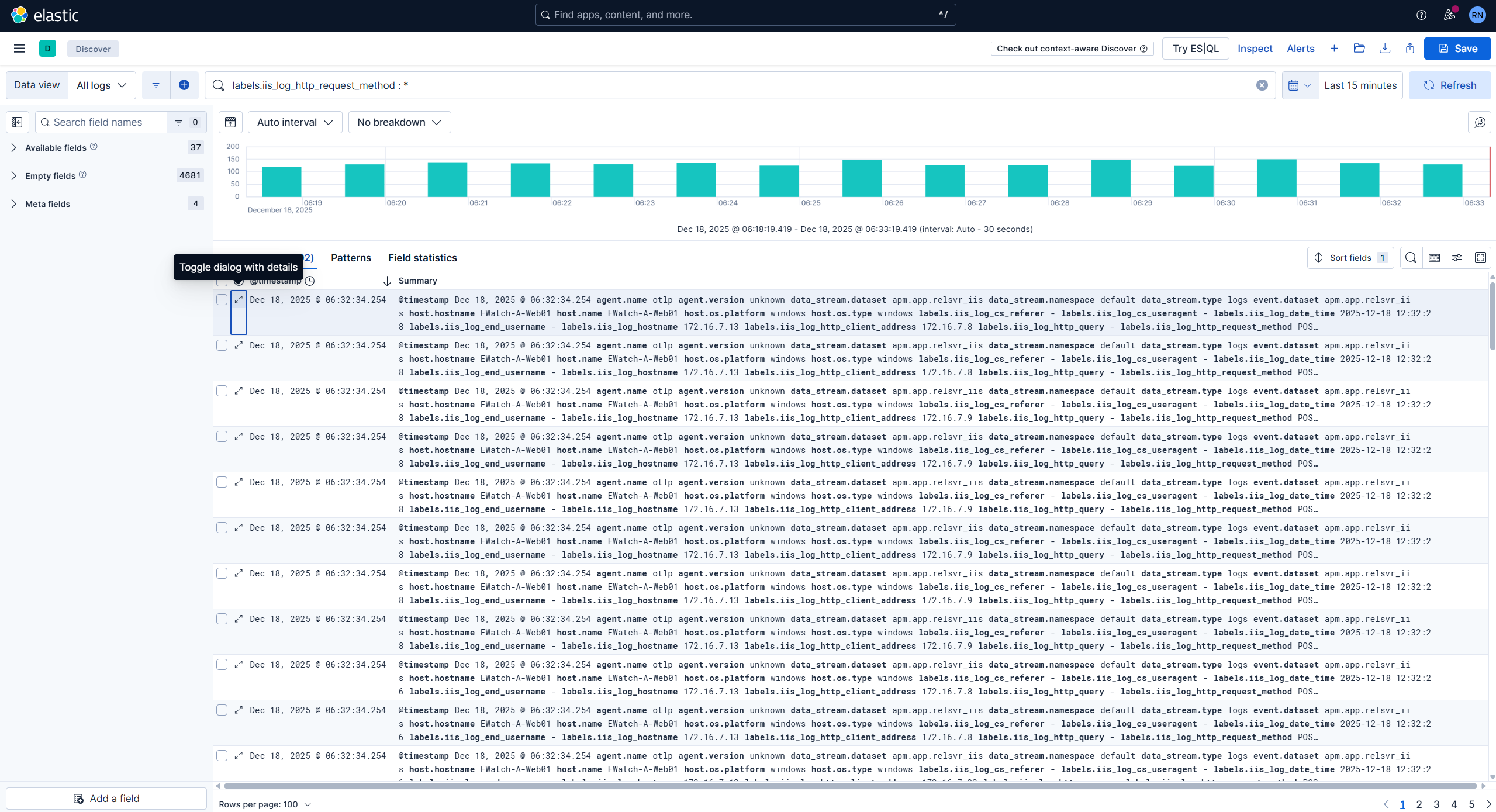
Verify that all IIS log fields are present and populated:
labels.iis_log_date_time
labels.iis_log_hostname
labels.iis_log_http_request_method
labels.iis_log_http_target
labels.iis_log_http_server_status
labels.iis_log_http_server_duration and all other mapped fields