Last date modified: 2026-Oct-21

Using Conversation Manager

Use Conversation Manager to organize and navigate your conversations. You can switch between threads, resume previous conversations, and rename, delete, pin, share, or export conversations.

Conversation management requires at least the Prompting permission, while sharing and exporting require additional permissions. See Permissions for more details.

ARM is not supported for Assist. Assist permissions, indexes, conversations, and metadata mapping cannot be archived, restored, or moved using ARM.

Suggested resources:

The Conversations panel slides open next to the Assist chat panel. Refer to the following to learn more about the panel.
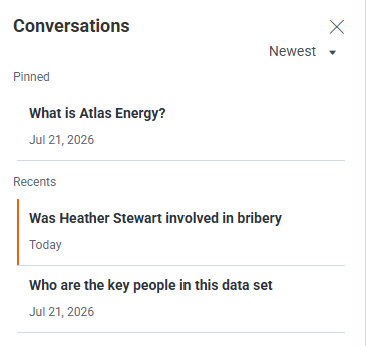
Conversations panel with examples

  • Personal tab—displays all your conversations, including those you shared. See Sharing a conversation for more information.
  • Shared tab—displays the conversations others have shared with the workspace. See Sharing a conversation for more information.
  • Sorting conversations—click the drop-down arrow to sort by Newest first, Oldest first, A→Z (for ascending order), or Z→A (for descending order).
  • Pinned—pinned conversations display in the Pinned section. See Pinning a conversation for more information.
  • Recents—new conversations appears in the Recents section.
  • Conversation name—click on a conversation to view it in the Assist chat panel. A vertical highlight bar displays next to the open conversation in the Conversations panel. Hover over a conversation name to:
    • View the full conversation name and number of messages in it.
    • View the More icon (vertical ellipses). Click the icon to access more conversation-related functionality.
  • X—click the X to close the entire Conversations panel.

Opening conversation manager

Use the steps below to open conversation manager.
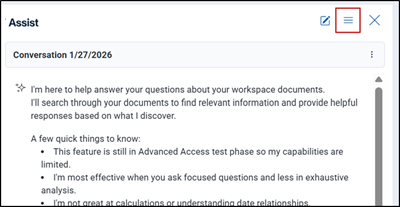
  1. To display the Conversations panel, select Conversations from the hamburger icon in the Assist chat panel.
    Hamburger icon boxed.
    The Conversations panel slides open next to the Assist chat panel.
  2. To close the panel, click the X opposite the Conversations panel heading or select Conversations again from the hamburger icon in the Assist chat panel.

Viewing a conversation

Use the steps below to open a particular conversation to view its contents.

  1. Open the Conversation panel. See Opening conversation manager for details.
  2. Locate and click the conversation name.
    A vertical highlight bar displays next to the conversation that is open in the Assist chat panel.
  3. Optionally, continue asking questions within the conversation or click another conversation name to switch conversations.

Audit logs capture this action. See Auditing user activity for more information.

Renaming a conversation

By default, when you open Assist initially or begin a new conversation, it automatically names the conversation using the current date (for example, "Conversation MM/DD/YYYY").  After you submit your first prompt or question, the conversation name updates to reflect that content. You can rename any conversation from the Conversations panel or while viewing the conversation.
  1. From either the Conversations panel or within an open conversation, click the More icon (vertical ellipses) next to the conversation to be renamed.
  2. Select Rename.
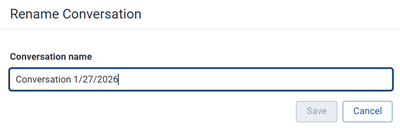
  3. Enter new name for the conversation (up to 50 characters) in the Conversation name field.
    Rename conversation dialog.
  4. Click Save.

Audit logs capture this action. See Auditing user activity for more information.

Deleting a conversation

You can permanently delete an entire conversation from either the Conversations panel or within the active conversation itself. Conversation history is kept as long as the workspace exists, unless the conversation is deleted.

  1. From either the Conversations panel or within an open conversation, click the More icon (vertical ellipses) next to the conversation to be deleted.
  2. Select Delete.
  3. Click Delete on the confirmation dialog to proceed with deleting the conversation.

The conversation permanently disappears from the panel.

Audit logs capture this action. See Auditing user activity for more information.

Pinning a conversation

For quick access to important conversations, you can pin them to the top of the Conversations list. They will appear above the All conversations section.
  1. From either the Conversations panel or within an open conversation, click the More icon (vertical ellipses) next to the conversation to be pinned.
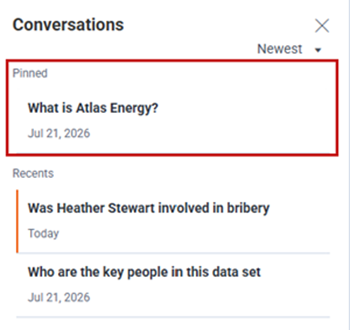
  2. Select Pin. The conversation moves to the Pinned section at the top.
    Pinned conversation section above the All conversations section
  3. To remove a pinned conversation from the Pinned section, click the More icon (vertical ellipses) next to the conversation to be unpinned and select Remove from pins.

The conversation will return to the All conversations list in date order.

Exporting a conversation

Users with permission to export conversations can save a conversation as a Microsoft Word (.docx) file while preserving its context, citations, and source links. This is particularly valuable for legal and review teams who need to share findings with external parties (clients, co-counsel, opposing counsel) or internal stakeholders who lack Relativity access. See Permissions for more details on setting user permissions.

  1. From either the Conversations panel or within an open conversation, click the More icon (vertical ellipses) next to the conversation to be exported.
  2. Select Export.

The exported file is saved to the user's default browser download folder.

Audit logs capture this action. See Auditing user activity for more information.

Sharing a conversation

Users with the Conversation Sharing permission can share a conversation with all users in the current workspace who have been granted the Assist Prompting permission. Colleagues can then review your research, including the questions, answers, and citations, without re-running your queries or copying the results. See Permissions for more details on setting user permissions.

Shared conversations are read-only for everyone except the conversation’s original author. Only this person can add questions to and manage a conversation they have shared. Other users see new questions and answers after the conversation refreshes automatically, which may take a few moments.

In the Shared tab of the Conversations panel, the name of the user who shared it and the conversation date are displayed. This tab does not display the conversations that you shared with others. Those display in your Personal tab. See Personal and Shared tabs for more information.

What other users can do

Users in the workspace who have the Assist Prompting permission can open a conversation you shared and do any of the following:

  • Read the full conversation, including citations and source links.
  • Copy the conversation to the clipboard.
  • Pin the conversation.
  • Export the conversation (if granted Export Conversation permission).

Shared conversations are otherwise read-only. Users cannot ask questions, rename, delete, star, or provide feedback (thumbs up/down) for the conversation.

Before you share

Review the following information before you share conversations:

  • Everyone in the workspace with the Prompting permission can see the conversation.
  • Citations are not hidden. Other users may see citations to documents they do not have access to in Relativity. Contact your workspace admin to manage document access.
  • Colleagues are not notified when you share a conversation.

Personal and Shared tabs

The Conversation panel displays two tabs:

  • Personal—displays all of your conversations, including ones that you have shared, which display the Shared label.
  • Shared—displays all of the conversations shared by others. This tab does not display the conversations that you shared with others, as they appear in your Personal tab. When you select a shared conversation in the list, a blue banner displays indicating it is shared and is read-only. Refer to What other users can do for more information.

Sharing and unsharing a conversation

To share a conversation:

  1. From either the Conversations panel or within an open conversation, click the More icon (vertical ellipses) next to the conversation to be shared.
  2. Select Share.
  3. Review the message that appears, and then click Share to confirm.

A Shared label appears next to the conversation, and it appears in others' Shared tab.
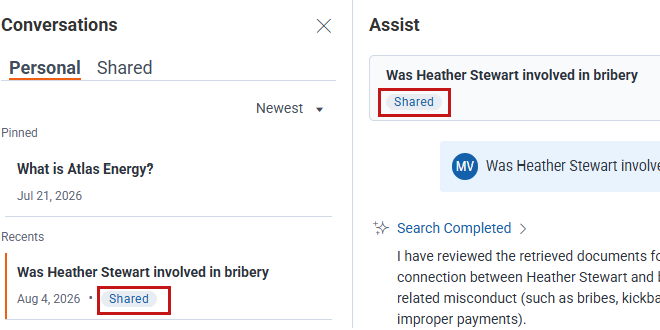
A conversation showing the Shared label.

To stop sharing a conversation:

  1. From either the Conversations panel or within an open conversation, click the More icon (vertical ellipses) next to the conversation to be unshared.
  2. Select Unshare.
  3. Review the message that appears, and then click Unshare to confirm.

The Shared label disappears from your conversation, and it is removed from other users' Shared tab. If someone has it open, they see a message that it is no longer available. Deleting a shared conversation has the same effect.


Feedback