Exporting a folder load file
You can use Import/Export to export folders and sub-folders from Relativity aiR.
If you want to use Import/Export with Express Transfer, which is the recommended method for data transfer, refer to Express Transfer overview for more information. With Express Transfer activated, you can run up to five concurrent export jobs on a single client machine. For more information, see Concurrent and consecutive jobs.
Refer to Import/Export load file specifications for more information regarding load files. Also see General recommendations for structured data import and export jobs.
Exporting a folder load file workflow
To export folders:
- Use tabs, search, or the quick nav bar to navigate to the Import/Export Job page.
- On the Import/Export Job page, click New Import/Export Job to start a new job.
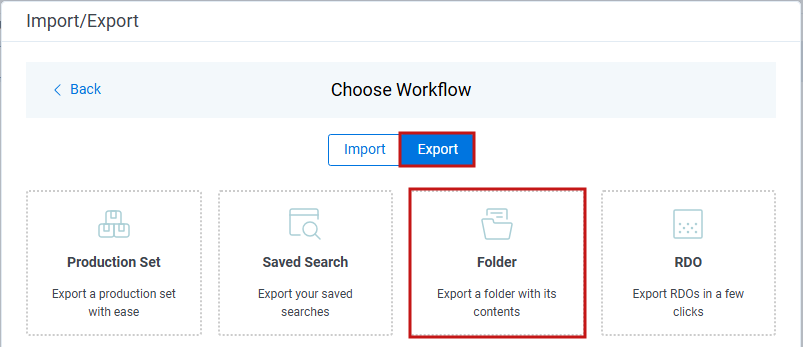
- On the Choose Workflow dialog, select Export, then click Folder.
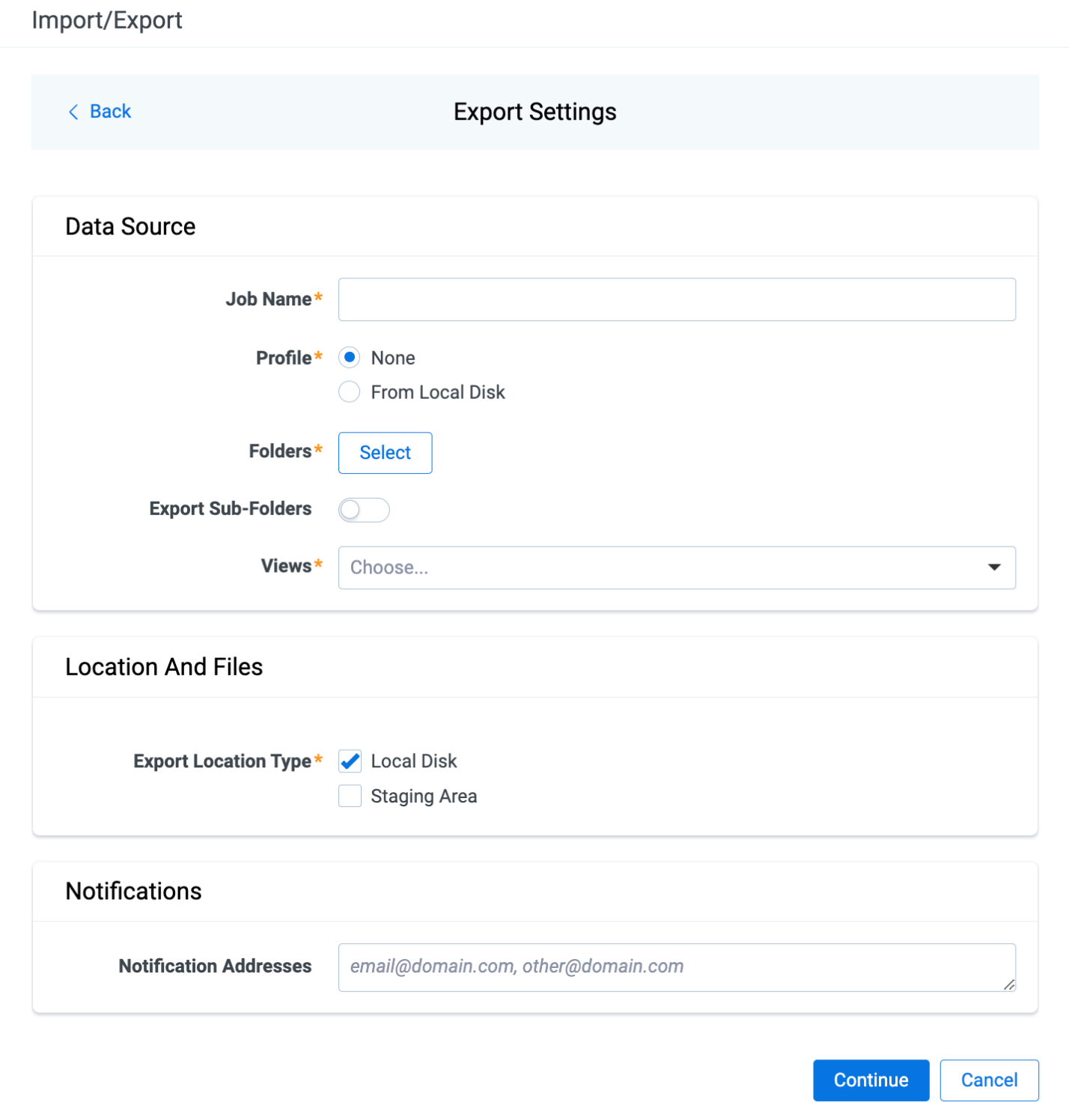
- Complete fields on the Export Settings dialog, then click Continue. For more information, go to Export Settings fields.
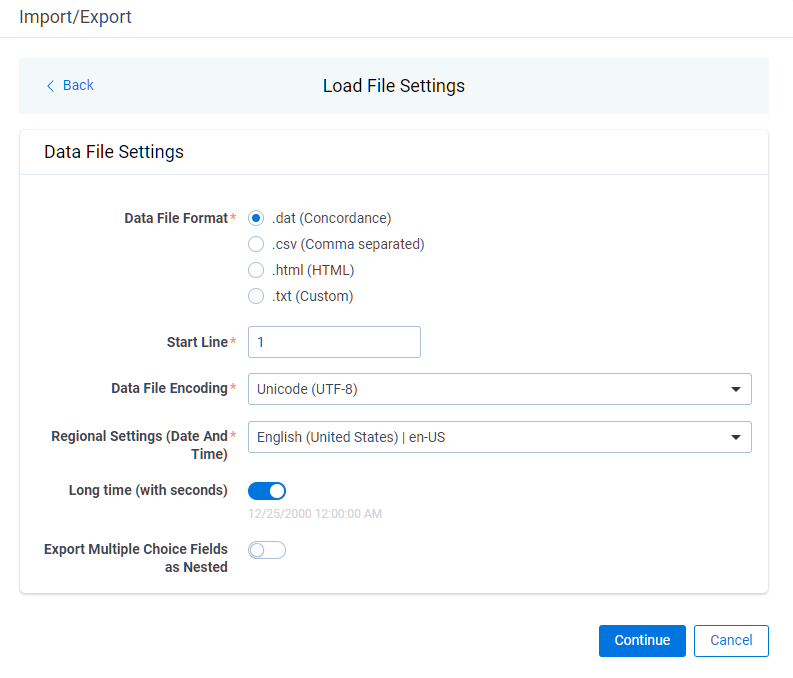
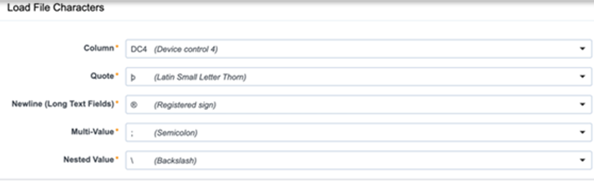
- Select the data file format and data file encoding on the Load File Settings dialog, then click Continue. For more information, go to Load File Settings fields.
- On the Select Fields dialog, select and move the Workspace Fields that you want to export to the Selected Fields box, then click Continue. For more information, go to Select Fields dialog.
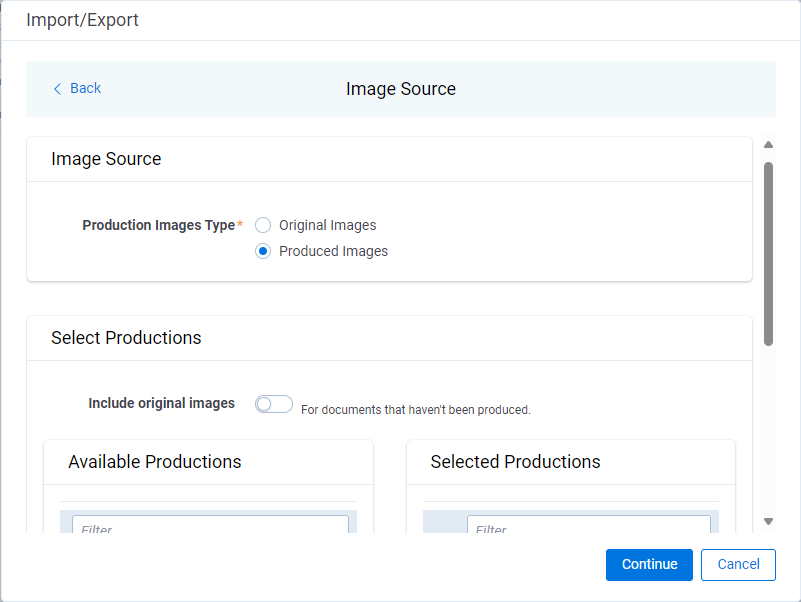
- On the Image Source dialog, select what image types and productions you want to export, then click Continue. For more information, go to Image Source fields.
- On the File Settings dialog, select the options to include native files, images, and PDFs in the exported data, then click Continue. For more information, go to File Settings fields.
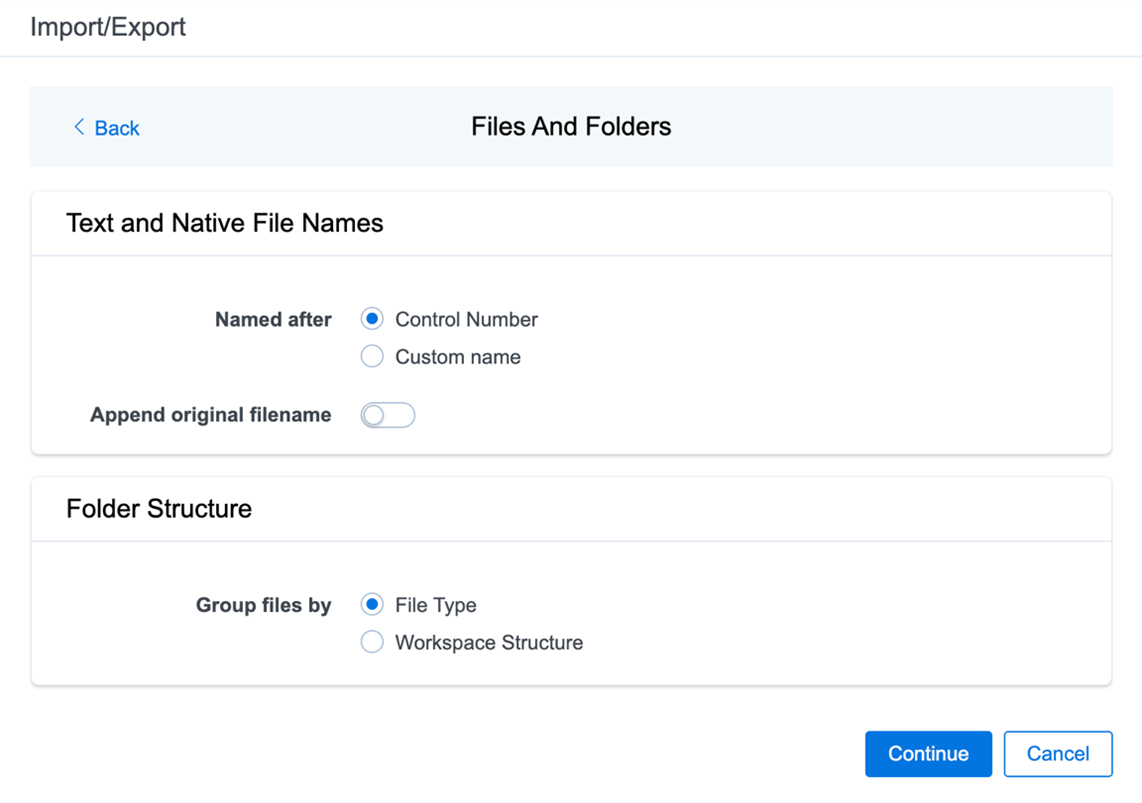
- On the File And Folders dialog, select the desired naming convention and folder structure for the exported files, then click Continue. For more information, go to Files And Folders fields.
- On the Text File Settings dialog, select to export text field as files and then choose the text file encoding, then click Continue. For more information, go to Text File Settings fields.
- (Optional) On the Advanced Settings dialog, turn Set Custom Information toggle on if you want to customize the volume and folder information. Otherwise, leave the toggle off. After you complete the fields, click Continue. For more information, go to Advanced Settings fields.
- On the Export Job Configuration Summary dialog, review the export job settings and return to previous steps to make any corrections as needed.
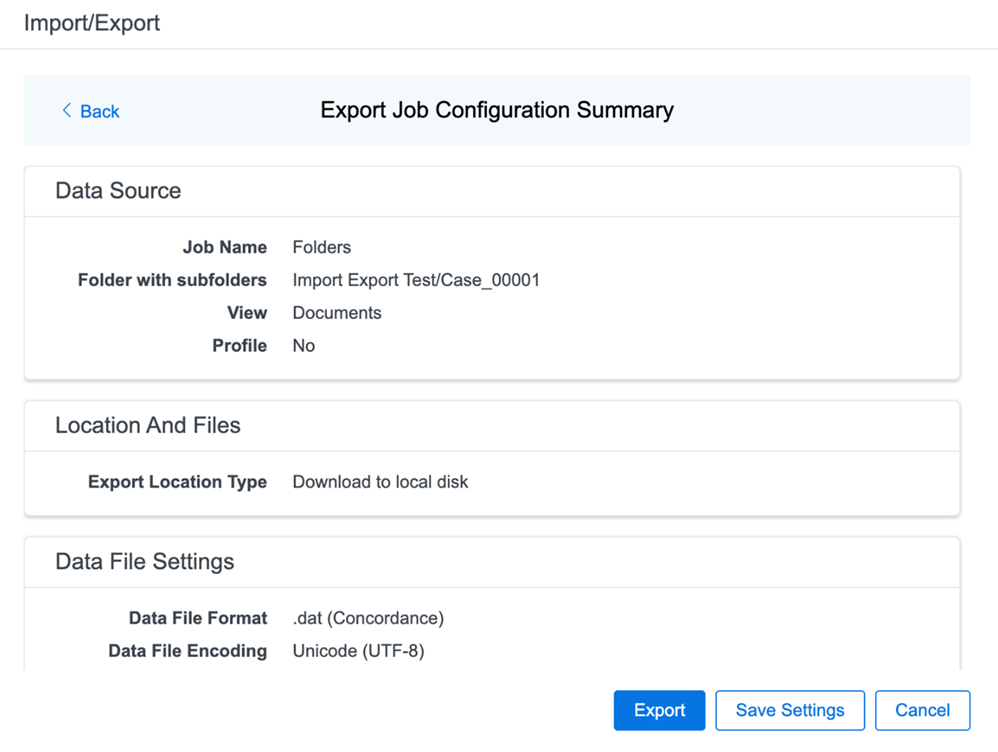
- (Optional) Click Save Settings on the Export Job Configuration Summary dialog to export the job configuration settings entered thus far to its own profile file (.ie file extension) and save it on your computer. This way you can reuse these settings when creating a new export job with Import/Export.
Import/Export saves job configuration settings to its own profile file format, .ie file extension. Unlike the legacy .kw* format, an .ie profile can apply saved job settings across workspaces. Other Relativity aiR data transfer tools do not support the .ie profile file format.
- Click Export to start the exporting process.
- When the export is complete, the job summary appears. It lists the records exported successfully, including load files containing .dat, .opt, and so on, errors found, and path to your exported files. The download process depends on how you use Import/Export:
- If you use Import/Export with Express Transfer active, the exported files automatically start to download. You can track the download progress in the Exporting dialog or in Express Transfer. For more information, see Express Transfer Job tracking and history.
When a job is running using Express Transfer, you can close the Import/Export application. The transfer job continues without interruption. You can monitor the progress and history of jobs within Express Transfer. For more information, see
Express Transfer Job tracking and history. You do not have to be logged in to Relativity aiR to view information within the Express Transfer application.
- If you use Import/Export in web only mode, the application generates a zip file containing the exported data that you can download. Click Download to save the exported data zip file to your computer, or click Close to close the dialog without downloading the file.
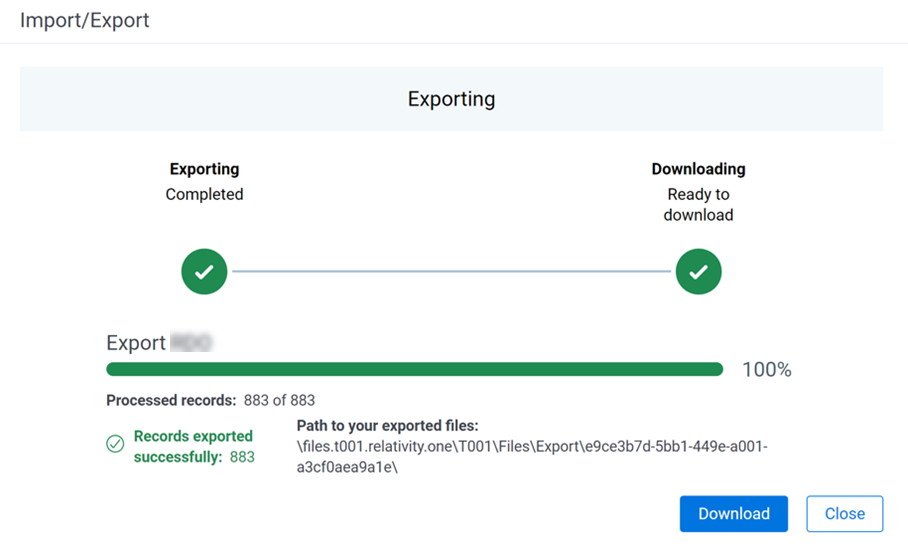
When downloading zip files to your computer, you can configure your browser to be able to save the zip file to a custom file name of you choose as well as to a specific folder destination, instead of using the default file name and destination. In the Settings menu of your browser, select Downloads. Turn on the option to ask where to save or what to do with each file before downloading. Now, when you click Download on the Exporting dialog, your browser displays a dialog where you can change the default zip file name and select a destination other than the default one. If needed, you can also create a new folder in the selected destination for the exported data.
- If you chose to export to Staging Area when setting up your export job on the Export Settings dialog, the application automatically exports data to your Relativity aiR file share and skips the download process. Go to the path listed on the dialog to access the exported data files.
For more information on where Import/Export saves files, see the Community article Import/Export: Where Files Are Saved By The Import/Export Application.
You can always view the job's Exporting dialog information after it is closed by going to the Import/Export Job page and clicking the job name link. The Job page also contains details about all jobs.
Export Settings fields
 Complete fields on the Export Settings dialog
-
Data Source:
- Job Name—provide a descriptive job name so that you can identify and track that job on the Import/Export Job page. The Job name field accepts up to 50 characters.
- Folders—select which workspace folder to export.
- Export Sub-folders toggle—select this option to export sub-folders of the previously selected folder.
- Views—select the workspace view that you want to use to export metadata.
- Profile—the job configuration settings that were previously saved to a profile file (.ie or .kw*). You can reuse a profile for future jobs that use the same or similar settings. Reusing a profile is intended to reduce time and data entry errors when mapping fields.
- None—select this option if you do not want to use a profile for this export or if you intend to create a new profile based on the settings entered in the upcoming steps. You can save the profile settings later on the Export Job Configuration Summary dialog. The file extension for the new profile created will be “.ie.”
- From Local Disk Profiles—use this option to select a previously saved Import/Export profile (.ie file) or an existing .kw* profile to reuse the job settings for this workflow. Use the drag and drop feature or browse for a file to choose it. All job settings provided within the selected profile file are automatically entered where applicable in the succeeding workflow dialogs.
- Location and Files:
- Export Location Type—select one or both of these options:
- Local Disk—select this option to export the selected data from your workspace and download it to your local disk.
- If you activated Express Transfer, click Local Folder and select the destination folder on your disk. After the export completes, Express Transfer downloads the exported data to that folder. Exporting with Express Transfer activated is recommended for all export volumes.
- If you export data without Express Transfer, Import/Export exports and compresses it into a single zip file. After the export completes, you can download the zip file directly to your local disk by clicking Download.
This temporary non-Staging Area location is automatically deleted after the download is completed when using Express Transfer, or is deleted after five days when using web mode for downloads. This data is not included in your
Staging Area threshold.
- Staging Area—select this option to create a copy of the data in the StructuredData folder in the Staging Area. You need to use Staging Explorer later to download the data. The exported data will not be compressed.
- Local Disk and Staging Area—select both options to create a copy of the selected data in the StructuredData folder in the Staging Area, as well as download it to your local disk with Express Transfer or web browser.
- The StructuredData folder is included in your Staging Area threshold. To avoid additional storage costs, you may want to delete the exported data from that folder after it is no longer needed.
- For some combinations of job configuration and data, Windows system on your local machine may not be able to open ZIP archives due to too long file paths. You may receive an error message: “The compressed (zipped) folder is invalid.” For details, go to General recommendations for structured data import and export jobs.
-
Notifications:
- (Optional) Notification Addresses—enter the email addresses of the people you want to notify after the job completes, fails, or is canceled.
Load File Settings fields
Select Fields dialog
Select and move the Workspace Fields that you want to export to the Selected Fields box
Optionally, you can enter field name aliases to replace the original workspace field names in the exported load file. The Workspace Fields box displays all available fields, but only the fields in the Selected Fields box are exported.
Import/Export adds all fields from the chosen View in the Selected Fields column.
You can move fields in the following ways:
- Select a field and click one of the directional arrow buttons in the center to move the field between boxes.
- Double-click on a field to move it between boxes.
- Use CTRL+ left mouse click to select multiple fields, then choose proper directional arrow to move them between boxes.
- In the Selected Fields column, drag the fields into the order you want them to appear in the load file.
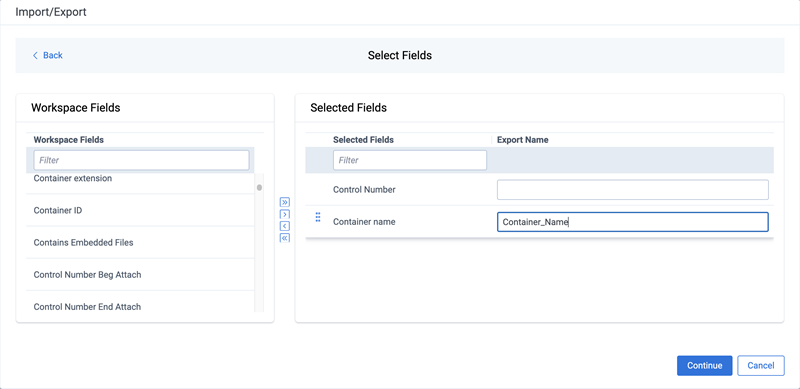
Field aliases should not include delimiters that define the load file structure. The job does not start if a field alias includes such a delimiter.
Image Source fields
Complete the fields on the Image Source dialog
-
Production Images Type:
- Original Images—select to export only the original, non-produced images.
- Produced Images—select to export a produced version of the images.
-
Select Productions:
- Include original images toggle—select to export original images for the documents that are not in a specified production.
Move the productions that you want to export from the Available Productions box to the Selected Productions box.Import/Export exports any produced native files as a native instead of an image. It exports only one produced image based on precedence in the list. If a document is in the topmost production, that version is exported. If not, Relativity checks for the document in the second production and so on. If the document is not included in any of the selected productions, and "Include original images" toggle is turned on, then the original document is exported.
File Settings fields
Complete the fields on the File Settings dialog
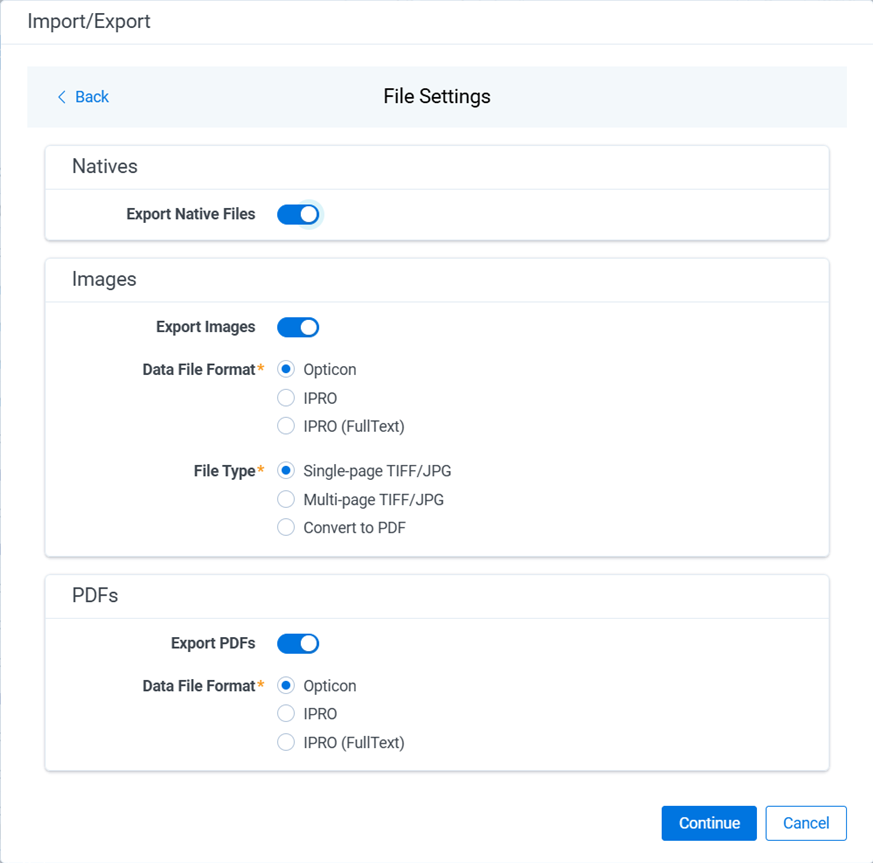
- Export Native Files toggle—select this option to export native files.
- Export Images toggle—select this option to include images in the export. If turned on, you must set the Data File Format for image-level load file, that is Opticon, IPRO, or IPRO (FullText). You must also set the File Type for exported images, that is Single-page TIFF/JPG, Multi-page TIFF/JPG, or Rendered PDF.
- Export PDF toggle—select this option to include existing stored PDFs in the export. No document-to-PDF conversion is performed in this step. The PDFs must already exist as PDF files. If this option is turned on, you must set the Data File Format for PDF-level load file, that is Opticon, IPRO, or IPRO (FullText).
Files And Folders fields
Text File Settings fields
Complete the fields on the Text File Settings dialog
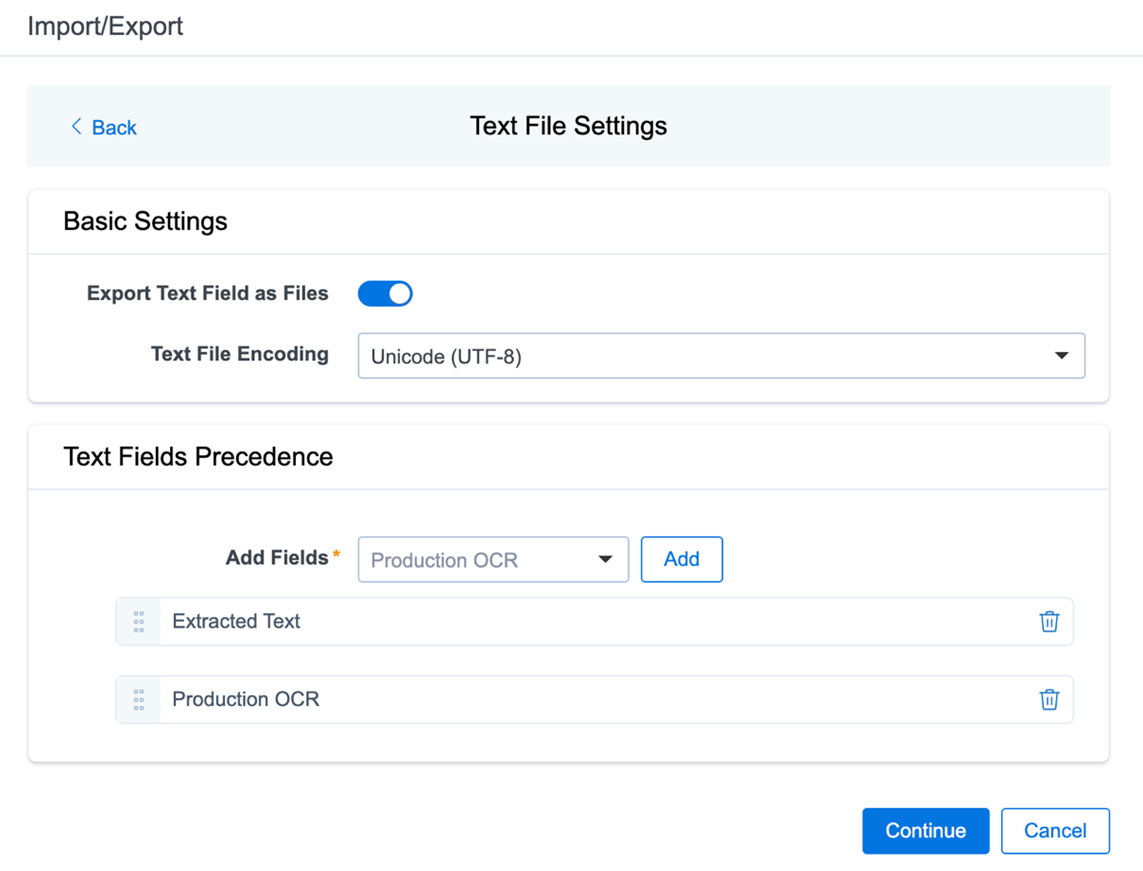
- Export Text Field as Files toggle—determines the export method of the extracted text or OCR. Select this option if you want to export files as individual document-level text files, with one file per document. Turn the toggle off to include text as part of the load file.
- Text File Encoding—if Export Text Field as Files toggle is turned on, select the encoding format for the document-level text files.
- Text Fields Precedence—select and assign an order to long text fields that Relativity checks for text when performing an export. The Text Fields Precedence column displays the file path to the exported files if you turned the Export Text Field as Files toggle on. Relativity adds the Text Fields Precedence column as the last column in the load file. You must select at least one long text field to use this functionality. Select fields from the Add Fields drop-down list, then click Add. To delete a selected field, click its trashcan icon. To order the precedence of the fields, click the six-dot handle next to the field name and drag it to the proper ordering position.
During an export, the system checks the first field in the list for text. If the field is null, it checks the next field in order of precedence for text, and so on. When Relativity finds a field that contains text, it adds the contents of that field to the Text Fields Precedence column in the document load file. Then, the system continues checking the fields for the next document and so on. For example, if you listed the Extracted Text field first and the Production OCR field second, the system would first check the Extracted Text field for content, and if it was null, it would move on to the Production OCR field, and so on.
Advanced Settings fields
Complete the fields on the Advanced Settings dialog
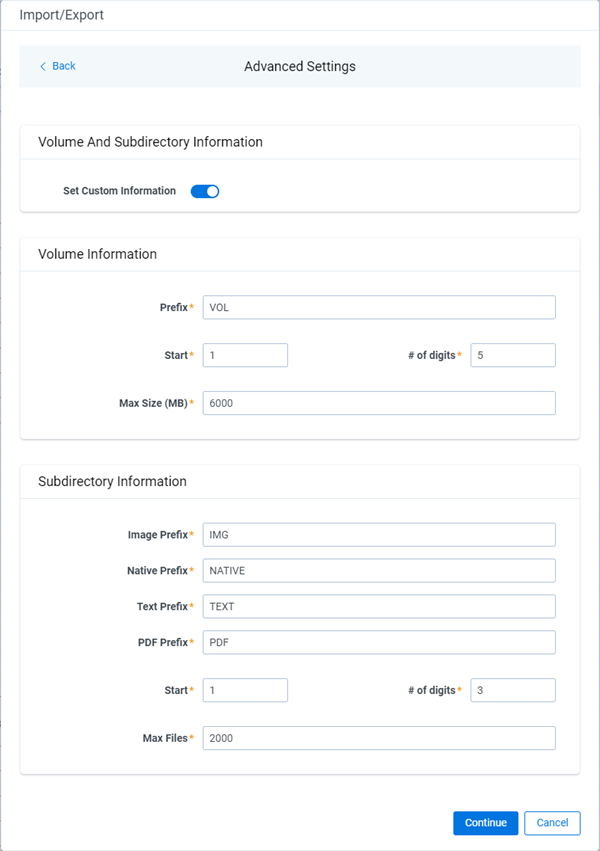
- Volume Information—this section controls the naming and size of the volume identifier. Complete the following options in this section:
- Prefix—enter the alpha prefix for the volume identifier.
- Start—enter the first number used for the numeric section of the volume identifier. Multiple volumes increment numbers during export creating unique volume identifiers.
- # of digits—enter the number of digits attached to the prefix. For example, if you enter 3, the output is VOL001, VOL002, and so on.
- Max Size (MB)—enter the maximum size allowed for each volume.
- Subdirectory Information—this section controls the naming and size of volume sub-folders. Set the following options in this section:
- Image Prefix—enter the alpha prefix for the sub-folder that stores exported images.
- Native Prefix—enter the alpha prefix for the sub-folder that stores exported native files.
- Text Prefix—enter the alpha prefix for the sub-folder that stores exported extracted text files.
- PDF Prefix—enter the alpha prefix for the sub-folder that stores exported extracted PDF files.
- Start—enter the starting number for the sub-folders.
- # of digits—enter the number of digits of the sub-folder prefix. For example, if you enter 3, the output is IMG001, IMG002, and so on.
- Max Files—enter the number of files to store in each sub-folder.
For more information, see Load file export recommendations.